Maya na Cloud: Guia Arnold, V-Ray e Redshift 2026
Visão geral
Introdução
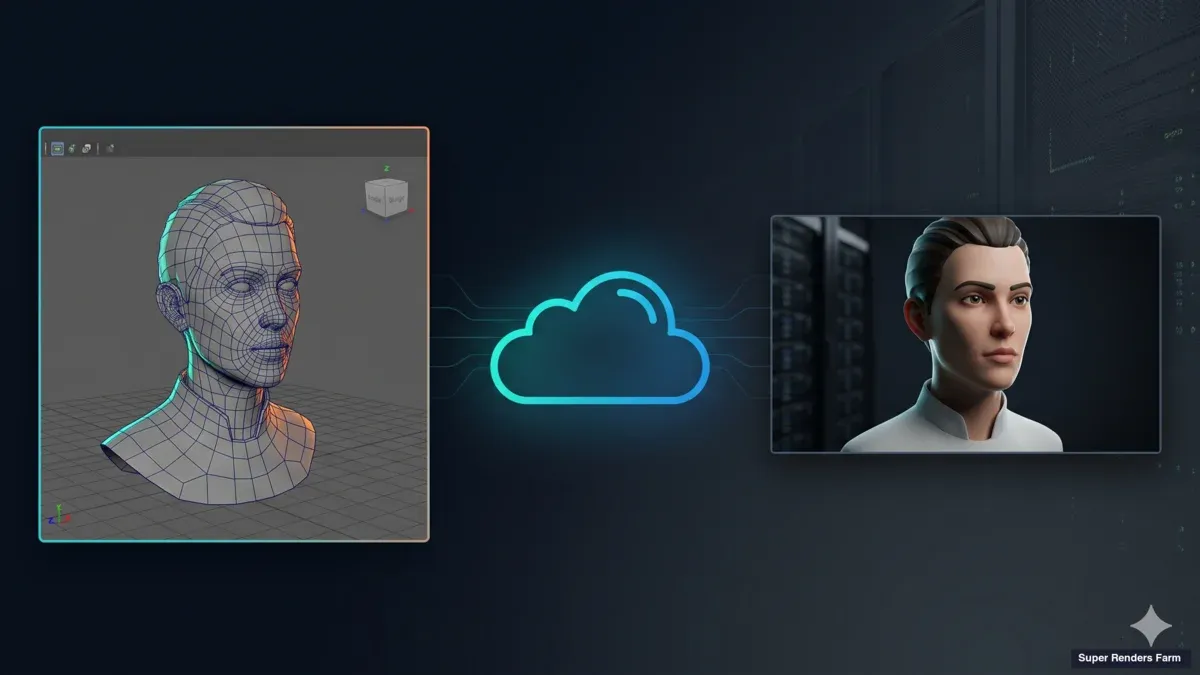
A renderização do Maya na nuvem — também chamada "Maya na cloud" — é a prática de enviar ficheiros de scene do Maya para uma frota remota de render nodes em vez de calcular frames numa workstation local, para que os jobs de Arnold, V-Ray ou Redshift terminem em minutos ou horas em vez de ocupar a máquina durante dias. As scenes do Maya têm tendência a crescer mais do que o esperado. Um interior de archviz com displacement em V-Ray, um plano de criatura com subsurface scattering em Arnold, ou uma sequência de motion design com volumetrics em Redshift — qualquer um destes pode levar uma workstation de "confortável" a "a renderizar durante a noite" no espaço de um projeto. A renderização na nuvem existe precisamente para esse intervalo.
A terminologia varia mas o workflow subjacente é o mesmo: "Maya na cloud", "renderização do Maya na nuvem" e "renderizar o Maya online" são usados indistintamente pela indústria, pela documentação dos fornecedores e nas pesquisas para descrever a mesma coisa — submeter uma scene do Maya a compute remoto em vez de a uma máquina local. Alguns estúdios também dizem "renderizar o Maya numa cloud farm" ou "cloud render do Maya". Nenhuma destas formulações implica uma configuração técnica diferente; todas resolvem para o mesmo workflow de submissão que este guia cobre.
Operamos a Super Renders Farm desde 2017, com uma equipa que gere renderização distribuída para estúdios de animação e VFX desde 2010. Ao longo deste tempo, a pergunta que ouvimos mais frequentemente de utilizadores do Maya não é "devo usar uma cloud farm?" — é "como é que a minha scene precisa de estar antes de fazer o upload?" A resposta honesta é: algumas coisas específicas, todas corrigíveis em 15-30 minutos se souber onde procurar.
Este guia percorre o workflow de renderização na nuvem para o Maya de ponta a ponta. Cobre os motores de renderização que vemos com mais frequência (Arnold, V-Ray for Maya, Redshift for Maya, além de notas mais curtas sobre o RenderMan), as verificações de preparação de scene que evitam erros de texturas em falta, as regras de compatibilidade de plugins que decidem se uma scene sequer carrega num worker node, e os erros específicos que surgem com mais frequência nos tickets de suporte. Se tem um prazo para amanhã e uma sequência de 1200 frames ainda na sua máquina local, este é o workflow que percorremos com novos clientes.
Para um contexto mais alargado sobre como a renderização na nuvem funciona como modelo de serviço, o nosso guia de renderização na nuvem explicada cobre os conceitos subjacentes.
Renderização do Maya na Nuvem: O Que Este Guia Cobre (e o Que Não Cobre)
Este guia é uma referência definicional e de configuração para a renderização do Maya na nuvem em geral — o que é, como preparar uma scene e que erros esperar. Não tenta intencionalmente cobrir tudo o que é relacionado com Maya e cloud num único sítio. Se a sua pergunta for mais específica do que "como funciona a renderização do Maya na nuvem", um destes quatro é provavelmente mais adequado:
- A comparar fornecedores? Veja a nossa comparação render farms para Maya em 2026 — este guia cobre o workflow, não uma comparação fornecedor a fornecedor.
- A atualizar para a versão mais recente do Maya? Veja o nosso guia Maya 2027 cloud render farm para o que muda ao nível de submissão à farm na versão atual.
- À procura das novidades do Maya 2027 em geral? Veja o que há de novo no Autodesk Maya 2027 para o resumo de funcionalidades e ferramentas de IA — esse artigo cobre o próprio lançamento, não a mecânica de submissão na cloud.
- A trabalhar em scenes do Maya baseadas em USD? Veja o nosso guia Maya USD render farm para composição de stage, referenciação e notas de submissão específicas de USD.
Porque É Que a Renderização na Nuvem Se Adequa aos Workflows do Maya
O Maya é agnóstico em relação ao motor de renderização por design. A mesma scene pode passar de Arnold para V-Ray para Redshift com tradução de shaders, e cada motor de renderização tem o seu próprio perfil de desempenho — Arnold e V-Ray são fortes em CPU, o Redshift é apenas GPU, o RenderMan gere ambos. Uma render farm gerida elimina essa variedade: em vez de comprar uma workstation de CPU para archviz e uma workstation de GPU para motion design, as scenes são submetidas a uma frota que já tem o hardware certo, a versão de plugin certa e o servidor de licenças certo já configurados.
Na nossa farm, o lado CPU corre em nodes Dual Intel Xeon E5-2699 V4 com 96–256 GB de RAM — mais de 20 000 núcleos de CPU no total, o que é adequado para cargas de trabalho de V-Ray, Corona e Arnold CPU onde a distribuição paralela multi-frame é o multiplicador de throughput. A frota de GPU usa placas NVIDIA RTX 5090 com 32 GB de VRAM cada, o que dá margem suficiente para a maioria das scenes de Redshift do Maya, incluindo cabelo, pelo e volumetrics que anteriormente sobrecarregavam placas de 24 GB.
Duas consequências práticas para os utilizadores do Maya: (1) não é necessário manter um lugar de licença de render para cada plugin que utiliza ocasionalmente, porque o licenciamento já é gerido no worker; (2) um único projeto do Maya pode misturar motores de renderização entre shots sem forçar a gestão de qual workstation tem qual dongle de licença. Já tivemos clientes a renderizar um plano de criatura em Arnold e um plano de ambiente em V-Ray no mesmo upload de projeto, apenas definindo o motor de renderização correto por ficheiro de scene.
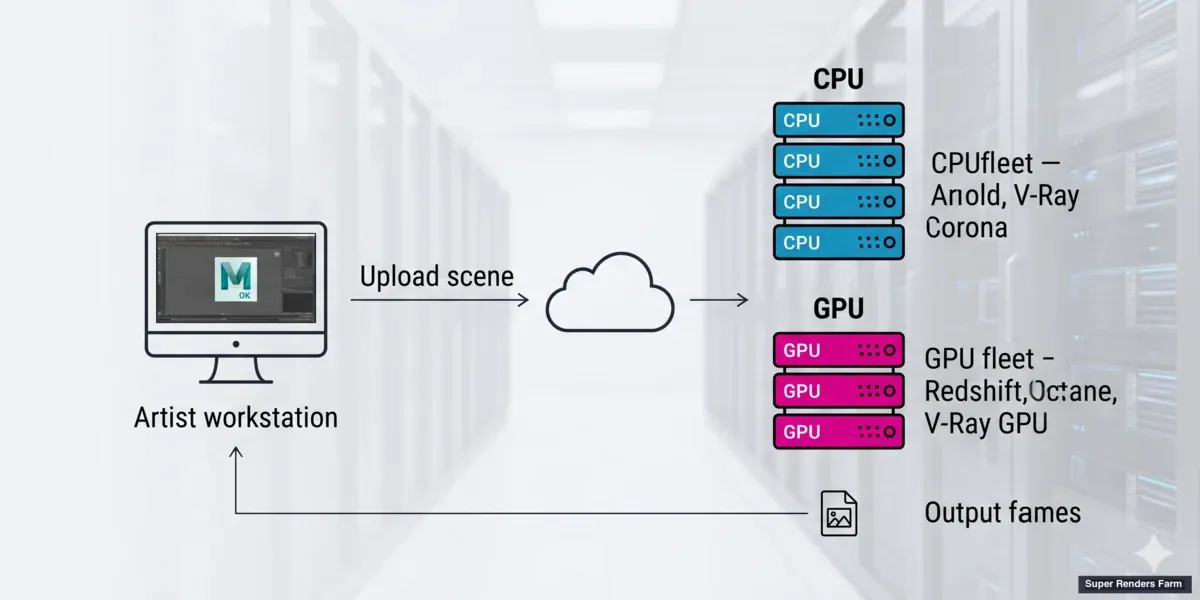 Scenes do Maya distribuídas por workers de renderização CPU e GPU numa cloud farm gerida
Motores de Renderização Suportados nos Pipelines de Cloud do Maya
O Maya vem com o Arnold (MtoA) incluído por predefinição desde o Maya 2022. Outros motores de renderização — V-Ray, Redshift, RenderMan — são plugins separados dos respetivos fornecedores. As cloud farms mantêm normalmente builds pré-instaladas de cada um, fixadas por versão consoante a versão do Maya. A lista abaixo cobre os motores de renderização que vemos em scenes de Maya em produção atualmente, com a distinção CPU/GPU indicada claramente para cada um — é o fator individual mais importante para determinar que nível de hardware na cloud uma dada scene precisa.
Arnold (MtoA) — CPU e GPU. O Arnold vem incluído com o Maya a partir de 2022, e a versão do plugin MtoA incluída no instalador é o ponto de partida predefinido. Os estúdios costumam atualizar o MtoA de forma independente — por exemplo, para aceder a melhorias mais recentes de denoiser ou de imagers. A versão principal do MtoA acompanha geralmente o lançamento do Maya: o Maya 2024 vem com MtoA 5.3.x, o Maya 2025 com MtoA 5.4.x ou 5.5.x. As cloud farms tendem a suportar múltiplas versões pontuais do MtoA por versão do Maya. O Arnold divide-se por tipo de carga de trabalho: a nossa frota de CPU (Dual Intel Xeon E5-2699 V4, 96–256 GB de RAM) é recomendada para finals pesados, output deep-EXR e shaders personalizados, enquanto o modo GPU nos nossos nodes RTX 5090 (32 GB de VRAM) cobre lookdev, previews e finals compatíveis com GPU até cerca de 28 GB de VRAM por frame — qual o modo indicado depende da scene e de quão pesado o render final precisa de ser. Para uma configuração detalhada de cloud render farm para Arnold, a nossa página Arnold cloud render farm cobre-a diretamente.
V-Ray for Maya — CPU e GPU. O V-Ray é um plugin Chaos separado, atualmente no ciclo V-Ray 6; segundo a Chaos, o V-Ray 6 suporta o Maya 2020 até 2025. Na nossa farm, a cobertura do Maya vai de 2014 até 2027, com as versões mais antigas do Maya emparelhadas com a versão de V-Ray correspondente. Somos um parceiro oficial Chaos, o que significa que o licenciamento é gerido ao nível do worker — não há fricção de "trazer a sua própria licença de V-Ray" para submissão na cloud. O V-Ray for Maya é dominante em archviz e visualização de produto por uma razão: a renderização determinística por buckets em CPU continua a ser o caminho mais previsível tanto para stills de alta resolução como para animação, embora o V-Ray GPU seja um segundo modo legítimo na nossa frota RTX 5090 para scenes que cabem em 32 GB de VRAM. A landing page V-Ray cloud render farm lista o intervalo de versões suportadas.
Redshift for Maya — apenas GPU. O Redshift pertence à Maxon e corre no ciclo de lançamento Redshift 3.x. Somos um parceiro oficial Maxon, e o Redshift for Maya faz parte do mesmo conjunto de plugins suportados na nossa frota de GPU, a par do Redshift for Cinema 4D. Ao contrário do Arnold e do V-Ray, o Redshift não tem caminho de renderização em CPU — é concebido exclusivamente para GPU, pelo que todos os jobs de Redshift for Maya na nossa farm correm num node NVIDIA RTX 5090 (32 GB de VRAM), nunca num worker de CPU. Utilizadores do Maya que trabalham no mesmo estúdio que animadores de Cinema 4D tendem a partilhar bibliotecas de shaders Redshift entre ambas as DCC — as notas de workflow no nosso guia de render farm Redshift para Cinema 4D aplicam-se também ao Maya, com a ressalva de que a versão do plugin para Maya trata as referências de geometria através do próprio sistema de referências do Maya.
Se está a ponderar entre os dois motores mais escolhidos para trabalho em GPU e CPU no Maya, a nossa comparação de produção Arnold vs Redshift detalha onde cada um se encaixa entre Maya, 3ds Max e Cinema 4D.
RenderMan for Maya (RfM). O Pixar RenderMan é suportado no ciclo RenderMan 25-27 e é mais visto em trabalho de personagens/criaturas em estúdios de VFX. O RfM é menos comum em archviz do que o Arnold ou o V-Ray, mas existe cobertura na cloud para estúdios que já o adotaram como standard.
Uma regra prática: seja qual for o motor de renderização utilizado para criar a scene, esse mesmo plugin (e idealmente a mesma versão secundária) tem de existir no worker na cloud. Os plugins serializam dados de atributos de nós no seu próprio esquema, e uma scene guardada com V-Ray 6 nem sempre carrega corretamente num worker a correr V-Ray 5. A secção sobre fixação de versão de plugin abaixo cobre isto com mais detalhe.
Pré-Voo: Preparar uma Scene do Maya para Renderização na Nuvem
A maioria das renderizações na nuvem falhadas que vemos em tickets de suporte não são bugs do motor de renderização — são problemas de preparação de scene que só surgem quando a scene sai da workstation. O Maya suporta quatro tipos de caminhos de ficheiro em nós de ficheiro, referências e caches: absoluto (D:\Projects\textures\diffuse.exr), relativo, relativo ao projeto (resolvido em relação a MAYA_PROJECT/sourceimages/), e caminhos com variável de ambiente ($TEXTURES/diffuse.exr). Destes, o relativo ao projeto é o que viaja de forma fiável até um worker na cloud.
O problema da letra de unidade. Ao procurar uma textura na interface do nó File no Windows, o Maya guarda o caminho absoluto com a letra de unidade. Na sua workstation, esse caminho resolve corretamente porque D:\ está montada. Num render worker Linux, D:\ não existe, pelo que o Maya regista "cannot find file" e recorre a um padrão de xadrez predefinido. Caminhos de partilha de rede como \\server\share\textures\ têm o mesmo problema. A correção é configurar um Maya Project (File > Project Window), colocar todas as texturas e referências nas subpastas sourceimages/ e scenes/ do projeto, e depois executar File > Optimize Scene Size com a opção de remapeamento de caminho de textura, ou usar um script Python personalizado para reescrever todos os atributos fileTextureName para serem relativos ao projeto. Uma abordagem reutilizável com variáveis de ambiente do Maya está documentada no nosso guia de configuração de variáveis de ambiente do Maya.
Referências versus geometria importada. As Maya References (criadas via File > Create Reference) vão buscar o caminho do ficheiro referenciado no momento da renderização. O ficheiro .ma ou .mb referenciado tem de viajar com a scene até ao worker na cloud — não fica incorporado. Um erro comum é fazer upload apenas da scene principal, não das sub-scenes referenciadas, e depois questionar-se porque é que metade dos props está em falta. A correção mais simples é fazer upload de toda a pasta do projeto do Maya, sem compactar, não apenas o ficheiro de scene principal. A geometria importada, por contraste, fica incorporada no ficheiro de scene e não precisa de transferência separada — mas aumenta o tamanho do ficheiro.
XGen e caches de cabelo. O XGen Interactive (o modo XGen "de viewport") nem sempre está presente nos workers na cloud, e mesmo quando está, os resultados do batch render podem diferir do viewport da workstation. O caminho fiável é converter o XGen Interactive para Classic XGen com uma cache Alembic pré-calculada, e depois exportar a cache como um ficheiro separado referenciado a partir da scene. O mesmo se aplica às simulações nCache e às caches Bifrost: pré-calcular primeiro, referenciar o ficheiro de cache a partir da scene, incluir a cache na pasta do projeto carregada.
Nós de plugin que dependem do plugin estar carregado. Se a sua scene usa um plugin de terceiros (um plugin de modelação procedimental, um shader personalizado, um plugin de partículas), esse plugin também tem de existir no worker. Se não existir, o Maya regista um aviso de "missing plugin" no momento do carregamento da scene e ignora os nós dependentes ou aborta o carregamento. Antes de submeter, liste os plugins carregados na scene (pluginInfo -query -listPlugins) e confirme que a cloud farm suporta cada um.
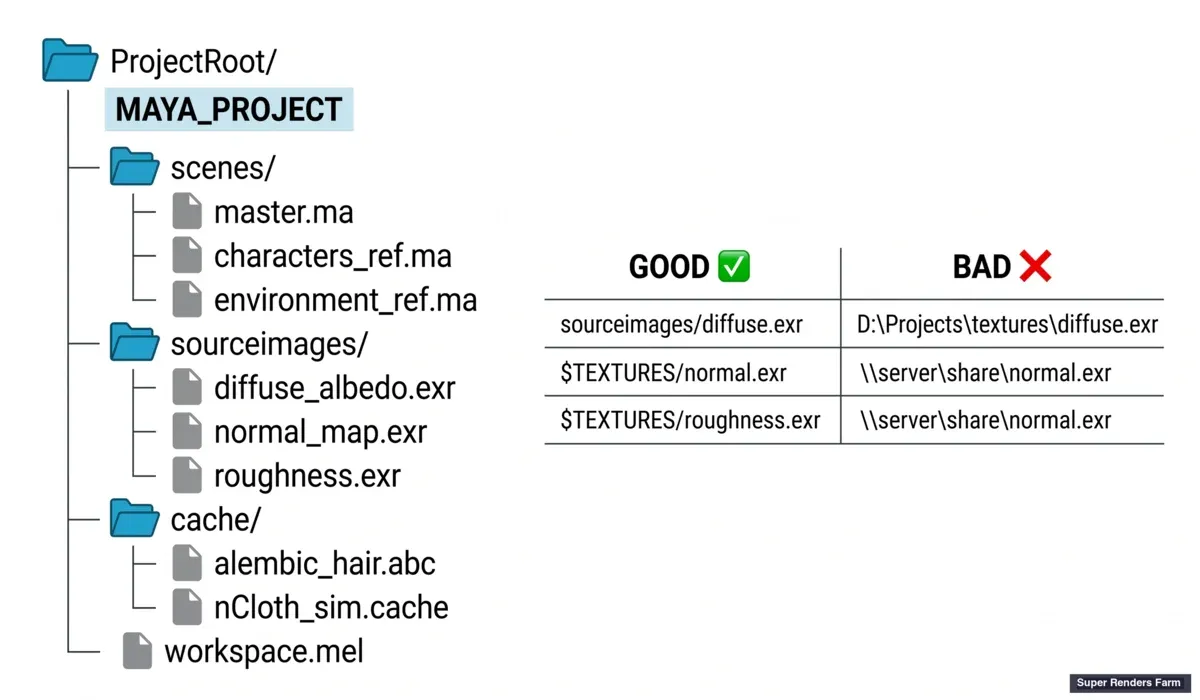 Estrutura de pastas do workspace do projeto Maya com caminhos de textura relativos ao projeto para renderização na nuvem
Submeter Renderizações do Maya a uma Cloud Farm
Assim que a scene está relativa ao projeto e as referências resolvem corretamente, a submissão é um passo de upload de ficheiros. Na nossa farm, faz-se upload da pasta do projeto sem compactar (a farm não extrai arquivos), escolhe-se o ficheiro de scene, define-se o motor de renderização e o intervalo de frames, e a frota de workers trata do resto — checkout de licença, carregamento de plugins, distribuição de frames pelos nodes e entrega do ficheiro de saída à sua conta. O mesmo padrão aplica-se à maioria das cloud farms geridas; as diferenças estão nos detalhes de interface e no modelo de preços.
Por trás dos bastidores, a renderização em batch do Maya a partir da linha de comandos usa Render.exe no Windows ou Render em Linux/macOS, com um pequeno conjunto de flags relevantes para submissão na cloud. O intervalo de frames é definido com -s (frame inicial) e -e (frame final). A pasta de saída é definida com -rd. O formato de imagem é definido com -of — .exr multilayer é o padrão para pipelines de VFX porque preserva dados de AOV, enquanto .png é adequado para stills de archviz. A flag -pad define o padding do número de frame (tipicamente -pad 4 para o estilo 0001.exr), e -fnc 3 define a convenção de nome de ficheiro como name.####.ext. As cloud farms permitem geralmente definir isto numa interface de submissão em vez de digitar o comando diretamente, mas conhecer as flags subjacentes ajuda ao resolver problemas de nomenclatura de saída inesperada.
Se está a mudar para a versão mais recente do Maya, o nosso guia Maya 2027 cloud render farm cobre o que muda para a submissão à farm.
Uma subtileza a notar: os scripts MEL de pré-renderização e pós-renderização do Maya (definidos em Render Settings > Common > Render Options) são executados dentro do processo de batch. Se um script de pré-renderização referenciar um caminho local ou abrir uma caixa de diálogo de interface, a renderização na nuvem falha silenciosamente ou fica bloqueada. Já vimos vários tickets de suporte relacionados com uma chamada system() que funcionava localmente mas não tinha equivalente num worker Linux. Audite qualquer MEL de pré-renderização antes de submeter.
Para o intervalo de frames, três padrões de submissão cobrem a maioria dos casos: um único still (início=fim=frame atual), uma animação contínua (início=1, fim=240, todos os frames), e uma animação com passo (a cada 4.º frame para preview, depois o intervalo completo para a versão final). As cloud farms suportam tipicamente os três. Se estiver a trabalhar com uma câmara animada com motion blur, confirme que a definição de amostras de motion blur é a esperada — o motion blur ao nível da scene e o motion blur ao nível do motor de renderização nem sempre coincidem.
Erros Comuns de Renderização do Maya na Nuvem e Correções
Os erros abaixo cobrem cerca de 80% dos tickets de suporte que vemos em renderizações na nuvem do Maya. O padrão é consistente: a maioria só surge após o upload, porque são problemas de estado da scene que a workstation local mascarava.
| Erro | Causa Raiz | Correção |
|---|---|---|
| "Cannot find file" / texturas em falta | Caminho absoluto com letra de unidade no nó de ficheiro; textura não incluída no upload | Remapear para caminhos relativos ao projeto via File > Optimize Scene Size; incluir sourceimages/ no upload |
| Incompatibilidade de versão de plugin / scene não carrega | Versão do plugin local difere da do worker na cloud, particularmente entre versões principais (V-Ray 5 → 6, Redshift 3.0 → 3.5) | Registar a versão do plugin usada ao guardar a scene; fazer corresponder à versão do worker na cloud; regravar a scene se necessário |
| Incompatibilidade de padding de frame | A flag -fnc na renderização em batch não corresponde à configuração do projeto | Definir o padding de forma consistente em Render Settings > File Output e confirmar que transita para a submissão |
| Scene demasiado grande / memória excedida | Maya References pesadas não colapsadas, displacement denso, nCache ou Alembic incorporados, modo de viewport do XGen | Pré-calcular o XGen para Alembic, externalizar caches, reduzir iterações de subdivisão de displacement, dividir referências pesadas em render layers separados |
| XGen Interactive em falta no batch | O xgenInteractive é apenas de modo viewport; o batch render ignora-o | Converter para Classic XGen com cache Alembic pré-calculada antes da submissão |
| Resíduos do mental ray | O Maya 2017+ removeu o mental ray; scenes legadas podem ter blocos miDefaultOptions | Eliminar nós legados de mental ray via Hypergraph ou limpeza MEL; regravar |
| Confusão de modo de render layer | Os Render Layers legados e o Render Setup (baseado em scene) não são intercambiáveis; o batch renderiza apenas o modo ativo | Decidir que sistema a scene usa; converter se estiver misturado |
| Câmara Arnold em falta | Câmara não assinalada como renderizável, ou atributo de câmara de render perdido numa referência | Consulte o nosso guia corrigir câmara Arnold em falta no Maya para as verificações específicas de atributos de nó |
| aiDenoiser / passe de imager ausente | Scene criada com nós de imager que a versão do plugin no worker na cloud não inclui | Confirmar que a versão do MtoA suporta os nós de imager utilizados; fazer downgrade da scene se necessário |
O mais evitável destes é o problema de caminho de textura com letra de unidade. Uma verificação de 30 segundos antes do upload — abrir o File Path Editor (Windows > General Editors > File Path Editor) e procurar qualquer caminho que comece com uma letra de unidade — poupa mais tempo de renderização do que qualquer um dos outros modos de falha que vemos.
Compatibilidade de Plugins e Fixação de Versão
Os plugins do Maya serializam dados de nós usando o seu próprio esquema. Ao guardar uma scene com V-Ray 6.10, os atributos de nós, os valores predefinidos e a estrutura do grafo de shaders correspondem todos ao formato binário ou ASCII do V-Ray 6.10. Abrir essa scene num worker a correr V-Ray 5.5 provoca uma de três coisas: remapeamento silencioso de atributos (perda de dados que pode não notar durante horas), tipos de nós em falta (plugins mais recentes registam tipos de nós que versões mais antigas não têm), ou aborto da renderização com uma mensagem de "incompatibilidade de versão de plugin".
A regra prática que seguimos na Super Renders Farm e recomendamos aos clientes: versões de hot-fix dentro do mesmo lançamento secundário (V-Ray 6.10.01 → 6.10.03) são geralmente seguras de misturar; saltos de versão secundária (6.0 → 6.1) são geralmente seguros mas vale a pena testar num único frame antes de avançar para uma sequência completa; saltos de versão principal (V-Ray 5 → 6, Redshift 3.0 → 3.5) nunca devem ser assumidos como compatíveis. A mesma regra aplica-se ao MtoA, ao RenderMan e a qualquer plugin de terceiros que registe nós do Maya.
Para verificar com que versão de plugin uma scene do Maya foi guardada, abra o ficheiro .ma num editor de texto e procure o bloco fileInfo no topo — entradas como fileInfo "VrayPluginVersion" "6.10.01" ou fileInfo "MtoAVersion" "5.4.0.2" indicam exatamente que esquema de plugin a scene espera. Confirme que o worker na cloud tem pelo menos essa versão secundária antes de submeter.
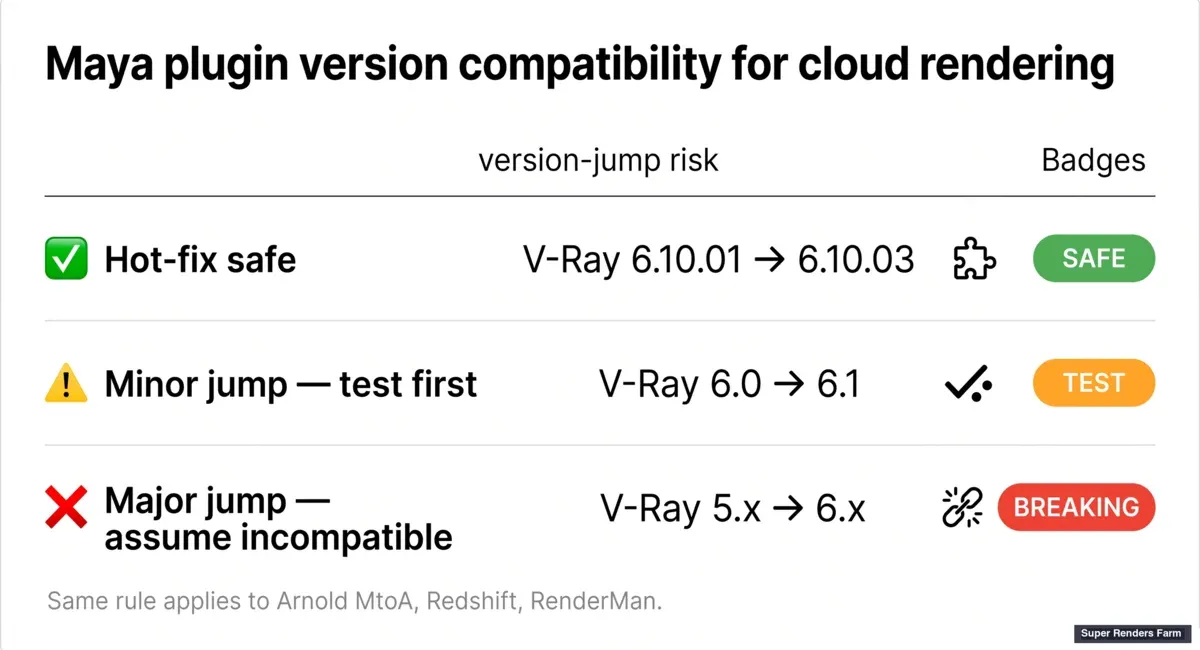 Matriz de compatibilidade de versão de plugin do Maya mostrando saltos de versão seguros e disruptivos
Cloud Gerida vs. Render Farm DIY para Maya
Alguns utilizadores do Maya consideram construir a sua própria farm a partir de VMs na cloud — criando algumas instâncias EC2 ou Azure, instalando o Maya e os plugins manualmente, configurando servidores de licenças e depois submetendo via Deadline ou um scheduler equivalente. Esta é a abordagem IaaS (Infrastructure as a Service), e é trabalho real: cada imagem de VM precisa de manutenção, cada licença de plugin precisa de tratamento separado, e cada atualização de versão do Maya é um exercício de nova criação de imagem.
Uma render farm na cloud gerida reduz tudo isso a um upload de ficheiros. Nós mantemos a frota de workers — versões do Maya, versões de plugins, servidores de licenças, patches do sistema operativo — para que uma scene Maya 2024 + Arnold 5.3 + V-Ray 6.10 possa renderizar no worker certo sem que tenha de aprovisionar nada. A contrapartida é o controlo: uma farm IaaS dá-lhe acesso root em cada máquina; uma farm gerida dá uma matriz de plugins fixa (mas suportada). Para a maioria do trabalho de produção em Maya — archviz, animação, motion design — o modelo gerido é o que ouvimos funcionar.
Se ainda está a ponderar o Maya face às outras principais DCC antes de comprometer um pipeline, a nossa comparação de software de modelação 3D cobre Maya, Blender, Cinema 4D e 3ds Max quanto a custo de licença e adequação a render farm. Para estúdios com um plugin interno personalizado que exige recompilação contra uma build específica do Maya, a IaaS pode ser o único caminho viável.
Para scenes do Maya baseadas em USD especificamente, incluindo referenciação, composição de stage e submissão à farm, veja o nosso guia Maya USD render farm.
O panorama de custos também é diferente. Um percurso mais detalhado sobre como os preços de renderização na nuvem realmente se comportam entre estes modelos está nos nossos artigos modelos de preços de render farm comparados e construir render farm vs custo total na cloud. A nossa própria página de preços está em /pricing. Para comparação entre farms geridas para Maya, as nossas páginas comparação de serviços de render farm para 2026 e render farms para Maya em 2026 cobrem o panorama diretamente.
FAQ
Q: Que motor de renderização devo escolher para renderização do Maya na nuvem — Arnold, V-Ray ou Redshift? A: Os três são amplamente suportados em cloud farms geridas. O Arnold vem incluído com o Maya desde 2022 e é o ponto de partida predefinido para muitos estúdios, particularmente em VFX e animação. O V-Ray domina archviz e visualização de produto devido à sua renderização determinística por buckets em CPU. O Redshift é a escolha de GPU mais comum para motion design e trabalho em Maya adjacente ao Cinema 4D. A escolha certa depende do tipo de scene e do pipeline existente, não do suporte na cloud — os três são de primeira linha na nossa farm.
Q: Como preparo um ficheiro de scene do Maya para renderização na nuvem sem perder texturas?
A: Configure um Maya Project adequado (File > Project Window), coloque todas as texturas em sourceimages/, depois remapeie os caminhos absolutos para caminhos relativos ao projeto usando File > Optimize Scene Size ou o File Path Editor. Confirme que nenhum caminho começa com uma letra de unidade (D:\, Y:\) ou uma partilha de rede (\\server\). Faça upload de toda a pasta do projeto sem compactar, não apenas o ficheiro de scene, para que os ficheiros referenciados e as caches de textura viajem com o upload.
Q: Que erros de incompatibilidade de versão de plugin ocorrem nas renderizações do Maya na nuvem, e como os evito?
A: O mais comum é um salto de versão principal — por exemplo, uma scene guardada com V-Ray 6 a tentar carregar num worker a correr V-Ray 5. Os plugins serializam dados de nós no seu próprio esquema; as versões principais não têm garantia de compatibilidade retroativa. Para evitar incompatibilidades, registe a versão do plugin no momento em que a scene foi guardada (visível no bloco fileInfo de um ficheiro .ma em ASCII) e confirme que o worker na cloud suporta essa versão antes de submeter. Diferenças ao nível de hot-fix dentro do mesmo lançamento secundário são geralmente seguras.
Q: Como funciona a submissão do intervalo de frames do Maya para renderização na nuvem?
A: O intervalo de frames é controlado por -s (frame inicial) e -e (frame final) em Render.exe, com -pad a definir os dígitos de zero-padding (por exemplo, -pad 4 para 0001.exr) e -fnc 3 a definir a convenção de nome de ficheiro como name.####.ext. As cloud farms expõem tipicamente isto como campos de formulário em vez de flags de linha de comandos. Se os nomes de ficheiro de saída parecerem inesperados (padding errado, ordem errada), verifique se a definição ao nível do projeto e a definição da submissão coincidem.
Q: Posso renderizar scenes do Maya com ficheiros referenciados numa cloud farm?
A: Sim, desde que os ficheiros .ma ou .mb referenciados viajem com a scene. As Maya References vão buscar o caminho do ficheiro referenciado no momento da renderização — o ficheiro não fica incorporado na scene principal. A abordagem fiável é fazer upload de toda a pasta do projeto do Maya, sem compactar e incluindo todas as sub-scenes referenciadas, para que todas as referências resolvam no worker.
Q: Como renderizo cabelo ou pelo XGen do Maya numa cloud farm? A: Converta o XGen Interactive (o modo de viewport) para Classic XGen com uma cache Alembic pré-calculada antes de submeter. O XGen Interactive é um sistema apenas de viewport; o batch render nem sempre o reproduz corretamente. Assim que estiver em cache como Alembic, o cabelo/pelo viaja com a scene e renderiza de forma determinística entre workers.
Q: Qual é a diferença entre uma cloud render farm gerida para Maya e uma render farm IaaS? A: Uma farm gerida mantém a versão do Maya, o conjunto de plugins, os servidores de licenças e a configuração do sistema operativo na frota de workers — faz upload de uma scene, a farm renderiza-a. Uma farm IaaS dá VMs na cloud em bruto que são aprovisionadas por si próprio: instalar o Maya, instalar plugins, gerir licenças, correr um scheduler. A gerida é mais rápida para submissões de produção; a IaaS dá controlo total se precisar de um plugin interno personalizado ou de uma build de Maya não standard. O nosso artigo o que é uma render farm totalmente gerida cobre a distinção em detalhe.
Q: Como é calculado o custo da renderização do Maya na nuvem? A: A maioria das cloud farms geridas cobra por node-hora ou por frame, com multiplicadores consoante o nível de hardware (CPU vs GPU) e a complexidade da scene. O nosso guia de custo por frame de render farm percorre como a matemática funciona na prática especificamente para scenes do Maya. Para uma visão geral de nível mais alto sobre modelos de preços entre cloud farms, veja o guia de preços de render farm.
Q: "Maya na cloud" é o mesmo que "renderização do Maya na nuvem"? A: Sim. "Maya na cloud", "renderização do Maya na nuvem" e "renderizar o Maya online" descrevem o mesmo workflow — submeter uma scene do Maya a uma render farm remota em vez de calcular frames numa workstation local. A formulação varia consoante quem pesquisa ou escreve, mas o processo de submissão subjacente (preparação de scene, correspondência de plugins, distribuição de frames) é idêntico nos três termos.
Q: Como renderizo o Maya online em vez de na minha própria máquina?
A: Empacote o seu projeto Maya (ficheiro de scene, sub-scenes referenciadas e texturas em sourceimages/) numa estrutura relativa ao projeto, faça upload para uma cloud render farm, selecione o motor de renderização (Arnold, V-Ray ou Redshift) e o intervalo de frames, e submeta. Uma farm gerida trata automaticamente do checkout de licença e do carregamento de plugins; o principal trabalho de preparação é garantir que os caminhos de ficheiro são relativos ao projeto em vez de apontarem para uma letra de unidade local.
Q: Qual é a diferença entre uma render farm na cloud para Maya e a renderização na nuvem em geral? A: Uma render farm na cloud para Maya mantém especificamente builds de plugins compatíveis com o Maya (MtoA para o Arnold, o plugin V-Ray for Maya, o Redshift for Maya) fixadas por versão às versões suportadas do Maya. A renderização na nuvem em geral é a categoria de serviço mais alargada que também cobre outras DCC como Cinema 4D, 3ds Max e Blender. Se o seu pipeline for específico do Maya, confirme que a farm lista explicitamente o suporte de plugins do Maya, em vez de assumir que a cobertura genérica de "renderização na nuvem" o inclui.
About Thierry Marc
3D Rendering Expert with over 10 years of experience in the industry. Specialized in Maya, Arnold, and high-end technical workflows for film and advertising.