Redshift render farm für Cinema 4D: Worauf es 2026 ankommt
Überblick
Einführung
Redshift hat verändert, wie viele Cinema 4D Studios über Rendering nachdenken. Eine Szene, die auf einer Workstation-CPU früher vierzig Minuten pro Frame benötigte, ist jetzt auf einer einzelnen GPU in zwei oder drei Minuten fertig. Multipliziert man das auf eine 3.000-Frame-Animation, funktioniert die Mathematik mit einer Maschine nicht mehr — entweder kauft man mehr GPUs, oder man schickt den Job zu einer render farm.
Wir betreiben Redshift-Jobs auf unserer render farm seit 2019, damals noch eine relativ nischige Engine in der C4D-Welt. Im Jahr 2026 ist sie zur Standardwahl für einen Großteil der Cinema 4D Studios geworden, insbesondere in Motion Design und Broadcast. Dieser Wandel hat verändert, worauf render farms achten müssen — und wo sie häufig versagen.
Dieser Artikel behandelt, was wir beim Betrieb von Redshift-Infrastruktur im großen Maßstab gelernt haben: welche Hardware wirklich zählt, wie Lizenzierung in einem Farm-Kontext funktioniert, häufige Szenenprobleme, die Renderzeit verschwenden, den genauen Einreichungs-Workflow von Cinema 4D zu gerenderten Frames, die Versionskompatibilität zwischen Cinema 4D- und Redshift-Releases, Preiserwartungen und worauf Sie bei der Bewertung einer Cloud-render-farm für Ihre C4D + Redshift-Pipeline achten sollten. Als offizieller Maxon-Partner haben wir eng mit Cinema 4D Teams zusammengearbeitet, um diesen Workflow zu optimieren.
Warum Redshift für Cinema 4D
Cinema 4D und Redshift haben im Vergleich zu den meisten DCC + Render-Engine-Kombinationen eine ungewöhnlich enge Integration. Maxons Übernahme von Redshift im Jahr 2019 (und die Bündelung von Redshift in Cinema 4D Abonnements ab 2022) bedeutet, dass Redshift für viele C4D-Nutzer der „enthaltene" Produktions-Renderer ist.
Diese Integration ist für render farms in spezifischer Weise relevant. Redshift respektiert C4Ds natives Materialsystem durch den Redshift Node Editor, verarbeitet C4Ds MoGraph Cloner und Effektoren nativ und bewältigt Takes — C4Ds Render-Pass-System — ohne die Konvertierungsprobleme, die einige Drittanbieter-Engines plagen.
Die wichtigsten praktischen Vorteile für C4D Redshift-Nutzer auf einer Cloud-render-farm:
- Lineare Frame-Skalierung — Mehrere Maschinen bedeuten ungefähr N×-fachen Durchsatz für Animationen. Jede Maschine rendert unabhängig einen separaten Frame.
- Zugang zu aktueller Hardware — Unsere GPU-Flotte läuft mit NVIDIA RTX 5090 Karten mit 32 GB VRAM, die Szenen verarbeiten, die auf älteren Karten aus dem Speicher laufen würden.
- Kein Nacht-Rendering — Anstatt Ihre Workstation drei Tage lang zu rendern, lagern Sie den Job aus und arbeiten weiter an Revisionen.
- Terminflexibilität — Der Kunde hat die Lieferung um zwei Tage vorgezogen? Erhöhen Sie die Maschinenanzahl, anstatt Kompromisse bei der Qualität einzugehen.
Redshifts biased GPU Rendering-Ansatz liefert Produktionsqualitätsergebnisse wesentlich schneller als CPU-basierte Alternativen für die Art von Szenen, für die C4D typischerweise verwendet wird: prozedurale Geometrie, hohe Shader-Komplexität, relativ moderate Polygon-Anzahlen.
Für eine breitere Perspektive, wie Redshift gegenüber V-Ray, Arnold, Corona und Octane in 2026 abschneidet, deckt unser 3D-Rendering-Software-Vergleich Leistung, Preisgestaltung und Funktionsunterschiede zwischen den Engines ab.
Versionskompatibilität von Cinema 4D und Redshift
Die Release-Zyklen von Cinema 4D und Redshift sind unabhängig — Maxon liefert C4D-Versionsupdates ungefähr jährlich, während Redshift auf seiner eigenen Bahn läuft, mit einem LTS-Branch (Long-Term-Support) neben der Rolling-Release-Hauptlinie. Die falsche Kombination auf einem Farm-Node zu mischen, ergibt in der Regel eines von zwei Ergebnissen: eine Szene, die zwar lädt, aber subtil anders rendert als lokal, oder ein harter Ladefehler mit einem „Plugin not loaded"-Konsolenfehler.
Überprüfen Sie vor dem Einreichen, ob Ihre lokale Cinema 4D-Version und Ihre lokale Redshift-Version einer Kombination entsprechen, die wir auf der render farm unterstützen. Wenn Ihr Projekt auf einer neueren Kombination erstellt wurde, als die render farm aktuell betreibt, haben Sie zwei Optionen: lokal vor der endgültigen Einreichung herunterstufen oder den Support kontaktieren, um das passende Versionspaar anzufordern.
| Cinema 4D | Redshift | NVIDIA Mindesttreiber | Hinweise |
|---|---|---|---|
| 2024 | 3.5.x | 535+ | Stabile Produktionskombination für Architekturvisualisierung; Hydra USD Render Delegate verfügbar; KI-Denoiser (Altus, OptiX) unterstützt |
| 2025 | 3.6.x | 545+ | Erste vollständige Version mit dem neu aufgebauten Take System Rendering Pipeline; breiterer USD/MaterialX-Austausch; empfohlen für neue Produktionen |
| 2025 | 3.7 LTS | 555+ | LTS-Branch — erhält nur kritische Fehlerbehebungen, keine Funktionsänderungen; empfohlen, wenn Zuverlässigkeit mehr zählt als neue Funktionen (z. B. lange Animationsserien) |
| 2026 | 3.7 LTS | 555+ | Abwärtskompatibel — C4D 2026 Szenen laden unter 3.7 LTS für die meisten Workflows korrekt; prüfen Sie, ob Szenen 2026-exklusive MoGraph-Cache-Funktionen verwenden |
| 2026 | 3.7.x main | 565+ | Aktuelle Rolling-Release-Kombination; Blackwell-aware Kernel-Updates für das RTX 5090 SM-Layout; Karma XPU Kompatibilität für Cross-DCC-Pipelines |
Zwei praktische Hinweise:
- Treiber-Minima sind NVIDIA-veröffentlichte Unterböden, keine Empfehlungen. Unsere Farm-Nodes laufen typischerweise zwei bis drei Versionen neuer als der Unterboden für Stabilität und Blackwell-Scheduling-Verbesserungen.
- Der „Rolling-Release-Main"-Track bewegt sich schnell. Eine Szene, die auf Redshift 3.7.5 erstellt wurde, kann auf 3.7.4 nicht geladen werden, wenn sie einen neuen Shader-Node verwendet, der in 3.7.5 eingeführt wurde. Im Zweifel Testframes auf der render farm rendern, bevor Sie die vollständige Sequenz einreichen.
Wenn Sie unsicher sind, welche Redshift-Version Ihre lokale Cinema 4D-Installation verwendet, prüfen Sie Redshift > About Redshift aus dem Cinema 4D-Menü. Gleichen Sie dies mit dem aktuell unterstützten Versionspaar der render farm bei der Einreichung ab.
GPU-Hardware: Was für Redshift wirklich zählt
Redshift ist ein GPU-Renderer, was bedeutet, dass die GPU-Hardware der render farm Ihre Rendergeschwindigkeit und Kosten direkt bestimmt. Folgendes sollten Sie bewerten:
VRAM ist der Engpass, nicht die Taktfrequenz. Das häufigste Problem, das wir bei Redshift-Jobs sehen, die scheitern oder langsam laufen, ist VRAM-Überlauf. Wenn eine Szene den verfügbaren GPU-Speicher überschreitet, fällt Redshift auf Out-of-Core Rendering zurück — es wird fertig, aber die Leistung sinkt erheblich. Eine Szene, die mit im VRAM passenden Texturen in 90 Sekunden rendert, kann 8–10 Minuten dauern, wenn Daten hin und her gelagert werden müssen.
Als Referenz: Unsere aktuellen GPU-Nodes laufen mit NVIDIA RTX 5090 Karten mit 32 GB VRAM — dem aktuellen Blackwell-Architektur-Flaggschiff von NVIDIA. Jede Karte trägt 32 GB GDDR7-Videospeicher, eine wesentlich erweiterte CUDA-Kernanzahl gegenüber der vorherigen Ada Lovelace-Generation und dedizierte KI-Kerne, die Redshift 3.7 für seinen OptiX-basierten Denoiser nutzt. Für den Großteil der C4D + Redshift-Jobs, die wir sehen — Motion Design, Produktvisualisierung, Architekturvisualisierung Innenräume — verarbeitet 32 GB die Szene komfortabel. Aber wenn Sie mit 8K-Texturen, High-Poly-Scatters oder schweren Partikelsimulationen arbeiten, sollte die VRAM-Kapazität die erste Spezifikation sein, nach der Sie fragen.
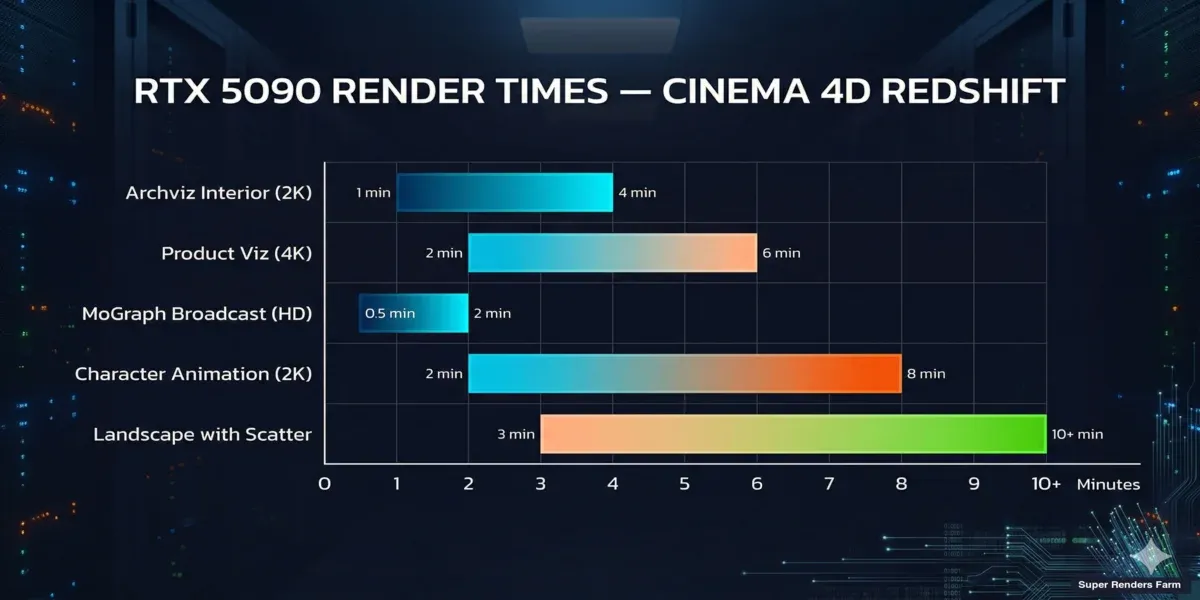 RTX 5090 Renderzeit-Benchmarks für Cinema 4D Redshift-Szenen nach Projekttyp
Hier ist, was Hardware der aktuellen Generation für häufige Cinema 4D Redshift-Szenentypen bedeutet:
| Szenentyp | Typische Frame-Zeit (RTX 5090) | Hinweise |
|---|---|---|
| Architekturvisualisierung Innenraum (2K) | 1–4 Minuten | GI-schwere Szenen mit vielen Lichtreflexionen |
| Produktvisualisierung (4K) | 2–6 Minuten | SSS-Materialien, Kaustiken erhöhen die Zeit |
| MoGraph Broadcast (HD) | 30 Sekunden – 2 Minuten | Abhängig von Effekten und Volumetrics |
| Charakteranimation (2K) | 2–8 Minuten | Haare und SSS sind die größten Faktoren |
| Luftaufnahme/Landschaft mit Scatter | 3–10 Minuten | Vegetations-Proxies und Nebelvolumen |
Im Vergleich zu einer lokalen RTX 4090: Die RTX 5090 liefert je nach Szenenkomplexität etwa 40–60 % schnellere Renderzeiten, hauptsächlich durch die größere CUDA-Kernanzahl und verbesserte Speicherbandbreite. Szenen, die auf einer 4090 5 Minuten pro Frame benötigten, sind typischerweise in 3–3,5 Minuten fertig. Der GDDR7-Speicher der 5090 bietet auch eine höhere effektive Bandbreite (~1,8 TB/s) als das GDDR6X der Vorgeneration (~1,0 TB/s) — dies manifestiert sich als schnelleres Texture-Streaming für Szenen mit vielen 4K- und 8K-Bitmap-Texturen.
Redshift 3.7-spezifische Gewinne. Der 3.7-Hauptzweig wird mit Blackwell-aware Kernel-Updates ausgeliefert — Redshift kompiliert seine Core-Sampling-Kernel für das SM-Layout der 5090 neu und gewinnt Leistung zurück, die zuvor verloren ging, als die gleiche Binary auf beiden Ada- und Blackwell-Hardware lief. Für volumen-schwere Szenen (Broadcast Motion Design mit VDB-Nebel, Atmosphärik) reduziert der KI-Denoiser in 3.7 ebenfalls die erforderliche Samples-Anzahl erheblich ohne sichtbaren Qualitätsverlust — praktischer Effekt: 30–40 % weniger Samples, um dasselbe Endbild zu erreichen, was direkt zu niedrigerer Renderzeit und niedrigeren Kosten pro Frame auf einer pro-GHz abgerechneten render farm führt.
Multi-GPU-Skalierung. Redshift skaliert gut auf mehreren GPUs derselben Maschine, aber Cloud Rendering verteilt typischerweise auf mehrere Single-GPU-Nodes (ein Frame pro Node), anstatt mehrere GPUs auf einen Frame zu legen. Für Animationen ist Single-GPU-pro-Frame effizienter. Für einzelne hochauflösende Standbilder ist Multi-GPU wichtiger — fragen Sie Ihre render farm, ob sie Multi-GPU-Nodes für Standbild-Renders anbietet.
Treiber-Versionen. Das klingt wie ein kleines Detail, verursacht aber mehr fehlgeschlagene Jobs als erwartet. Redshift ist eng an spezifische NVIDIA-Treiberversionen gekoppelt. Eine Diskrepanz zwischen dem Treiber Ihrer lokalen Workstation und dem Treiber der render farm kann subtile Unterschiede beim Shading oder, schlimmer, direkte Abstürze verursachen. render farms, die es Ihnen ermöglichen, Treiberversionen vor der Einreichung zu wählen oder zu überprüfen, sparen Ihnen Fehlerbehebungszeit.
Für tiefere technische Details zu RTX 5090-Leistungsmerkmalen über Renderer hinweg deckt unser RTX 5090 GPU Cloud Rendering Leistungsartikel Octane, V-Ray GPU und Redshift-Benchmark-Methodologie im Detail ab.
Lizenzierung: Der Teil, den niemand gut erklärt
Redshift-Lizenzierung auf render farms ist einer der am häufigsten missverstandenen Aspekte von Cloud Rendering für C4D-Nutzer. So funktioniert es tatsächlich im Jahr 2026.
Wenn Sie ein Maxon One- oder Cinema 4D-Abonnement haben, erhalten Sie Redshift inklusive — aber diese Lizenz ist an Ihre Maschine gebunden. Sie erstreckt sich nicht automatisch auf eine render farm.
render farms handhaben Lizenzierung auf eine von zwei Weisen:
-
render farm stellt Lizenzen bereit — Die render farm besitzt einen Pool von Redshift Render-Lizenzen und umfasst die Kosten in ihrer per-Frame- oder per-Stunden-Preisgestaltung. Sie müssen darüber nicht nachdenken.
-
Bringen Sie Ihre eigene Lizenz (BYOL) — Einige IaaS-Farms (wo Sie per Remote Desktop auf eine Maschine zugreifen) erfordern, dass Sie Ihre eigene Redshift-Lizenz mitbringen. Dies kann den Kauf zusätzlicher node-locked oder floating Lizenzen bedeuten.
Für die meisten Nutzer ist Option 1 einfacher. Wir schließen Redshift-Lizenzierung in unsere Rendering-Kosten ein — Sie reichen eine .c4d-Datei ein, wir kümmern uns um die Lizenzzuweisung auf beliebig vielen Nodes, die Ihr Job benötigt. Keine Lizenzserver-Einrichtung, kein Seat-Zählen, keine Beschränkungen bei „maximalen gleichzeitigen Renders". Zu beachten: Redshift-Drittanbieter-Plugins (wie X-Particles, das Redshift-Materialien verwendet) müssen auf der Farm-Seite installiert sein. Wir pflegen aktuelle Versionen gängiger Plugins, aber wenn Sie etwas Nischiges verwenden, prüfen Sie dies mit dem Support, bevor Sie einreichen.
Für einen umfassenderen Blick, wie Redshift-Lizenzierung mit anderen Engines verglichen wird — einschließlich der Maxon Teams-Preisänderung, V-Ray Node-Lizenzierung und Arnolds gebündelte Nodes — sehen Sie unseren Render Farm Software Lizenzierungs-Guide.
Szenen-Vorbereitung: Zeit sparen bevor Sie einreichen
Der Unterschied zwischen einer reibungslosen render farm-Erfahrung und einer frustrierenden liegt in der Regel in der Szenen-Vorbereitung. Hier sind die Probleme, die wir am häufigsten bei Cinema 4D + Redshift-Einreichungen sehen, nach Häufigkeit geordnet:
1. Texturpfade und Asset-Konsolidierung. Cinema 4Ds „Projekt mit Assets speichern" (Datei > Projekt mit Assets speichern...) ist Ihr wichtigstes Werkzeug vor der Einreichung bei einer render farm. Es sammelt alle externen Referenzen — Texturen, HDRIs, Proxy-Dateien, Alembic-Caches — in einem einzigen Projektordner. Ohne dies erhält die render farm eine .c4d-Datei, die auf C:\Benutzer\IhrName\Texturen\ zeigt, was auf dem Render-Node natürlich nicht existiert. Wir sehen dies bei etwa 20 % der Ersteinreichungen. Es ist eine Zwei-Minuten-Korrektur Ihrerseits, die einen fehlgeschlagenen Job verhindert. Öffnen Sie nach der Konsolidierung das konsolidierte Projekt und rendern Sie lokal einen Frame, um zu bestätigen, dass nichts kaputt ist. Prüfen Sie Fenster > Konsole auf Asset-Pfad-Warnungen. Überprüfen Sie, ob Texturpfade relativ sind.
2. Redshift Proxy-Dateien (.rs). Wenn Ihre Szene Redshift Proxy-Dateien verwendet — und viele schwere Szenen tun dies, insbesondere mit gestreuter Vegetation oder Produkt-Arrays — stellen Sie sicher, dass die .rs-Proxy-Dateien in Ihrem gepackten Projekt enthalten sind. C4Ds „Projekt mit Assets speichern" erfasst Redshift Proxy-Referenzen nicht immer, da sie technisch außerhalb von C4Ds Asset-Management liegen. Überprüfen Sie, ob Proxy-Pfade in den Redshift Proxy-Objekt-Einstellungen relativ sind. Große Proxy-Dateien (>500 MB jede) erhöhen die Upload-Zeit — bedenken Sie, ob Instancing stattdessen funktionieren würde.
3. Takes und Render-Einstellungen. Das Takes-System von Cinema 4D ist leistungsstark, erzeugt aber einen häufigen Fehler: Sie richten Ihre Render-Einstellungen im Haupt-Take ein, reichen dann einen anderen Take bei der render farm ein, und die Auflösung oder der Frame-Bereich ist falsch. Überprüfen Sie immer, welcher Take aktiv ist und ob seine Render-Einstellungen (Auflösung, Frame-Bereich, Ausgabepfad) Ihren Erwartungen entsprechen.
4. Render-Queue-Konfiguration für Animationen. Für Animations-Einreichungen sind folgende Einstellungen wichtig:
| Einstellung | Empfohlener Wert | Warum |
|---|---|---|
| Frame-Bereich | Vollständiger Bereich (z.B. 0–499) | render farm teilt dies auf Maschinen auf |
| Frame-Schritt | 1 (außer absichtlich) | Schritt > 1 verursacht fehlende Frames |
| Ausgabeformat | EXR 16-Bit oder PNG-Sequenz | Einzelne Frames, kein Video-Container |
| Ausgabepfad | Relativ: ./output/$take/ | Absolute Pfade existieren auf der render farm nicht |
| Bild speichern | Aktiviert mit Dateiprefix | Jeder Frame benötigt einen eindeutigen Dateinamen |
Reichen Sie niemals als Video-Dateiausgabe ein (MP4, MOV). render farms rendern einzelne Frames — Sie kompilieren lokal danach zu Video.
5. Redshift-spezifische Render-Einstellungen zu überprüfen.
| Einstellung | Ort | Farm-bereiter Wert |
|---|---|---|
| GPU-Auswahl | Redshift > Einstellungen | Auf „Alle verfügbar" setzen (nicht eine spezifische GPU) |
| VRAM-Limit | Redshift Render-Einstellungen > Speicher | Automatisch (32 GB VRAM der render farm verwalten lassen) |
| Texture-Cache | Redshift > Einstellungen > Cache | Standard lassen — Farm-Pfade unterscheiden sich |
| AOVs / Multi-Pass | Render-Einstellungen > AOV | Alle Passes einschließen, die Sie benötigen — erneutes Rendern für einen fehlenden Pass kostet Zeit |
| Bucket-Größe | Render-Einstellungen > Allgemein | 256 oder Auto (große Buckets = bessere GPU-Auslastung) |
6. MoGraph- und Simulations-Caching (kritisch für Motion Design). Wenn Ihre Szene MoGraph Effektoren mit Randomisierung verwendet, cachen Sie das MoGraph (MoGraph > MoGraph cachen...) vor der Einreichung. Ohne Caching könnten verschiedene Maschinen unterschiedliche Zufalls-Seeds generieren, was zu Flimmern oder Popping zwischen Frames führt. Dasselbe gilt für Dynamics-Simulationen, X-Particles, TurbulenceFD, RealFlow und jedes Voronoi Fracture-Objekt, das Dynamics verwendet — baken Sie alle auf die Festplatte vor dem Upload. Jede kann nicht-deterministische Ergebnisse über Worker-Nodes hinweg produzieren, wenn sie ungecacht bleibt.
7. Drittanbieter-Plugins und VRAM-Schätzung. X-Particles, Forester und ähnliche Plugins müssen auf der render farm-Seite installiert sein. Nicht alle Farms unterstützen jedes Plugin. Bevor Sie sich zu einem großen Job verpflichten, prüfen Sie, ob Ihre spezifischen Plugins und Versionen verfügbar sind. Redshifts integrierte VRAM-Nutzungsanzeige (sichtbar im Redshift RenderView) gibt Ihnen eine gute Schätzung des Peak-VRAM-Verbrauchs. Überprüfen Sie dies vor der Einreichung — wenn Ihre Szene 20+ GB auf Ihrer lokalen GPU verwendet, wird es auf einer 24-GB-Karte eng, und Sie sollten Optionen mit dem Support-Team Ihrer render farm besprechen, bevor Sie einen großen Batch einreichen.
Schritt für Schritt: Einreichen eines Cinema 4D Redshift-Projekts
Hier ist der genaue Workflow von der Szenendatei zu gerenderten Frames:
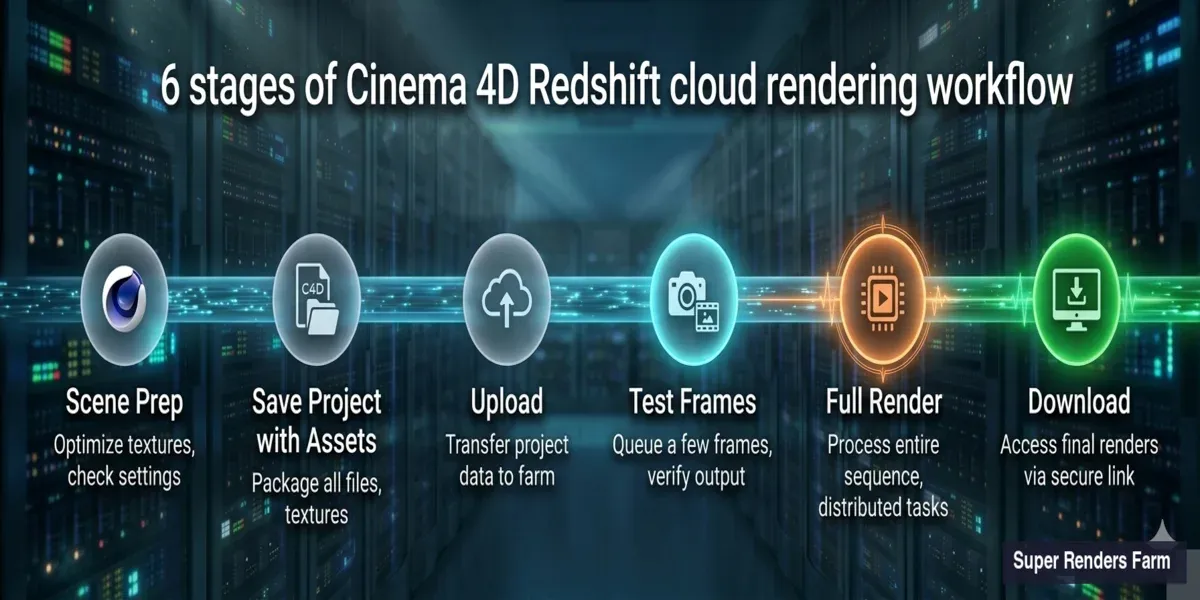 Cinema 4D Redshift render farm Einreichungs-Workflow — von der Szenenvorbereitung zu gerenderten Frames
Schritt 1 — Bereiten Sie Ihre Szene vor. Folgen Sie der obigen Checkliste. Führen Sie einen schnellen lokalen Test-Render durch (1 Frame in finaler Qualität), um zu bestätigen, dass alles funktioniert.
Schritt 2 — Laden Sie Ihr Projekt hoch. Verwenden Sie die Super Renders Farm Desktop-Anwendung: Öffnen Sie die App und wählen Sie Cinema 4D als Ihr DCC, wählen Sie Ihren konsolidierten Projektordner (den aus „Projekt mit Assets speichern"), und lassen Sie den Uploader nach fehlenden Assets suchen und Sie vor dem Hochladen warnen. Die Upload-Geschwindigkeit hängt von Ihrer Verbindung ab — ein typisches 2-GB-Projekt dauert bei einer 50-Mbps-Verbindung 5–15 Minuten.
Schritt 3 — Konfigurieren Sie Render-Einstellungen im Web-Dashboard. Bestätigen Sie nach dem Upload den Frame-Bereich (Start/Ende), Priorität (Standard oder Rush — Rush verwendet mehr Maschinen gleichzeitig), Ausgabeformat (sollte dem entsprechen, was Sie in C4D gesetzt haben) und Auflösung (wird automatisch aus Ihren Render-Einstellungen erkannt).
Schritt 4 — Führen Sie einen Test-Frame aus. Rendern Sie immer 2–3 Test-Frames, bevor Sie die vollständige Sequenz bestätigen. Prüfen Sie auf fehlende Texturen (erscheint als Magenta/Pink), überprüfen Sie, ob Beleuchtung und Belichtung mit Ihrem lokalen Render übereinstimmen, und bestätigen Sie Ausgabeformat und Namenskonvention.
Schritt 5 — Starten Sie den vollständigen Render. Sobald die Test-Frames korrekt aussehen, genehmigen Sie den vollständigen Frame-Bereich. Maschinen beginnen sofort zu rendern — Sie können den Fortschritt in Echtzeit überwachen. Jeder Frame rendert unabhängig, sodass frühe Frames zum Download verfügbar sind, während spätere noch verarbeitet werden.
Schritt 6 — Laden Sie Ergebnisse herunter. Frames werden heruntergeladen, sobald sie fertig sind (Sie müssen nicht auf die gesamte Sequenz warten). Importieren Sie Ihre EXR/PNG-Sequenz in Ihren Kompositor (After Effects, DaVinci, Nuke). Überprüfen Sie die Frame-Kontinuität — scrollen Sie durch die Sequenz und suchen Sie nach Ausreißern.
Für Projekte mit ungewöhnlichen Plugin-Anforderungen oder Szenen, die 20 GB überschreiten, wenden Sie sich an den Support vor dem Hochladen — wir können die Kompatibilität prüfen und Optimierungen spezifisch für Ihre Szene vorschlagen. Sie können auch damit beginnen, die Super Renders Farm App herunterzuladen und ein Konto zu erstellen.
Vollständig verwaltete vs. Remote Desktop: Warum es für C4D-Nutzer wichtig ist
Cloud-render-farms fallen in zwei unterschiedliche Kategorien, und der Unterschied ist für Cinema 4D-Nutzer wichtiger als für einige andere DCCs:
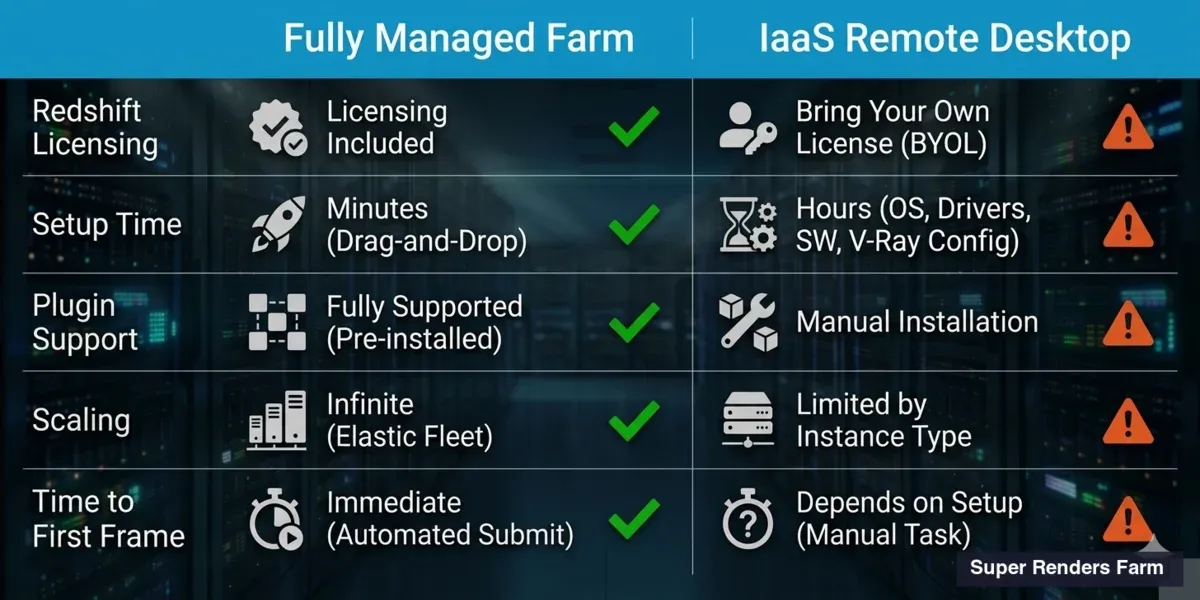 Vergleich von vollständig verwalteter render farm vs. IaaS Remote Desktop für Cinema 4D Redshift-Rendering
| Merkmal | Vollständig verwaltete render farm | IaaS / Remote Desktop |
|---|---|---|
| Software-Einrichtung | Vorinstalliert, aktualisiert | Sie installieren und konfigurieren |
| Redshift-Lizenzierung | Enthalten in Render-Kosten | Sie stellen Ihre eigene Lizenz bereit |
| Plugin-Unterstützung | Gängige Plugins vorinstalliert | Sie installieren manuell |
| Szenen-Fehlerbehebung | Support-Team hilft bei der Problemlösung | Sie beheben Fehler auf der Remote-Maschine |
| Upload-Prozess | Drag-and-Drop-Uploader | Dateitransfer zur VM, dann rendern |
| Skalierung | Automatisch auf verfügbaren Nodes | Sie starten/stoppen VMs manuell |
| Abrechnung | Per-Frame oder per-GHz-Stunde | Stündliche VM-Miete |
| Zeit bis zum ersten Frame | Minuten (nach Upload) | 30–60 Minuten (VM-Start + Einrichtung) |
Remote Desktop / IaaS-Farms vermieten Ihnen eine virtuelle Maschine. Sie verbinden sich per Remote Desktop (RDP), installieren Cinema 4D und Redshift selbst, konfigurieren die Szene und starten den Render. Sie sind für Lizenzierung, Plugin-Installation, Treiber-Management und Fehlerbehebung verantwortlich. Wenn etwas um 2 Uhr morgens vor einem Abgabetermin kaputt geht, sind Sie derjenige, der es repariert.
Vollständig verwaltete render farms kümmern sich um alles. Sie laden eine Szenendatei hoch, und das System der render farm deployt sie auf Render-Nodes, auf denen bereits Cinema 4D, Redshift, erforderliche Plugins und korrekte Treiberversionen installiert sind. Sie überwachen den Fortschritt über ein Web-Dashboard oder eine Desktop-App.
Speziell für Cinema 4D vermeidet der vollständig verwaltete Ansatz einen häufigen Schmerzpunkt: Das Lizenz- und Plugin-Ökosystem von C4D erfordert sorgfältiges Versions-Matching. Redshift-Version, C4D-Version, Plugin-Versionen und GPU-Treiberversionen müssen alle kompatibel sein. Auf einer verwalteten render farm kümmert sich das Operations-Team um diese Matrix. Beim Remote Desktop navigieren Sie diese selbst.
Der Kompromiss ist Kontrolle vs. Komfort. Wenn Sie ungewöhnliche Pipeline-Anforderungen haben — benutzerdefinierte Skripte, Houdini Engine-Integration, proprietäre Plugins, die nicht in der Standardbibliothek einer render farm sind — gibt Ihnen ein Remote Desktop volle Kontrolle. Für Standard-C4D + Redshift-Workflows (die die große Mehrheit der Jobs abdecken) beseitigt vollständig verwaltet den operativen Aufwand und ermöglicht Ihnen, sich auf die kreative Arbeit zu konzentrieren. Der Break-even-Punkt ist unserer Erfahrung nach ungefähr: Wenn Sie sonst mehr als 30–45 Minuten pro Projekt für Maschinen-Einrichtung, Plugin-Installation und Lizenzkonfiguration aufwenden würden, amortisiert sich vollständig verwaltet bei einem einzigen Projekt.
Cinema 4D für Motion Design: Cloud Rendering Workflow
Cinema 4D ist seit über einem Jahrzehnt ein Kernwerkzeug im Broadcast Motion Design, und Motion-Graphics-Projekte machen einen erheblichen Anteil der C4D-Render-Jobs aus, die wir verarbeiten. Titel-Sequenzen, Broadcast-Pakete, Event-Visuals und Social-Media-Inhalte — diese Projekte teilen Merkmale, die Cloud Rendering besonders nützlich machen.
Das erste ist das Volumen. Ein 30-sekündiger Broadcast-Opener bei 24 fps sind 720 Frames. Ein 60-sekündiger Event-Loop bei 30 fps sind 1.800 Frames. Motion Designer, die in Broadcast arbeiten, liefern selten ein einzelnes Stück — ein typisches Netzwerkpaket umfasst einen Opener, Bumper, Lower Thirds und Übergangs-Elemente, was leicht 5.000 bis 10.000 Frames pro Projekt erreicht. Das lokal zu rendern, blockiert eine Workstation tagelang, und Motion-Design-Deadlines werden in der Regel in Tagen gemessen, nicht in Wochen.
Das zweite ist Multi-Pass-Komplexität. Broadcast-Motion-Graphics-Workflows stützen sich stark auf Multi-Pass-Rendering — separate Passes für Diffuse, Reflection, Ambient Occlusion, Matte-Objekte und Cryptomatte-IDs — damit Kompositoren in After Effects oder NukeX Timing, Farbe und Schichtung ohne Re-Rendering anpassen können. Auf unserer render farm rendern Multi-Pass-Sequenzen parallel wie Single-Pass-Frames: Jeder Node gibt den vollständigen Pass-Stack für seinen zugewiesenen Frame aus, und alle Passes kommen zusammen an.
MoGraph-spezifische render farm-Überlegungen, die über die grundlegende Vorbereitungs-Checkliste hinaus zu beachten sind:
- Alles cachen — MoGraph Effektoren, Dynamics, Cloth, Soft Body. Jede nicht-deterministische Simulation muss auf die Festplatte gebacken werden.
- Takes-System für Varianten — Wenn Ihr Projekt mehrere Takes hat (verschiedene Farbschemata, verschiedene Text-Overlays, verschiedene Kamerawinkel), reichen Sie jeden Take als separaten Render-Job ein, anstatt alle Takes in einer Einreichung zu aktivieren. render farms parallelisieren Jobs effizienter als Takes innerhalb eines einzelnen Jobs.
- Multi-Pass / AOV-Konfiguration — Mindestens überprüfen: Beauty, Diffuse, Reflection, Refraction, Specular, GI, AO, Z-Depth, Object ID. Eine 1.500-Frame-Sequenz erneut zu rendern, weil Sie den Z-Depth-Pass vergessen haben, kostet so viel wie das Original-Rendering.
- Frame-Abhängigkeiten — Einige MoGraph-Effekte erzeugen Inter-Frame-Abhängigkeiten (Motion Blur, Vector Motion Pass). Diese sind auf einer render farm in Ordnung — jede Maschine rendert ihren zugewiesenen Frame mit dem vollständigen Szenenzustand.
- Audio-synchronisierte Animation — Die render farm benötigt Ihre Audio-Spur nicht. Sie rendert Frames basierend auf in die Timeline gebackenen Keyframes. Stellen Sie nur sicher, dass Ihre Animations-Kurven final sind.
Cinema 4D Motion Design umfasst auch mehrere Renderer. Während Redshift den Großteil der GPU-beschleunigten Motion-Graphics-Arbeit übernimmt, verwenden Studios noch Cinema 4Ds Physical Renderer für spezifische Effekte wie Subsurface-Scattering-Genauigkeit, und einige Broadcast-Häuser betreiben Standard- oder Sketch und Toon für stilisierte Looks. Eine render farm, die C4D nativ unterstützt, verarbeitet all diese ohne separate Konfiguration — die Renderer-Auswahl ist in die Szenendatei eingebettet. Für einen Überblick, wie Render-Kosten über verschiedene Projekttypen und Engines skalieren, deckt unser render farm Kosten-pro-Frame-Breakdown die Mathematik detailliert ab.
Preise: Wie viel kostet Redshift Cloud Rendering?
render farm-Preise für GPU-Jobs wie Redshift werden typischerweise nach GPU-Stunde oder per Frame basierend auf der Renderzeit berechnet.
Grobe Schätzungen für typische Cinema 4D Redshift-Projekte:
| Projekttyp | Frames | Durchschnittliche Frame-Zeit | Geschätzte Kosten |
|---|---|---|---|
| 30-Sekunden-Broadcast-Spot (720 Frames, HD) | 720 | 1 Min./Frame | 15–30 $ |
| Produkt-Turntable (120 Frames, 4K) | 120 | 4 Min./Frame | 12–25 $ |
| Architektur-Animation (1500 Frames, 2K) | 1500 | 3 Min./Frame | 80–150 $ |
| MoGraph-Reel (2000 Frames, HD) | 2000 | 45 Sek./Frame | 25–50 $ |
Diese Schätzungen setzen Standardpriorität voraus. Rush-Priorität (mehr Maschinen gleichzeitig, schnellere Lieferung) kostet ungefähr das 1,5–2-Fache der Standardpreise. Für genaue Preise verwenden Sie den Kostenrechner mit Ihren spezifischen Szenenparametern — Frame-Anzahl, Auflösung und erwartete Renderzeit pro Frame.
Optimierung Ihrer Szene für schnelleres (günstigeres) render farm-Rendering
Jede gesparte Minute pro Frame multipliziert sich über Hunderte von Frames. So reduzieren Sie die Renderzeit ohne Qualitätseinbußen:
Schnelle Gewinne (minimale visuelle Auswirkung):
- GI-Bounces von 8 auf 4 reduzieren — oft im Endergebnis nicht unterscheidbar
- Redshifts automatisches Sampling verwenden anstatt fester hoher Werte
- Reflection/Refraction-Tiefe von 8 auf 4 für unkritische Materialien senken
- „Versteckte Objekte rendern" deaktivieren, wenn Ihre Szene versteckte Geometrie hat
Mittlerer Aufwand (vor der Umsetzung testen):
- Verschiebung auf vektor-basiert umstellen, wo möglich (schneller als Höhenfeld)
- LOD (Level of Detail) für Hintergrund-Objekte verwenden — geringere Poly-Anzahl für entfernte Geometrie
- Texturauflösung für Objekte reduzieren, die <5 % des Bildschirms einnehmen
- Redshifts Out-of-Core-Texturing für Szenen mit vielen 8K-Texturen aktivieren
Großer Einfluss (erfordert Szenenanpassung):
- Schweren Volumennebel durch Umgebungsnebel ersetzen, wo akzeptabel
- Redshift Proxy für wiederholte Objekte anstatt Geometrie-Instances verwenden
- Komplexe prozedurale Texturen für Renderzeit-Effizienz zu Bitmap baken
- Extrem schwere Szenen in Render-Layer aufteilen und kompositieren
Was bei der Wahl einer Redshift render farm zu bewerten ist
Basierend auf dem Betrieb von Redshift-Infrastruktur und Gesprächen mit Hunderten von C4D-Nutzern ist hier, was wirklich einen guten von einem schlechten Erlebnis unterscheidet:
GPU-Generation und VRAM. Fragen Sie spezifisch nach dem GPU-Modell und wie viel VRAM. „GPU Rendering unterstützt" sagt Ihnen nichts. NVIDIA Ada Lovelace (RTX 4090) und Blackwell (RTX 5090) sind die aktuelle Generation, für die Redshift optimiert ist. Ältere GPUs wie GTX 1080 Ti rendern zwar Redshift, aber mit erheblichen Funktions- und Leistungseinschränkungen.
Redshift- und C4D-Versionsunterstützung. Neue Redshift-Versionen erscheinen ungefähr vierteljährlich und führen manchmal breaking changes in Materialsystemen oder AOV-Pipelines ein. Bestätigen Sie, dass die render farm Ihre spezifische Versionskombination unterstützt — nicht nur „Redshift" generisch. Die Kompatibilitätsmatrix zu Beginn dieses Guides ist das Versionspaar, das wir aktuell betreiben; prüfen Sie es gegen Ihre lokale Installation, bevor Sie sich festlegen.
Plugin-Verfügbarkeit. X-Particles, Forester, TurbulenceFD, Greyscalegorilla — wenn Ihre Szene davon abhängt, muss die render farm es haben. Fragen Sie nach einer aktuellen Plugin-Liste mit Versionsnummern.
Test-Renders. Jede seriöse render farm ermöglicht es Ihnen, einen Test-Render von einigen Frames durchzuführen, bevor Sie sich zu einem vollständigen Job verpflichten. Nutzen Sie dies, um zu überprüfen: Die Ausgabe sieht identisch mit Ihrem lokalen Render aus, der VRAM-Verbrauch liegt innerhalb der Grenzen und die Frame-Zeit entspricht Ihren Erwartungen.
Support-Reaktionszeit. Wenn ein 3.000-Frame-Animations-Job bei Frame 847 scheitert, wie schnell antwortet die render farm? Um 3 Uhr morgens an einem Freitag? Hier haben vollständig verwaltete Farms typischerweise einen Vorteil — dedizierte Support-Teams, die die Rendering-Pipeline verstehen, versus generischen Cloud-Infrastruktur-Support, der möglicherweise nicht weiß, was Redshift ist.
Ausgabe-Lieferung. Wie erhalten Sie Ihre Frames? Direkter Download, Cloud-Speicher-Link oder versendete Festplatte? Für große Animations-Jobs (Tausende von hochauflösenden EXR-Frames) kann die Download-Bandbreite zu einem echten Engpass werden. Fragen Sie vorab nach Ausgabe-Optionen.
Für einen breiteren Blick über alle vier C4D-unterstützten Render-Engines — Redshift, Octane, Arnold und V-Ray — und wie sie auf Cloud-Hardware verglichen werden, deckt unser bester Cinema 4D render farm Vergleich für 2026 Kosten pro Frame, Plugin-Kompatibilität und Versionsunterstützung für jede Engine ab.
Häufige Redshift render farm-Probleme (und wie Sie sie vermeiden)
Nach Jahren des Betriebs von Redshift im großen Maßstab ist hier eine schnelle Referenz für Probleme, die wir wiederholt sehen:
| Problem | Ursache | Lösung |
|---|---|---|
| Pink/Magenta-Bereiche im Render | Fehlende Texturen | „Projekt mit Assets speichern" erneut ausführen, Pfade auf Relativität prüfen |
| Unterschiedliche Ergebnisse pro Frame (Flimmern) | Nicht gecachtes MoGraph oder Dynamics | Alle MoGraph und Simulationen vor dem Upload cachen |
| Render viel langsamer als erwartet | VRAM-Überlauf → Out-of-Core Rendering | Texturen optimieren, VRAM-Nutzung in RenderView prüfen |
| Out-of-Memory-Fehler | Szene überschreitet GPU-VRAM | Lokale VRAM-Nutzung prüfen — wenn nahe 32 GB, Displacement oder Texturauflösung optimieren |
| Subtile Shading-Unterschiede | Treiber- oder Redshift-Versionsdiskrepanz | Genaue Versionsübereinstimmung mit render farm prüfen |
| Farben sehen anders aus als lokal | Color-Management-Diskrepanz | ACES/ACEScg-Einstellungen in die Szenendatei einbetten, nicht nur Redshift-Einstellungen |
| Fehlendes Motion Blur oder DOF | Render-Einstellungen im falschen Take | Aktiven Take vor dem Export prüfen |
| Fehlende GI in Animation | GI-Cache nicht auf per-Frame gesetzt | Brute Force GI verwenden oder sicherstellen, dass Irradiance-Cache auf per-Frame-Wiederaufbau gesetzt ist |
| Plugin-abhängige Objekte fehlen | Plugin nicht auf der render farm installiert | Plugin-Verfügbarkeit vor großen Jobs bestätigen |
| Zufällige Frame-Abstürze | GPU-Memory-Leak auf langen Sequenzen | „Renderer alle N Frames neu starten" aktivieren, wenn verfügbar |
Wenn Sie auch in Maya neben Cinema 4D arbeiten, deckt das Maya Cloud Rendering Setup-Parallel Arnold, V-Ray für Maya und Redshift für Maya-Workflows ab. Sie können auch unseren Cloud Rendering Guide für ein breiteres Verständnis von verteiltem Rendering lesen oder den GPU Rendering vs. CPU Rendering-Vergleich prüfen, wenn Sie bewerten, ob Redshift die richtige Wahl für Ihre Pipeline ist.
FAQ
Q: Kann ich Cinema 4D + Redshift auf einer CPU-render-farm rendern? A: Nein. Redshift ist nur GPU-basiert. Sie benötigen eine render farm mit NVIDIA GPUs und aktuellen CUDA-Treibern. Es gibt keinen CPU-Fallback-Modus in Produktions-Redshift.
Q: Deckt mein Maxon-Abonnement die render farm-Nutzung ab? A: Ihr Cinema 4D + Redshift-Abonnement deckt nur Ihre lokalen Maschinen ab. Als offizieller Maxon-Partner stellt Super Renders Farm Redshift Render-Lizenzen auf allen GPU-Maschinen bereit — Ihr Abonnement muss sich nicht auf die render farm-Nutzung erstrecken. Andere render farms funktionieren möglicherweise auf einem Bring-Your-Own-License-Modell, das separate Kauf-Render-Lizenzen erfordert.
Q: Welche Cinema 4D- und Redshift-Versionskombinationen unterstützen Sie?
A: Wir unterstützen Cinema 4D 2024, 2025 und 2026 gepaart mit Redshift 3.5.x, 3.6.x und 3.7.x (sowohl Rolling-Release-Main als auch 3.7 LTS). Die vollständige Kompatibilitätstabelle — einschließlich minimaler NVIDIA-Treiberversionen und Hinweise zu Hydra USD, Karma XPU und Blackwell-aware Kernel-Updates — erscheint im Abschnitt Versionskompatibilität oben. Wenn Ihre lokale Installation eine nicht aufgelistete Kombination verwendet, prüfen Sie Redshift > About Redshift für Ihren genauen Build und kontaktieren Sie den Support vor der Einreichung.
Q: Welchen VRAM haben Ihre GPU-Maschinen für Redshift-Rendering? A: Jede GPU-Maschine läuft mit einem NVIDIA RTX 5090 mit 32 GB VRAM. Dies verarbeitet komplexe Szenen mit schwerer Displacement, zahlreichen 4K-Texturen und großen Proxy-Anzahlen, die den Speicher von Consumer-Karten überschreiten würden.
Q: Kann ich Cinema 4D MoGraph-Animationen auf einer render farm rendern?
A: Ja, aber Sie müssen Ihre MoGraph-Effektoren und alle Dynamics-Simulationen vor der Einreichung cachen. Ohne Caching würde jede render farm-Maschine unterschiedliche Zufalls-Seeds generieren, was zu Flimmern zwischen Frames führt. Verwenden Sie MoGraph > MoGraph cachen in Cinema 4D vor dem Export.
Q: Wie lange dauert ein typischer Cinema 4D Redshift render farm-Render? A: Die Gesamtlieferzeit hängt von der Frame-Anzahl und Komplexität ab. Eine 720-Frame-HD-Broadcast-Animation mit durchschnittlich 1 Minute pro Frame würde mit 20 Maschinen gleichzeitig in etwa 30–45 Minuten abgeschlossen sein — im Vergleich zu 12 Stunden auf einer einzelnen lokalen GPU.
Q: Wie schätze ich die Kosten eines Redshift render farm-Jobs? A: Rendern Sie lokal einen repräsentativen Frame und notieren Sie die Renderzeit. Multiplizieren Sie mit der Gesamtanzahl der Frames für eine grobe Schätzung der benötigten GPU-Stunden. Wenden Sie dann den GPU-Stunden-Satz der render farm an. Die meisten render farms geben Ihnen ein Angebot nach einem Test-Render von 5–10 Frames.
Q: Welche Cinema 4D-Plugins werden auf der render farm unterstützt? A: Wir pflegen aktuelle Versionen wichtiger Plugins einschließlich X-Particles, TurbulenceFD, Forester und Signal. Für nischige oder neu veröffentlichte Plugins prüfen Sie mit dem Support vor der Einreichung. Alle simulationsbasierten Plugins erfordern gecachte/gebakte Ausgabe unabhängig von der render farm-Unterstützung.
Q: In welchem Dateiformat soll ich auf einer render farm rendern? A: EXR 16-Bit (Half-Float) wird für die meisten Produktionsarbeiten empfohlen — es erhält den Dynamikbereich für Compositing. PNG ist akzeptabel für Motion-Design-Deliverables, die direkt zur Video-Bearbeitung gehen. Nie als Video-Container ausgeben (MP4, MOV) — render farms rendern einzelne Frames.
Q: Kann ich Redshift-Proxies auf einer render farm verwenden? A: Ja, solange die .rs-Proxy-Dateien in Ihrem hochgeladenen Projekt enthalten sind. Stellen Sie sicher, dass Proxy-Dateipfade relativ und nicht absolut sind. Große Proxy-Bibliotheken erhöhen die Upload-Zeit, rendern aber korrekt, sobald sie auf der render farm sind.
Q: Was ist der Unterschied zwischen Redshift und OctaneRender auf einer render farm? A: Beide sind GPU-Renderer, aber Redshift verwendet einen Biased-Ansatz (schneller, mit kontrollierten Annäherungen), während Octane unbiased ist (physikalisch genau, typischerweise langsamer). Beide funktionieren gut auf render farms. Die Wahl hängt von Ihren Produktionsanforderungen ab, nicht von der render farm.
Q: Was ist, wenn meine Szene den GPU-VRAM der render farm überschreitet? A: Redshifts Out-of-Core Rendering wird damit umgehen, aber die Leistung sinkt erheblich. Optionen: Optimieren Sie Ihre Texturen (auf das, was bei der Render-Auflösung tatsächlich benötigt wird, verkleinern), verwenden Sie Proxy-Geometrie für schwere Objekte, oder fragen Sie, ob die render farm höhere VRAM-Nodes anbietet.
Q: Wie viel schneller ist Redshift auf der GPU im Vergleich zu CPU-Rendering? A: Für typische C4D-Szenen ist GPU-Rendering 5–15× schneller. Der genaue Speedup hängt von der Szenenkomplexität, Shader-Dichte und Effekttypen (Motion Blur, DOF) ab. Einfache Szenen können 20×+ schneller sein; komplexe prozedurale Szenen könnten 3–5× sein.
Q: Gibt es ein Mindest-Render-Volumen für eine render farm? A: Nein. Die meisten render farms akzeptieren Single-Frame-Jobs. Für kleine Studios oder Freelancer funktionieren Pay-as-you-go-Modelle gut. Sobald Sie 100+ GPU-Stunden/Monat erreichen, werden Monatsabonnements kosteneffektiver.
Q: Kann ich Cinema 4D + Redshift Rendering in meine bestehende Pipeline integrieren? A: Teilweise. Super Renders Farm hat noch keine öffentliche Job-Submission-API (die programmatische Einreichung steht auf unserer Roadmap, ist aber heute noch nicht verfügbar), daher werden Jobs über die GUI eingereicht: das Website-Upload-Formular, unsere Desktop-App oder das Cinema-4D-Plugin. Der Teil, der unbeaufsichtigt läuft, ist der Abruf: Der Auto-Download der Desktop-App zieht fertige Frames in einen lokalen Ordner, sobald sie abgeschlossen sind.
About Alice Harper
Blender and V-Ray specialist. Passionate about optimizing render workflows, sharing tips, and educating the 3D community to achieve photorealistic results faster.