Fully Managed Cloud Render Farm vs. DIY: What You're Actually Choosing
Overview
Introduction
A fully managed render farm handles software installation, licensing, job distribution, and error handling for you — upload, render, download. A DIY render farm (whether self-built or rented cloud VMs) means you handle every layer yourself, from OS updates and license servers to plugin configuration and render management. For most studios under 20 artists, fully managed comes out cheaper in total cost of ownership once staff time is factored in. At Super Renders Farm, we have operated a fully managed service since 2010, and this guide walks through the real cost math, the break-even scale at which DIY starts making sense, and the specific workflow trade-offs behind the choice.
It's a fair question. Cloud GPU instances have gotten cheaper. AWS, Google Cloud, and Azure all offer NVIDIA GPU machines you can spin up in minutes. Services like AWS Deadline Cloud promise managed render farm infrastructure. And then there are IaaS render farms that give you a remote desktop with pre-installed DCC software — essentially a rented workstation in the cloud.
If the line between a fully managed farm and one of those raw cloud-GPU/IaaS options is still fuzzy, our cloud-based rendering vs cloud computing rendering breakdown draws the distinction explicitly — same buzzwords, genuinely different workflow and pricing model.
So why would anyone pay for a fully managed render farm when you can theoretically do it yourself?
At Super Renders Farm, we've been operating a fully managed rendering service since 2010 — long before "cloud rendering" was a category anyone marketed. Over that time, we've watched studios try every approach: bare-metal cloud GPUs, managed infrastructure platforms, remote-desktop render services, and fully managed farms like ours. The pattern that emerges isn't about which option has the lowest per-GPU-hour rate. It's about where your studio's time actually goes.
This article breaks down the real differences between these approaches — not the marketing versions, but what actually happens when you're rendering 3,000 frames at 2 AM on a Thursday before a client deadline.
If you're new to the concept, our guide to what a render farm is and how it works covers the fundamentals before the model-by-model breakdown below.
The Four Models of Cloud Rendering
Before comparing, it helps to clearly define what each model actually means, because the terminology gets muddled in marketing material.
1. Raw cloud GPUs (DIY) You rent virtual machines with GPUs from AWS, Google Cloud, or Azure. You install everything: the operating system configuration, DCC software, render engine, plugins, license servers, job management (Deadline, Tractor, etc.), and storage. You manage the entire pipeline.
2. Managed cloud infrastructure (e.g., AWS Deadline Cloud) The cloud provider handles some of the orchestration — job queuing, auto-scaling, worker provisioning — but you still configure your own software stack, manage licensing, and troubleshoot rendering issues. Think of it as "managed DevOps for rendering" rather than "managed rendering."
3. Remote desktop / IaaS render services A rendering company gives you remote desktop access to machines with DCC software pre-installed. You connect via RDP or similar, open your scene, configure settings, and hit render. The hardware and base software are managed; the rendering workflow is on you.
4. Fully managed render farms You upload a scene file. The farm handles everything: software deployment, licensing, plugin management, driver versions, job distribution, error handling, and output delivery. You monitor progress through a dashboard. You don't touch the render nodes.
Each model has legitimate use cases. The problem is that studios often choose based on sticker price without accounting for the operational cost that sits on top.
For a side-by-side look at how different managed render farm services compare on pricing, software support, and turnaround, see our practical comparison of cloud render farm services in 2026.
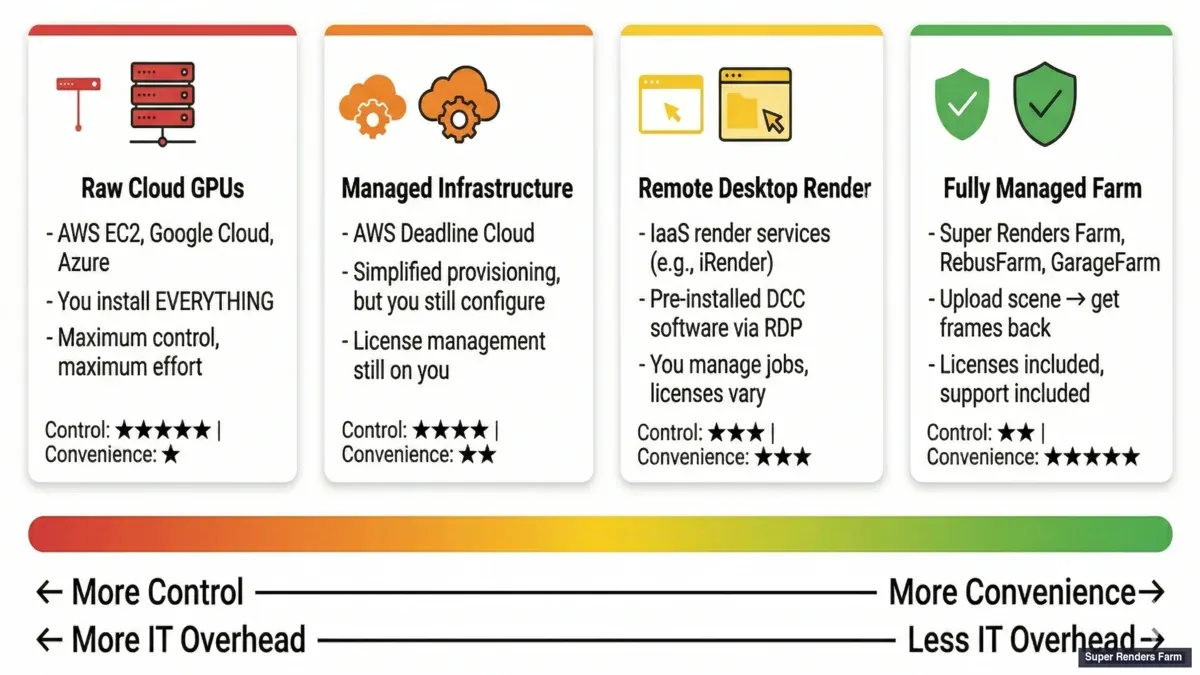 Four models of cloud rendering — raw cloud GPUs, managed infrastructure, remote desktop, and fully managed render farm
Side-by-Side Comparison: Fully Managed vs. DIY
Before the cost math, it helps to see the two ends of the spectrum — a fully managed farm and a self-managed DIY cloud setup — laid out across the factors that actually drive the decision. (The two middle models, managed infrastructure and remote desktop, generally sit between these columns on most rows.)
| Factor | Fully Managed | DIY Cloud |
|---|---|---|
| Setup time | Around 10 minutes | Days to weeks |
| Ongoing management | Minimal | Significant |
| License complexity | Farm handles it | You handle it |
| Cost predictability | High (per-frame or per-job pricing) | Low (many variable costs) |
| Learning curve | Low | High |
| Customization | Limited | Unlimited |
| Dependency conflicts | Rare | Common |
| Support response | Hours to about a day | Community or paid support |
| Best for | Consistent, repeatable jobs | Specialized, highly custom workflows |
Neither column is universally better — the table shows a trade-off, not a scoreboard. The rest of this guide puts numbers behind each row.
The Hidden Cost That Doesn't Show Up on Invoices
Here's what we've observed over fifteen years of watching studios switch between rendering models:
The GPU-hour rate is never the actual cost. The actual cost is: GPU-hours × rate + (artist hours spent on infrastructure × artist hourly rate).
A senior 3D artist at a mid-size studio typically costs between $40 and $80 per hour, fully loaded. A technical director costs more. When that person spends four hours debugging a driver mismatch on a remote desktop, or three hours configuring Deadline workers on AWS, or two hours figuring out why their V-Ray license server isn't visible from the cloud instance — that's real money that never appears on the cloud computing invoice.
We've seen this pattern repeatedly:
A studio switches to raw cloud GPUs because the per-hour rate is 30-40% cheaper than a managed farm.
This cost analysis applies directly to cloud-specific rendering. When evaluating cloud platforms, understanding the true operational cost is critical — explore our comprehensive guide to best cloud render farms for archviz for architectural visualization use cases. Three months later, they've burned enough artist hours on infrastructure tasks that the effective cost per frame is higher than the managed option. The savings in compute are consumed by the overhead in operations. To understand the full economic picture, read our detailed analysis of build vs. cloud costs.
This isn't universal. Studios with dedicated render wranglers or pipeline TDs — people whose job is managing rendering infrastructure — can absolutely run their own cloud rendering cost-effectively.
For a primer on how cloud rendering works before weighing DIY against managed, see our cloud rendering explained guide. But for studios where the same people creating the work are also managing the rendering pipeline, the economics often don't work out.
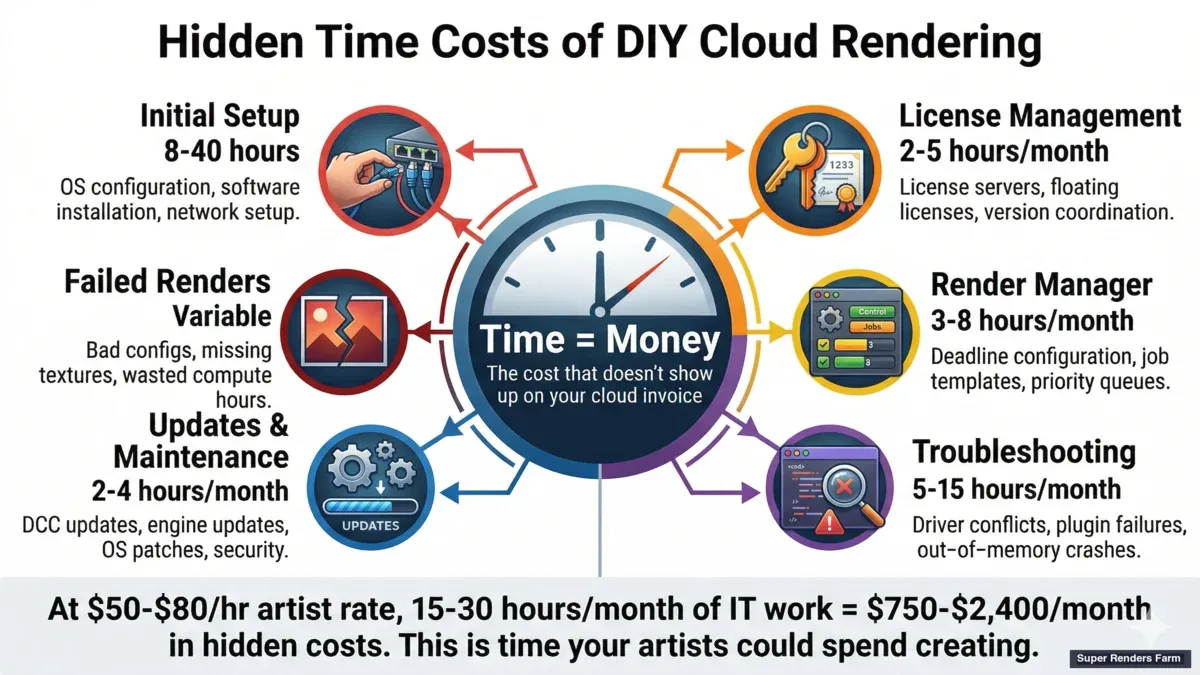 Hidden costs of DIY cloud rendering — time spent on setup, licensing, troubleshooting, and failed renders
The Real Economics: Total Cost vs. Hourly Rate
The previous section made the qualitative case; here are the concrete numbers behind it. The common mistake is to compare per-core or per-hour pricing instead of total cost. The figures below are typical industry estimates for illustration — not a price quote from any one farm — but they show how the two models tend to add up.
Fully managed cost model. Managed farms generally price per frame or per job rather than per hour. As a rough industry benchmark, an HD archviz frame commonly falls in the range of $0.40–$1.20 per frame depending on quality and complexity, which puts a 2,000-frame animation sequence somewhere around $800–$2,400 in total. Because the price is quoted per frame or per job, the amount is known before the job runs, and compute, licensing, storage, and idle time are folded into that single figure rather than billed as separate line items.
DIY cloud cost model. DIY looks inexpensive at first glance — raw cloud GPU instances are often cited at $2–$4 per hour — but the compute line is only one input. The full picture usually includes:
- License costs. Commercial render engines and DCC applications are typically licensed per node; a single render-engine node license commonly runs from a few hundred dollars up to about $1,500 per year (the per-node breakdown is in the next section). Spin up ten nodes and licensing alone can reach five figures annually.
- Infrastructure. Compute at roughly $2–$6 per hour per node, plus storage, plus data transfer — egress can run about $0.09–$0.20 per GB.
- Render manager. A distributed render manager adds its own cost (for example, on the order of $0.005 per core-hour), which accumulates across many nodes.
- DevOps overhead. Someone has to monitor, update, troubleshoot, and optimize the setup — commonly 5–15 hours per month even for a small deployment.
- Failed renders. Bad configurations, dependency issues, and driver mismatches burn compute hours with nothing to show for them.
To make the comparison concrete, consider a single 2,000-frame job rendered on DIY infrastructure:
- Estimate: 10 nodes × 10 hours = 100 node-hours
- Compute: 100 × $3 = $300
- Licenses (amortized to this job): ~$200
- Storage and transfer: ~$50
- DevOps time: 2 hours × $50/hour (an illustrative rate, within the $40–$80 band noted earlier) = $100
- Failed and retry renders: ~$50
- Approximate total: $700
Set against the $800–$2,400 a managed farm might charge for the same sequence, the DIY column can look lower on paper — but that $700 also consumed roughly two hours of a team member's time, and it assumes the setup already exists. DIY can come out ahead when a studio has a dedicated infrastructure person; for a small studio without one, the managed total is often the lower real-world number once that time is priced in.
License Management: Per-Node Costs and the Floating-License Trap
Licensing is one of the largest hidden line items in a DIY setup, and it is worth breaking out on its own.
On a fully managed farm, the farm owns the render-engine and application licenses. The user does not configure seat licenses, render-node licenses, or a floating-license server — licensing is folded into the per-frame price, so there is no separate per-node license cost on the user's side.
In a DIY setup, licenses are needed for every node, and the per-node figures add up quickly. As typical industry list prices (illustrative, not a quote):
- Corona: around $500 per year per node
- V-Ray: around $1,500 per year per node (if not already owned)
- 3ds Max or Cinema 4D: roughly $600+ per year per node (unless already owned)
The cost is only half of it — the other half is complexity. Floating licenses on a local network are straightforward; floating licenses across cloud nodes are not. You have to stand up a license server in the cloud, secure it, monitor it, and make sure every render node and on-premise application can reach it. If that license server becomes unreachable, renders fail. In practice, small studios tend to over-buy licenses "just in case," or lose jobs when the license server goes down — a single point of failure that the managed model removes entirely.
A Worked Example: A Small Archviz Studio
To ground the trade-off in a single decision, consider a realistic case: a five-person archviz studio rendering 3ds Max and V-Ray projects.
Current state. The team has been rendering locally. A 2,000-frame animation ties up their workstations for about 12 hours and blocks other work while it runs.
Option A — fully managed farm.
- Week 1: upload the first job, get frames back in roughly 2 hours
- Cost: on the order of $1,500 for this job (a typical managed-farm figure for a sequence of this size, not a specific quote)
- Ongoing: submit jobs through a web UI or plugin, receive results next day
- No infrastructure to manage, and no license cost beyond software the studio already owns
- The team learns the system in about a day
Option B — DIY cloud (for example, AWS Deadline Cloud).
- Week 1–2: set up the cloud account, choose instance types, install and configure the render manager and licenses
- Cost: roughly $400 in compute plus about $200 in V-Ray licensing for this job
- Ongoing: someone on the team owns the infrastructure — monitoring cost, patching, and troubleshooting
- The first render may fail on a misconfiguration; a second attempt succeeds
- Learning curve: on the order of 40–80 hours spread over the first month
In this scenario the managed option avoids roughly 40–80 hours of setup and 5–10 hours per month of ongoing management — on the order of $2,000–$4,000 per month of recovered artist time at the rates used above. A job priced around $1,500 on a managed farm versus about $600 in DIY compute and licenses looks lower in the DIY column until that recovered time is added back; for a studio without a dedicated infrastructure person, the totals often converge or flip. This is exactly the break-even dynamic the rest of this guide describes: DIY's unit costs win at scale and with dedicated staff, while managed wins when artist time is the scarce resource.
That scale line moves even further at the solo-freelancer end: for a 1-person studio weighing a single RTX 5090 workstation purchase against paying per-hour for cloud rendering, our single 5090 workstation vs cloud rendering cost analysis works the indie-scale break-even math specifically (hardware amortization, electricity, opportunity cost of billable time).
AWS Deadline Cloud: Managed Infrastructure ≠ Managed Rendering
AWS Deadline Cloud deserves specific discussion because it appears prominently when people search for managed render farms, and the distinction between what it manages and what it doesn't is important.
Deadline Cloud handles job orchestration: it provisions EC2 instances, distributes render tasks, scales workers up and down, and manages the queue. This is genuinely valuable — setting up Deadline on your own AWS infrastructure is a multi-day project involving IAM roles, VPC configuration, S3 storage policies, and auto-scaling groups.
What Deadline Cloud doesn't manage:
Software licensing. You need your own licenses for your DCC application (Maya, 3ds Max, Cinema 4D, Houdini) and your render engine (V-Ray, Arnold, Redshift, etc.). For Redshift, that means purchasing render node licenses separately from your workstation subscription. For V-Ray, you need DR (Distributed Rendering) licenses — we covered the V-Ray licensing landscape in detail in a separate guide. Managing a floating license server in the cloud adds another layer of configuration.
For the full picture of how each render engine handles farm licensing — V-Ray CPU DR vs GPU DR, Redshift Individual vs Teams pricing, Arnold's bundled nodes, and more — see our render farm software licensing guide.
Plugin compatibility. If your scene uses X-Particles, Forest Pack, Scatter, TyFlow, or any third-party plugin, you need to build a custom AMI (Amazon Machine Image) with those plugins installed, licensed, and version-matched to your DCC software. When a plugin updates, you rebuild the AMI.
Driver management. GPU rendering requires specific NVIDIA driver versions. Redshift 3.6 might need a different driver than Redshift 3.5. You manage these dependencies in your AMI configuration.
Troubleshooting. When frame 847 of 3,000 renders black because of a texture path issue, you're diagnosing it yourself. AWS support can tell you if an EC2 instance is healthy; they can't tell you why your V-Ray displacement map isn't loading.
Cost management. EC2 GPU instances bill by the second, which sounds efficient until a misconfigured job runs 200 instances for six hours rendering the wrong camera angle. We've heard from studios who received surprise bills in the four-figure range from a single bad job submission.
None of this makes Deadline Cloud a bad product. It's a powerful tool for studios that have the technical staff to operate it. The point is that "managed" in the AWS context means managed infrastructure, not managed rendering. The rendering expertise still needs to come from your team.
Remote Desktop Render Services: The Middle Ground
Remote desktop services occupy an interesting position. The hardware is managed, the software is pre-installed, and you get a familiar Windows desktop environment. For some workflows, this is the right choice.
Where remote desktop works well: studios with complex, non-standard pipelines that require manual intervention during rendering. If you need to run a custom Python script between render passes, manually adjust Houdini simulation cache settings, or use proprietary tools that can't be automated — remote desktop gives you the control to do that.
Where remote desktop breaks down: throughput and scalability. You're limited by how many remote sessions you can manage simultaneously. Rendering a 3,000-frame animation on a remote desktop means babysitting a session — checking for errors, restarting failed frames, managing output files. At 2 AM.
There's also a licensing nuance that catches people off guard. On a remote desktop, you're running your own DCC license on the remote machine. That means one of your license seats is consumed by the cloud session. If you have a small seat count, your local artists might be locked out while the cloud machine is rendering.
The per-hour rates for remote desktop services often look competitive, but factor in the manual supervision time and the license seat consumption, and the effective cost rises.
Fully Managed: What It Actually Means in Practice
On a fully managed farm, here's what happens when you submit a Cinema 4D + Redshift job, as an example:
- You upload the packaged .c4d project (scene + textures + proxies).
- The farm's system identifies the required software versions: Cinema 4D 2025.2, Redshift 3.6.05, X-Particles 2024.
- Render nodes are assigned with the correct software, plugins, and GPU drivers already configured.
- Redshift licenses are allocated from the farm's pool — no license configuration on your end.
- The job is distributed across available nodes. Each node renders its assigned frames.
- If a frame fails (VRAM overflow, plugin error, corrupt texture), the system flags it and either retries or alerts the support team.
- Completed frames are assembled and made available for download.
- You get a notification when it's done.
At no point do you connect to a remote machine, manage a license server, debug a driver issue, or configure a job scheduler. The expertise that would otherwise come from your pipeline TD is provided by the farm's operations team.
The trade-off: you have less control over the rendering environment. If you need to run a custom pre-render script, or use a plugin the farm doesn't support, or render with non-standard settings that require manual node configuration — a fully managed farm may not accommodate that. You're optimizing for speed and reliability at the cost of flexibility.
Your Actual Workflow: Upload, Render, Download
To make this concrete, here's what the day-to-day experience looks like on a fully managed farm — stripped down to the three things you actually do:
Upload. You package your scene (3ds Max, Maya, Cinema 4D, Blender, or Houdini project with textures and assets) and send it to the farm. On Super Renders Farm, this happens through a desktop application that collects dependencies automatically — or through a web upload for software without a plugin. The upload process handles texture path remapping so you don't need to manually relink anything.
Wait (while you keep working). The farm takes over: assigning machines, deploying the correct software and plugin versions, distributing frames, monitoring for errors. You track progress through a web dashboard. Your local workstation is free — you can keep modeling, lighting, or working on the next project.
Download. Rendered frames appear in your output folder as they complete. You can download incrementally (check frames as they finish) or wait for the full batch. No manual file management on remote machines, no FTP juggling, no RDP sessions to close.
That's the entire interaction. No remote desktop, no license server configuration, no driver debugging. For studios where the same artists creating the work are also responsible for delivering it, this upload-and-download workflow means rendering never takes anyone away from creative production. If you're new to cloud render farms and want to understand the broader landscape first, our plain-English guide to cloud render farms covers the fundamentals. For a step-by-step walkthrough of submitting your first job, see our getting started guide.
When Each Model Makes Sense
This isn't a one-size-fits-all decision. Here's a practical framework:
Choose raw cloud GPUs (DIY) if:
- You have a dedicated pipeline TD or render wrangler on staff
- Your pipeline includes custom tools that can't be packaged for a third-party farm
- You render consistently enough to justify the infrastructure investment
- You're comfortable managing AMIs, license servers, and cloud networking
Choose managed infrastructure (AWS Deadline Cloud) if:
- You have some technical staff but don't want to manage bare-metal cloud setup
- Your render volume is high enough that the Deadline Cloud pricing makes sense
- You need auto-scaling but want to control the software stack
- Your studio already has AWS infrastructure and expertise
Choose remote desktop if:
- You need manual intervention during rendering
- Your pipeline requires interactive tools that can't be batched
- You're rendering single complex scenes (not large frame sequences)
- You have proprietary plugins that only you can install and configure
Choose fully managed if:
- Your artists' time is your scarcest resource
- You render standard DCC + render engine combinations (3ds Max, Maya, C4D, Houdini + V-Ray, Corona, Redshift, Arnold)
- You need to scale rendering without scaling your technical team
- Deadlines are non-negotiable and you can't afford infrastructure troubleshooting time
- You want to understand the complete economics of render farm pricing
Most studios we work with fall into that last category.
For a head-to-head between a fully managed farm and a self-serve farm that many studios also evaluate — our Fox Renderfarm vs. Super Renders Farm comparison breaks down how the workflow, pricing, and support models differ in practice.
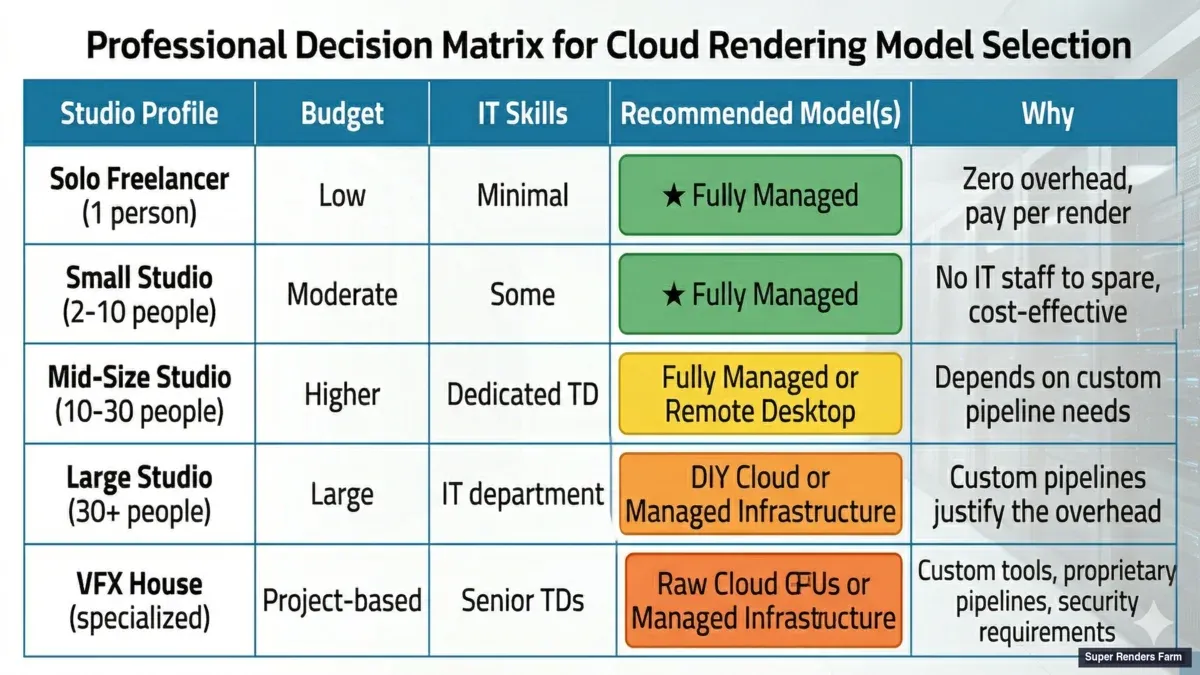 Which cloud rendering model fits your studio — decision matrix by team size, budget, and workflow complexity
They're not choosing fully managed because they can't figure out AWS — they're choosing it because debugging cloud infrastructure at midnight isn't where they want their senior artists spending time.
A Note on Cost Transparency
One common concern about fully managed farms is pricing opacity. When a farm charges per-frame or per-GHz-hour, it can feel like a black box compared to the per-second EC2 billing that raw cloud GPUs offer.
This is a valid concern, and it's worth understanding what's bundled into a managed farm's pricing: compute, licensing, storage, bandwidth, support, and operational overhead. When you compare that to raw cloud, make sure you're comparing the full stack — not just the compute line item.
A useful exercise: take a recent project, calculate the total artist hours spent on rendering operations (not creative work — just the infrastructure management), and add that cost to your cloud compute bill. Then compare that total to what a managed farm would have charged for the same job. For studios without dedicated render ops staff, the comparison is often surprising.
For a concrete look at what rendering actually costs on a per-frame basis across different project types and render engines, our cost-per-frame breakdown walks through real numbers for archviz, VFX, and animation.
FAQ
Q: What does "fully managed" mean for a cloud render farm? A: At Super Renders Farm, a fully managed render farm handles the entire rendering pipeline: software installation, licensing, plugin management, job distribution, error handling, and output delivery. You upload a scene file and receive rendered frames — without configuring or managing any cloud infrastructure.
Q: Is AWS Deadline Cloud a fully managed render farm? A: No. AWS Deadline Cloud is managed rendering infrastructure — it handles job orchestration and auto-scaling, but you still manage your own software stack, licensing, plugins, and troubleshooting. It's a DevOps tool for rendering, not a rendering service.
Q: Do render farms require remote desktop access? A: It depends on the service type. Self-service cloud GPU rentals (IaaS) typically require RDP or SSH to install software and run renders on a remote machine. Remote-desktop render services give you an RDP session to a pre-configured cloud workstation. Fully managed render farms — the category Super Renders Farm operates in — do not require remote desktop access. You submit jobs through a lightweight plugin inside your local 3D application, and completed frames download back to your machine automatically.
Q: Can I render without using Remote Desktop on a cloud farm? A: Yes. Fully managed render farms don't require remote desktop access. You submit scenes through a web interface or desktop application and monitor progress through a dashboard. You never connect to the render nodes directly.
Q: Is a fully managed render farm more expensive than DIY cloud rendering? A: The per-GPU-hour rate is typically higher, but the total cost of rendering — including artist time spent on infrastructure — is often lower for studios without dedicated render operations staff. The comparison depends on your team's technical capacity and render volume. For specific guidance, see what a fully managed service actually costs.
Q: What if I need a plugin that the managed farm doesn't support? A: Most managed farms maintain current versions of major plugins (X-Particles, Forest Pack, Scatter, TyFlow, etc.). For niche or proprietary plugins, check with the farm before committing. If your plugin isn't supported, a remote desktop or DIY approach may be necessary for those specific jobs.
Q: How do I transition from DIY cloud rendering to a managed farm? A: Start with a test project. Package a recent scene and submit it to the managed farm for a small batch of frames. Compare the output quality, turnaround time, and total cost (including your setup time for the DIY version) before committing to a larger workflow change.
Q: Will a fully managed farm handle my specific software combination? A: Most farms support all major 3D applications (3ds Max, Cinema 4D, Blender, Maya, Houdini, After Effects) and render engines (V-Ray, Corona, Arnold, Redshift, Octane, Cycles). If you use something niche, contact the farm's support to verify before signing up.
Q: Can I scale a fully managed farm to handle unlimited render volume? A: Yes. Farms with per-frame pricing scale automatically to handle your workload. Farms with subscription models may have monthly node limits, but you can upgrade to higher tiers. Talk to the farm about your expected volume before starting.
Last Updated: 2026-03-18