How to Render in Maya: A Still, an Image Sequence and the Command Line
Overview
Introduction
You have a Maya scene that looks right in the viewport, and now you need image files. Maya gives you several ways to get them: a single frame in the Render View, a sequence from inside Maya, a Batch Render, or the Render command line with no interface at all. A few of them have licence consequences that catch people the first time they leave the Render View.
This guide walks through them in the order most people need them: choose a renderer, set up Render Settings, render a still, render a sequence, then handle render layers and the failures that come up most. It does not explain what Maya is (see What Is Maya?), what it costs (see How Much Does Maya Cost), or how to prepare a scene for a farm in depth, which is the job of our Maya cloud rendering guide. Arnold's AOVs and denoising have their own write-up in the Arnold denoiser and AOVs guide. If you also work in Blender, the equivalent first-image walkthrough is how to render in Blender.
Menu names and flags below come from Autodesk's Maya help for recent releases (pages read 10 November 2026). Wording shifts slightly between versions, so check yours if a label looks different.
Choose a Renderer First
Open Render Settings with Window > Rendering Editors > Render Settings and pick the engine in the Render Using drop-down. Autodesk's Arnold for Maya guide (read 10 November 2026) shows the same path and tells you to choose Arnold Renderer there.
Arnold is the default and the one most Maya tutorials assume. Maya also ships its own Maya Software and Maya Hardware 2.0 renderers, handy for quick checks and legacy scenes. Third-party engines such as V-Ray, Redshift and RenderMan are selected in the same list, but each has its own settings tabs and command-line flags, so the Arnold-specific steps here do not carry over line for line. Everything else applies to any renderer.
Set Up the Common Tab
Most "why did Maya render the wrong thing" problems start here. These are the settings worth checking before every render, with the defaults Autodesk documents in its Render Settings: Common tab page (read 10 November 2026):
| Setting | What it controls | Autodesk default |
|---|---|---|
| Image format | The file type that is written | PNG |
| Frame/Animation ext | Naming syntax; a pattern with # (such as name.#.ext) renders a sequence, one without renders a single frame | Single frame |
| Frame padding | Digits in the frame number | 1 |
| Start frame, End frame | The range, available only when the ext pattern contains # | 1 and 10 |
| By frame | The step between rendered frames | 1 |
| Renderable cameras | Which camera produces the image | perspShape |
| Image size | Width and height, with presets such as HD 1080 (1920x1080) | Preset-dependent |
Two habits save time: set Frame padding to 4 or more so frame 2 and frame 200 sort correctly, and use underscores rather than periods inside the base name, which Autodesk advises for animation file names.
The File name prefix field is where tokens go. <Scene> adds the scene name, <RenderLayer> the render layer name, <Camera> the camera name, and <RenderPass> the render pass node name. Autodesk also notes that adding a slash to the prefix creates subdirectories. With several renderable cameras, images go to separate directories by default unless you insert <Camera> in the prefix to keep them together.
 Diagram of a File name prefix of Scene, RenderLayer and Scene_RenderLayer tokens expanding into numbered PNG frames inside a shot010/beauty folder
Pick the Right Render Command
 Decision chart of Maya render commands: Render Current Frame for one frame, Arnold RenderView for live feedback, Render Sequence or Batch Render for a sequence from inside Maya, and the Render command line for a sequence without the Maya window
The practical rule: use the Render View and the Arnold RenderView for judging a look, and Render Sequence, Batch Render or the command line for anything you will keep.
Render a Still: Render View and the Arnold RenderView
To render the current frame, click the Render Current Frame button or choose Render > Render Current Frame. Autodesk's single-frame page (read 10 November 2026) says Maya shows the image in the Render View as it progresses and saves it automatically to the images directory of the current project. Press Esc to cancel, or choose Render > Redo Previous Render to repeat the render from the previous camera.
For quick feedback, render small: in the Render View, Options > Test Resolution sets a reduced size, and Autodesk's test-render page (read 10 November 2026) suggests half to a quarter of full size for a good preview with the software renderer.
With Arnold, choose Arnold > Render to open the Arnold RenderView. It is an interactive (IPR) window: per Autodesk's RenderView documentation (read 10 November 2026), it renders progressively and updates when you change materials or lights, so you can adjust a scene without restarting the render. Treat it as a preview tool, and render final output with one of the commands below.
Render a Sequence From Inside Maya
There are two menu routes, and they behave differently around the Arnold licence.
Render Sequence. Set Frame/Animation ext to a pattern with #, enter Start frame and End frame, then choose Render > Render Sequence and click Render Sequence in the options window. Progress messages appear in the Script Editor. Autodesk's Render Sequence page (read 10 November 2026) says images go to the project's images folder by default, that Alternate Output File Location can change that for the current Maya session only, and that if you have no Arnold licence this is the route that renders without a watermark.
Batch Render. Set the same frame range, then choose Render > Batch Render. Cancel Batch Render and Show Batch Render sit in the same menu, and the options icon opens the Batch Render window. Autodesk's batch render page (read 10 November 2026) notes that Maya renders only the current frame unless you set a range, and the Render Sequence page adds that local render overrides are ignored during batch rendering.
The licence rule matters here. Autodesk's Arnold for Maya documentation (read 10 November 2026) states that the Arnold included with a default Maya install works only interactively: batch rendering and calling from mayabatch.exe are not available, and images carry a watermark. So Batch Render with Arnold needs an Arnold licence to produce clean frames, while Render Sequence does not.
Render From the Command Line
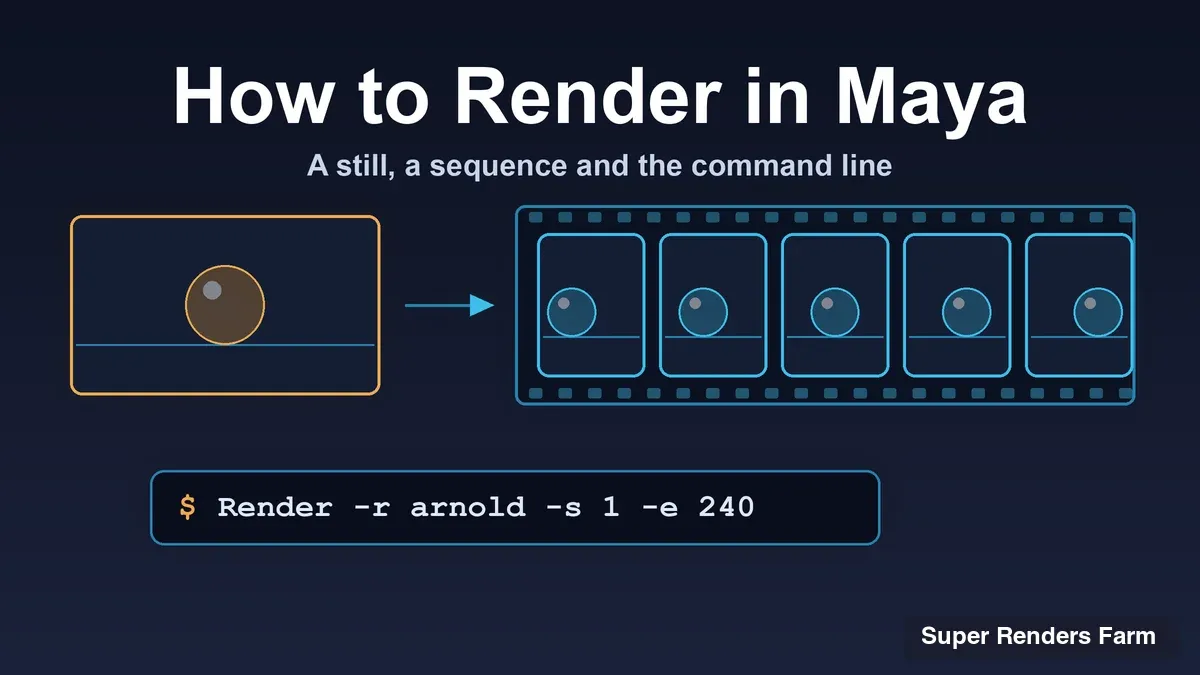
The command-line renderer is what scripts, schedulers and render farms use. Autodesk's Render from the command line page (read 10 November 2026) gives the syntax as Render -r <renderer name> <options> <filename>. If you omit the renderer, Maya uses the one saved in the scene file. On Windows you must call it with its full path or add the Maya bin folder to your PATH:
"C:\Program Files\Autodesk\Maya2027\bin\Render.exe" -r arnold -s 1 -e 240 -rd "D:\renders\s010" -im s010 -cam cam1 "D:\projects\s010\scenes\s010.ma"
The folder names are placeholders for your own. Autodesk's Arnold batch rendering page (read 10 November 2026) names -r arnold as the way to select the renderer explicitly and Render --help -r arnold as the way to list its flags.
 Annotated Render command line showing the renderer flag, start and end frames, output directory, image name, camera and scene file
The flags you will use most, from Autodesk's common flags reference (read 10 November 2026):
| Flag | Meaning |
|---|---|
-s, -e, -b | Start frame, end frame and the step between frames |
-rd <path> | Directory where image files are stored |
-im <name> | Image file output name |
-cam <name> | Camera to render from |
-pad <int> | Digits in the frame number of the output file name |
-proj <path> | Maya project used to load the scene |
-rl <boolean:name> | Render each render layer separately |
-skipExistingFrames | Skip frames that already exist, useful for resuming |
Two more are worth knowing. -listRenderers lists the renderers available, and for Arnold, -seq "2 4..7 15..27:4" renders specific frames or ranges, with .. for a range and :step for an increment. The same Arnold watermark rule applies: Autodesk's command-line page warns that command-line Arnold renders appear with a watermark unless you have a licence for batch rendering, or use another renderer.
Render Layers and Render Setup
In current Maya, render layers live in Render Setup, which Autodesk's Render setup page (read 10 November 2026) describes as non-destructive: you divide the scene into render layers, group nodes into collections, and apply overrides to a collection. Open it from the Render Setup icon on the status line. Only one system, Render Setup or legacy render layers, can be used in a session, and a scene can only use one of them. If a scene throws a legacy-layer error, our legacy render layers error guide explains the fix.
For batch output, two details matter. A layer that is not marked renderable is not rendered. And per Autodesk's batch render layers page (read 10 November 2026), batch rendering creates one folder per renderable layer plus a master layer folder; if you put <RenderLayer> in the File name prefix, you instead get one list of images with the layer name in each file name. With Render Sequence, enable All Render-Enabled Layers, or only the active layer renders.
On the command line, -rl renders layers separately and -rst <file> applies a Render Setup template exported as .json. For separate passes, Arnold AOVs are the tool: the -rsa <file> flag imports AOVs from a .json template before a command-line render, and the setup is covered in our Arnold AOVs guide.
Fix the Most Common Problems
Black or blank frames. If the Render View works but batch frames come back black, Autodesk's batch render page suggests deleting unused nodes in the Hypershade (Edit menu). Our black and blank renders guide covers the wider list of causes.
Missing textures. A scene that renders at your desk but not elsewhere usually points at texture paths that only exist on your machine. The File Path Editor (Windows > General Editors > File Path Editor) lists the directory paths for references, textures, audio nodes and image planes, and lets you diagnose and fix unresolved ones. Keep the files under the project and use relative paths. For hair and cache files that live outside the scene, see our XGen and .tx preflight guide.
Wrong camera. By default the perspShape camera is the renderable camera. If the image is framed wrongly, check Renderable Cameras in the Common tab, or pass -cam on the command line. If a new camera is missing from the Arnold RenderView list, our missing camera guide walks through it.
Frames that seem to be missing. If By frame is below 1, turn on Renumber frames, or frames can appear missing because they are overwritten.
When Rendering Locally Stops Being Practical
Render time is frame count times time per frame. A hypothetical example: 120 frames at 30 minutes each is 60 hours of work on one machine, which means your workstation is busy for two and a half days. A farm does the same 60 hours of work in parallel across many machines, so the wait shrinks while the total compute stays the same.
On Super Renders Farm, a fully managed render farm, you upload the scene and the farm handles the software, plug-ins and render licences. We support Maya 2014 through 2027, and Arnold (node-locked), V-Ray, Redshift and RenderMan are ready without a setup request. Octane for Maya is provisioned on request, so contact us to confirm before you upload a scene that depends on it. Redshift renders on our GPU nodes, which carry two RTX 5090 cards with 32 GB of VRAM per card, not pooled across the cards. Our team is on 24/7 live chat, and new accounts get $25 free render credits for test frames. Our Maya render farm page lists the supported setup, our Maya cloud rendering guide walks through preparing a scene, and our comparison of render farms for Maya covers the alternatives side by side.
If your frames take a few minutes each, local rendering is fine. A farm earns its place when a sequence's total hours stop fitting your deadline.
FAQ
Q: How do I render an animation in Maya?
A: Set Frame/Animation ext to a pattern with # (such as name.#.ext), enter the Start frame and End frame in the Common tab, then choose Render > Render Sequence or Render > Batch Render. Maya renders only the current frame unless you set a range. With Arnold, Batch Render needs an Arnold licence for watermark-free frames, while Render Sequence does not.
Q: Where does Maya save rendered images? A: By default, to the images folder of the current project, which you can check in Render Settings > Common. Render Sequence also lets you set Alternate Output File Location for the current Maya session.
Q: What is the difference between Render Sequence and Batch Render? A: Both render a frame range from inside Maya. For Arnold, the practical difference is the licence: Autodesk documents Render Sequence as the option that renders without a watermark when you have no Arnold licence, while Batch Render and the command line need a licence for clean output.
Q: Why does my Arnold batch render have a watermark? A: Autodesk states that the Arnold included with a default Maya install works only interactively, and that batch rendering produces watermarked images. You need an Arnold licence on the machine that renders, or you can use Render Sequence, or a farm that supplies the licences.
Q: How do I render a video in Maya? A: Render an image sequence with the Render Sequence, Batch Render or command-line routes above, then assemble the frames into a video in an editor or compositing tool. A playblast is different: Autodesk describes it as a quick screen-grab preview of the viewport, useful for review, not a final render.
Q: Can I render a Maya scene on a render farm? A: Yes, frames render in parallel across many machines as batch jobs. On our farm we support Maya 2014 through 2027, with Arnold, V-Ray, Redshift and RenderMan ready without a setup request. Octane for Maya is provisioned on request, so contact us to confirm before you upload a scene that needs it.
About Thierry Marc
3D Rendering Expert with over 10 years of experience in the industry. Specialized in Maya, Arnold, and high-end technical workflows for film and advertising.