Render Farm for Freelancers and Small Studios: When It Pays and How to Choose
Overview
Introduction
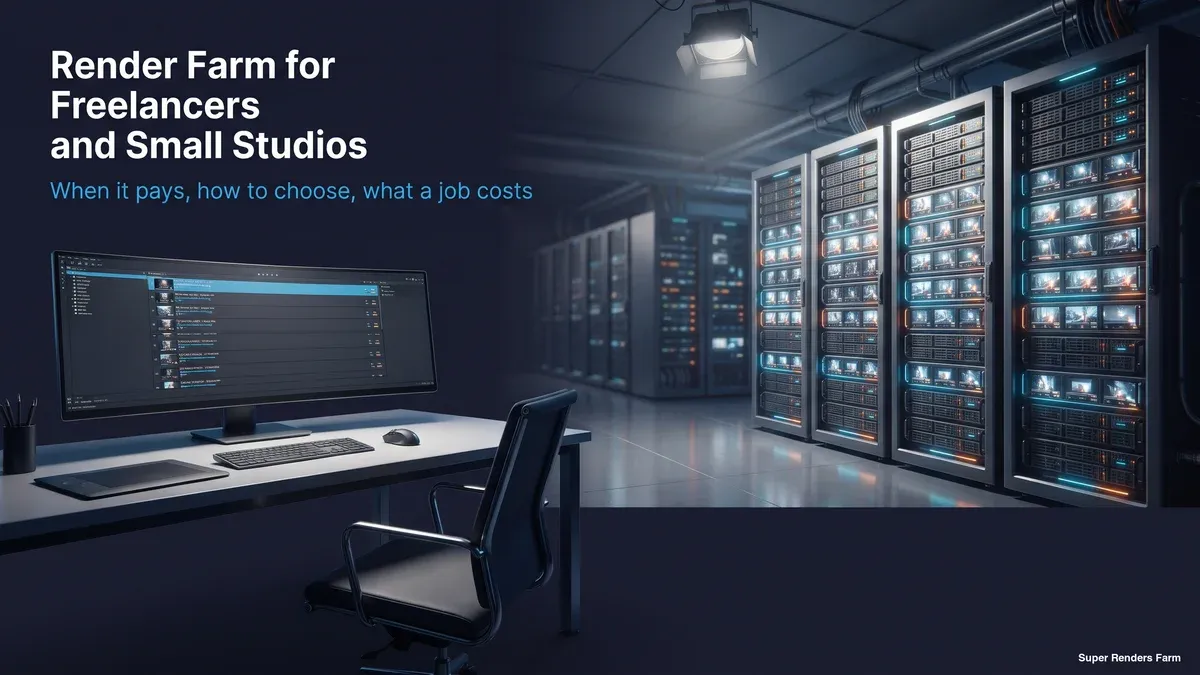
A freelancer or a small studio should use a render farm when the hours of rendering a job needs no longer fit between now and the deadline on the machines you own, or when the scene no longer fits in your GPU's memory. For a single still that renders overnight on your workstation, a farm usually adds cost and upload time without solving a real problem; for a 10-second animation due on Friday, it often decides whether you deliver at all.
This guide is for solo artists, freelancers and studios of roughly 2 to 10 people: when a farm beats rendering locally or buying another GPU, which criteria matter at your size, what a job costs with published prices, and how a few farms compare for small accounts. For a broad comparison of many farms, see our render farm comparison guide.
We run Super Renders Farm, a fully managed cloud render farm, so we have an interest here. The comparison section uses each farm's own public pages, read on 24 November 2026, and says where another farm suits a small studio better than we do.
Render Locally, Buy Another GPU, or Use a Farm?
When a job outgrows your machine, you can render it locally and wait, buy more hardware, or rent rendering time. Four situations push the answer toward a farm.
A deadline crunch. Rendering locally costs nothing extra, but it costs calendar time. If a job needs 80 machine-hours and you have one machine and three days, the arithmetic does not work. A farm turns machine-hours into wall-clock hours by running many frames at once.
Animation length. An animation multiplies every frame time by the frame count: 240 frames at 20 minutes each is 80 hours on one machine. Artists who mostly deliver stills can often stay local; the first animated project is usually where the math changes.
A machine tied up. While your workstation renders, you cannot model, light or answer client notes on it. For a solo artist, that machine is also the office, and freeing it has a value even when the render would finish in time.
The VRAM ceiling. GPU rendering is fast until the scene stops fitting in video memory. The Blender manual on GPU rendering (read 24 November 2026) states that the GPU can typically only use the memory on the card, that Blender falls back to system memory with a performance impact, and that a second GPU does not usually add memory because each card can only access its own (NVLink-connected NVIDIA cards are the exception). Our GPU nodes follow the same rule: each node has two NVIDIA RTX 5090 cards with 32 GB of VRAM each, not pooled, so plan for a scene to fit in one card's 32 GB: past that point, Cycles slows down as it spills into system memory, and CPU rendering, where system RAM is the limit, becomes the reliable path. Our article on the RTX 5090 VRAM limit covers what fills that memory.
Buying another GPU can be the right answer for steady GPU workloads. NVIDIA's GeForce RTX 5090 page (read 24 November 2026) lists 32 GB of GDDR7 memory, 575 W of total graphics power and 1000 W of required system power, so the purchase often means a new power supply too. A simple test: divide what the card would cost you, installed, by $5.17, our price for one hour on one RTX 5090. If you would use your own card for more hours than that over its useful life, buying wins; if your GPU rendering comes in bursts, renting usually wins. Our article on whether a single RTX 5090 is worth it adds electricity and opportunity cost.
 Decision diagram for freelancers: render locally when the job fits before the deadline and in memory, consider buying a GPU for steady GPU workloads, use a render farm for deadline crunches, long animations, a busy workstation or scenes over the VRAM limit
What Matters When You Are One Person or a Small Team
At freelancer scale, a short list decides whether a farm is pleasant or painful. Our guide on how to choose a render farm covers the full set; these are the criteria that weigh most on a small budget.
No subscription or high minimum. Freelance rendering comes in bursts, and pay-as-you-go credits suit bursts better than a monthly plan. Check for subscriptions, minimum top-ups and monthly commitments.
Public per-hour prices. You should be able to estimate a job before submitting it. A price you can multiply by your own render time beats a low headline rate in a unit you cannot translate.
Trial credits. Free credits let you render a real test frame on the farm's hardware, and that measured time is the most useful number you will get.
Submission from your DCC app. DCC (digital content creation) software is where you build scenes: Blender, 3ds Max, Cinema 4D, Maya, Houdini. A plugin that submits from inside it removes the manual steps where most first-job mistakes happen.
Managed versus DIY. A fully managed farm installs and licenses the software; you upload and render. A DIY or IaaS (infrastructure as a service) setup rents you machines and leaves the installation to you. Managed suits most solo artists; see our comparison of fully managed and DIY render farms.
Support hours. Freelancers often render at night or on weekends, close to a deadline. Office-hours support in another time zone can cost you a delivery.
File transfer and licenses. Large scenes need an upload path that resumes after a dropped connection. And if render engine licenses are not included, you may need to supply them, so check before comparing hourly rates.
Priority tiers. Many farms charge more for a faster place in the queue. That is useful in a crunch and wasteful otherwise, so check what each tier costs and whether you choose it per job.
Team accounts. For a studio of 3 to 10 people, shared billing with separate logins matters. Not every farm offers it, and we do not offer it as an official feature.
What a Job Costs: Worked Examples With Real Prices
Cost is machine-hours times the price per machine-hour. Only a test frame on the farm tells you the machine-hours, so each example below starts from a time you would measure yourself. They illustrate the method; they are not benchmarks of our hardware.
Our published prices, read from our pricing page on 24 November 2026:
- CPU: at Standard priority, one hour on a CPU worker costs $0.99 to $1.27, depending on the server the worker runs on. For animation jobs, Fast (2×) costs twice and Fastest (4×) four times the Standard price: $1.98 to $2.54 per hour at 2×, and $3.96 to $5.08 per hour at 4×. The priority tiers apply to CPU rendering only.
- GPU: one NVIDIA RTX 5090 with 32 GB of VRAM costs $5.17 per hour, and a node with two cards costs $10.33 per hour, at every priority level.
- Billing is per second of actual render time, there is no subscription, and render credits never expire.
Example 1: a CPU archviz animation (V-Ray or Corona). Suppose your test frame shows 20 minutes per frame on one CPU worker, and the animation is 240 frames (10 seconds at 24 frames per second). That is 240 × 20 = 4,800 minutes, or 80 worker-hours.
- Standard: 80 × $0.99 = $79.20 to 80 × $1.27 = $101.60
- Fast (2×): 80 × $1.98 = $158.40 to 80 × $2.54 = $203.20
- Fastest (4×): 80 × $3.96 = $316.80 to 80 × $5.08 = $406.40
The worker-hours are the same at every priority; you pay more for an earlier finish. For most freelance deliveries Standard is enough; a higher tier pays off when the deadline is the real constraint.
Example 2: a Blender Cycles animation on GPU. Suppose your test frame takes 2 minutes on one RTX 5090 card, for 240 frames. That is 480 minutes, or 8 card-hours: 8 × $5.17 = $41.36. Counted as two-card node-hours, it is 4 node-hours at $10.33, or $41.32.
Example 3: a single CPU still. A final archviz still that takes 2 hours on one CPU worker costs $1.98 to $2.54 at Standard.
For scale, our pricing page lists typical costs from completed projects: architectural stills at about $4 (range $2 to $7), V-Ray or Corona architectural animations of 100 to 500 frames at about $45 (range $20 to $100), and Blender Cycles animations of 100 to 600 frames at about $9 (range $3 to $17). Many scenes are lighter than the examples above.
What the free credits cover. New accounts receive $25 free render credits, with no credit card required. At the Standard CPU price, $25 covers roughly 19.7 to 25.3 worker-hours; on GPU, about 4.8 card-hours. That can cover test frames and sometimes a short job.
Volume discounts. Larger credit top-ups get an automatic discount of up to 30%; at the top tier, 10,000 credits cost $7,000. A studio that renders regularly can plan around this; the discount starts at 5% on a 100-credit top-up, so a freelancer topping up less than that for one small job pays list price.
 Worked cost examples: a 240-frame CPU animation at 20 minutes per frame is 80 worker-hours, costing $79.20 to $101.60 at Standard, $158.40 to $203.20 at Fast (2×) and $316.80 to $406.40 at Fastest (4×); a 240-frame Cycles animation at 2 minutes per frame is 8 RTX 5090 card-hours, costing $41.36
Our article on cloud render farm pricing explains GHz-hours, OctaneBench-hours and the other billing models.
How Farms Compare for a Solo Artist or Small Studio
Every farm prices in its own unit, and GHz-hours or benchmark-point-hours are defined differently from farm to farm, so a lower number per unit does not mean a cheaper job. The reliable comparison is the cost of the same test frame on each farm's trial credits, multiplied by your frame count. For that reason the table leaves out per-unit GHz and benchmark-point rates, ours included, and sticks to what each farm publishes about getting started, read from their own pages on 24 November 2026.
| Farm | Billing basis | Free start | Commitment and credits |
|---|---|---|---|
| Drop & Render | Benchmark points per hour (Cinebench 2020 for CPU, OctaneBench 2020 for GPU), rate set by priority tier | 25 euros in free credits, no payment details | No minimum spend, no subscriptions, credits never expire |
| GarageFarm | GHz-hours (CPU) and OB-hours (GPU), three priority tiers | $25 trial credits, trial limited to 10 render nodes and 30 jobs | Pay as you go, bonus credits on top-ups from $250 |
| RebusFarm | GHz-hours (CPU) and OB-hours (GPU), paid in RenderPoints (1 RenderPoint = $1.18) | 25 RenderPoints free trial | No minimum turnover, RenderPoints never expire |
| Super Renders Farm | $0.99 to $1.27 per CPU worker-hour at Standard; $5.17 per RTX 5090 card-hour | $25 free render credits, no credit card at signup | No subscription, billed per second, credits never expire |
Drop & Render. Their pricing page (read 24 November 2026) lists Cinema 4D, Blender and Houdini as supported applications, three priority tiers (Quartz, which they recommend for solo artists, Sapphire and Emerald), and bulk-purchase bonuses from 5% at €100 to 70% at €20,000. Two features matter for small studios: team accounts with a shared credit pool, role-based access and an admin who controls billing (read 24 November 2026), and a submission API and command-line tool (read 24 November 2026). Their own post "Best Render Farms 2026: 7 Farms Compared Side by Side" (published 28 April 2026, read 24 November 2026) positions Drop & Render for Cinema 4D and Houdini artists; that is their claim about themselves, and our Drop & Render vs Super Renders Farm comparison goes into the details. If you work only in Cinema 4D or Houdini, or need team logins or an API today, Drop & Render may fit you better than we do.
GarageFarm. Their pricing page (read 24 November 2026) offers $25 trial credits, limited to 10 render nodes and 30 jobs, and three priority tiers whose support level changes with the tier: standard email support at Low, 24/7 technical support at Medium, and a dedicated support lead at High. The Drop & Render comparison post recommends GarageFarm for freelancers and first-timers who want a person to help when something goes wrong. If guided onboarding matters most to you, it is worth a trial.
RebusFarm. Their prices and discounts page (read 24 November 2026) gives new users a 25 RenderPoints free trial, states no minimum turnover and that RenderPoints never expire, and lists volume discounts from 5% at 500 RenderPoints to 60% at 50,000. A studio that buys rendering in large blocks will find deeper published volume discounts there than our maximum of 30%.
Super Renders Farm. We are a fully managed farm with CPU and GPU nodes, one GPU price at every priority, and licenses for V-Ray, Corona, Redshift, Arnold and Octane included in the rate (Cycles needs no license). The limitations a small studio should know:
- No team accounts. Multi-user accounts are not an official feature. A studio that needs shared billing with separate logins should ask our support team about workarounds before committing.
- No two-factor authentication. Use a strong, unique password and a password manager.
- No public render API. Submission is through the DCC plugins, the desktop app or the web.
- GPU memory is per card. A GPU scene must fit in one RTX 5090's 32 GB; larger scenes go to CPU rendering.
- Browser upload is for smaller projects. A single browser upload gets slow above about 2 GB; for larger projects use the SuperRenders Client App, which resumes interrupted transfers, or S3 access. We do not offer SFTP, and the farm does not extract archives.
Studios of under ten people working in architecture will find workflow detail in our guide for small architecture studios.
Where a Fully Managed Farm Fits a Small Team
On our farm, the work a freelancer skips is installation and licensing. These engines are ready without a setup request: Cycles and EEVEE in Blender, on CPU and GPU; V-Ray, Corona and Arnold in 3ds Max; Redshift, Corona and Arnold in Cinema 4D; Arnold, V-Ray, Redshift and RenderMan in Maya; Karma and Mantra in Houdini, with Redshift for Houdini on GPU. On our farm Redshift runs in GPU mode only, so Redshift jobs from Maya, Cinema 4D and Houdini render on our GPU nodes. Other engine and host pairs are handled differently, so check the supported software page for your exact host and engine before you upload.
A Blender add-on for Blender 4.2 LTS and later installs from the PLUGIN tab of the SuperRenders Client App, and the same tab installs submission plugins for 3ds Max (2023 and later), Maya, Cinema 4D and Houdini; web upload works for any scene. Support runs around the clock through live chat, with email and phone as well.
Checklist Before You Send Your First Job
A first job usually fails for reasons unrelated to the farm's hardware.
- Render one test frame on the farm. Use the free credits, note the time per frame, and compare the output with a local render of the same frame.
- Check asset paths. Textures, proxies, caches and linked files must travel with the scene. Absolute paths to your own drive are the usual cause of missing textures.
- Match versions and plugins. Confirm your DCC version, render engine and third-party plugins are on the farm's supported list for your host. A version mismatch can render, but render differently.
- Upload the project unpacked. Send the folder with the scene file and every referenced asset in place, not a zip archive.
- Set a budget cap. Multiply your test-frame time by the frame count and the hourly price, decide the most you will spend, and choose the priority tier with that number in front of you.
- Check the first finished frames. Inspect the first few frames before the sequence completes, so a problem costs a few frames, not the whole job.
 Pre-submission checklist for a first render farm job: test frame, asset paths, version and plugin match, unpacked upload, budget cap, check the first frames
Summary
Use a farm when a job's machine-hours do not fit before the deadline, when your workstation needs to stay free, or when a GPU scene outgrows the card; render locally when the work fits comfortably, and buy a GPU when GPU rendering is steady rather than bursty. At this size, weight no subscription, published hourly prices, trial credits, in-app submission, included licenses and support hours, and compare farms by the cost of the same test frame. Each farm fits differently: Drop & Render for artists working only in Cinema 4D or Houdini, or who need team logins or an API, GarageFarm for guided onboarding, RebusFarm for large volume purchases, and our farm for fully managed CPU and GPU rendering with one published GPU price.
FAQ
Q: Is a render farm worth it for a freelancer? A: It is worth it when a job's machine-hours do not fit before your deadline, when an animation turns a manageable frame time into days, when your workstation needs to stay free, or when a GPU scene no longer fits in your card's memory. For stills that finish overnight on your own machine, rendering locally is usually the better choice.
Q: How much does a render farm cost for a small project? A: Multiply the time per frame from a test render by the frame count and the hourly price. On our farm, a 240-frame CPU animation at 20 minutes per frame is 80 worker-hours, $79.20 to $101.60 at Standard priority, and a 240-frame Cycles animation at 2 minutes per frame on one RTX 5090 is 8 card-hours, or $41.36.
Q: Should I buy another GPU instead of using a render farm? A: Divide what the card would cost you, installed, by the farm's hourly GPU price, which on our farm is $5.17 per RTX 5090 card-hour. If you would use your own card for more hours than that over its useful life, buying usually wins; if your GPU rendering comes in bursts, renting usually wins.
Q: What happens if my GPU scene needs more than 32 GB of VRAM? A: On our GPU nodes, plan for a scene to fit in one RTX 5090's 32 GB, because the two cards in a node do not pool memory. Past that point Cycles slows down as it spills into system memory, and CPU rendering, where system RAM is the limit, is the reliable path.
Q: Can a small studio share one render farm account? A: Multi-user team accounts are not an official feature on our farm, so a studio that needs shared billing with separate logins should ask our support team about workarounds before committing. Drop & Render offers team accounts with a shared credit pool and role-based access, according to its own blog.
Q: Do I need my own render engine licenses on a render farm? A: On our farm, licenses for V-Ray, Corona, Redshift, Arnold and Octane are included in the rendering price, and Cycles needs no license. On other farms, check whether licenses are included before comparing hourly rates.
Q: How do I compare render farm prices when every farm uses a different unit? A: Render the same test frame on each farm's trial credits, compare the cost of that frame, and multiply by your frame count. GHz-hours and benchmark-point-hours are defined differently from farm to farm, so a lower per-unit rate does not mean a cheaper job.
Q: Do render credits expire? A: Our render credits never expire, including the $25 free render credits on a new account. Drop & Render and RebusFarm also state on their pricing pages that their credits do not expire.
About Alice Harper
Blender and V-Ray specialist. Passionate about optimizing render workflows, sharing tips, and educating the 3D community to achieve photorealistic results faster.