Redshift Render Farm: A 2026 Guide to GPU Cloud Rendering
Overview
Redshift is a GPU-accelerated, biased render engine — on our farm, and on every render farm we know of, it runs exclusively on GPU hardware, with no CPU rendering path. Artists reach for it across Cinema 4D, Maya, 3ds Max, and Houdini for the same three reasons: it is built around the graphics card, it stays predictable under deadline, and it ships inside the applications most production pipelines already use. Redshift is also a common engine for vehicle and product shots; our render farm for automotive rendering guide covers that workload on a GPU farm.
This guide is a single reference for running Redshift on a cloud render farm, no matter which of those four applications you build your scenes in. Redshift for 3ds Max is provisioned on request, so contact us to confirm before you upload. A render farm does not change how you light or shade a frame; it changes what happens when you hit render. Instead of one workstation grinding through a sequence overnight, many GPU machines pick up the frames in parallel and hand them back in a fraction of the wall-clock time. The trade-offs that matter — VRAM, licensing, file transfer, and cost — are the same whether your Redshift scene started in Cinema 4D or Houdini, which is exactly why it helps to treat "Redshift on a farm" as one topic rather than four separate ones.
 Redshift cloud rendering flow: Cinema 4D, Maya and Houdini feed one Redshift engine, then scenes upload to a GPU fleet that renders frames in parallel for download; 3ds Max is shown separately with a dashed line because Redshift for 3ds Max is provisioned on request.
Why Redshift renders on the GPU — and what that means on a farm
Redshift is a GPU renderer first. It uses the graphics card's CUDA and OptiX paths to trace rays, which is what gives it the interactive feel artists associate with it. On our farm, every Redshift job runs on a dedicated GPU fleet built on NVIDIA RTX 5090 cards with 32 GB of VRAM each. We run Redshift in GPU mode — that is the path our hardware is provisioned for, and it is worth being precise about it, because Redshift the product also gained a CPU rendering mode in version 3.5. On our farm, Redshift is GPU only; there is no CPU rendering path for it here. If you have tuned a scene for the CPU backend, plan to validate it against GPU output before you commit a long sequence.
That GPU-first design is what makes Redshift a natural fit for distributed rendering. Frames are independent units of work, so a sequence that takes one card eight hours can be spread across many cards and returned far sooner. The job of a farm is to keep those cards fed, resolve the licensing, and hand you the frames — none of which should require you to think about the underlying machines.
A render farm also removes the single most common GPU bottleneck for solo artists: card count. Locally, you render with the one or two GPUs in your tower. On a farm, the constraint moves from "how many cards do I own" to "how do I package the scene so the cards can read it" — a much easier problem to solve, and one we cover in the workflow section below. If you are curious how much a second (or twentieth) card actually buys you in practice, our multi-GPU scaling benchmark measures 1-GPU vs 2-GPU render times directly rather than assuming linear scaling.
Redshift across four applications
Redshift behaves consistently across host applications because the engine is the same; what differs is the bridge plugin and how each application exports its scene data. We support Redshift in the four DCCs where our customers use it most. Cinema 4D, Maya, and Houdini are ready on every node; 3ds Max is provisioned on request, so contact us to confirm before you upload:
- Cinema 4D. Redshift is tightly integrated here — it is a Maxon product, and Cinema 4D is a Maxon application, so the material system, render view, and take system feel native. This is the most mature Redshift pairing we see, and it is the one with the longest paper trail of farm-ready scenes. For a Cinema 4D-specific deep dive — including motion-design workflow specifics that go beyond what this cross-DCC guide covers — see our Redshift render farm for Cinema 4D guide.
- Maya. Redshift for Maya is a long-standing, production-hardened integration with full support for Maya's rendering layers, AOVs, and the usual node-based material workflow. Scenes reference textures and caches through Maya's project structure, so the main farm consideration is making sure those paths resolve once the files leave your machine.
- 3ds Max (on request). Redshift for 3ds Max is provisioned on request, so contact us to confirm before you upload. The 3ds Max integration covers the renderer settings, material editor, and render elements you would expect. Redshift here is frequently used alongside scatter and proxy plugins, so proxies and external references are the things to package carefully.
- Houdini. Redshift in Houdini is the GPU option many artists pair with heavy simulation and instancing work, sitting alongside Karma and Mantra. If your pipeline is Houdini-first, our Houdini cloud render farm page covers the broader engine picture for that application.
Across all four, the render-engine license is included in what you pay to render — you are not asked to bring your own Redshift seat. As an official Maxon partner, we license Redshift (and the rest of the Maxon line) for render use on the farm, so there is no license for you to set up. You can verify that partner status directly on Maxon's partner directory.
 Cinema 4D, Maya and Houdini feeding one Redshift engine on a GPU render farm, with the Redshift license included in the render rate; 3ds Max is shown separately with a dashed line because Redshift for 3ds Max is provisioned on request.
VRAM, out-of-core, and large scenes
For GPU rendering, VRAM is the number that decides whether a scene renders cleanly or stalls. Redshift loads geometry, textures, and other scene data into the card's memory; when a scene fits, the card runs at full stride. Our GPU fleet gives every Redshift job 32 GB of VRAM to work with on an NVIDIA RTX 5090, which covers a wide range of production scenes without special handling.
When a scene's data exceeds available VRAM, Redshift does not simply fail — it falls back to its out-of-core technology, paging textures and geometry from system memory as the card needs them. This is the honest answer to "what about my heavy scene": Redshift can render larger-than-VRAM scenes through out-of-core, at some performance cost, because the card has to reach across to slower memory. It is a GPU technique, not a hand-off to a CPU renderer — the frame is still computed on the RTX 5090, just with slower memory access for the portion that does not fit in the card's 32 GB. In practice, the way to keep a heavy Redshift scene quick is to reduce needless VRAM pressure first — sensible texture sizes, proxies for repeated geometry, and trimming what is actually in frame — and to let out-of-core absorb the rest.
If you are weighing whether the RTX 5090's 32 GB is enough headroom for your particular work, our write-up on RTX 5090 GPU cloud rendering performance walks through how the card behaves on real scenes, and our multi-GPU scaling benchmark shows what adding a second card actually does to wall-clock time on a comparable scene.
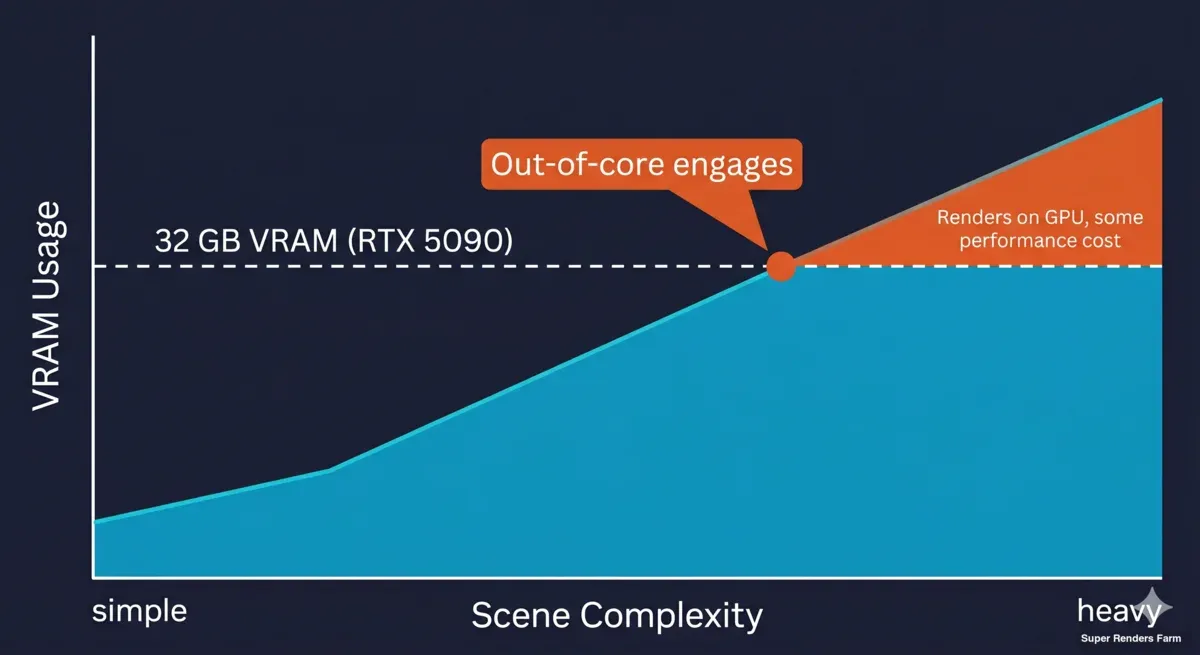 Chart of VRAM usage rising with scene complexity, crossing the RTX 5090's 32 GB line where Redshift out-of-core engages and continues rendering on the GPU at some performance cost
Fully managed vs. renting a GPU machine yourself
There are two broad ways to render Redshift in the cloud, and the difference matters more than the hardware spec.
The first is infrastructure rental, where you rent a remote GPU machine, connect to it over remote desktop, install Redshift and your host application yourself, sort out the licensing, copy your files across, and manage the render. You get a bare machine and full control, along with all of the setup and housekeeping that implies.
The second is a fully managed farm, which is how we operate. You upload your scene, the engine and licenses are already in place, the frames are distributed across the GPU fleet — RTX 5090 cards, 32 GB VRAM each — for you, and you collect the output. There is no remote desktop to log into, nothing to install, and no license to activate. For a Redshift artist this removes the parts of cloud rendering that have nothing to do with making images — and it is the main thing that separates a managed farm from the infrastructure-as-a-service GPU rentals you may have used.
For the broader fundamentals of what cloud rendering involves and how the service models differ, see our cloud rendering explained guide. Our Redshift cloud render farm page is the place to point a teammate who wants the short version.
Which model suits you depends on how much control you need over the environment. If you have an unusual plugin chain or a bespoke build, a raw machine can be the right tool. For most Redshift work — a standard host application, the engine, and your scene — a managed farm gets frames back with far less overhead.
What Redshift rendering costs on a farm
GPU rendering on our farm is billed by usage rather than by a monthly plan. The unit is the OctaneBench-hour (OBh) — a measure of GPU work done — charged at a base rate of $0.003 per OBh. In practical terms, an RTX 5090 card works out to roughly $5.20 per card-hour of rendering. You pay for the GPU time your frames actually consume, not for a seat or a subscription tier.
The same GPU-hour billing applies to Octane jobs; our Octane render cloud farm guide covers how Octane scenes run on the fleet.
A few specifics that tend to come up:
- Licensing is included. The Redshift license is part of the render rate. The same is true for the other engines we run — there is no separate license line to budget for.
- Credits do not expire. You top up a credit balance and spend it on jobs; paid credits stay valid for whenever you need them. New accounts also start with $25 in trial credit to size a real job before committing to a sequence.
- No tiers. Every account renders at the same usage-based rate. There is no plan to choose and no feature gated behind a higher tier.
To estimate a job, take the time one frame needs on a comparable card, multiply by your frame count, and apply the card-hour figure — distributed across the fleet the wall-clock time collapses, but the GPU-hours billed stay roughly the same as the total work done. Rendering a 10-second shot at 24 fps is 240 frames; if each frame takes a card four minutes, that is about 16 card-hours of work, or in the region of $83 at the practical rate — returned in a small fraction of that wall-clock time because the frames run in parallel across multiple RTX 5090 cards rather than queuing on one.
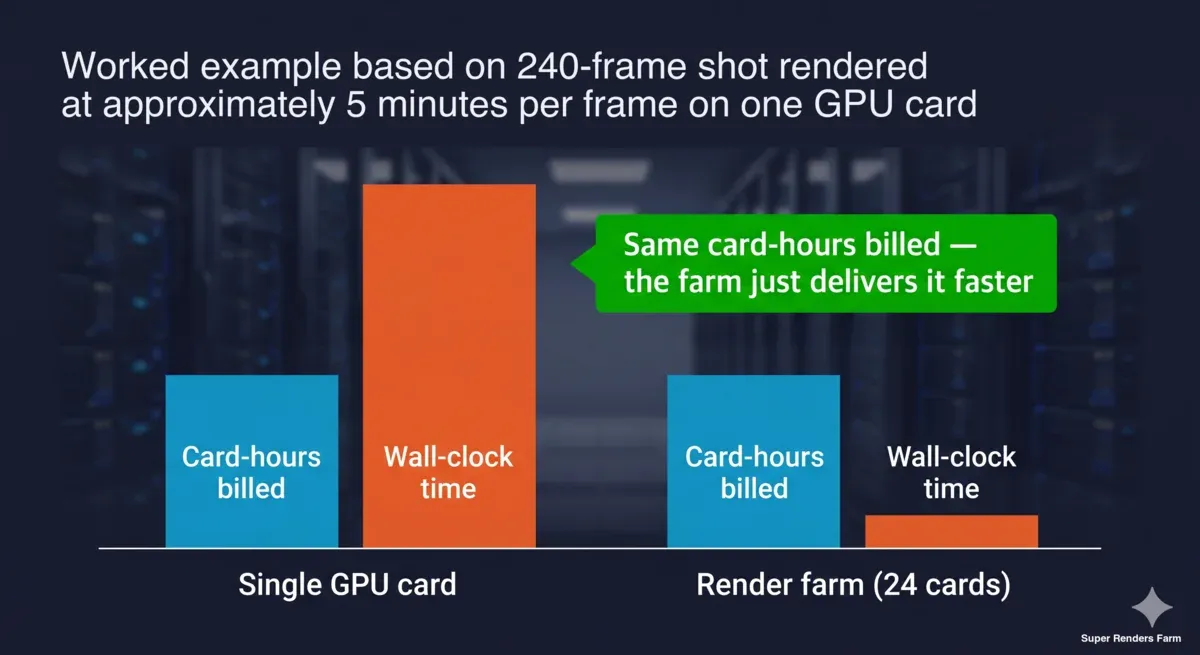 Worked cost example for a 240-frame shot: card-hours billed are the same on a single GPU card and on a 24-card render farm, but the farm's wall-clock time is far shorter
Choosing Redshift, or another engine, for the job
Redshift is a strong fit when you want GPU speed with a biased renderer's controllability, and when your host application is one of the four above. It is not the only option, and part of choosing well is knowing where it sits relative to the alternatives.
- Against Arnold, the trade is Redshift's GPU-biased speed and interactivity versus Arnold's reputation for unbiased, physically grounded output across CPU and GPU. We compare the two for farm work in Arnold vs. Redshift on a render farm.
- Against Octane, both are GPU renderers with different shading philosophies and host-application support. Our Octane vs. Redshift comparison breaks down how they differ in practice.
- Against Cycles, Blender's built-in engine, the comparison is less about GPU-only vs CPU-only and more about ecosystem — Cycles runs on both CPU and GPU depending on scene needs, while Redshift on our farm is GPU only, whatever the host application.
A render farm does not lock you into one engine — the same upload-and-render model applies to the other engines we run — so the engine choice can stay a creative and pipeline decision rather than a hosting one.
The upload, render, download workflow
Getting a Redshift scene onto the farm follows the same three steps regardless of host application.
Upload. Package your scene with its assets — textures, proxies, caches, and references. The web upload has no hard size cap, though a single browser upload gets slow above about 2 GB, becomes unreliable above about 5 GB and does not resume if the tab closes; for anything above 2 GB, our client application gives you a resumable transfer, or you can use S3 access (Cloud Direct Connect). Upload the folder unpacked: the farm does not extract archives (.zip, .rar, .7z, .tar, .tar.gz), so nothing inside an archive gets rendered. The single most common cause of a stalled GPU job is an asset path that resolved on your workstation but not once the files moved, so collect or relink external references before you upload.
Render. Submit the job and the frames are distributed across the GPU fleet. Because Redshift jobs are GPU only here, every frame lands on an RTX 5090 with its 32 GB of VRAM, and out-of-core covers scenes that need more.
Download. Finished frames are available to pull back over the web or automatically through the client application. Output stays available after a job completes with no fixed automatic deletion period; download promptly or let the client application auto-download to your local storage, and ask us to delete a project when you are done.
A short checklist before sending a Redshift job
| Check | Why it matters |
|---|---|
| External assets collected or relinked | Unresolved paths are the top cause of stalled GPU jobs |
| Texture sizes and proxies sane | Keeps the scene inside VRAM and out of out-of-core where possible |
| Output path and AOVs set | Avoids re-rendering for a missing pass |
| Project uploaded as a folder, not an archive | The farm does not extract archives |
| Frame range and step correct | Pay for the frames you need, not extras |
| A test frame rendered first | $25 trial credit is enough to confirm settings before the full sequence |
Working through this list takes a few minutes and removes nearly every avoidable reason a job comes back wrong.
FAQ
Q: Is Redshift GPU-only on a render farm? A: On our farm, yes — every Redshift job runs on the GPU, specifically NVIDIA RTX 5090 cards with 32 GB of VRAM each, with no CPU rendering path. Redshift the product added a CPU mode starting in version 3.5, but that mode is not what runs here; our hardware and pipeline are provisioned for GPU-only Redshift rendering. If you have tuned a scene against the CPU backend elsewhere, validate it against GPU output before committing a full sequence.
Q: How much does a Redshift render farm cost? A: On our farm, GPU rendering is billed by usage at $0.003 per OctaneBench-hour, which works out to roughly $5.20 per RTX 5090 card-hour. The Redshift license is included in that rate — there is no separate license fee — and credits never expire. New accounts start with $25 in trial credit, enough to size a real job before committing to a full render.
Q: Does the farm render Redshift on the GPU or the CPU? A: GPU only. Our Redshift jobs run on a dedicated NVIDIA RTX 5090 fleet with 32 GB of VRAM per card. Redshift the product added a CPU mode in version 3.5, but on our farm there is no CPU rendering path for Redshift — if you have tuned a scene for the CPU backend, validate it against GPU output first.
Q: Which applications can I render Redshift from? A: Cinema 4D, Maya, and Houdini are ready on every node, and 3ds Max is provisioned on request, so contact us to confirm before you upload. The engine is the same across all four; only the host application's bridge plugin and scene export differ. The Redshift license is included in the render rate in every case.
Q: What happens if my scene is larger than 32 GB of VRAM? A: Redshift uses out-of-core technology to page textures and geometry from system memory when a scene exceeds available VRAM. The scene still renders on the GPU, with some performance cost. Reducing texture sizes and using proxies keeps more of the scene resident in VRAM and quick.
Q: Do I need my own Redshift license? A: No. The Redshift license is included in what you pay to render. As an official Maxon partner, we license Redshift for render use on the farm, so there is nothing to activate on your side.
Q: How is Redshift rendering priced day-to-day, and are there tiers? A: There are no plan tiers — every account renders at the same usage-based rate described above. Licensing is bundled into that rate for every engine we run, not just Redshift, so there is no separate line item to budget for regardless of which of the four supported applications you render from.
Q: How do I get my scene onto the farm, and how long are my frames kept afterward? A: Upload the packaged scene over the web (no hard size cap, but a browser upload gets slow above about 2 GB and unreliable above about 5 GB), or for anything larger use the client application, which gives you a resumable transfer, or S3 access (Cloud Direct Connect). Upload the project folder unpacked, because the farm does not extract archives, and collect or relink external assets before uploading so paths resolve on the farm. Once frames are rendered, output stays available for download with no fixed automatic deletion period; download over the web or the client application's auto-download, or configure auto-download to keep a local copy.
About Thierry Marc
3D Rendering Expert with over 10 years of experience in the industry. Specialized in Maya, Arnold, and high-end technical workflows for film and advertising.