Render Farm for Students: Cloud Rendering for University 3D Projects
Overview
Introduction
It's the night before a studio review or a course deadline, and a scene that took all semester to build won't finish rendering. The lab closes at midnight. The laptop fan has been screaming for two hours and the frame counter hasn't moved. This is a familiar moment for anyone in an archviz, VFX, animation, or motion design program, and it's the moment "render farm" starts sounding less like an industry term and more like an actual option.
Most searches for a "render farm for students" land on either enterprise pricing pages built for studios, or generic listicles that don't say anything about what a student workload actually looks like. This guide is written for the second problem: a handful of genuinely heavy renders a few times a term, not continuous production throughput, a shared or modest machine rather than a dedicated workstation, and close to zero budget. We run render jobs across our farm daily at Super Renders Farm, and we'll be direct about where a farm helps a student project and where it honestly doesn't.
What a Student Rendering Workload Actually Looks Like
Studio render farms are usually built around steady, near-continuous demand: a production team submitting jobs every day for months. Student rendering doesn't look like that, and treating it like a smaller version of the same problem leads to the wrong tool.
A typical term instead produces short bursts of real load clustered around specific moments: a mid-term review, a final crit, a portfolio deadline, a competition submission. In between those moments, most of the actual work is modeling, texturing, look-dev, and fast preview renders, none of which need a farm at all. The heavy compute need shows up late, concentrated, and usually with a hard deadline attached, which is close to the worst combination for a shared lab machine or a single laptop GPU to absorb.
Two other constraints shape this differently from a studio context. First, most students don't own a workstation built for rendering; a laptop with a mid-range GPU, or a shared lab machine with 20 other people queued behind it, is the norm. Second, the budget is close to zero, so anything that assumes a monthly subscription or a large upfront commitment is the wrong shape of product before the technical question even comes up.
When a Render Farm Genuinely Helps
The cases where a farm earns its cost for a student project are fairly specific, and they cluster around the same theme: work that has outgrown what one machine can do in the time available.
- A final beauty render at deadline resolution and sample count. The version you've been test-rendering all week at quarter resolution isn't the version due tomorrow. Full-resolution, full-sample final frames are exactly where a single machine's render time stops being a minor inconvenience and starts threatening the deadline itself.
- An animation or walkthrough with real frame counts. A 10-second archviz flythrough or a short animated sequence multiplies your per-frame render time by however many frames it contains. On one machine, that multiplication is linear and unforgiving; distributed across a farm's nodes, per-frame time stays the same but the frames run in parallel.
- A scene that has grown past what your GPU's VRAM can hold. Heavy Redshift or Octane look-dev, dense point clouds, or a scene assembled from multiple people's assets can exceed a single consumer GPU's memory. Our GPU nodes run NVIDIA RTX 5090 cards with 32 GB VRAM each, and it's worth being precise here: that 32 GB is per card, not pooled across cards in a node, so a scene that needs more VRAM than one card holds needs a different optimization strategy regardless of where it renders.
- A shared lab machine that's already booked. If the lab's render-capable stations are reserved by classmates for the same deadline window, the actual bottleneck isn't your scene, it's contention for a shared resource you don't control.
When It Honestly Isn't Worth It
The differentiator that matters more than any spec sheet is being straight about when a farm is the wrong call, and for a lot of student work, it is.
- A single still at preview resolution, or a fast EEVEE loop. If a scene renders in a minute or two on your own machine, uploading it somewhere else adds more overhead (packing the file, uploading, waiting in a queue, downloading the result) than it saves.
- Iterative look-dev. Early- and mid-project work is mostly about testing lighting, materials, and camera angles quickly, over and over. That loop wants fast local feedback, not a network round-trip. Save the farm for the render you've already locked.
- A course project built around scripted, programmatic render submission. If an assignment specifically requires automating a render pipeline end-to-end through code, that's worth flagging honestly: our rendering happens through a web upload and job-submission flow, and there is no public render API today, so a pipeline-automation exercise built around programmatic render calls isn't a fit here.
- A tiny budget with no room for even one paid render. Free credit helps here (see below), but it isn't unlimited, and it's worth going in with real expectations about what it covers.
If your project doesn't fit any of the "genuinely helps" cases above, the honest answer is that your own machine, or the lab, is still the right tool.
The Software You're Probably Already Using
Course pipelines vary by program, but they tend to cluster around a small set of tools. On our farm, the version ranges we support are:
| Software | Supported versions |
|---|---|
| Blender | 2.79 – 5.2 (4.5 LTS recommended) |
| Autodesk 3ds Max | 2013 – 2027 |
| Autodesk Maya | 2014 – 2027 |
| Maxon Cinema 4D | R14 – 2027 |
| SideFX Houdini | 21.0 or later |
| Adobe After Effects | 2024 – 2026 |
Render engines commonly used in coursework, including V-Ray, Corona, Arnold, Redshift, Octane, and Blender's own Cycles and EEVEE, are supported, with the render-engine license included in the per-compute rate rather than billed to you separately. A couple of specifics worth knowing if your program uses them: on Houdini, Karma, Karma XPU, Mantra, and Redshift run on every node, while Arnold, V-Ray, and Octane for Houdini are provisioned on request (a quick confirmation before you upload, not something pre-installed); on Blender, Cycles and EEVEE both run on every node — EEVEE on CPU as well as GPU, and it is genuinely supported; the common myth that GPU-only render farms can't run EEVEE is simply outdated. V-Ray, Octane and Redshift for Blender are a different case: those are provisioned on request, so confirm with us before you upload a scene built around one. Cycles 4D, the INSYDIUM plugin for Cinema 4D, is not supported, and there's no public render API for scripting batch submissions, both worth knowing before you plan a workflow around either.
Blender in particular shows up constantly in student pipelines because it's free and open-source; no license cost for the software itself changes the math for a program with a tight budget. Many schools and DCC vendors also run separate educational licensing programs for paid tools like 3ds Max or Maya; that's a program-level or vendor-level arrangement outside anything we control, so check with your department if you're unsure what license you're covered under.
How Billing Works for Occasional, Bursty Use
The billing model matters more for students than the raw compute specs do, because a subscription built for continuous studio use is the wrong shape for a workload that spikes twice a term and sits idle the rest of the time.
Rendering here runs on a top-up credit model rather than a plan tier: you buy render credits, and jobs draw down that balance. There's no monthly commitment and no "use it or lose it" clock; render credits never expire, so a balance you buy in October is still good in April. New accounts get $25 free render credits on signup, which is often enough to test the workflow and cover a small render before you need to decide whether to put any real money in.
CPU rendering is billed per GHz-hour, and GPU rendering per OctaneBench-hour (OBh), a GPU benchmark unit used here as the billing yardstick. The $0.004 per GHz-hour figure you'll sometimes see quoted is the floor of the standard-priority tier, not a flat rate for everyone; depending on how much rendering priority you need against a deadline, the CPU rate runs $0.004–$0.016 per GHz-hour. GPU rendering is billed at $0.003/OBh, and one RTX 5090 card costs $5.17 per hour of rendering, the same at every priority level. If you're topping up a larger balance at once, automatic volume discounts apply, up to 30% at the higher top-up amounts, on top of whatever the $25 signup credit already covers.
The practical read for student use: because there's no subscription and credits don't expire, buying a modest amount of credit once, at the start of a term, and drawing it down only when you actually need a farm render, is a reasonable way to budget around a handful of deadline crunches rather than paying for capacity you're not using most weeks.
Do Students Get a Discount?
Yes. There is a student discount, and the way to get it is to ask for it: there's no public code to paste at checkout. Contact the support team — 24/7 live chat on the site, or supportcenter@superrendersfarm.com — tell them you're a student and what you're working on, and they'll sort it out with you.
It's deliberately not published as a code — it's arranged with you directly instead. The $25 signup credit and the volume discounts described above apply to any new account as well, student or not — the student discount is on top of the ordinary terms, not instead of them.
A Practical Workflow for a Deadline Render
The steps that make or break a first render submission are mostly file-prep, not the render itself.
 Diagram of the 5-step render job submission workflow: pack scene, keep the project as an unpacked folder, upload, submit and monitor, download output.
- Pack your scene before you upload. File paths saved as absolute local paths (
C:\Users\...) won't resolve on a remote machine. Use your software's "pack" or "collect" function, or convert to relative paths, so textures and referenced assets travel with the scene file. - Keep it as a folder. Upload the project folder unpacked. The farm does not extract archives (.zip, .rar, .7z, .tar, .tar.gz), so nothing inside an archive gets rendered, a detail that trips people up because zipping is the usual habit for sending files.
- Upload. There's no hard size limit on web uploads, but a single browser upload gets slow above roughly 2 GB and unreliable above about 5 GB, so for anything above 2 GB the Client App (resumable) or S3 access (Cloud Direct Connect) is the safer path rather than a single browser upload.
- Submit and monitor. Jobs draw down your credit balance as they run; there's nothing else to configure per job beyond your render settings.
- Download your output. Files are available via web download or the Client App's auto-download feature. On timing: your files stay available for download for as long as you need them; there's no fixed automatic deletion period, and deletion happens on request rather than on a countdown. Download promptly anyway, particularly close to a deadline, rather than treating "no fixed deletion window" as a reason to leave it for later.
Where This Trips Up First-Time Submissions
Most of the friction we see on a first student submission traces back to a short, repeatable list.
| Issue | Cause | Fix |
|---|---|---|
| Textures missing or wrong on the render | Absolute local file paths instead of relative, or assets not packed into the scene | Pack all assets or use relative paths before upload |
| Job can't find the scene | Project uploaded as an archive (.zip, .7z, .tar.gz) | Extract locally and upload the folder unpacked |
| Render exceeds available VRAM | Scene assumes GPU memory pools across cards in a node; it doesn't — 32 GB per card is the real per-card ceiling | Optimize texture resolution and instancing for a single card's VRAM, or split the scene |
| Job costs more than expected | Priority tier set higher than the standard floor rate, without realizing it | Check the priority setting against the $0.004–$0.016/GHz-hour range before submitting a large batch |
| Submitted the night before, no buffer for a failed first attempt | No time built in for a first submission to fail on a file-prep issue | Do a small test render (a few frames, not the full sequence) a day or two before the real deadline |
None of this is exotic. It's the same "worked on my machine" class of problem every remote-rendering workflow runs into, and a five-minute file-prep check catches nearly all of it before it costs you deadline time.
Deciding Which Machine to Use
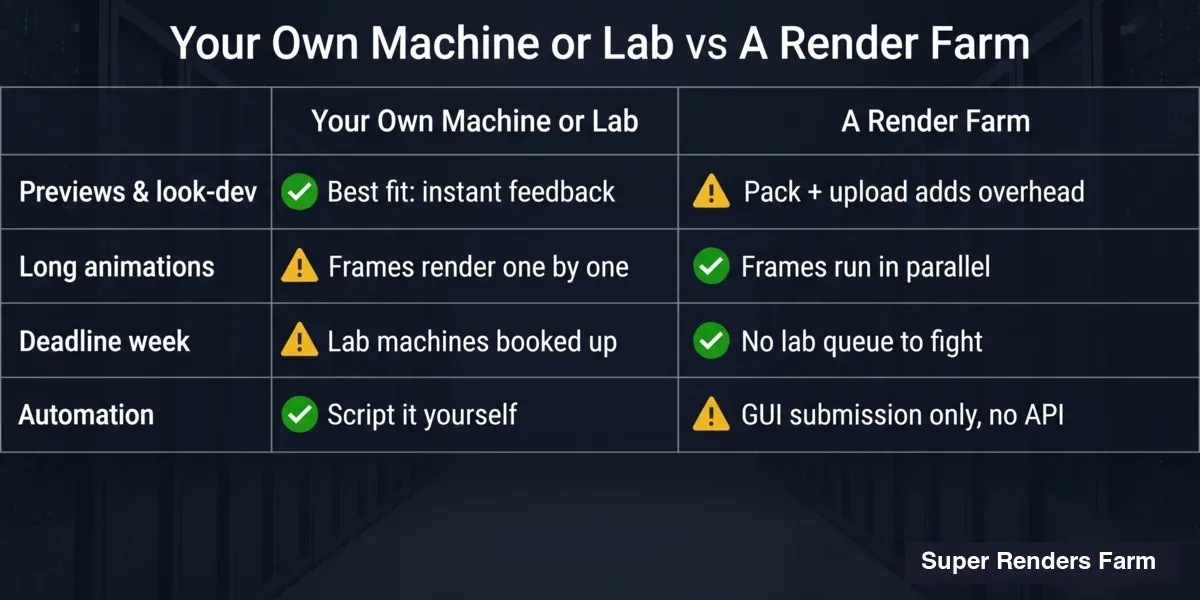 Comparison infographic: your own machine or lab versus a render farm for student work, covering previews and look-dev, long animations, deadline week, and automation.
| Your situation | Best fit |
|---|---|
| Quick preview render, iterating on look-dev | Your own machine or the lab |
| Fast EEVEE loop or a short test animation | Your own machine, usually |
| Final beauty render at full resolution and samples, deadline tomorrow | A farm |
| Animation or walkthrough with a real frame count | A farm, parallel nodes collapse the total time the most here |
| Scene that has grown past your GPU's VRAM | A farm's per-scene GPU headroom |
| Lab machines fully booked by classmates for the same deadline | A farm, since the lab's contention problem doesn't apply to it |
| Course assignment requiring scripted, API-driven render automation | Not this, GUI-based submission only |
| Zero budget, need to test the concept first | The $25 signup credit, treated as a real limit, not a full production budget |
For the deeper trade-off between a fully managed service and administering your own remote machine, our fully managed vs. DIY render farm comparison covers the same decision at studio scale. If your coursework is Blender-specific, our Blender render server guide breaks down engine-by-engine what a single machine versus a farm actually needs. Current rates and the full priority-tier breakdown are on our pricing page.
FAQ
Q: Is a render farm worth it for a single class project, or only for a full semester of work? A: It depends on the project, not the semester. A single heavy final render, an animation with a real frame count, or a scene that has outgrown your GPU's VRAM are all cases where one project justifies it. Routine look-dev and quick previews almost never do, regardless of how many projects you have that term.
Q: Do I need to be part of a studio or company to use a render farm as a student? A: No. Signup is per individual account; there's no requirement to be affiliated with a studio, and the same billing model (top-up credits, $25 free render credits on signup) applies to any new account.
Q: What happens if my scene needs more VRAM than one GPU has? A: Our GPU nodes run NVIDIA RTX 5090 cards with 32 GB VRAM each, and that memory is per card, not pooled across the cards in a node. A scene that exceeds one card's VRAM needs to be optimized (lower texture resolution, reduced instancing, or splitting the scene) rather than assuming multiple GPUs will combine their memory automatically.
Q: Can I use free tools like Blender without paying for software licenses? A: Yes. Blender is free and open-source, so there's no separate license cost for the software itself; you're only billed for the compute time your render actually uses. Paid DCCs and render engines are also supported, with their license cost included in the per-compute rate rather than charged separately.
Q: Is there a way to automate render submissions through code for a pipeline-focused assignment? A: Submission happens through a web upload and job flow. There is no public render API today, so an assignment built specifically around programmatic, scripted render calls isn't a fit here.
Q: How long do my render outputs stay available after a job finishes? A: Your files stay available for download for as long as you need them; there's no fixed automatic deletion period, and deletion happens on request rather than on an automatic countdown. It's still good practice to download promptly, especially close to a deadline.
Q: Is there a student discount?
A: Yes, though not as a code you can paste at checkout. Ask the support team — 24/7 live chat, or supportcenter@superrendersfarm.com — and they'll arrange it with you. It's deliberately not published as a code — it's arranged with you directly instead. The standard $25 signup credit and volume discounts on larger top-ups apply to any new account on top of that.
About Thierry Marc
3D Rendering Expert with over 10 years of experience in the industry. Specialized in Maya, Arnold, and high-end technical workflows for film and advertising.