Arnold Renderer: A Complete Guide for 3D Artists Using Cloud Render Farms
Overview
Introduction
Arnold has been a production rendering standard since Solid Angle first released it over a decade ago. Now developed by Autodesk, Arnold ships natively with Maya and 3ds Max, and integrates with Cinema 4D and Houdini through dedicated plugins. It has earned its reputation in film and VFX — studios behind major feature films have relied on Arnold for its physically accurate light transport, predictable sampling behavior, and ability to handle scenes with billions of polygons.
On our render farm, Arnold accounts for a meaningful share of production jobs, split between CPU and GPU modes. We process everything from single-frame archviz stills in Arnold CPU to full animation sequences in Arnold GPU. This guide covers what makes Arnold distinct as a renderer, how its CPU and GPU modes compare in practice, what it costs, and how to set up an efficient cloud rendering workflow — whether you're evaluating Arnold for the first time or optimizing an existing pipeline.
If you are still getting familiar with render farms as a concept, our complete render farm guide explains what they are, how distributed rendering works, and what to look for in a cloud rendering service.
What Is Arnold Renderer
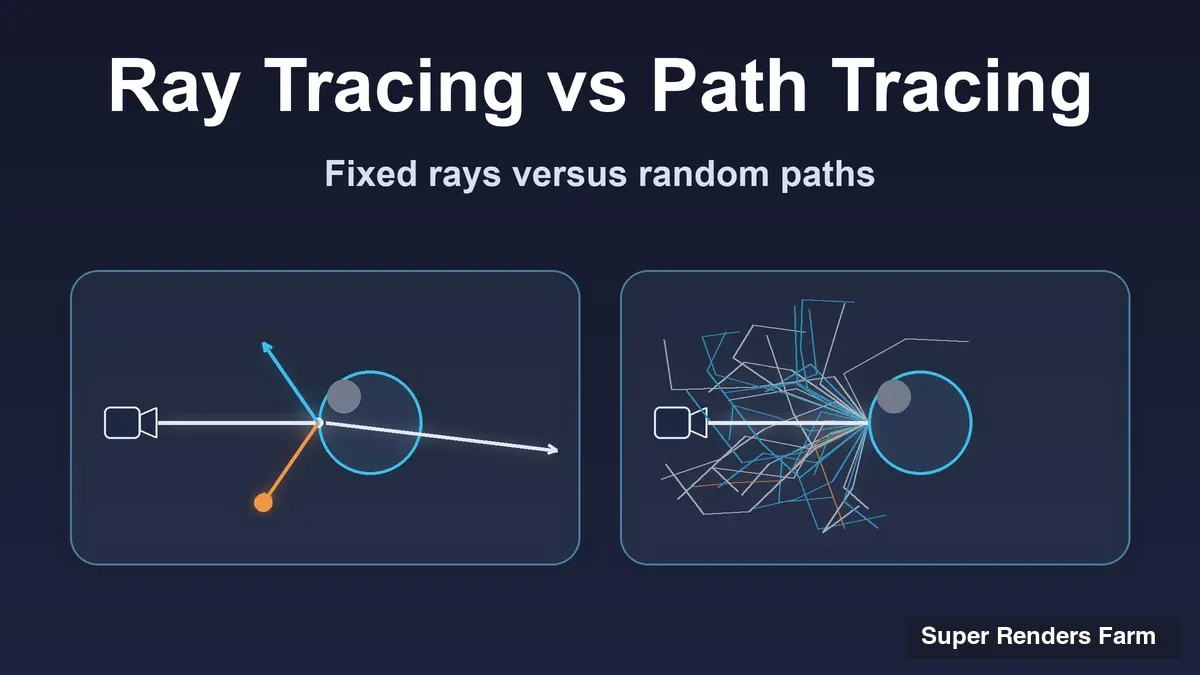
Arnold is a physically-based Monte Carlo ray tracer designed for production rendering. Unlike biased renderers that use shortcuts to approximate light behavior, Arnold traces light paths with minimal approximation, producing images that converge toward physical accuracy as samples increase. This approach makes Arnold predictable: what you see in a test render at low samples is what you get at production quality, just with less noise.
The renderer handles the full spectrum of production rendering challenges — global illumination, subsurface scattering, volumetric effects (smoke, fog, atmosphere), motion blur, depth of field, and displacement mapping. Arnold's shader system is built on Open Shading Language (OSL), giving technical artists full control over custom materials without modifying the renderer's source code.
Arnold operates as both a standalone renderer (kick command-line tool) and as plugins integrated into major DCC applications. This dual architecture means studios can build automated pipelines around the command-line renderer while artists work interactively through their DCC of choice.
Arnold GPU vs CPU: How Both Modes Work
Arnold supports two rendering backends: CPU and GPU. Understanding the practical differences matters when you're deciding how to configure render farm jobs.
Arnold CPU uses all available processor cores on a machine. On our farm, that means Dual Intel Xeon E5-2699 V4 processors providing 44 cores per node, with access to 96-256 GB of system RAM. CPU rendering has been Arnold's traditional mode and supports every feature in Arnold's specification — there are no feature gaps. When a new shader or feature ships, it works on CPU immediately.
Arnold GPU leverages NVIDIA CUDA cores for parallel ray tracing. On our GPU fleet (NVIDIA RTX 5090, 32 GB VRAM), Arnold GPU delivers roughly 3-5x faster render times compared to equivalently-priced CPU configurations for most production scenes. Arnold GPU has reached feature parity with CPU mode for the vast majority of production workflows as of Arnold 7.x, though a small number of advanced features may still have CPU-only implementations in edge cases.
For the full methodology behind how we measure and compare GPU-versus-CPU render times, see our render farm benchmark methodology.
One of Arnold GPU's distinguishing characteristics is its unified memory model. When a scene exceeds available VRAM, Arnold GPU can spill data to system RAM rather than crashing outright. This is more graceful than some competing GPU renderers, though rendering speed does decrease when scenes exceed VRAM capacity. For a detailed comparison of GPU rendering performance with Arnold, see our Arnold GPU rendering guide.
Practical guidance for render farm users:
| Factor | Arnold CPU | Arnold GPU |
|---|---|---|
| Speed | Baseline | 3-5x faster (typical) |
| Memory | 96-256 GB system RAM | 32 GB VRAM + system RAM overflow |
| Feature support | Complete | Near-complete (99%+ parity) |
| Scene size limit | Virtually none | VRAM-constrained (graceful fallback) |
| Cost per frame | Higher (longer render time) | Lower (when scene fits in VRAM) |
| Ideal use | Complex VFX, massive scenes | Animation, lookdev, moderate scenes |
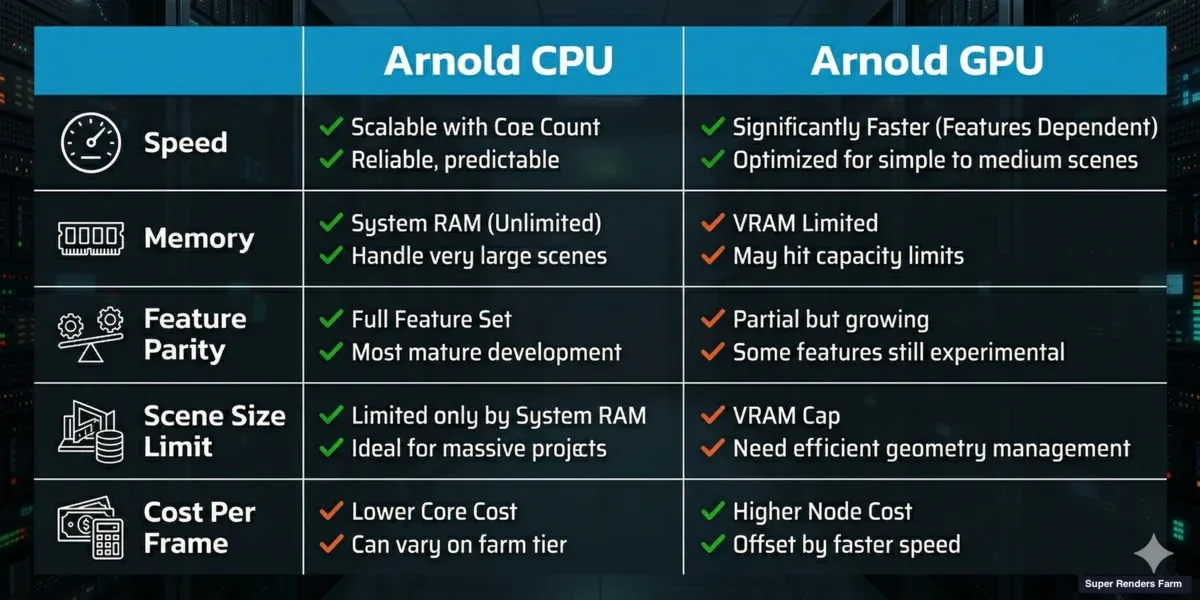 Arnold GPU vs CPU rendering comparison — speed, memory, feature support, and cost per frame
For a broader comparison of GPU and CPU rendering economics across all engines, our GPU vs CPU rendering guide covers the full landscape.
Key Features in Arnold 7.x
Arnold 7.5.1 (released March 2026) represents the current state of the renderer. Here are the features that matter most for production rendering:
Physically-based rendering: Arnold's Standard Surface shader (based on the Autodesk Standard Surface specification) provides a single, energy-conserving material model that handles metals, dielectrics, skin, fabric, and glass. This one shader covers the vast majority of real-world materials without requiring specialized shader types.
Open Shading Language (OSL): Custom shaders written in OSL integrate directly into Arnold's rendering pipeline. Studios with proprietary material libraries can port them to Arnold without relying on the renderer's built-in shader set.
Adaptive sampling: Arnold's adaptive sampler concentrates rendering effort on noisy regions of an image — shadow boundaries, glossy reflections, subsurface scattering areas — while spending fewer samples on flat or simple regions. This reduces overall render time without sacrificing quality where it matters.
AI denoiser (OptiX / OIDN): Arnold includes two denoising options: NVIDIA OptiX (GPU-accelerated, requires NVIDIA hardware) and Intel Open Image Denoise (CPU-based, works everywhere). Both can dramatically reduce the sample count needed for clean production frames, cutting render times by 50-80% in noise-limited scenarios.
For a step-by-step walkthrough of denoiser setup with variance AOVs in Maya, see our Maya Arnold denoiser AOV setup guide.
Volume rendering: Arnold handles OpenVDB volumes natively — smoke, fire, fog, atmospheric effects. Arnold 7.4.3+ brought significant volume rendering optimizations, with volume scenes rendering up to 3.3x faster than previous versions.
Global Light Sampling: Introduced and refined across Arnold 7.4.x, Global Light Sampling optimizes light evaluation across the entire scene, with speedups of up to 6x in scenes with complex lighting setups involving many area lights.
Flow Render (tech preview): Arnold 7.5.1 includes a preview of Autodesk's Flow Render, a cloud-based rendering solution. Users with current Arnold, Maya, or 3ds Max subscriptions receive 40 hours of free cloud render time per month during the preview period. This is Autodesk's entry into managed cloud rendering — a space we operate in as well.
For the broader fundamentals of cloud rendering, including how it works and what it costs, see our cloud rendering explained guide.
DCC Integration: Maya, 3ds Max, Cinema 4D, Houdini
Arnold integrates with all four major DCC applications through dedicated plugins:
Maya (MtoA — Maya to Arnold) Arnold ships natively with Maya — no separate installation required. The integration is deep: Arnold materials appear in the Hypershade, Arnold lights are first-class Maya objects, and the Arnold RenderView provides interactive rendering with progressive refinement. Maya is where Arnold sees the heaviest production use, particularly in film VFX and character animation. If you're setting up Maya render farm workflows, Arnold is one of the primary engines we support.
For the Maya-side workflow specifically — scene preparation, renderer selection, and the cloud errors that surface only after upload — see our Maya cloud rendering guide.
3ds Max (MAXtoA — Max to Arnold) Arnold also ships natively with 3ds Max. The integration supports 3ds Max's native material system alongside Arnold-specific materials, and includes Arnold-compatible versions of common 3ds Max features like ActiveShade for interactive rendering. Archviz studios sometimes use Arnold in 3ds Max when they need physically accurate rendering for interior design visualization, though V-Ray and Corona remain more common in that market segment.
Cinema 4D (C4DtoA) The C4DtoA plugin connects Arnold to Maxon's Cinema 4D. While Redshift (also Maxon-owned) has a built-in advantage in the C4D ecosystem, Arnold remains a viable option for C4D users who need CPU rendering or who work in studios where Arnold is the standardized renderer across multiple DCCs.
For a closer look at the Redshift side of that C4D ecosystem, see our Cinema 4D Redshift render farm guide.
Houdini (HtoA — Houdini to Arnold) Arnold integrates with SideFX Houdini through HtoA, supporting Houdini's procedural workflow including VDB volumes, packed primitives, and Alembic caches. This integration is important for VFX studios where Houdini handles simulation and Arnold handles final rendering.
Render farm compatibility: All four DCC plugins produce scenes that render correctly on cloud render farms. On our farm, we maintain current versions of MtoA, MAXtoA, C4DtoA, and HtoA across the fleet. The most common issue we see with Arnold render farm submissions is texture path resolution — local file paths need to be accessible from render nodes, either through absolute paths, relative paths, or path remapping.
For Maya jobs, the XGen and .tx preflight guide lists the checks that catch cache and groom-folder problems before submission.
Arnold Pricing and Licensing
Arnold's licensing structure changed significantly when Autodesk acquired Solid Angle. Here's how it works in 2026:
Included with Autodesk subscriptions: If you have a Maya or 3ds Max subscription, Arnold is included at no additional cost. This means most Maya and 3ds Max users already have Arnold licensed for both interactive and batch rendering.
Standalone Arnold license: For users who need Arnold without a Maya or 3ds Max subscription (for example, Houdini or Cinema 4D users, or studios running Arnold via the kick command-line tool), Autodesk offers standalone Arnold subscriptions at approximately $55/month or $430/year.
Render farm licensing: Arnold uses a node-locked or floating license model for batch rendering. On managed render farms like ours, Arnold licensing is bundled into the rendering cost — you don't need to provide your own Arnold licenses or manage license servers. Your scene renders on our infrastructure using our licenses, and the per-hour rendering rate covers everything.
Compared to other renderers:
| Renderer | Standalone Cost | Included With | Farm License Model |
|---|---|---|---|
| Arnold | ~$55/mo or ~$430/yr | Maya, 3ds Max subscriptions | Bundled on managed farms |
| V-Ray | ~$60/mo or ~$480/yr | Not included with DCCs | Bundled on managed farms |
| Redshift | ~$22/mo or ~$264/yr (Maxon One) | Maxon One subscription | Bundled on managed farms |
| Corona | Included with V-Ray license | Not included with DCCs | Bundled on managed farms |
Cloud Rendering Workflow with Arnold
Setting up Arnold scenes for cloud render farm submission follows a predictable workflow. Here's what we've learned from processing thousands of Arnold jobs:
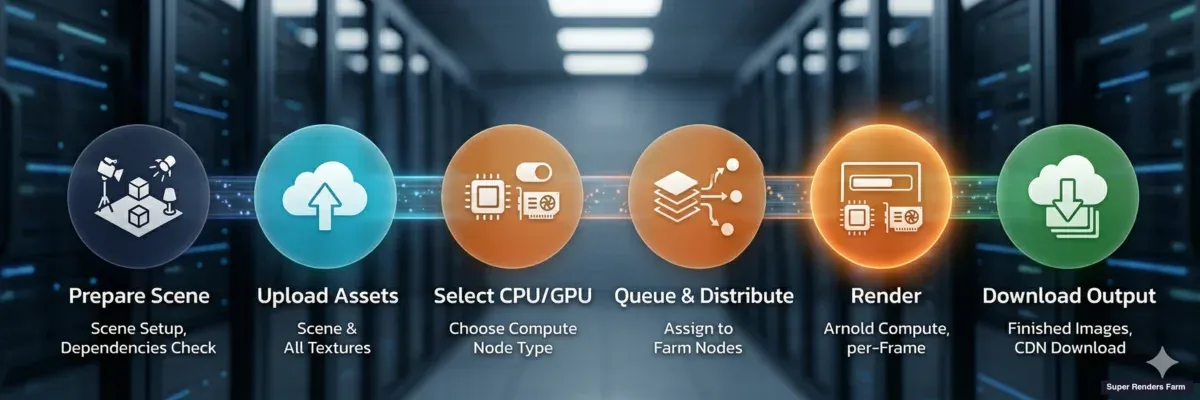 Arnold cloud rendering workflow — scene preparation, upload, render mode selection, farm rendering, delivery
Scene preparation:
-
Consolidate textures — Use Maya's File Path Editor or 3ds Max's Asset Tracking to identify all external files. Copy textures to a single directory relative to the scene file. Avoid absolute paths pointing to local drives.
-
Check shader assignments — Verify all objects have Arnold-compatible materials assigned. Standard materials or non-Arnold shaders won't render correctly and will appear black or pink in the output.
-
Set render settings — Configure sampling (camera AA, diffuse, specular, transmission, SSS), choose your denoiser (OptiX for speed, OIDN for CPU compatibility), set resolution and frame range.
-
Test locally — Render at least one frame locally at production settings to confirm the scene works. This catches missing textures, shader errors, and incorrect render settings before they consume farm time.
Submission to a managed render farm:
-
Upload scene + assets — The farm's upload tool packages your scene file and all dependent assets. On our farm, the upload process detects Arnold-specific dependencies including TX texture files, ASS (Arnold Scene Source) caches, and volume data.
-
Select render mode — Choose CPU or GPU rendering. If your scene fits comfortably in 32 GB VRAM and doesn't rely on CPU-only features, GPU will typically deliver faster and cheaper results. If your scene is large or uses advanced features, CPU is the reliable choice.
-
Queue and monitor — Once submitted, the farm distributes frames across available nodes. You can monitor progress, check early frames for quality issues, and adjust priority if needed.
Common Arnold render farm issues we see:
| Issue | Cause | Fix |
|---|---|---|
| Black textures | Non-Arnold materials (Standard, Physical) | Convert to Arnold Standard Surface |
| Missing textures | Absolute local paths (C:, D:) | Use relative paths or path remapping |
| TX files not found | TX cache generated locally, not uploaded | Include TX directory in upload or regenerate on farm |
| GPU out of memory | Scene exceeds 32 GB VRAM | Switch to CPU mode or optimize textures |
| Slow volume rendering | Unoptimized VDB resolution | Reduce voxel resolution or use volume padding |
For specific Arnold troubleshooting, see our guides on fixing Arnold camera issues in Maya and resolving bitmap node problems in 3ds Max.
Arnold vs Other Production Renderers
Arnold exists in a competitive landscape with several mature alternatives. Here's how it compares on practical criteria:
Arnold vs V-Ray: Both are full-featured production renderers with CPU and GPU support. V-Ray tends to be faster for archviz and product visualization workloads due to aggressive light cache and irradiance map algorithms. Arnold's physically unbiased approach produces more predictable results with fewer tuning parameters — you get correct results by default, though render times may be longer. V-Ray has a larger install base in archviz; Arnold dominates in film VFX.
Arnold vs Redshift: Redshift is GPU-only and built from the ground up for GPU architecture, making it generally faster than Arnold GPU for scenes that fit in VRAM. Arnold's advantage is flexibility — it works on both CPU and GPU, handles larger scenes through memory overflow, and integrates natively with Maya and 3ds Max. Redshift is stronger in Cinema 4D and motion design workflows.
For a deeper production-focused comparison covering workflow, pricing, and per-DCC suitability, see our Arnold vs Redshift 2026 comparison.
Arnold vs Corona: Corona is CPU-only with an extremely simple interface — minimal settings to configure, fast convergence, and exceptional ease of use. Arnold offers more technical depth (OSL shaders, custom AOVs, complex pipeline integration) at the cost of a steeper learning curve. Corona dominates in archviz; Arnold is rare in that market.
These comparisons are deliberately neutral — the right renderer depends on your DCC, scene type, and workflow preferences. Studios that standardize on Maya for VFX work frequently choose Arnold for its deep integration and predictable behavior.
Performance Tips for Arnold on Render Farms
Based on patterns we observe across production jobs, here are practical tips for reducing render time and cost:
-
Use adaptive sampling aggressively — Set Camera (AA) samples to 3-5 and max samples to 8-12 for most production work. Arnold's adaptive sampler will concentrate effort where needed. Oversampling wastes budget.
-
Enable AI denoising — OptiX denoiser on GPU nodes or OIDN on CPU nodes can reduce required sample counts by 50-80%. Always render a test frame with and without denoising to verify quality.
-
Optimize textures — Convert textures to TX format (MakeTX utility) before uploading. TX files are tiled and mipmapped, reducing memory usage and I/O overhead on render nodes.
-
Reduce unnecessary ray depth — Default ray depth values are often higher than needed. For most scenes: diffuse 2-3, specular 3-4, transmission 6-8. Reduce where you don't see visible difference.
-
Use Arnold's light groups — Isolate light contributions to debug slow areas. Often one light with an oversized sample count or incorrect settings dominates render time.
-
Choose the right rendering mode — Don't default to GPU for every job. Scenes with heavy displacement, massive scatter instances, or complex volumes may render more efficiently on CPU where memory isn't a constraint. Check our cloud render farm pricing to compare CPU vs GPU rates for your typical workloads.
Summary
Arnold is a mature, production-proven renderer with genuine strength in both CPU and GPU modes. Its inclusion with Maya and 3ds Max subscriptions makes it accessible, while its physically-based approach and OSL shader system provide the technical depth that VFX and film production demands. The GPU rendering improvements in Arnold 7.x have made it competitive with dedicated GPU renderers for scenes that fit within VRAM limits, and its unified memory fallback provides a safety net that some competing GPU renderers lack.
For cloud render farm users, Arnold is straightforward to set up — the main requirement is ensuring texture paths resolve correctly and choosing the appropriate CPU or GPU rendering mode based on scene complexity. We maintain current Arnold versions across both our CPU and GPU fleets, with licensing included in the rendering cost.
FAQ
Q: Is Arnold free with Maya and 3ds Max? A: Yes. Arnold is included with Maya and 3ds Max subscriptions at no additional cost, covering both interactive and batch rendering. For standalone use (Houdini, Cinema 4D, or command-line rendering without Maya/3ds Max), Arnold costs approximately $55/month or $430/year.
Q: Is Arnold GPU rendering production-ready in 2026? A: Arnold GPU is available for lookdev, previews, and GPU-suitable finals up to roughly 28 GB VRAM per frame on our RTX 5090 nodes (32 GB VRAM per card, not pooled) — Arnold CPU is recommended for heavy finals, deep-EXR output, and custom shaders that push past GPU-friendly workflows. Where GPU is the right fit, it delivers 3-5x faster render times than CPU on typical production scenes. The main limitation remains VRAM — scenes exceeding GPU memory fall back to system RAM with reduced performance.
Q: How much VRAM does Arnold GPU need? A: It depends on scene complexity. Most production scenes consume 8-20 GB of VRAM. Arnold GPU's unified memory model allows scenes to exceed available VRAM by spilling to system RAM, but performance decreases. On our farm's RTX 5090 nodes (32 GB VRAM), most production Arnold GPU scenes render without memory issues.
Q: Does Arnold work with Cinema 4D and Houdini? A: Yes. Arnold integrates with Cinema 4D via the C4DtoA plugin and with Houdini via HtoA. Both plugins provide full access to Arnold's feature set. However, Cinema 4D users more commonly use Redshift (also Maxon-owned), and Houdini users often choose Mantra, Karma, or Redshift depending on the studio pipeline.
Q: Do I need my own Arnold license to render on a cloud render farm? A: On managed render farms like ours, no. Arnold licensing is included in the per-hour rendering cost. You upload your scene, and we handle the licensing on our infrastructure. This is one of the practical advantages of managed farms versus DIY cloud setups where you'd need to provide and manage your own license server.
Q: What is the difference between Arnold and V-Ray for production rendering? A: Arnold uses an unbiased Monte Carlo approach with minimal user-tunable parameters — it produces physically correct results by default. V-Ray offers both biased (faster) and unbiased modes with more configuration options. Arnold dominates in film VFX (particularly Maya pipelines), while V-Ray has a larger presence in archviz and product visualization. Both support CPU and GPU rendering.
Q: How do I optimize Arnold render times on a cloud render farm? A: Key optimizations include using adaptive sampling (Camera AA 3-5, max 8-12), enabling AI denoising (OptiX for GPU, OIDN for CPU), converting textures to TX format, reducing unnecessary ray depth values, and choosing the correct CPU or GPU mode based on scene memory requirements. See the Performance Tips section above for detailed guidance.
Q: What is Arnold's Flow Render? A: Flow Render is Autodesk's cloud-based rendering service, currently in tech preview as of Arnold 7.5.1 (March 2026). Users with current Arnold, Maya, or 3ds Max subscriptions get 40 hours of free cloud render time per month during the preview. It's Autodesk's entry into cloud rendering — separate from third-party render farms like ours that have been providing this service for years.
About Alice Harper
Blender and V-Ray specialist. Passionate about optimizing render workflows, sharing tips, and educating the 3D community to achieve photorealistic results faster.