V-Ray GPU Render Farm: Speed Estimates & Real Cost (2026)
Overview
Introduction
Every artist working with V-Ray GPU eventually hits the same wall: scenes that outgrow what a single workstation can deliver in time. A complex archviz interior with 40 million polygons, a product animation with 500 frames, a hero shot with layered displacement across every surface — these jobs run overnight locally and still come back too slow for a live deadline.
At Super Renders Farm, V-Ray GPU has been a growing share of our job mix for several years.
If you are still on V-Ray 6 and weighing a farm, our V-Ray 6 cloud render farm guide covers version support and submission specifics. In 2026, with our fleet running NVIDIA RTX 5090 GPUs (32 GB VRAM each), this guide works through estimated frame times and the cost-per-frame math for representative scene types, and compares them with a typical local RTX 4090 workstation.
This guide is aimed at artists and studios who want concrete numbers before deciding whether cloud GPU rendering fits their V-Ray workflow, not marketing claims about raw teraflops.
We also cover the structural difference between a fully managed farm and a self-managed GPU cloud — a distinction that matters more in practice than most people expect when they first look at hourly rates.
TL;DR — V-Ray GPU on RTX 5090 in 2026
For artists who want the numbers up front, here's what V-Ray GPU on Super Renders Farm's RTX 5090 fleet looks like in production:
- Hardware: NVIDIA RTX 5090 GPUs, 32 GB VRAM each. V-Ray 7 GPU pre-installed for 3ds Max, Maya, and Cinema 4D.
- Estimated frame times (1× RTX 5090 vs local RTX 4090): interior archviz 1080p — 15 min vs 22 min; exterior daylight 4K — 34 min vs 48 min; complex product viz 4K with 40M+ polys — 67 min vs 94 min (local 4090 falls into hybrid CPU+GPU mode at 24 GB+ scenes).
- Cost per frame on Super Renders Farm: roughly $1.30 (interior 1080p) to $5.81 (complex 4K product viz) at about $5.2 per RTX 5090 card-hour of render time ($0.003/OBh published, 1,731 OB).
- Verdict vs local 4090: cloud V-Ray GPU is not a per-frame cost optimization. It wins on wall-clock time for animation sequences (parallel nodes), VRAM headroom on 24+ GB scenes, and variable-cost flexibility for studios with irregular project flow.
- Licensing: V-Ray GPU is included in the per-node rate. Super Renders Farm is an official Chaos Group render partner — no Chaos Cloud Credits, no BYO license.
The full benchmark methodology, hardware comparison, V-Ray GPU vs V-Ray CPU cost math, and managed-vs-DIY distinction are below.
V-Ray GPU Rendering in 2026
V-Ray GPU (formerly V-Ray RT) has reached a point where it handles most production scenarios natively — complex displacement, procedural textures, hair rendering, nested instancing, and light path expressions all run on-device without CPU fallback for the majority of scenes.
Two hardware factors define the performance ceiling at render farm scale:
Raw compute throughput. RTX 5090 delivers substantially higher shader throughput than the previous RTX 4090 generation — the architectural improvement translates directly to faster convergence on high-sample-count scenes.
VRAM capacity. This is the practical bottleneck for most production V-Ray GPU scenes. At 32 GB per GPU on RTX 5090 nodes, scenes that previously required CPU fallback (when local VRAM runs out) can render entirely on-device. Eliminating hybrid mode is not just a convenience — it removes a significant rendering overhead that can add 30–60% to frame times on memory-heavy scenes.
Super Renders Farm supports V-Ray GPU for 3ds Max, Maya, and Cinema 4D. V-Ray GPU licensing is included in the rendering rate as part of our official Chaos Group render partnership — you can verify this at chaos.com/render-farms.
Hardware Spec Comparison: Cloud vs Local Workstations
The hardware question for V-Ray GPU comes down to VRAM, raw compute, and how those translate to frame time on real scenes. The table below sets the baseline.
| GPU | VRAM | CUDA cores | Boost clock | Typical V-Ray GPU role |
|---|---|---|---|---|
| Super Renders Farm — RTX 5090 fleet | 32 GB GDDR7 | 21,760 | ~2.4 GHz | Production render node, 32 GB headroom |
| Local — RTX 4090 | 24 GB GDDR6X | 16,384 | ~2.5 GHz | Solid solo workstation, hybrid mode at 24 GB+ |
| Local — RTX 3090 | 24 GB GDDR6X | 10,496 | ~1.7 GHz | Usable but ~1.6–1.8× slower than 4090 |
| Local — Mac M-series | 18–192 GB unified | n/a (MetalRT) | varies | V-Ray GPU not officially supported on Apple silicon |
The RTX 5090's 32 GB VRAM is the single biggest practical difference at production scale: scenes that previously broke a 4090 budget now render cleanly on a single node. Mac users who need V-Ray GPU typically render via cloud or a separate Windows/Linux box. At Super Renders Farm, every GPU node is the same RTX 5090 spec — there is no priority-tier hardware split, so per-frame speed is the same on every node.
Estimated Frame Times: RTX 5090 Cloud vs Local RTX 4090
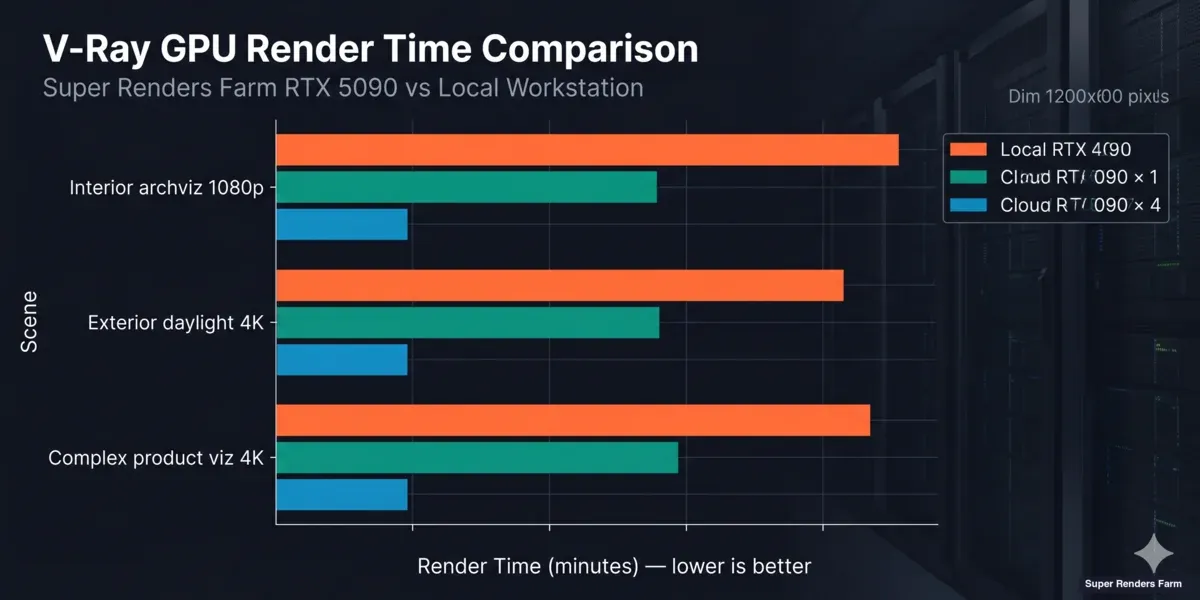 Estimated V-Ray GPU render time comparison, local RTX 4090 vs cloud RTX 5090 across interior, exterior, and complex product visualization scenes
The figures below are estimates for three representative V-Ray GPU scene types at standard production settings, not measured runs. They start from published RTX 5090 vs RTX 4090 performance ratios (roughly 30 to 35% more compute) and add the VRAM effect for the scene that exceeds 24 GB. All times are wall-clock minutes per frame.
How to read these numbers: they are planning estimates, not benchmark results, so treat them as a starting point and confirm with a test render of your own scene. The 4× RTX 5090 column assumes an animation's frames are spread across four cards; the farm spreads GPU frames across whichever cards are free, so the actual number varies. Cloud estimates include scene loading but exclude file upload time.
For the broader methodology behind how we structure and control the benchmarks we do measure, see our render farm benchmark methodology.
| Scene | Local RTX 4090 | Super Renders Farm 1× RTX 5090 | Super Renders Farm 4× RTX 5090 |
|---|---|---|---|
| Interior archviz — 1080p, 1,500 samples | 22 min | 15 min | 4 min |
| Exterior daylight — 4K, 2,000 samples | 48 min | 34 min | 9 min |
| Complex product viz — 4K, 3,500 samples, 40M+ poly | 94 min | 67 min | 17 min |
What these numbers mean in practice:
In these estimates, the interior and exterior scenes show a straightforward throughput improvement — roughly 30% faster on a single RTX 5090 compared to a local RTX 4090. That gap reflects the architectural improvement between the two GPU generations.
The complex product visualization scene tells a different story. The scene file exceeds 24 GB VRAM, which forces the local RTX 4090 into hybrid CPU+GPU mode — the GPU handles what fits in VRAM, and the CPU covers the overflow. In the estimate, this overhead pushes the local time to 94 minutes. The RTX 5090's 32 GB VRAM holds the full scene without fallback, cutting the time to 67 minutes on a single cloud node. The improvement is larger than raw compute differences alone would suggest.
For animation workloads, the 4-node column shows near-linear time reduction — each node renders a separate frame in parallel. This is the standard configuration for sequence rendering. Single-frame multi-node splitting (distributing one frame across multiple GPUs) is a different capability and not covered here.
We measured exactly that adjacent case — one job split across two GPUs versus a single card — in our 1-vs-2 GPU scaling benchmark.
Cost Per Frame: Cloud vs Local Workstation
Cloud GPU rendering costs more per frame than a well-utilized local workstation in most scenarios. Understanding this clearly — and when the premium is justified — matters more than a surface-level price comparison.
How Super Renders Farm GPU pricing works: GPU rendering is published at $0.003 per OctaneBench-hour (OBh), the reference unit. At the RTX 5090's OctaneBench 2025.2.1 score of 1,731 OB, that works out to about $5.2 per RTX 5090 card-hour of actual render time, billed per second. GPU has one price, with no priority tiers. We use the same $0.003/OBh rate across V-Ray GPU, Redshift, Octane, and Cycles GPU
If Octane is your engine of choice, our Octane render cloud farm guide covers how those jobs run on the same GPU fleet. — there is no per-engine price difference.
Local workstation assumptions:
- RTX 4090: ~$1,600 hardware, 3-year amortization, ~1,500 render hours/year
- Hardware cost per hour: $1,600 ÷ 4,500h = ~$0.36/h
- Power: 450W × $0.12/kWh = $0.054/h
- Total: ~$0.41/GPU-hour (before staff time managing the machine)
| Scene | Super Renders Farm 1× RTX 5090 | Cloud cost/frame | Local RTX 4090 | Local cost/frame (est.) |
|---|---|---|---|---|
| Interior 1080p (1,500 samples) | 15 min | ~$1.30 | 22 min | ~$0.15 |
| Exterior 4K (2,000 samples) | 34 min | ~$2.95 | 48 min | ~$0.33 |
| Complex viz 4K (3,500 samples) | 67 min | ~$5.81 | 94 min (hybrid mode) | ~$0.64 |
Cloud: (minutes ÷ 60) × $5.2 per RTX 5090 card-hour (1,731 OB × $0.003/OBh). Local: (minutes ÷ 60) × $0.41/h.
The per-frame numbers make the trade-off explicit: cloud V-Ray GPU rendering is not a cost-per-frame optimization. A typical interior scene costs roughly 9× more per frame in the cloud than on a local RTX 4090.
Where cloud GPU rendering changes the equation is wall-clock time and capital structure:
Animation throughput. A 500-frame sequence at 22 min/frame locally means ~183 hours — over 7 days of continuous rendering. With the frames spread across 4 cloud GPUs, the same 500 frames would complete in roughly 33 hours at the estimated times above. When wall-clock delivery time is the binding constraint on a client deadline, the per-frame premium changes character.
VRAM headroom. The complex product visualization above shows a structural advantage: the local RTX 4090 falls into hybrid mode because the scene exceeds 24 GB VRAM, adding significant overhead. The RTX 5090's 32 GB allows full GPU rendering on scenes that would require hardware upgrades to handle cleanly locally.
Capital vs. variable cost. A local RTX 4090 costs $1,600 regardless of whether it's rendering. Studios with irregular project flow — peaks around deadlines, quiet periods between — avoid paying for idle hardware under a variable-cost model.
For full pricing methodology and cost ranges across all supported render engines, see our render farm cost-per-frame guide. For RTX 5090 performance data across V-Ray GPU, Redshift, Arnold GPU, and Octane, see our RTX 5090 GPU cloud rendering benchmark. And for a deeper breakdown of how OctaneBench-hour billing compares to node-hour and GHz-hour models, our render farm pricing models comparison walks through the math.
V-Ray GPU vs V-Ray CPU: The Cost Math
The other comparison most artists eventually run is V-Ray GPU against V-Ray CPU on the same farm. Both are first-class engines on Super Renders Farm — V-Ray CPU runs on our 20,000+ CPU cores at $0.004 per GHz-hour, V-Ray GPU runs on the RTX 5090 fleet at $0.003 per OctaneBench-hour (about $5.2 per RTX 5090 card-hour).
For an interior archviz scene that both engines can handle cleanly:
- V-Ray CPU (1080p, brute force + light cache): ~20 min/frame on a 64-core node at 3.2 GHz. Cost: (20/60) × 64 × 3.2 × $0.004 ≈ $0.27/frame.
- V-Ray GPU (1080p, RTX 5090, 1,500 samples): ~15 min/frame as in the table above. Cost: ~$1.30/frame.
V-Ray GPU is faster in wall-clock minutes for many scene types but costs more per frame here: about $1.30 on one RTX 5090 at $5.2 per card-hour versus about $0.27 on CPU. The math flips toward GPU when the scene has GPU-suited content (lots of subsurface, hair, fur, dense particles), when deadline pressure outweighs a per-frame delta of about a dollar, or when a long animation can run across 4 GPU nodes in parallel.
For CPU-side per-scene cost data, see our render farm cost-per-frame breakdown. For when each engine is the better fit, see our V-Ray benchmark guide for 2026.
For cross-engine hardware comparison data using the Cinebench R24 standard — covering CPU and GPU scores across the hardware tiers our farm runs — our render farm hardware benchmark with Cinebench scores for 2026 puts the numbers in context for cloud rendering.
Preparing Your V-Ray GPU Scene for Cloud Rendering
A few scene-level checks make the difference between a clean first submit and a round-trip to fix issues.
VRAM audit before upload. V-Ray's memory statistics dialog (Render → V-Ray Memory Usage) shows your scene's GPU memory footprint. Knowing this number before submitting tells you which node configuration to request. Most production scenes land between 8 GB and 28 GB; anything above 28 GB warrants a conversation with us before submitting.
Asset paths. All textures, HDRIs, IES files, and proxy geometry need to be accessible through relative paths or a collected project folder. Our upload tool includes an asset checker that flags missing files before transfer. Running this before uploading catches the most common source of failed renders.
Render output format. For multi-pass renders (beauty + element channels), EXR is the standard output format. Confirm your render output path uses a relative location that our system can write to — absolute local drive paths (C:\renders...) will not resolve on our nodes.
V-Ray version. We run V-Ray 7 on all GPU nodes. If your scene was built in an older V-Ray version, a compatibility pass in your host application before exporting avoids surprises. For 3ds Max users specifically, our V-Ray 7 features guide for 3ds Max covers the GPU-side changes worth checking before submitting.
Submitting V-Ray GPU Jobs: The Workflow
Super Renders Farm operates as a fully managed render farm. You upload project files, configure the render, and retrieve output — there is no remote desktop session, no software installation, and no GPU driver management.
The submission process:
- Export your scene from 3ds Max, Maya, or Cinema 4D as a standard .vrscene file (or submit the native project folder — both are supported).
- Upload the project folder including scene file, textures, HDRIs, and any proxy geometry. The asset collector in our portal identifies missing dependencies before transfer.
- Configure the job — resolution, sample count, frame range, output format, number of GPU nodes.
- Monitor and download — rendered frames appear in your project folder as they complete. You don't need to wait for the full batch to finish before downloading early frames.
V-Ray GPU licenses are included in the per-node rate. Each active node has a dedicated V-Ray GPU license — there is no license pool to manage and no Chaos Cloud Credit deduction.
Fully Managed vs Self-Managed GPU Cloud
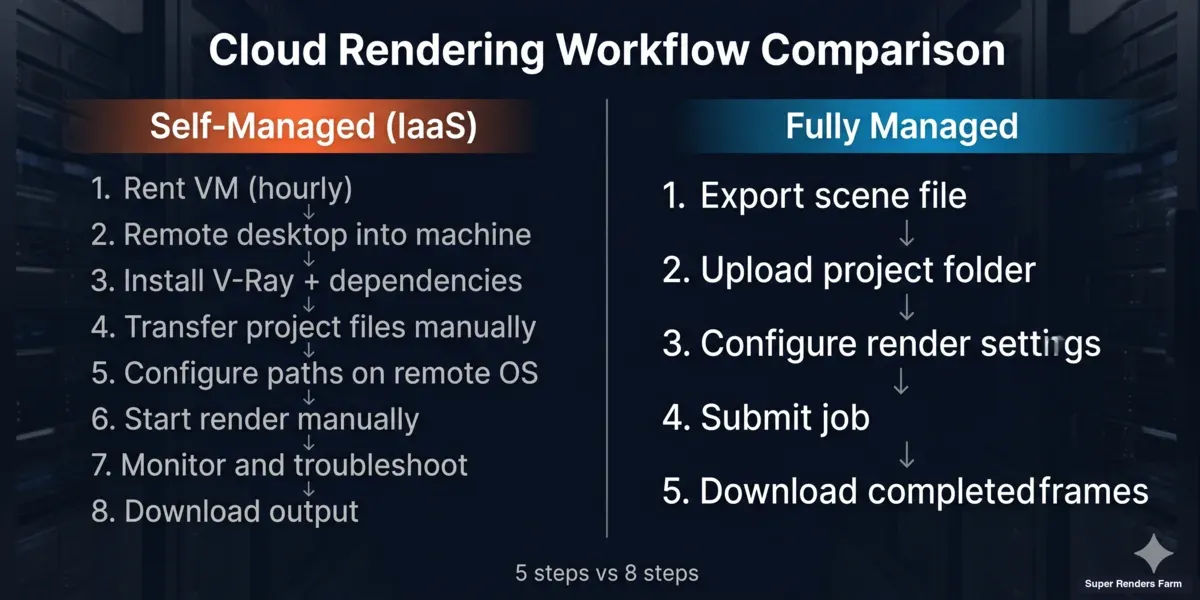 Fully managed render farm workflow vs self-managed IaaS GPU cloud — comparison of steps from scene export to output download
There are two distinct types of GPU cloud services for rendering, and they work very differently in practice.
Self-managed GPU cloud (IaaS model): You rent a virtual machine, remote desktop into it, install V-Ray yourself, manage driver updates, configure your project paths on the remote machine, and troubleshoot environment issues when they arise. The hourly rate is often lower, but the setup time and ongoing management fall on the artist.
Fully managed render farm (our model): The artist submits a scene file through the portal. The environment is pre-configured — V-Ray is installed and kept current, GPU drivers are maintained centrally, licensing runs at the node level. When a node fails mid-render, the queue automatically reschedules the affected frames onto a different node. The artist's interaction is with rendered output and project files, not with virtual machines.
For studios where an artist's time costs more than a few dollars per hour, the operational difference between these models is significant — particularly on deadline-driven projects where troubleshooting a remote desktop environment is not an option.
More detail on this distinction is in our managed vs DIY cloud rendering guide.
For a head-to-head between a self-managed GPU IaaS provider and our managed V-Ray GPU model on real archviz and animation workloads, our iRender vs Super Renders Farm comparison covers the per-machine-hour vs per-render-minute math and the operational differences artists actually feel.
How V-Ray GPU Cloud Farms Compare on the Factors That Matter
Beyond raw hourly rate, a few structural factors explain why two V-Ray GPU cloud quotes can look identical on price and behave very differently in practice.
| Factor | Why it matters for V-Ray GPU |
|---|---|
| Pricing model — OctaneBench-hour vs node-hour | OBh is a reference unit that scales with GPU spec; node-hour treats all hardware as equivalent. Compare the per-card-hour figure each farm resolves to. |
| GPU model and VRAM | RTX 5090 (32 GB) vs RTX 4090 (24 GB) vs RTX 3090 (24 GB) — the VRAM ceiling decides whether the scene runs clean or falls into hybrid mode. |
| V-Ray license model | Included in node rate vs Chaos Cloud Credit deduction vs BYO license — three different billing surfaces. |
| Managed vs self-managed (IaaS) | Submit scene file vs remote desktop into a VM. Setup time: 5 minutes vs 1–2 hours per provider. |
| Multi-node animation throughput | How many parallel GPU nodes are available on your account, and on what notice. |
| Frame retry on node failure | Automated retry vs manual resubmit — matters most on long animation jobs. |
| Trial credit | $25–$50 of free render time to validate a scene before committing. |
At Super Renders Farm, we publish $0.003/OBh on RTX 5090 nodes (about $5.2 per card-hour, billed per second), V-Ray 7 license is included, the workflow is fully managed, animation runs on multi-node parallel by default with automated frame retry, and new accounts include a $25 trial credit. For a side-by-side of OBh, node-hour, and GHz-hour pricing models across the major V-Ray-capable cloud farms, see our render farm pricing models comparison.
When Cloud GPU Rendering Makes Sense
Cloud GPU rendering is not the right choice for every project or studio. A practical framework:
Strong case for cloud GPU rendering:
- Animation sequences with 100+ frames, where parallel nodes reduce total clock time proportionally
- Scenes that exceed local GPU VRAM (above 24 GB for RTX 4090 users)
- Deadline-driven work where overnight local renders arrive too late for client review
- Studios without dedicated render hardware who prefer a variable-cost model
Cases where local rendering is often sufficient:
- Single-frame stills with moderate complexity and no time pressure
- Rapid iterative test renders where upload latency offsets render time savings
- Scenes with predictable 20-minute-or-less local render times
The crossover point depends on your project mix. For archviz studios delivering 10–30 seconds of animation per project (250–750 frames at 25fps), cloud rendering typically becomes the more efficient path once individual frames exceed 25–30 minutes locally. Below that threshold, local rendering handles most workloads without coordination overhead.
See our V-Ray cloud render farm page for pricing details and to start a test render. For cost-per-frame methodology across different render engines, our render farm cost-per-frame guide covers the full breakdown.
FAQ
Q: Does Super Renders Farm support V-Ray GPU for all V-Ray host applications? A: We support V-Ray GPU for 3ds Max, Maya, and Cinema 4D. Blender is supported with V-Ray CPU rather than GPU on our current infrastructure. Contact us before submitting if your project uses a host application not listed here, as support changes with new V-Ray releases.
Q: What V-Ray version runs on your GPU render nodes? A: Our GPU nodes run V-Ray 7 for all supported host applications. We update to new V-Ray releases after they reach production stability, typically within 2–4 weeks of Chaos Group's official release. If you're on an older V-Ray version, a compatibility pass in your host application before exporting is recommended.
Q: Is V-Ray GPU worth it vs V-Ray CPU in 2026? A: It depends on the scene type and the deadline. V-Ray GPU is typically faster in wall-clock minutes for archviz interiors, product viz, and motion graphics, especially on the RTX 5090's 32 GB VRAM. V-Ray CPU is often the safer choice for heavy displacement, complex VRayProxy networks, very large texture budgets that exceed 32 GB, and scenes built around CPU-only features. On Super Renders Farm, V-Ray GPU runs at $0.003/OBh (about $5.2 per RTX 5090 card-hour) and V-Ray CPU at $0.004/GHz-hour — for most archviz interiors, GPU is faster wall-clock and about a dollar more per frame.
Q: How does V-Ray GPU licensing work on your render farm? A: V-Ray GPU licenses are included in the per-node rendering rate. As an official Chaos Group render partner, we maintain dedicated licenses for each active GPU node. You don't need to supply your own V-Ray license or use Chaos Cloud Credits — licensing is covered as part of what we charge per GPU-hour.
Q: How much does a V-Ray GPU frame cost on Super Renders Farm? A: Cost depends on scene complexity, sample count, and resolution, but for the three estimated scenes in this article: an interior archviz frame at 1080p costs about $1.30, an exterior daylight 4K frame about $2.95, and a complex 4K product viz frame about $5.81 on a single RTX 5090 node. The pricing math is (frame minutes ÷ 60) × $5.2 per RTX 5090 card-hour (1,731 OB × $0.003/OBh). The per-frame number scales linearly with frame time.
Q: Can I render a single complex frame across multiple GPU nodes simultaneously? A: V-Ray GPU doesn't natively support splitting a single frame across multiple network nodes through standard distributed rendering. Our multi-node configuration runs frames in parallel — each node handles a separate frame, which is the standard approach for animation sequences. For single frames that hit VRAM limits, the RTX 5090's 32 GB VRAM resolves this for most scenes. Contact us for particularly large single-frame projects and we'll advise on the right approach.
Q: How does Super Renders Farm handle scenes with large texture sets in V-Ray GPU mode? A: Texture memory is the most common VRAM constraint in V-Ray GPU production work. The RTX 5090's 32 GB VRAM handles most production texture sets without downsampling or compression. For scenes with large texture budgets, running V-Ray's memory statistics dialog before submitting gives you an accurate VRAM footprint estimate — if you're near the 32 GB ceiling, let us know and we can discuss the options before you upload.
About Alice Harper
Blender and V-Ray specialist. Passionate about optimizing render workflows, sharing tips, and educating the 3D community to achieve photorealistic results faster.