Render Services: How Cloud 3D Rendering Works in 2026
Overview
Introduction
When a project approaches its deadline and your workstation is still processing the first hundred frames, the math becomes uncomfortable. Render services offer a practical alternative: move the heavy compute load off your local machine and onto purpose-built cloud hardware that processes frames in parallel.
This guide explains what render services are, the upload-render-download workflow that most of them share, which software and render engines are typically supported, and what to check before choosing one for your pipeline.
What Are Render Services?
Render services provide remote access to rendering hardware: banks of CPU or GPU machines configured specifically for production rendering workflows.
"Render service" and "render farm" get used loosely enough in the industry that the distinction is worth making explicit up front: a render farm is the hardware layer, and a render service is the business that sells access to that hardware, wrapped in software, support, and workflow tooling. Every render service runs on a render farm somewhere, but not every render farm is sold as a service. Our render service vs. render farm breakdown covers the distinction in more detail if terminology is the actual question you're trying to answer. In practice, studios submit project files and receive completed rendered output without purchasing, hosting, or maintaining any physical infrastructure.
The workflow parallels local rendering, but the compute happens on remote hardware. Your project files travel to the service's infrastructure, render nodes process your frames simultaneously, and you retrieve the output when complete. For large projects (architectural animations, VFX sequences, product visualization batches) this approach turns multi-day local renders into hour-scale jobs.
Two service models exist in practice. Fully managed services handle software installation, licensing, and technical configuration on the provider's side: you upload a project file and receive rendered frames with minimal setup on your end. Infrastructure-as-a-Service (IaaS) approaches give you remote desktop access to a virtual machine, requiring you to install software, manage licenses, and troubleshoot the environment yourself. The managed model suits most production studios; IaaS makes more sense when highly custom configurations or specific OS builds are required.
When Do You Need Render Services?
Render services address the gap between what local hardware can produce and what a project actually requires, specifically when deadline pressure is involved.
Architectural visualization. A residential development project might require 200 photorealistic still images, each with complex lighting and materials. On a single workstation, that's potentially days of continuous rendering. Distributed across cloud hardware, the same job compresses to hours, leaving time for revision rounds before client delivery.
VFX and film production. Complex simulations and multi-pass renders for high-resolution footage, where individual frames can take 30-90 minutes on local hardware. Running those frames simultaneously across distributed machines makes production timelines achievable without an in-house render farm.
Product visualization. Client revision cycles are difficult to predict. Render services provide additional capacity when last-minute changes come in, rather than requiring studios to over-purchase hardware to handle peak demand.
Motion graphics and animation. A 30-second animation at 24fps produces 720 frames. Even a modest per-frame render time of 10 minutes compounds to five days on a single machine. Frame-parallel distribution on a render service brings this within reach for studios without dedicated render infrastructure.
When the deliverable is specifically a finished video file rather than a still-image sequence, an extra encoding step sits at the end of that pipeline. See our video rendering service breakdown for how the frame-render-plus-encode workflow and cost model work for animation and motion-design jobs.
How Render Services Work: Upload, Render, Download
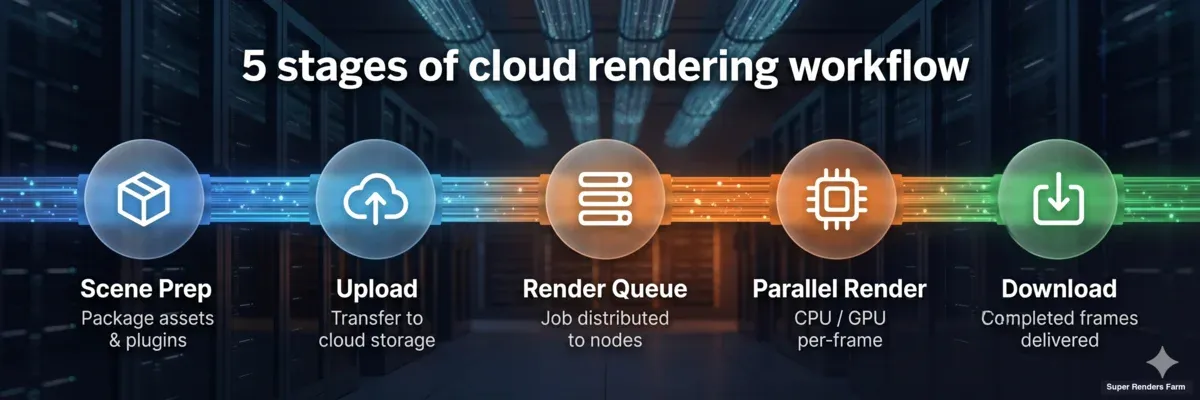 Cloud rendering workflow: prepare scene, upload files, render in parallel on server nodes, download completed frames
The upload-render-download cycle is the foundation of most render services. Understanding each stage helps set accurate expectations and diagnose issues when they arise.
Upload
You package your project (scene file, textures, referenced assets, plugins) and transfer it to the service's storage. A reliable render service provides tooling (a desktop submission client, a plugin, or a command-line tool) that helps collect dependencies automatically. One of the most common causes of failed farm renders is broken asset paths: textures referencing local drive paths that remote machines cannot access. At Super Renders Farm, the submission process is designed to surface these problems before a job starts, rather than after wasted render time.
Render
Once submitted, the job distributes across available render nodes. For animation, each machine takes a batch of frames and processes them simultaneously, rather than sequentially from frame 1 to frame N. For stills with long render times, some services support distributed rendering across multiple machines per frame, splitting workload via buckets or tile regions.
Our farm runs 20,000+ CPU cores alongside dedicated GPU machines with NVIDIA RTX 5090 and 32 GB VRAM. The render manager handles frame distribution, tracks completion status, and automatically requeues frames that fail due to hardware issues, without requiring manual monitoring on your end.
Download
Completed frames are staged for retrieval as they finish. On large animation jobs, you can start downloading completed batches while the remaining frames are still processing, reducing total time-to-delivery. Most services provide a web dashboard and an FTP or sync client for retrieval.
Supported Software and Render Engines
Compatibility is the most practical concern when evaluating render services. A service that doesn't support your exact software version and plugins doesn't help, regardless of hardware specifications.
At Super Renders Farm, we support the following DCC applications:
- 3ds Max: V-Ray, Corona, Arnold (3ds Max cloud rendering)
- Maya: V-Ray, Arnold, Redshift
- Cinema 4D: Redshift, V-Ray, Arnold (Cinema 4D cloud rendering)
- Blender: Cycles, EEVEE, Redshift for Blender, with V-Ray for Blender provisioned on request
- Houdini: Mantra, Karma, Redshift, with Arnold, V-Ray, and Octane provisioned on request
- After Effects and NukeX: compositing workflows
Render engine availability across hardware types:
| Render Engine | CPU | GPU |
|---|---|---|
| V-Ray | ✓ | ✓ |
| Corona | ✓ | — |
| Arnold | ✓ | ✓ |
| Redshift | — | ✓ |
| Octane | — | ✓ |
| Cycles | ✓ | ✓ |
CPU/GPU columns reflect our farm's hardware configuration. V-Ray, Arnold, and Cycles support both modes natively; Redshift runs GPU-only on our farm. Availability also depends on the host application: see the per-DCC list above, where some engine and host combinations are provisioned on request.
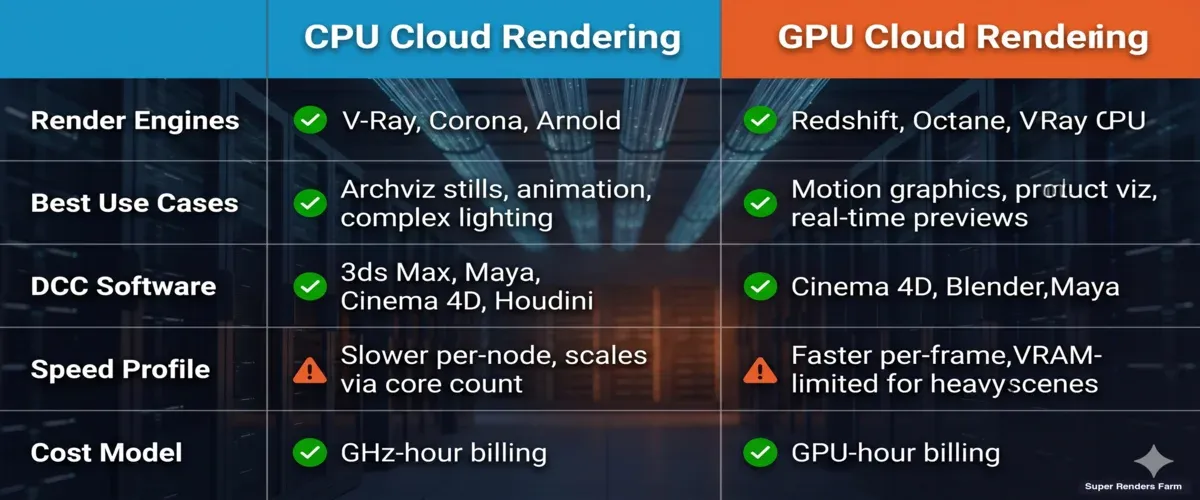 CPU vs GPU rendering engines comparison: V-Ray, Corona, Arnold support CPU; Redshift, Octane support GPU; Cycles supports both
Plugin compatibility deserves separate verification. Production workflows frequently depend on tools like Forest Pack, RailClone, or Anima; these need to be pre-installed on the farm's render nodes. Confirm plugin support with any service before submitting jobs that depend on them.
What Render Services Cost
Render services are typically priced by compute consumption, not by project type. The main variables:
- Machine type: CPU rendering bills by core usage (GHz-hour models are common); GPU rendering bills by GPU-hour or similar metrics. CPU jobs (V-Ray, Corona, Arnold CPU) typically have lower per-hour rates; GPU jobs (Redshift, Octane) complete faster per frame at higher hourly cost.
- Scene complexity: Render time per frame determines total compute consumed. Heavy GI settings, complex displacement, high sample counts, and dense geometry all extend render time.
- Priority: Standard queue access versus priority rendering for tighter deadlines. Priority typically costs more per hour but reduces wall-clock time.
- Licensing: Some engines include licensing in the per-hour rate; others bill separately. Verify what's included before comparing services on hardware cost alone.
Our render farm pricing guide covers billing models in detail, including GHz-hour pricing and cost-per-frame estimation for animation projects. Use the pricing calculator for estimates on specific jobs.
Choosing a Render Service: What to Check
Not all render services are built the same way, and the differences matter more once a deadline is close. A few criteria worth checking before committing a project to one:
- Software and plugin compatibility. Confirm the service supports your exact DCC version, render engine, and any production plugins (Forest Pack, RailClone, Anima) before submitting a job that depends on them. Strong hardware doesn't help if the service can't open your scene file.
- Setup model. Fully managed services install and maintain the software stack on their side; you upload and download. Remote-desktop or IaaS services give you a virtual machine you configure yourself. Neither is universally better; the right choice depends on whether your team wants to own environment configuration.
- Burst capacity. Ask how the service handles a large batch submitted right before a deadline versus steady-state usage. Frame-parallel distribution only helps if enough nodes are actually available when you submit.
- Data handling and NDA terms. For client work under NDA, confirm what happens to project files and rendered output after a job completes, and whether the service will sign your own NDA rather than only offering its own template. Our NDA request page covers what we support if that applies to your project.
- Pricing transparency. GHz-hour and GPU-hour billing models should let you estimate a job's cost before you submit it, not only after. If a service can't explain how its rate applies to your specific scene, that's worth asking about directly.
Getting Started
The practical steps before submitting your first job:
- Prepare your project: Consolidate all textures and referenced assets into a single project folder. Resolve missing references locally; debugging broken paths on a remote farm is slower and costs render credits.
- Verify software compatibility: Confirm the service supports your exact DCC version and render engine release. If your project uses specific plugins, confirm those are installed on the farm.
- Run a test render: Submit a single frame or a short sequence before committing the full project. This confirms job submission works correctly, output matches your local settings, and there are no unexpected errors.
- Scale up: Once the test is clean, submit the full job and monitor progress through the service's dashboard.
For a detailed walkthrough of the submission process on Super Renders Farm, see Getting Started with Super Renders Farm.
FAQ
Q: What are render services? A: Render services provide remote access to purpose-built rendering hardware, CPU or GPU machines, allowing studios to process render jobs in parallel without owning physical infrastructure. You upload project files, the service renders them, and you download the completed frames when they're ready.
Q: Are render services and render farms the same thing? A: Not exactly. A render farm is the hardware layer, a cluster of machines built for parallel rendering, while a render service is the business that sells access to that hardware along with software, support, and workflow tooling. Every render service runs on a render farm somewhere, but not every render farm is sold as a service. Our render service vs. render farm breakdown covers the distinction in more detail.
Q: What software is supported by render services? A: Support varies by provider. Most established render services cover the major DCC applications (3ds Max, Maya, Cinema 4D, Blender, and Houdini) along with common render engines such as V-Ray, Corona, Arnold, and Redshift. Plugin compatibility (Forest Pack, RailClone, Anima, etc.) varies by service and should be confirmed before submitting jobs that depend on them.
Q: How much do render services cost? A: Pricing varies by machine type, scene complexity, and priority level. CPU rendering (V-Ray, Corona) is typically billed by GHz-hour; GPU rendering (Redshift, Octane) by GPU-hour. Based on jobs we process regularly, a moderately complex V-Ray archviz still that takes 4 hours locally can render in 20-40 minutes on a distributed CPU farm, at a cost that scales with scene weight. Most services provide per-job estimates or calculators for scoping projects before committing.
Q: What should I look for when choosing a render service? A: Start with software and plugin compatibility, since a service that doesn't support your exact DCC version and render engine doesn't help regardless of hardware. After that, compare the setup model (fully managed versus remote desktop), how the service handles burst demand near deadlines, data handling and NDA terms for client work, and whether pricing is transparent enough to estimate a job's cost before you submit it.
Q: What is the difference between a managed rendering service and a remote desktop rendering service? A: A managed rendering service installs and maintains software on the provider's infrastructure, so you submit a project file and receive rendered output with no environment setup required on your end. A remote desktop service gives you access to a bare virtual machine that you configure yourself: installing software, setting up licenses, and troubleshooting the environment manually. For studios without dedicated technical staff, the managed approach reduces setup time and troubleshooting overhead significantly, though remote desktop still makes sense when a project needs a highly custom configuration or a specific OS build the managed provider doesn't offer. See our comparison of managed vs. DIY cloud rendering for a detailed breakdown.
Q: Can I just upload my scene without configuring anything? A: On a fully managed render service, yes. Your involvement ends at upload until the frames are ready to download. The service detects your DCC version, loads the matching render engine and plugins, and queues the job across its node pool. You don't open a remote desktop, install software, or manage licenses. Our overview of fully managed render farms covers what the service handles automatically and which scene-side settings (frame range, output format, render layers) still need to be set inside the file before upload.
About Alice Harper
Blender and V-Ray specialist. Passionate about optimizing render workflows, sharing tips, and educating the 3D community to achieve photorealistic results faster.