Render Farm V-Ray nel 2026: Cosa è Cambiato e Cosa Verificare
Panoramica
Introduzione
Una render farm V-Ray deve corrispondere esattamente alla vostra versione di V-Ray, alla vostra versione esatta della DCC e al vostro stack di plugin (Forest Pack, RailClone, Phoenix FD) prima di ogni altra considerazione — questo confronto copre nove provider compatibili con V-Ray su supporto CPU/GPU, modello di licenza, copertura plugin e prova gratuita, così da poter verificare questi elementi fondamentali prima di affidare un lavoro a pagamento.
V-Ray esiste da oltre due decenni e in questo periodo è diventato il renderer di produzione predefinito per una parte significativa del settore archviz, VFX e visualizzazione prodotto. Ma il modo in cui gli studi renderizzano i lavori V-Ray nel 2026 è molto diverso rispetto anche a solo cinque anni fa.
Il cambiamento più importante: il rendering GPU in V-Ray è maturato al punto che la maggior parte degli studi di produzione lo sta almeno valutando, e molti sono passati completamente a questa modalità. V-Ray CPU e V-Ray GPU sono due motori di rendering separati sotto lo stesso marchio V-Ray — non due livelli di velocità dello stesso motore — e V-Ray GPU (in precedenza V-Ray RT) supporta ora praticamente tutte le funzionalità di V-Ray CPU, inclusi elementi cardine della produzione come hair e fur, displacement, VRayProxy e layering complesso dei materiali. Questa parità di funzionalità cambia in modo significativo l'equazione della render farm, perché il rendering GPU su hardware cloud ha un profilo di costo e prestazioni fondamentalmente diverso rispetto al rendering CPU.
Il panorama delle render farm V-Ray nel 2026 si è a sua volta ampliato. Chaos ha rilasciato V-Ray 7 verso la fine del 2025 con una pipeline di rendering rielaborata e notevoli guadagni prestazionali su GPU. Chaos Cloud Rendering (il servizio cloud proprietario di Chaos) è diventata un'opzione paritaria accanto alle render farm gestite di terze parti per gli studi che lavorano esclusivamente in V-Ray. E il lato GPU si è spostato sulla generazione RTX 5090 (32 GB VRAM, architettura Blackwell) — un cambiamento che incide materialmente su quali scene rientrano nel rendering GPU senza dover ricorrere alla modalità ibrida CPU+GPU. Per la maggior parte degli studi che valutano una render farm V-Ray nel 2026, la decisione coinvolge ora più opzioni rispetto a un anno fa, e la scelta giusta dipende più che mai dalla vostra versione specifica di V-Ray, dalla DCC, dallo stack di plugin e dal fatto che le vostre scene rientrino negli attuali limiti di VRAM GPU.
Renderizziamo lavori V-Ray — sia CPU che GPU — sulla nostra farm da prima del lancio di V-Ray Next. Questo articolo si basa su quanto osservato su migliaia di lavori V-Ray provenienti da studi archviz, case di VFX e team di visualizzazione prodotto. Copre ciò che è realmente cambiato, cosa conta nella scelta di una render farm e dove si trovano le sorprese più comuni.
Un fattore che vale la pena verificare è la certificazione Chaos Group. Chaos mantiene un elenco di render farm certificate che sono state verificate per la corretta licenza V-Ray, il supporto delle versioni e la conformità di rendering. In qualità di partner render certificato Chaos, la nostra configurazione di licenze V-Ray e nodi è verificata direttamente da Chaos — un aspetto rilevante per gli studi in cui rendering certificato e trasparente è un requisito, in particolare nell'archviz e nella produzione commerciale con standard di consegna rigorosi.
Per gli studi che utilizzano ancora V-Ray 6, la nostra guida V-Ray 6 cloud render farm illustra come questa versione sia supportata sulla farm.
Se state valutando tra due render farm V-Ray autorizzate da Chaos, il nostro confronto Fox Renderfarm vs. Super Renders Farm analizza fianco a fianco i modelli di prezzo, l'hardware GPU e le differenze di workflow.
Per un approfondimento sui miglioramenti specifici di V-Ray 7 — inclusa la pipeline di rendering rielaborata, i guadagni prestazionali su GPU e cosa significano per la produzione — vedere la nostra guida alle funzionalità di V-Ray 7 per 3ds Max.
Per chi è nuovo al rendering cloud, la nostra guida in linguaggio semplice alle render farm cloud copre le basi.
V-Ray GPU vs. CPU: Cosa Significa per le Render Farm
Questa distinzione conta più di quasi ogni altro fattore nella scelta della render farm, perché le farm GPU e CPU sono infrastrutture fondamentalmente diverse.
Il rendering V-Ray CPU utilizza i core CPU su ciascun nodo di rendering. Le render farm specializzate nel rendering CPU investono in processori server ad alto numero di core — Xeon, EPYC, Threadripper. Le prestazioni scalano linearmente con il numero di core: raddoppiando i core, il tempo di rendering si dimezza circa. Il rendering CPU gestisce ogni funzionalità di V-Ray senza eccezioni e ha decenni di stabilità in produzione alle spalle. Sulla nostra farm, i nodi CPU eseguono processori Dual Intel Xeon E5-2699 V4 (44 core per macchina), e circa il 70% di tutti i lavori di rendering sulla nostra flotta — considerando ogni motore supportato, non solo V-Ray — è basato su CPU. Il rendering CPU non è un ripiego legacy: resta il cavallo di battaglia per il lavoro archviz e VFX su scala di produzione.
Il rendering V-Ray GPU utilizza GPU NVIDIA (CUDA) su ciascun nodo di rendering. Il rendering GPU è drasticamente più veloce per la maggior parte dei tipi di scena — un frame che richiede 15 minuti su uno Xeon a 44 core può richiedere 1-2 minuti su una singola RTX 5090. Ma il rendering GPU è vincolato dalla VRAM: texture, geometria e dati di rendering della scena devono entrare nella memoria della GPU (oppure si usa il rendering ibrido, che ricade sulla RAM di sistema con un costo in termini di prestazioni).
Per capire dove si colloca il proprio hardware nello spettro prestazionale CPU vs GPU, vedere la nostra guida al V-Ray Benchmark su come interpretare i punteggi CPU, GPU e RTX.
Per le render farm, le implicazioni sono:
Le farm GPU necessitano di hardware NVIDIA di generazione attuale con VRAM sufficiente. Una RTX 5090 con 32 GB di VRAM gestisce la stragrande maggioranza delle scene V-Ray. GPU più datate con 8-12 GB di VRAM faranno fatica con scene archviz pesanti o set di texture ad alta risoluzione. Per una valutazione concreta di quanto offra realmente questa generazione GPU su lavori V-Ray reali — non solo numeri da scheda tecnica — vedere il nostro test di velocità della render farm GPU V-Ray.
Le farm CPU necessitano di un elevato numero di core per nodo. I nostri nodi CPU eseguono processori Dual Intel Xeon E5-2699 V4 — cioè 44 core per macchina. Per V-Ray CPU, il numero di core e la frequenza di clock determinano direttamente il costo per frame.
Quale usare? Per la maggior parte degli studi nel 2026, la risposta è "iniziare con la GPU, ricadere sulla CPU quando necessario". Il rendering GPU gestisce la maggior parte del lavoro di produzione V-Ray in modo più veloce ed economico per frame. Il rendering CPU resta necessario per scene che superano i limiti di VRAM della GPU, scene che usano funzionalità non ancora supportate in modalità V-Ray GPU, o pipeline consolidate in cui il passaggio introdurrebbe rischi durante una produzione attiva.
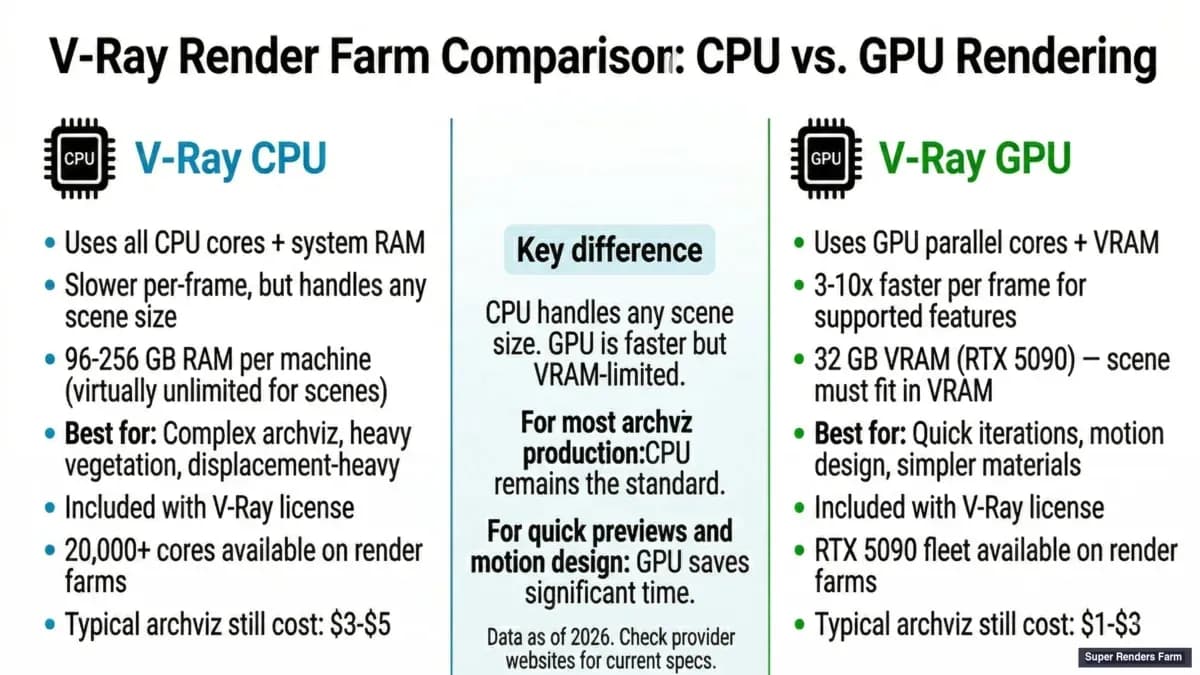 V-Ray CPU rendering vs V-Ray GPU rendering — confronto tra velocità, memoria e costo per frame
Licenze V-Ray sulle Render Farm
Le licenze V-Ray sono l'aspetto più confuso del rendering cloud per molti studi. Chaos (l'azienda dietro V-Ray) ha ristrutturato più volte il proprio sistema di licenze, e il risultato nel 2026 è un sistema che funziona bene una volta compreso, ma che mette in difficoltà quasi ogni utente alle prime armi con le render farm.
Se il server di licenze non si avvia o compaiono errori "license not found", la nostra guida alla risoluzione dei problemi del server di licenze V-Ray illustra le cause e le soluzioni più comuni.
Ecco come funziona realmente:
La licenza workstation V-Ray (inclusa con V-Ray o con un abbonamento Chaos) copre il rendering sulla macchina locale. Non copre il rendering su macchine esterne, incluse le render farm.
Per il rendering distribuito servono i V-Ray Render Node (in precedenza licenze DR). Si tratta di licenze separate che consentono a V-Ray di funzionare su macchine diverse dalla workstation. Su una render farm, ogni nodo che renderizza un frame V-Ray necessita dell'accesso a una licenza render node.
Come gestiscono la questione le farm:
Alcune farm — inclusa la nostra — mantengono un proprio pool di licenze V-Ray render node. Il costo della licenza è integrato nel prezzo per frame o per ora. Si invia una scena, e noi allochiamo le licenze dal nostro pool. Non è necessario configurare un server di licenze, contare i posti licenza né preoccuparsi dei limiti di rendering simultaneo.
Altre farm richiedono di portare le proprie licenze V-Ray render node. Ciò significa acquistare licenze aggiuntive da Chaos, configurare un server di licenze accessibile dal cloud e gestire l'allocazione autonomamente. Questo modello può essere più economico per ora di rendering se si renderizza in modo continuativo, ma l'onere operativo è significativo. Approfondiamo questo compromesso nel nostro confronto tra render farm completamente gestita e render farm fai-da-te.
Chaos Cloud Rendering è una terza opzione: il servizio cloud proprietario di Chaos, integrato direttamente nell'interfaccia di V-Ray per 3ds Max, Maya, SketchUp e Rhino. La comodità è notevole — si clicca "Render in Cloud" direttamente da V-Ray e il lavoro viene inviato all'infrastruttura Chaos con la licenza gestita automaticamente. Il limite è che Chaos Cloud renderizza solo scene V-Ray; se la vostra pipeline include altri motori di rendering (Redshift, Octane, Arnold, Corona), oppure se dovete renderizzare da Cinema 4D, Houdini o Blender con dipendenze plugin specifiche non presenti nell'elenco supportato da Chaos Cloud, una render farm gestita generalista copre una parte più ampia del vostro workflow al costo di una configurazione leggermente più complessa. Molti studi finiscono per usare entrambe le soluzioni: Chaos Cloud per singoli frame hero V-Ray, e una farm generalista per il resto della pipeline.
Cosa Verificare in una Render Farm V-Ray
Sulla base della gestione di infrastrutture V-Ray su larga scala, ecco cosa separa un'esperienza fluida da una difficile:
1. Supporto sia GPU che CPU. Anche se si renderizza principalmente su GPU, avere un fallback CPU sulla stessa farm evita la situazione in cui una scena pesante in VRAM costringe a cercare un secondo servizio di rendering. Le farm che offrono entrambe le modalità danno la flessibilità di adattare la modalità di rendering alla scena.
2. Corrispondenza della versione V-Ray. Le scene V-Ray non sono sempre compatibili in avanti o all'indietro. Una scena salvata in V-Ray 7 potrebbe non renderizzare correttamente su nodi V-Ray 6, e viceversa. I materiali possono comportarsi diversamente, alcune nuove funzionalità non si caricheranno, e si otterranno sottili differenze nell'output che emergono solo nella revisione finale. Confermare che la farm supporti la vostra esatta versione di V-Ray — non genericamente "V-Ray 6" o "V-Ray 7".
3. Corrispondenza della versione del software DCC. V-Ray non funziona in modalità standalone (nella maggior parte dei contesti di produzione). Gira all'interno di 3ds Max, Maya, Cinema 4D, SketchUp, Houdini o Blender. La versione della DCC conta quanto la versione di V-Ray. Una scena creata in 3ds Max 2026 con V-Ray 7 richiede esattamente questa combinazione sulla farm.
Per chi lavora specificamente con l'integrazione Blender, la nostra guida alla configurazione di V-Ray for Blender copre installazione, configurazione dei materiali e workflow di rendering da zero.
4. Supporto plugin. È qui che molte esperienze con le render farm vanno storte. La vostra scena V-Ray potrebbe renderizzare perfettamente in isolamento, ma se dipende da Forest Pack per la vegetazione, RailClone per array parametrici, Multiscatter per l'instancing, TyFlow per le particelle o Phoenix FD per le simulazioni — la farm deve avere questi plugin installati, correttamente licenziati e con versione corrispondente.
Questo problema lo riscontriamo di frequente: uno studio invia una scena, la farm la renderizza, e l'output risulta privo di tutti gli alberi distribuiti perché Forest Pack non è installato sui nodi di rendering. La geometria che Forest Pack genera al momento del rendering semplicemente non esiste.
5. Gestione dei file scena V-Ray (.vrscene). Alcuni studi esportano le proprie scene come file .vrscene invece di inviare il file DCC nativo. Questo può semplificare la pipeline di rendering (la farm non necessita del software DCC, solo di V-Ray Standalone) ma elimina la possibilità di usare funzionalità specifiche della DCC come i modificatori di 3ds Max o le dinamiche di Maya. Se il vostro workflow usa l'esportazione .vrscene, confermare che la farm supporti il rendering V-Ray Standalone.
6. Opzioni di output del rendering. Gli elementi di rendering (AOV) di V-Ray — diffuse, reflection, refraction, Z-depth, cryptomatte, light select — sono fondamentali per i workflow di compositing. Verificare che la farm preservi tutti gli elementi di rendering nell'output, li consegni nel formato preferito (EXR, PNG, ecc.) e gestisca correttamente i file EXR multi-layer.
Per una guida passo-passo all'invio del primo lavoro V-Ray, vedere la nostra guida introduttiva.
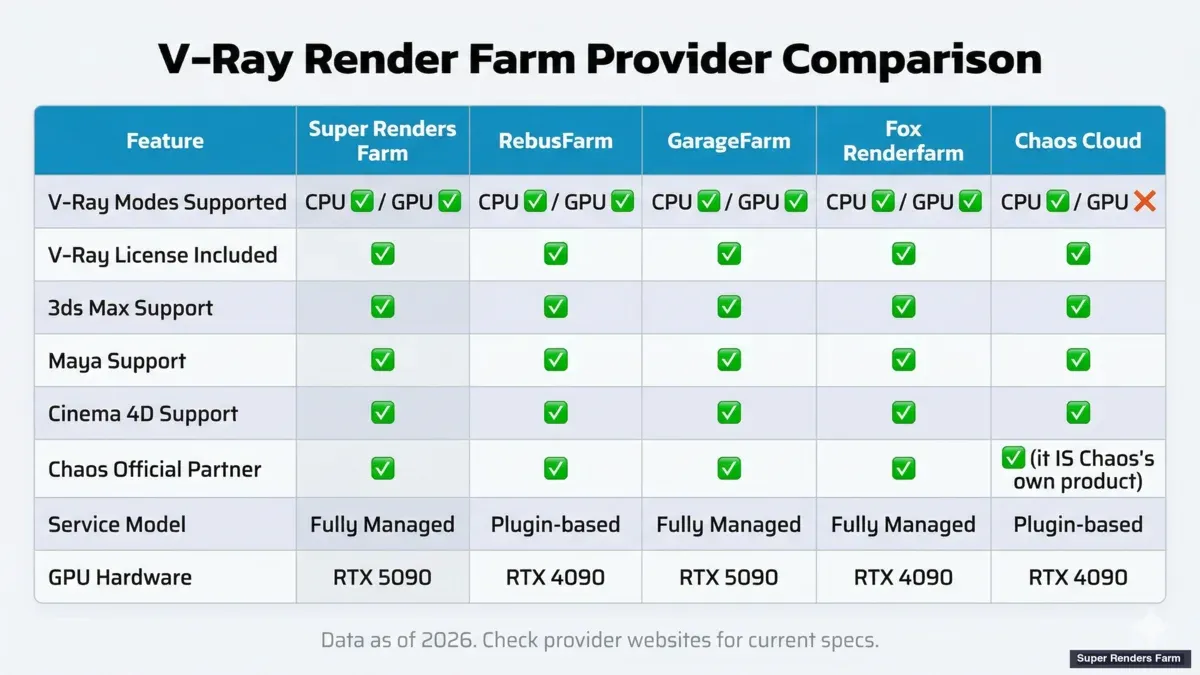 Confronto tra render farm V-Ray nel 2026 — funzionalità, prezzi e hardware dei principali provider
Alla Ricerca di una "VRay Render Farm"? Ortografia e Terminologia
Se avete cercato "vray render farm" (senza trattino) per arrivare qui, state usando l'ortografia comune nei motori di ricerca — il marchio stesso si scrive "V-Ray" (con trattino), ed è questa l'ortografia usata in tutto questo articolo e nella documentazione ufficiale di Chaos. Il comportamento di ricerca differisce dallo stile del marchio: una parte consistente del volume di ricerca per questo argomento omette del tutto il trattino, lo scrive come una sola parola o lo capitalizza in modo incoerente ("Vray", "VRay", "vray"). Nulla di tutto ciò cambia cosa si sta valutando — una vray render farm e una render farm V-Ray sono la stessa cosa, e la checklist di questo articolo (corrispondenza della versione, supporto plugin, modalità CPU/GPU, modello di licenza) si applica indipendentemente da quale ortografia vi abbia portato qui.
Questo conta principalmente per un motivo pratico: quando si confrontano provider, nomi di plugin o numeri di versione su siti di vendor, forum e documentazioni diverse, si troveranno tutte queste varianti ortografiche usate in modo intercambiabile dalle stesse community che parlano dello stesso motore. Non interpretate una differenza di ortografia come una differenza di versione o di prodotto — è comunque lo stesso renderer.
Problemi Comuni delle Render Farm V-Ray
Questi sono i problemi che affrontiamo più di frequente, in ordine di frequenza decrescente:
Asset mancanti. Il file scena fa riferimento a texture, HDRI, file di luce IES o proxy geometry non inclusi nel caricamento. Ogni DCC dispone di una funzione "collect assets" o "archive scene" — usatela prima di ogni invio alla farm. Per 3ds Max, si tratta di "Archive" nel menu File. Per Maya, usare l'opzione "Archive Scene". Per Cinema 4D, usare "Save Project with Assets".
Incompatibilità della cache GI. La Irradiance Map e la Light Cache di V-Ray vengono calcolate in base alla macchina specifica su cui girano. Una Irradiance Map calcolata sulla vostra workstation non produrrà risultati identici su un nodo della farm con hardware e numero di thread diversi. Per il rendering distribuito, usare Brute Force GI (oppure il più recente path tracing di V-Ray GPU) per garantire coerenza da frame a frame. La Irradiance Map può comunque funzionare, ma richiede di generare la mappa sulla farm anziché riutilizzarne una calcolata localmente.
Problemi di gamma e color space. Una scena che appare corretta sul vostro monitor viene renderizzata con esposizione errata o colori sbiaditi sulla farm. Si tratta quasi sempre di una discrepanza nelle impostazioni di gestione colore — nello specifico, la modalità di color mapping (lineare vs. Reinhard), il valore di gamma o la gamma di input sulle texture. Esportate le vostre impostazioni colore V-Ray in modo esplicito e verificatele con un frame di test.
File di blocco del rendering distribuito. Se si usa la modalità V-Ray DR (Distributed Rendering) anziché inviare tramite un job manager, i file di blocco (lock file) delle sessioni precedenti possono impedire l'avvio di nuovi rendering. Questo è più comune con le farm a desktop remoto che con le farm gestite, ma vale la pena saperlo.
Overflow della VRAM nel rendering GPU. Una scena che renderizza correttamente sulla vostra RTX 3090 con 24 GB di VRAM potrebbe andare in overflow su una GPU della farm con 16 GB o meno. Verificate sempre le specifiche GPU della farm e confrontatele con l'utilizzo di VRAM della vostra scena. V-Ray GPU ricadrà in modalità ibrida (CPU + GPU) quando la VRAM viene superata, ma le prestazioni calano in modo significativo.
Per benchmark dettagliati sulle prestazioni della RTX 5090 su V-Ray, Redshift, Arnold e Octane — inclusi confronti di VRAM con la RTX 4090 — vedere la nostra guida al cloud rendering GPU RTX 5090.
Per un confronto diretto tra un servizio di noleggio GPU basato su RDP e una render farm V-Ray completamente gestita — che copre l'overhead di configurazione del desktop remoto, il modello di licenza e il costo per frame su carichi di lavoro reali — vedere il nostro confronto iRender vs Super Renders Farm.
Per gli utenti di V-Ray for Maya in particolare, il workflow di preparazione della scena ha considerazioni specifiche lato Maya — riferimenti ai file, layout del workspace di progetto e interazioni tra le versioni dei plugin MtoA e V-Ray. La nostra guida al cloud rendering per Maya copre il percorso di invio per V-Ray for Maya dall'inizio alla fine, insieme ad Arnold e Redshift.
Checklist per Render Farm V-Ray
Prima di inviare il primo lavoro, verificate questi elementi:
| Verifica | Perché è importante |
|---|---|
| Corrispondenza esatta della versione V-Ray | Compatibilità di materiali e funzionalità |
| Corrispondenza esatta della versione DCC | Compatibilità del file scena |
| Tutti i plugin disponibili sulla farm | Forest Pack, RailClone, TyFlow, Phoenix FD, ecc. |
| Asset raccolti/archiviati | Texture, HDRI, file IES, proxy geometry |
| Metodo GI compatibile con la farm | Brute Force preferibile a Irradiance Map per il rendering distribuito |
| VRAM GPU verificata (per il rendering GPU) | Previene perdite di prestazioni per superamento della memoria |
| Elementi di rendering configurati | Garantisce che gli AOV siano preservati nell'output |
| Impostazioni di gestione colore esportate | Previene discrepanze di gamma/esposizione |
| Test render di 3-5 frame | Verifica che l'output corrisponda al rendering locale |
| Modello di licenza compreso | Fornito dalla farm vs. BYOL |
Confronto provider di render farm V-Ray: matrice delle funzionalità
La checklist qui sopra indica cosa verificare; questa tabella mette a confronto i principali servizi di rendering cloud compatibili con V-Ray sui criteri rilevanti specificamente per il lavoro V-Ray — supporto CPU vs GPU, gestione delle licenze, copertura plugin e prova gratuita. Non stila una classifica dei provider; il servizio giusto dipende dalla vostra DCC, dalle dimensioni della scena e dalla necessità o meno di V-Ray GPU. Verificate le tariffe attuali e le versioni dei plugin supportate sulla documentazione ufficiale di ciascun provider prima di affidare un lavoro — la copertura delle versioni V-Ray si aggiorna a ogni release di Chaos. Ultimo aggiornamento 2026-07-05 (riga GarageFarm riverificata live il 2026-07-05; riga RebusFarm non verificabile tramite nuovo fetch al momento di questo aggiornamento — vedere nota sotto).
| Provider | V-Ray CPU | V-Ray GPU | Modello di licenza | Forest Pack / TyFlow | Phoenix FD | Prova gratuita |
|---|---|---|---|---|---|---|
| Super Renders Farm | Sì (3ds Max, Maya, C4D, Houdini, Blender) | Sì (flotta RTX 5090, 32 GB VRAM) | Gestita — partner Chaos | Sì | Sì | Credito di $25 |
| Chaos Cloud Rendering | Sì (V-Ray Standalone + DCC supportate) | Sì (flotta GPU gestita da Chaos) | Proprietaria — servizio di Chaos | Verificare nella documentazione di Chaos Cloud per DCC | Verificare nella documentazione di Chaos Cloud | Prova basata su credito |
| Fox Renderfarm | Sì (3ds Max, Maya, C4D, Houdini, Blender) | Sì | Gestita — partner Chaos | Sì | Sì | Credito di $25 |
| GarageFarm | Sì (3ds Max R18-R26, SketchUp 2023-2025+) | Sì (nodi GPU RTX, fino a 96 GB VRAM sui livelli di priorità Medium/High) | Gestita — partner Chaos; prezzo per OB-ora (Low $0,004 / Medium $0,006 / High $0,012, secondo le tariffe USD pubblicate dal provider) | Verificare nella documentazione GarageFarm (non elencato nella loro pagina V-Ray al momento di questo fetch) | Verificare nella documentazione GarageFarm | Credito di $25 (confermato nelle FAQ del provider) |
| RebusFarm | Sì (3ds Max, Maya, C4D, Blender) | Limitato (piani GPU specifici) | Gestita — partner Chaos | Sì | Sì | Prova RebusPoints |
| Ranch Computing | Sì (3ds Max, Maya) | Sì | Gestita — partner Chaos | Parziale — verificare la versione nella documentazione Ranch | Verificare nella documentazione Ranch | Credito prova gratuita |
| GridMarkets | Sì (Maya, 3ds Max, Houdini, C4D — verificare copertura V-Ray per DCC) | Sì (piani GPU selezionati) | Gestita — partner Chaos | Verificare nella documentazione GridMarkets | Verificare nella documentazione GridMarkets | Credito prova |
| 3S Cloud Render Farm | Sì (3ds Max, Maya, C4D) | Sì (piani GPU) | Gestita | Sì (3ds Max) | Sì | Credito prova |
| iRender | Sì (BYOL — installazione autonoma di V-Ray) | Sì (per livello server) | IaaS / RDP — licenza V-Ray propria | Sì (installazione autonoma) | Sì (installazione autonoma) | Credito prova |
Note per la lettura della tabella:
- I provider partner Chaos possono fornire la licenza V-Ray lato farm; non è necessario caricare il proprio file di licenza.
- Chaos Cloud Rendering è il servizio cloud proprietario di Chaos, non una render farm di terze parti. È l'opzione più strettamente integrata per gli studi che lavorano esclusivamente in V-Ray, ma il suo ambito è limitato a V-Ray — se la vostra pipeline include altri motori di rendering o DCC non nativamente coperti da Chaos Cloud, una farm gestita generalista è l'opzione più ampia.
- iRender utilizza un modello IaaS / Remote Desktop — si noleggia un server GPU, si installa la propria DCC e V-Ray con licenza propria, e si esegue V-Ray come su una workstation locale. Questo è il modello giusto quando serve una combinazione di plugin V-Ray non coperta nativamente dalle farm gestite, ma comporta un onere di configurazione e gestione licenze aggiuntivo.
- Limitato (piani GPU specifici) per V-Ray GPU di RebusFarm riflette il fatto che la copertura V-Ray GPU sulle farm gestite dipende dallo SKU GPU utilizzato dalla flotta di ciascun provider; verificare la documentazione della versione V-Ray del provider per il driver CUDA e la build V-Ray esatti supportati. Questa riga non è stata riverificabile con un nuovo fetch per questo aggiornamento — la pagina specifica V-Ray di RebusFarm ha restituito un 404 su tutti i percorsi verificati (
/en/vray,/en/v-ray,/3d-software/vray) durante questo fetch, quindi il dato è stato lasciato invariato rispetto alla versione precedente anziché essere stimato. - La pagina prezzi di GarageFarm (fetch del 2026-07-05) mostra tariffe per livello di priorità in USD per OctaneBench-ora (Low/Medium/High), non un modello basato solo su RenderPoints — questo differisce dall'impostazione RenderPoints usata in note interne precedenti; le tariffe sopra riportate sono citate direttamente dalla pagina prezzi pubblicata da GarageFarm, non convertite o stimate.
- Tutti i provider gestiti sopra elencati supportano l'output V-Ray Frame Buffer, il denoising (V-Ray Denoiser, NVIDIA OptiX, Intel Open Image Denoise) e Cryptomatte. Le differenze emergono nel versionamento dei plugin, nella disponibilità della flotta per lavori brevi e nella gestione dei frame falliti da parte della farm.
Se non avete mai usato una render farm per V-Ray prima d'ora, la checklist per render farm V-Ray sopra riportata è il punto di partenza più sicuro — verificate ogni elemento con la documentazione della farm stessa prima di inviare un lavoro a pagamento.
FAQ
Q: Posso usare il rendering V-Ray GPU su una render farm CPU? A: No. V-Ray GPU richiede GPU NVIDIA con supporto CUDA. Una farm solo CPU eseguirà V-Ray solo in modalità CPU. Alcune farm offrono sia nodi CPU che GPU — verificate a quale tipo verrà assegnato il vostro lavoro.
Q: È necessaria una licenza V-Ray propria per usare una render farm? A: Dipende dalla farm. Le farm completamente gestite in genere includono le licenze V-Ray render node nel prezzo. Le farm IaaS o a desktop remoto potrebbero richiedere licenze proprie. Verificate sempre prima di inviare il lavoro.
Q: Quali impostazioni GI di V-Ray funzionano per la distribuzione su render farm? A: Brute Force sia per i rimbalzi GI primari che secondari è l'opzione più sicura per il rendering distribuito — produce risultati coerenti su tutti i nodi indipendentemente dall'hardware. La Light Cache può funzionare se calcolata per ogni frame. Evitate di riutilizzare Irradiance Map calcolate localmente sui nodi della farm.
Q: Chaos Cloud è la stessa cosa di una render farm V-Ray? A: Chaos Cloud Rendering è il servizio di rendering proprietario di Chaos, integrato nell'interfaccia di V-Ray per 3ds Max, Maya, SketchUp e Rhino. È comodo per pipeline esclusivamente V-Ray ma non supporta tutti i plugin DCC, gli strumenti di pipeline personalizzati o i motori di rendering diversi da V-Ray. Una render farm gestita generalista offre un supporto software e plugin più ampio al costo di una configurazione leggermente maggiore. Gli studi che lavorano esclusivamente in V-Ray usano spesso Chaos Cloud; le pipeline con motori misti richiedono di solito una farm generalista.
Q: Posso renderizzare V-Ray Standalone (.vrscene) su una farm? A: Alcune farm supportano il rendering V-Ray Standalone. Questo elimina la necessità dell'applicazione DCC ma rimuove le funzionalità specifiche della DCC. Verificate con la vostra farm il supporto standalone e la versione specifica di V-Ray Standalone.
Q: Come ottengo un output di rendering coerente tra la workstation e la farm? A: Fate corrispondere esattamente la versione di V-Ray, la versione della DCC e le impostazioni di gestione colore. Eseguite un batch di test di 3-5 frame e confrontateli pixel per pixel con un rendering locale degli stessi frame. Le differenze più comuni derivano dalle impostazioni GI, dalla gestione della gamma o da differenze in virgola mobile a livello di driver sulla GPU.
Q: Quanta VRAM serve a V-Ray GPU per una tipica scena archviz? A: Un interno archviz standard con texture 4K e geometria moderata di solito si colloca tra 8 e 16 GB di VRAM. Scene pesanti con texture 8K, vegetazione densa (Forest Pack) e materiali complessi possono superare i 20 GB. Sulla nostra farm, la RTX 5090 con 32 GB gestisce la stragrande maggioranza delle scene V-Ray GPU senza overflow.
Q: Posso renderizzare animazioni V-Ray su una render farm cloud? A: Sì — il rendering di animazioni è dove le farm cloud offrono il maggior valore. Invece di renderizzare 3.000 frame in sequenza sulla vostra workstation nell'arco di più giorni, una farm distribuisce quei frame su decine di nodi simultaneamente. Assicuratevi che la vostra scena usi impostazioni GI compatibili con la farm (Brute Force) per evitare sfarfallio tra i frame.
Q: Quali plugin specifici per l'archviz supporta Super Renders Farm per V-Ray? A: Manteniamo versioni aggiornate dei principali plugin archviz per 3ds Max + V-Ray: Forest Pack, RailClone, Multiscatter, TyFlow, Phoenix FD e strumenti relativi agli HDRI. Per Maya, supportiamo V-Ray standard con MASH e Bifrost. La disponibilità dei plugin è associata alla vostra versione di DCC e V-Ray — verificate sempre la vostra combinazione esatta con il supporto prima di inviare un lavoro di grandi dimensioni.
Q: Come ottimizzare le impostazioni di rendering V-Ray prima di inviare a una farm cloud? A: Usate Brute Force GI sia per i rimbalzi primari che secondari — questo elimina i problemi di sfarfallio e incoerenza che la Irradiance Map causa sui nodi distribuiti. Impostate il formato di output su EXR multi-layer per preservare tutti gli elementi di rendering. Disattivate gli effetti lente integrati nel V-Ray Frame Buffer (bloom, glare) e applicateli invece in compositing — questo fa risparmiare tempo di rendering su ogni frame. Infine, eseguite un rendering di test di 3-5 frame sulla farm per verificare che l'output corrisponda ai vostri rendering locali prima di affidare il lavoro completo.
Q: Come gestiscono le render farm i lavori V-Ray con scadenze critiche? A: Su una farm completamente gestita, potete contrassegnare un lavoro come alta priorità durante l'invio — questo lo sposta in cima alla coda di rendering e allocca più nodi simultaneamente. Per il lavoro con scadenze critiche, inviate un batch di test in anticipo (anche 24-48 ore prima che la scena finale sia bloccata) per individuare problemi di asset, VRAM o sfarfallio GI prima che intacchino la finestra di consegna. La maggior parte delle farm offre anche canali di supporto diretto (chat dal vivo, telefono) per i lavori urgenti, così da non dover attendere una risposta via email. La chiave è la comunicazione: comunicate in anticipo la scadenza alla farm, così da poter pianificare l'allocazione dei nodi in base alle esigenze del vostro lavoro.
Q: Quale render farm è consigliata per i progetti V-Ray? A: Cercate farm con certificazione ufficiale Chaos Group, che garantisce licenza V-Ray corretta e conformità di rendering. I fattori chiave includono il supporto sia per la modalità V-Ray GPU che CPU, plugin preinstallati come Forest Pack e RailClone, e la disponibilità della versione V-Ray attuale. Chaos mantiene un elenco verificato di partner render certificati su chaos.com/render-farms.
Q: Quali certificazioni Chaos dovrebbe avere una render farm V-Ray? A: La certificazione principale è lo stato di partner render ufficiale di Chaos Group, elencato su chaos.com/render-farms. Le farm certificate sono state verificate per la corretta licenza V-Ray, il supporto delle versioni e la conformità di rendering. Questa certificazione copre V-Ray per 3ds Max, Maya, Cinema 4D e altre DCC supportate — è un segnale di fiducia pratico che indica che la farm gestisce correttamente le licenze V-Ray e mantiene versioni aggiornate.
Q: Quali render farm V-Ray sono consigliate nel 2026? A: Il panorama delle render farm V-Ray nel 2026 include Chaos Cloud Rendering (il servizio proprietario di Chaos, solo V-Ray) più diverse render farm gestite di terze parti certificate Chaos — Super Renders Farm, Fox Renderfarm, GarageFarm, RebusFarm, Ranch Computing, GridMarkets, 3S Cloud Render Farm — e servizi IaaS / a desktop remoto come iRender per gli studi che preferiscono portare la propria licenza V-Ray. La matrice di confronto in questo articolo ne copre nove su supporto CPU/GPU, modello di licenza, copertura plugin e prova gratuita. Invece di scegliere la farm "migliore" in astratto, partite dalle vostre esigenze specifiche: quale DCC e versione V-Ray, se le vostre scene rientrano nei limiti di VRAM GPU, se il vostro stack di plugin è gestito o compatibile con il BYOL, e se desiderate un'integrazione V-Ray di prima parte (Chaos Cloud) o un supporto multi-motore più ampio (farm gestite generaliste). Il provider che corrisponde al vostro stack è quello giusto — non esiste una render farm V-Ray universalmente "migliore".
Q: "vray render farm" (senza trattino) è la stessa cosa di "render farm V-Ray"? A: Sì. "Vray", "VRay" e "V-Ray" si riferiscono tutti allo stesso motore di rendering Chaos — il trattino è un dettaglio di stile del marchio, non una distinzione di versione o prodotto. I motori di ricerca registrano un volume elevato per l'ortografia senza trattino perché è più rapida da digitare, ma ogni provider, plugin e nota sulle versioni in questa guida si applica identicamente indipendentemente da quale ortografia avete cercato.
Q: Cosa rende una render farm V-Ray migliore di un'altra per il mio progetto? A: Non esiste una render farm V-Ray migliore in assoluto — la scelta giusta dipende da quale versione di V-Ray e quale DCC utilizzate, se le vostre scene rientrano nel limite di VRAM GPU di una determinata farm, se il vostro stack di plugin (Forest Pack, RailClone, Phoenix FD) è preinstallato o qualcosa che dovreste portare voi stessi, e se desiderate una farm completamente gestita o un modello IaaS/desktop remoto. Usate la checklist e la matrice di confronto di questo articolo per valutare i provider rispetto alle specifiche del vostro progetto, anziché una classifica generica.