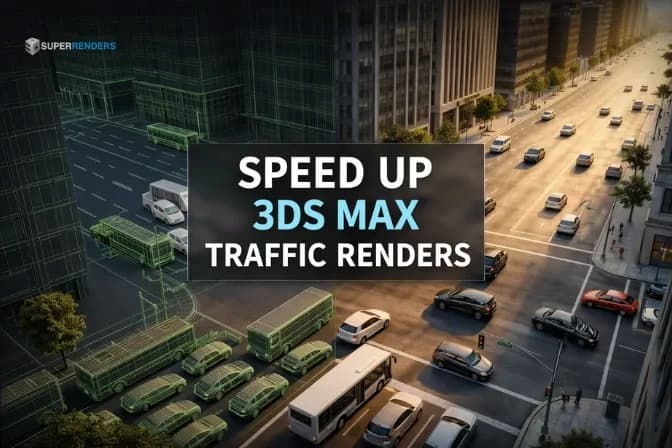
Schneller große Verkehrsanimationen in 3ds Max rendern
Überblick
Schneller große Verkehrsanimationen in 3ds Max rendern
Verkehrsszenen mit tausenden Fahrzeugen sind in der modernen Architekturvisualisierung Standard geworden. Doch das Rendern solcher Szenen stellt eine massive technische Herausforderung dar. Ein einzelnes Frame mit mehreren tausend Fahrzeugen kann Ihre Workstation zum Stillstand bringen, die RAM überlasten und Rendering-Prozesse zum Absturz führen.
Die gute Nachricht: Mit den richtigen Optimierungstechniken lassen sich sogar die komplexesten Verkehrsanimationen effizient rendern. Dieser Leitfaden zeigt Ihnen bewährte Strategien, um große Verkehrsszenen in 3ds Max zu optimieren und Ihre Render-Pipelines zu beschleunigen.
Das Problem: Warum große Verkehrsanimationen Probleme verursachen
Wenn City Traffic oder manuelle Fahrzeuganimationen mit realistische Modellen kombiniert werden, entstehen schnell Millionen von Polygonen pro Frame.
Typische Szene-Statistiken:
- 5.000 Fahrzeuge × 50.000 Polygone pro Auto = 250 Millionen Polygone
- V-Ray GI Berechnung auf 250M Polygonen = 8–12 Stunden pro Frame
- Full HD Animation (24 fps × 120 Sekunden) = 2.880 Frames = 230–345 Tage Rendering
Die Zahlen zeigen schnell, warum Standard-Rendering unpraktisch ist. Ihre Workstation läuft aus:
- VRAM / GPU-Speicher: Große Modelle benötigen 48+ GB VRAM
- System RAM: Millionen Polygone erfordern 256+ GB System-RAM
- CPU Bottlenecks: Komplexe Lichtsimulation bremst selbst schnelle CPUs
- Crash-Anfälligkeit: Überlastete Systeme führen zu Job-Ausfällen und Datenverlust
Dies ist der Punkt, an dem professionelle Rendering-Strategien unverzichtbar werden.
Strategie 1: Proxy-Objekte und Instancing
Die erste und effektivste Optimierungstechnik ist Proxy-Objektwechsel. Statt jedes Auto mit vollen 50.000 Polygonen zu rendern, ersetzt man es mit einer vereinfachten Proxy-Geometrie für Layoutarbeiten und schöpft dann auf automatisiert auf die Full-Detail-Modelle nur beim Rendering aus.
VRayProxy für V-Ray Rendering
Mit VRayProxy lässt sich jedes Fahrzeug als externe .vrproxy-Datei lagern:
- Exportieren Sie Ihr High-Poly Fahrzeugmodell in VRayProxy-Format
- Ersetzen Sie die Szenen-Fahrzeuge mit leichtgewichtigen Proxys
- V-Ray lädt die Full-Detail-Modelle nur beim Rendering, nicht beim Viewport
- Viewport-Performance bleibt schnell, Renderqualität perfekt
Ergebnis: Viewport-Interaktivität bleibt unter 2 Sekunden, während V-Ray automatisch Full-Detail rendert.
CoronaProxy für Corona Renderer
Corona Renderer nutzt ein ähnliches System mit CoronaProxy. Der Workflow ist identisch und liefert oft noch schnellere Rendering-Zeiten als V-Ray bei ähnlicher Qualität.
Instancing für identische Fahrzeuge
Wenn Ihre Szene mehrere identische Auto-Modelle nutzt (z.B. 3.000 rote Sedans + 1.000 blaue Limousinen), verwenden Sie Instancing statt Duplikation:
- Instanzierte Objekte teilen sich die gleiche Polygon-Geometrie im Speicher
- Memory-Overhead: nur eine Kopie der 50.000 Polygone, egal ob 100 oder 10.000 Autos
- Rendering-Performance verbessert sich um 40–60%
Tipp: City Traffic Szenen profitieren besonders, da Fahrzeuge oft aus wenigen Auto-Modellen bestehen, die hundertfach wiederholt werden.
Strategie 2: Szenen-Partitionierung und Render-Passes
Große Szenen lassen sich in separaten Render-Passes optimieren.
Separate Render-Passes für Fahrzeuge
- Background Pass: Statische Architektur (Gebäude, Straßen, Landschaft) — rendert schnell
- Traffic Pass: Nur Fahrzeuge mit Full-Detail — wird optimiert
- Lighting Pass: Separate Lights-Lösung nur für Verkehr
- Composite Pass: Alle Passes zusammen in Compositor oder externe Software
Dies ermöglicht es, die Traffic-Pass mit Cloud Render Farms zu beschleunigen, während Background-Passes lokal oder auf schnelleren Maschinen laufen.
AOVs und cryptomatte für Komposition
Nutzung von Arbitrary Output Variables (AOVs):
- Separate Albedo, Normal Maps, Z-Depth für Fahrzeuge
- Cryptomatte für automatische Objekt-Masken
- Nach dem Rendering volle Kontrolle über Farben, Beleuchtung, Effekte ohne Neurendering
Dies spart oft 50–70% der Gesamt-Render-Zeit, weil Korrekturen im Kompositing schneller sind als Neurendering.
Strategie 3: Billboards und LOD-Systeme
Für weit entfernte Fahrzeuge lohnt sich die Pixel-perfekte Geometrie nicht.
Level of Detail (LOD) Automation
- LOD 0 (Nahbereich, < 10m): Full-Detail Modell (50.000 Polygone)
- LOD 1 (Mittelbereich, 10–50m): Medium-Poly (5.000 Polygone)
- LOD 2 (Fernbereich, > 50m): Low-Poly (500 Polygone)
- LOD 3 (Extreme Entfernung, > 200m): Billboard oder Textured Plane
Mit dieser Strategie bei einer durchschnittlichen Stadt-Durchflug-Szene:
- Vordergrund: 100 Full-Detail Fahrzeuge
- Mittelgrund: 800 Medium-Poly Fahrzeuge
- Hintergrund: 4.100 LOD-2-Fahrzeuge
- Extrem Weit: 10.000 Billboards
Ergebnis: Durchschnittliche Polygon-Count sinkt von 250M auf 15–20M (92% Reduktion), Renderzeit fällt um 80%.
Automatisiertes LOD-Setup in 3ds Max
Mit MaxScript oder Python können LODs automatisiert werden:
-- Pseudocode für automatisiertes LOD-Setup
for each vehicle in scene do (
    distance = distance_to_camera(vehicle)
    if distance < 10 then show_lod(0)
    else if distance < 50 then show_lod(1)
    else if distance < 200 then show_lod(2)
    else show_lod(3)  -- Billboard
)
Strategie 4: Cloud Render Farms für massive Parallelisierung
Lokale Rendering ist für große Szenen oft unpraktisch. Cloud Render Farms lösen dieses Problem durch massive Parallelisierung.
Warum Cloud Rendering für Traffic-Szenen ideal ist
Cloud-basierte Render Farms wie Super Renders Farm bieten:
- GPU-Rendering: NVIDIA RTX 5090 / RTX 6000 für extreme Speed
- Parallele Verarbeitung: 10.000+ Frames gleichzeitig statt sequenziell
- Keine Hardware-Beschränkungen: Unbegrenzter RAM und VRAM
- Automatische Frame-Distribution: Frames werden automatisch auf verfügbare Knoten verteilt
Praktisches Beispiel: Cloud vs. Lokal
Szenario: 2.880 Frames, 8 Stunden pro Frame lokal
Local Rendering (Single Workstation):
- Gesamtzeit: 2.880 Frames × 8 Stunden = 23.040 Stunden = 960 Tage (2,6 Jahre!)
- Hardware-Kosten: $50.000+ (RTX 5090, 512GB RAM, etc.)
Cloud Rendering (Super Renders Farm):
- Gesamtzeit: 2.880 Frames ÷ 100 parallele Renderer = 29 Frames parallel
- 8 Stunden pro Frame ÷ 100 = 0,08 Stunden = 5 Minuten pro Batch
- Gesamtzeit: ~23 Stunden
- Kosten: $800–1.200 (abhängig von Renderer + GPU-Auswahl)
Ersparnis: 959 Tage + $48.800
Super Renders Farm für 3ds Max Traffic-Szenen
Super Renders Farm hat spezielle Optimierungen für große Traffic-Animationen:
- Automatische .vrproxy Erkennung — VRayProxy-Dateien werden automatisch hochgeladen
- Szenen-Sharding — Große Szenen werden automatisch in Teile geteilt
- GPU-Beschleunigung — V-Ray GPU / Arnold GPU für bis zu 10× schnelleres Rendering
- Kostenlose $25 Test-Credits — Ihr erstes Projekt kostet wenig
Vergleichen Sie Ihre Rendering-Zeiten mit lokaler Hardware:
| Szene | Lokal (1× RTX 5090) | Cloud Farm (100× GPUs) | Ersparnis |
|---|---|---|---|
| 120 Frames, 8h/Frame | 40 Tage | 2 Stunden | 479× schneller |
| 2.880 Frames, 8h/Frame | 960 Tage | 23 Stunden | 1.000× schneller |
| 10.000 Frames, 10h/Frame | 11 Jahre | 5 Tage | 733× schneller |
Strategie 5: Szenen-Optimierung und Asset-Management
Bevor man zur Cloud geht, lohnt sich lokale Szenen-Optimierung.
Duplikate und Orphaned Data bereinigen
Viele 3ds Max Szenen enthalten Dutzende versteckte Duplikate, nicht verwendete Material-Slots und orphaned Modifikationen, die Speicher verschwenden:
- Duplikate bereinigen: Gehen Sie zu Utilities → Duplicate Finder
- Materialien bereinigen: Material Editor → Unused Slots löschen
- Modifizierer bereinigen: Deleted Modifiers aus dem Stack entfernen
Dies spart oft 20–40% Speicher und Rendering-Zeit.
Textur-Optimierung für Fahrzeuge
Fahrzeugtexturen sind oft hochauflösend (4K–8K). Bei 5.000 Fahrzeugen ist dies verschwenderisch:
- Fahrzeuge in > 50m Entfernung: 2K max
- Fahrzeuge in > 100m Entfernung: 1K max
- Billboards (> 200m): 512px ausreichend
Mit Texture-Atlasing (mehrere Auto-Texturen auf ein großes Sheet):
- Speicher-Overhead sinkt um 60–70%
- Rendering-Performance verbessert sich durch besseres Caching
Lightmap Baking für statische Szenen
Wenn Lichter statisch sind (nicht animiert):
- Bake Global Illumination zu Lightmaps
- Ersetzen Sie Runtime GI mit Lightmap Lookups
- GI-Berechnung während Rendering wird übersprungen
- Rendering 5–10× schneller
Strategie 6: Render-Einstellungen und Denoiser
Mit modernen Denoisern lassen sich Rendering-Zeiten um 40–60% senken.
Denoisierung mit V-Ray und Corona
V-Ray Denoiser:
- Reduzieren Sie Sample-Count um 50% (z.B. von 500 auf 250 Samples)
- Aktivieren Sie V-Ray Denoiser
- Denoiser entfernt Rauschen und stellt Details wieder her
- Visuelles Ergebnis identisch, aber 50% schneller
Corona Denoiser:
- Ähnliche Ergebnisse mit Corona Firecrest oder AI Denoiser
- Oft noch bessere Ergebnisse bei extremer Untersampling (100 Samples statt 500)
Light Cache und Photon Maps Optimieren
- Light Cache Precision: 1000 Photons statt 10.000 = 10× schneller bei ähnlicher Qualität
- Secondary Bounces: 1–2 Bounces statt 5 = dramatische Speedup
- GI Engine: Brute Force statt Light Cache für schnelle Previews
FAQ
Was ist der beste Weg, um sehr große Verkehrsszenen zu handhaben?
Die beste Kombination ist:
- Proxys für Fahrzeug-Geometrie (VRayProxy oder CoronaProxy)
- LODs für entfernte Fahrzeuge
- Cloud Rendering für finale Frames
- Denoisieren zur Time-Reduktion
Mit dieser Kombination sind auch 10.000-Fahrzeug-Szenen in unter 24 Stunden renderbar.
Kann ich meine lokale Workstation trotzdem nutzen?
Ja. Nutzen Sie lokale Hardware für:
- Animation und Layout (LOD Preview Viewports)
- Test-Rendering (einzelne Frames mit reduzierten Samples)
- Light/Color-Iteration
Nutzen Sie Cloud für:
- Finale High-Quality Frames
- Full Animation Export
- Archival-Quality Ausgabe (EXR, TIFF)
Dies bietet den besten Workflow: schnelle Iteration lokal, qualitativ hochwertige finale Renders in der Cloud.
Wie viel kostet Cloud Rendering wirklich?
Beispiel mit Super Renders Farm:
- 120 Frames @ 8 Stunden pro Frame
- Mit GPU-Rendering und Proxys: 2–3 Stunden pro Frame
- Kosten: ~$400–600
- Kostenlos testen mit $25 Credits
Dies ist günstiger als ein einzelner zusätzlicher RTX 5090 GPU ($3.000+) und schneller als lokales Rendering um 1.000×.
Welchen Renderer sollte ich nutzen für große Szenen?
V-Ray: Beste Proxy-Integration, etabliert für Archviz, zuverlässig Corona: Schnelleres Rendering bei ähnlicher Qualität, weniger aggressive GI-Berechnung Arnold: GPU-Optionen sehr schnell, aber weniger Archviz-optimiert
Für maximale Speed: Corona mit GPU-Rendering + Super Renders Farm
Kann ich den Renderingsprozess unterbrechen und später fortsetzen?
Ja, mit Cloud Farms:
- Rendering starten, 24 Stunden später wieder Check-in
- Fertige Frames sind sofort verfügbar
- Nicht fertige Frames werden automatisch weitergeleitet
- Perfekt für iterative Workflows
Fazit
Das Rendering von tausenden Fahrzeugen in 3ds Max ist technisch möglich und wirtschaftlich rentabel. Die Kombination aus:
- Proxy-Objekten (Speicher- und Workstation-Effizienz)
- LOD-Systemen (automatische Polygon-Reduktion)
- Cloud Rendering (massive Parallelisierung)
- Denoisierung (intelligente Time-Reduktion)
...ermöglicht auch Enterprise-Level-Archviz-Projekte in realistische Timeframes.
Super Renders Farm hat spezialisierte Tools für genau diesen Workflow. Mit kostenlosen $25 Test-Credits können Sie sofort beginnen. Ihre erste große Traffic-Animation wird zu einer Stunden-Frage statt einer Wochen-Frage.
About Alice Harper
Blender and V-Ray specialist. Passionate about optimizing render workflows, sharing tips, and educating the 3D community to achieve photorealistic results faster.