ArnoldカメラがMayaのRenderViewに表示されない問題の解決方法
概要
ArnoldのカメラがRenderViewに表示されない問題
MayaでArnoldレンダリングを設定する際に最もフラストレーションが溜まる問題の1つは、カメラを作成または選択したにもかかわらず、Arnold RenderViewのカメラドロップダウンに表示されないことです。新しいカメラを作成してレンダーカメラとして設定しても、Arnoldに切り替えてRenderViewを開くと、カメラリストが空であるか、デフォルトカメラしか表示されません。さらに悪い場合は、ビューポートからはレンダリングできるのに、レンダーファームへのバッチ送信時にバッチレンダーツールがカメラを見つけられないことがあります。
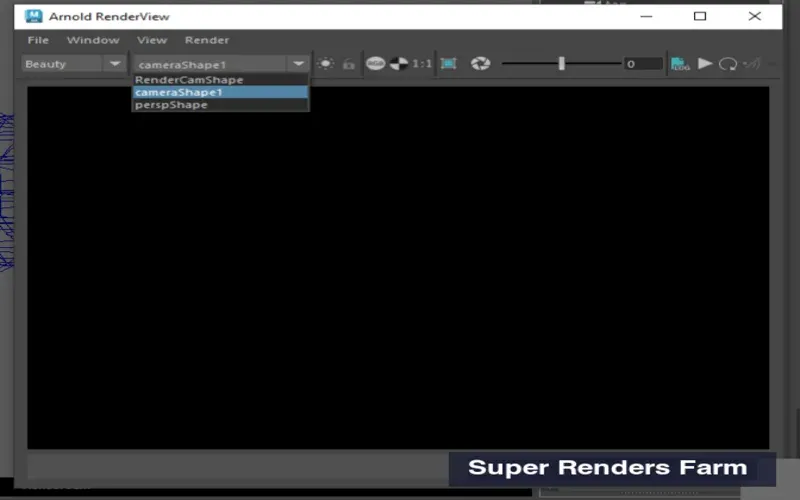 Mayaで利用可能なカメラを表示するArnold RenderViewカメラドロップダウン
Super Renders Farmでは、レンダーファーム送信時にこの問題を何度もデバッグしてきました。通常、原因はArnold自体ではなく、ほぼ常にMayaのカメラ設定の問題です。幸い、修正方法は分かりやすく再現可能です。このガイドでは、最も一般的な原因と解決策を解説します。
ArnoldがMayaでカメラを検出する仕組み
Arnoldは、Mayaシーン内のすべてのカメラを自動的に検出するわけではありません。代わりに、特定の基準を満たすカメラを探します。
- カメラが有効なMayaカメラノードであること(グループやカメラとラベル付けされた他のオブジェクトではありません)。
- カメラのレンダーフラグが有効であること、またはレンダーカメラとして明示的に選択されていること。
- カメラが非表示でないこと(Visibilityがオンに設定されていること)。
- カメラのTransformノードとShapeノードの両方が有効であること(破損またはオーファンでないこと)。
- カメラの名前空間(使用している場合)がArnoldの名前空間検出と競合しないこと。
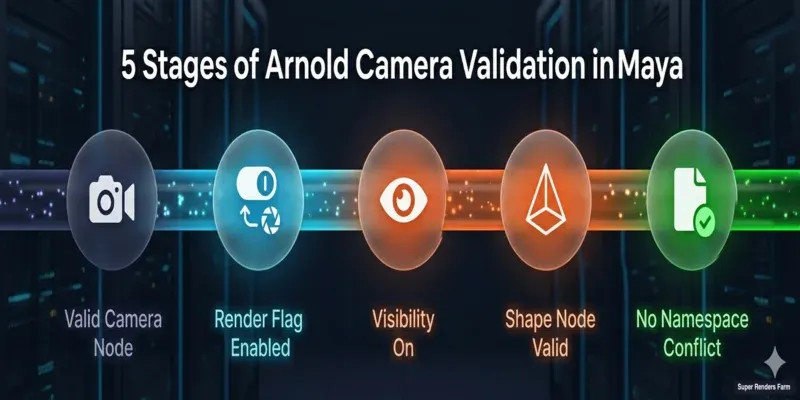 5つの基準を示すArnoldカメラ検証チェックリスト
Arnoldがシーン内のレンダリング可能なカメラをスキャンする際、これらのプロパティを確認します。カメラがこれらの基準を満たさない場合、ArnoldはそのカメラをRenderViewドロップダウンおよびバッチレンダーリストから静かに除外します。これが、ビューポートカメラは表示されるのにRenderViewには何も表示されない理由です。
解決策1:カメラのレンダーフラグを有効にする
最も一般的な原因は、カスタムカメラは存在するがレンダーフラグが無効になっていることです。
Maya Outlinerで:
- Outlinerを開きます(Windows > Outliner)。
- リスト内でカスタムカメラを見つけます(例:camera_01)。
- 右クリックしてAttributesを選択します。
- Attribute Editorで、Visibilityセクションを探します。
- Visibilityがオン(チェック済み)に設定されていることを確認します。
- Output Settingsセクションまでスクロールします(展開が必要な場合があります)。
- Renderableがチェック済み(有効)であることを確認します。
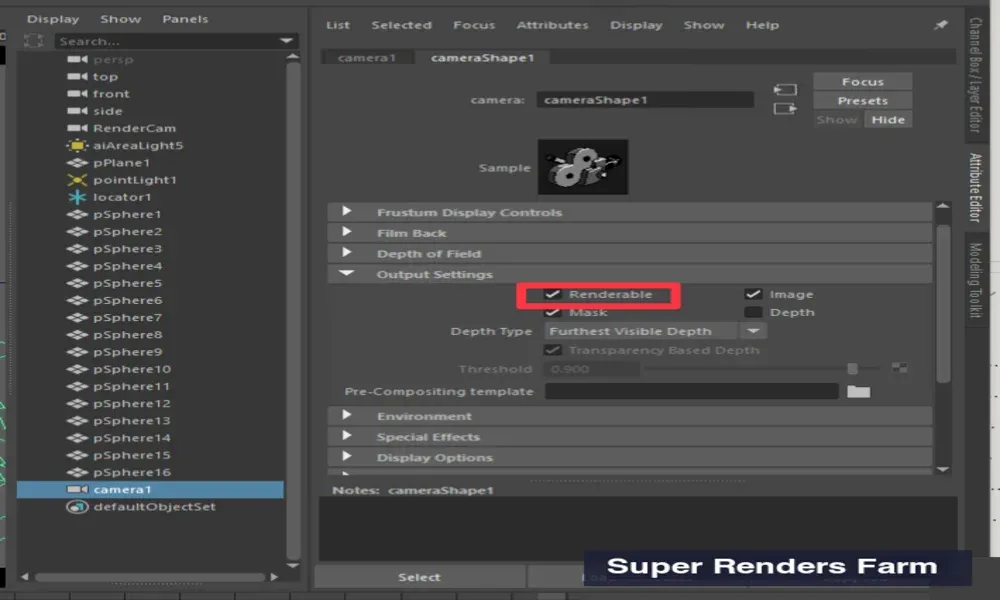 Renderableチェックボックス付きのOutput Settingsを表示するMayaアトリビュートエディタ
Renderableがチェックされていない場合は、クリックして有効にします。これにより、Arnoldにカメラがレンダリング可能であることを通知します。
コマンドラインから:
MELコマンドラインからレンダーフラグを有効にできます。
setAttr "camera_01Shape.renderable" 1;
(camera_01を実際のカメラ名に置き換えてください。)
解決策2:カメラをレンダーカメラとして設定する
レンダーフラグが有効になっていても、アクティブなレンダーカメラとしてマークされていない場合、Arnoldがカメラを含めないことがあります。
Render Settingsで:
- Render Settingsを開きます(Render > Render Settingsまたは F10を押します)。
- Commonタブで、Render Usingの下にあるCameraドロップダウンを見つけます。
- ドロップダウンからカスタムカメラを選択します(例:camera_01)。
- Render Settingsウィンドウを閉じます。
- Arnold RenderViewを開きます。カメラがカメラドロップダウンに表示されるはずです。
ドロップダウンが空であるか、カメラが表示されない場合:
これはより深刻な問題を示しています。カメラがMayaにまったく認識されていません。解決策3に進んでください。
解決策3:カメラが有効なカメラノードであることを確認する
カメラが破損したり、不正に作成されたりして、Mayaが適切なカメラとして認識しない場合があります。Outlinerで確認できます。
Outlinerで:
- Windows > Outlinerを開きます。
- カメラ名の横のアイコンを確認します。
- カメラアイコン(小さなフィルムカメラ)= 有効なカメラノードです。
- グループアイコンまたはノードアイコン = 適切なカメラではありません(破損または誤認識)。
カメラアイコンが表示されていない場合、ノードは破損しています。削除して新しいカメラを作成してください(Render > Create/Edit Cameras > Camera)。
名前空間の競合を確認する:
参照ファイルや名前空間を使用している場合は、カメラがArnoldがアクセスできない不正な名前空間の下にネストされていないことを確認してください。
- Outlinerで、カメラに名前空間プレフィックスが付いているか確認します(例:namespace:camera_01)。
- 付いている場合で意図していなければ、カメラを右クリックしてEdit > Remove Namespaceを選択するか(利用可能な場合)、削除してデフォルト名前空間で再作成します。
解決策4:カメラのShapeノードのVisibilityを確認する
Mayaでは、カメラにはTransformノード(親)とShapeノード(実際のカメラジオメトリ)の両方があります。Arnoldは両方が表示可能で有効である必要があります。Shapeノードが非表示またはオーファンの場合、カメラはレンダリングされません。
Outlinerで(Shapesを表示した状態で):
- Outlinerを開き、Display > Shapesがチェック済みであることを確認します(Shapeノードが表示されます)。
- カメラのTransformノードを展開します。その下に[camera]Shapeノードが表示されるはずです。
- Shapeノードがない場合、カメラは破損しています。削除して再作成してください。
- Shapeノードが存在する場合、右クリックしてAttributesを選択します。
- Attribute Editorで、VisibilityとIntermediate Objectを確認します。
- Visibilityはオンであること。
- Intermediate Objectはオフ(未チェック)であること。オンの場合、カメラは中間構築オブジェクトとして扱われ、Arnoldはそれを無視します。
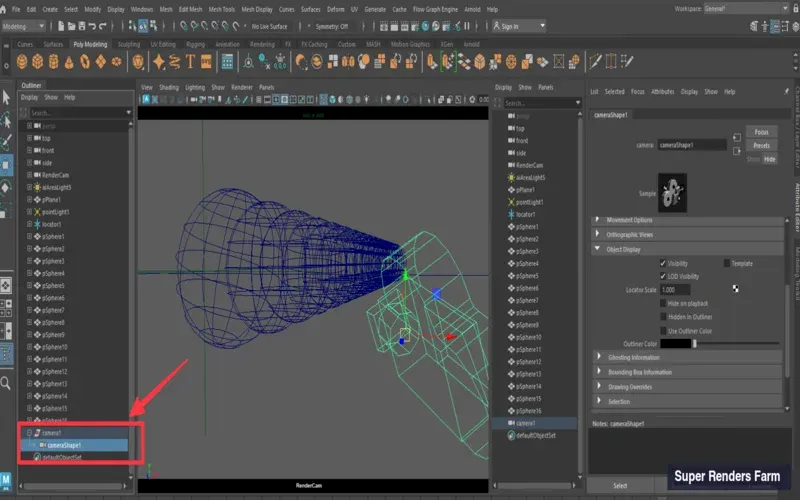 カメラのTransformノードとShapeノードの階層を表示するMaya Outliner
MELで修正する場合:
setAttr "camera_01Shape.visibility" 1;
setAttr "camera_01Shape.intermediateObject" 0;
解決策5:問題のあるカメラを削除して再作成する
カメラが異常な動作をしている場合(RenderViewから非表示、属性変更に応答しない、またはオーファン)、最も安全な修正方法は削除して新しいカメラを作成することです。
手順:
- Outlinerで、問題のあるカメラを選択します(Shapeではなく、Transformノード)。
- Deleteを押します(または右クリックしてDeleteを選択)。
- Render > Create/Edit Cameras > Cameraに移動します。
- 新しいデフォルトカメラが作成されます(通常はcamera2またはcamera3と命名されます)。
- 必要な位置に配置します(以前のカメラの位置データを保存していた場合はコピーします)。
- レンダーカメラとして設定します(解決策2を参照)。
- Arnold RenderViewを開きます。カメラがカメラドロップダウンに表示されるはずです。
この方法は、破損したカメラをデバッグするよりも速いことが多いです。
解決策6:バッチレンダーのカメラ選択
バッチレンダーをレンダーファームに送信する場合、ファームのレンダー送信ツールはMayaからカメラを見つけて識別する必要があります。これはインタラクティブなRenderViewとは異なります。
Batch Render Settingsで:
- Render > Batch Renderを開きます。
- 表示されるダイアログで、Cameraドロップダウンを見つけます。
- カスタムカメラを選択します(「Render Settings Default」のままにしないでください)。
- Renderable Cameras Onlyがチェック済みであることを確認します(お使いのMayaバージョンでこのオプションが利用可能な場合)。
- Renderをクリックしてローカルでテストするか、ローカルレンダリングが動作する場合はファーム送信に進みます。
ファーム送信の場合:
MayaシーンをSuper Renders Farm用にパッケージする際は、以下を確認してください。
- カメラがRender Settingsでレンダーカメラとして適切に設定されていること。
- カメラのレンダーフラグが有効になっていること。
- ファームの送信パーサーを混乱させる可能性のあるカスタム名前空間プレフィックスを使用していないこと。
ファームから「Camera not found」と報告された場合は、まずローカルのRender Settingsを開いてカメラが正しく設定されていることを確認してください。ファームはRender Settingsを使用してレンダリングするカメラを識別します。
解決策7:Arnoldアップデート後のカメラ属性を確認する
最近Arnold(MtoA)をアップデートした場合、バージョン間でカメラのVisibility動作が変更されている可能性があります。新しいArnoldリリースでは、RenderViewドロップダウンに表示されるカメラに対してより厳格になることがあります。
Arnoldアップデート後に確認すべき属性:
-
すべてのカメラに標準的なNearおよびFar Clip Plane値があることを確認します(例:Near:0.01、Far:1000)。
- 確認方法:カメラを選択し、Attribute Editorを開いて、CameraセクションのNear Clip PlaneとFar Clip Planeを探します。
- いずれかが0または極端に大きい場合は、デフォルト値(0.01と1000)にリセットします。
-
Film BackとApertureの値が正常な範囲内であることを確認します。
- Film Back WidthとHeightは約36と24(35mm相当)であること。
- 0または負の値の場合は、標準の35mmにリセットします:Width 36、Height 24。
-
これらの値を調整した後、Arnold RenderViewを閉じて再度開きます。カメラが表示されるはずです。
FAQ
Q: カメラがMayaのビューポートとRender Settingsには表示されるのに、Arnold RenderViewには表示されません。なぜですか? A: Arnoldは、Mayaのビューポートレンダラーよりも厳格なカメラ検証を行います。カメラのレンダーフラグが有効になっているか(解決策1)、Shapeノードのvisibilityがオンになっているか(解決策4)を確認してください。これらが正しい場合は、Shapeノードが破損している可能性があります(削除して再作成してください — 解決策5)。
Q: シーンに複数のカメラがあります。すべてArnold RenderViewに表示されますか? A: レンダーフラグが有効になっているカメラのみが表示されます。カメラがレンダリング可能であるにもかかわらずRenderViewドロップダウンに表示されない場合は、Visibility属性を確認してください(解決策4)。カメラを削除せずにドロップダウンから非表示にするには、レンダーフラグのチェックを外します。
Q: 参照ファイルのカメラを使用できますか? A: はい、ただし参照ファイルが読み込まれていること、およびカメラがロックされた名前空間や非表示の名前空間にないことを確認してください。参照カメラが表示されない場合は、参照を再読み込みしてOutlinerで名前空間の問題を確認してください(解決策3)。
Q: ファームに送信すると「camera not found」エラーが発生します。何が問題ですか? A: ファームの送信ツールはRender Settingsを読み取っています。カメラがRender Settingsで明示的に設定されていることを確認してください(Render > Render Settings > Common > Camera)。ファーム送信時に「Render Settings Default」のままにせず、実際のカメラ名を選択してください。
Q: Arnoldは非標準カメラタイプ(魚眼やスフェリカルなど)で動作しますか? A: Arnoldはプラグインを介してカスタムカメラタイプをサポートしていますが、プラグインがお使いのマシンとファームの両方にインストールされている必要があります。ファーム送信の場合は、可能であれば標準のパースペクティブカメラを使用してください。カスタムカメラタイプを使用する必要がある場合は、ファームに連絡してレンダーノードにプラグインがインストールされていることを確認してください。
Q: ロックされたカメラ(ロックされたTransform)を使用している場合はどうなりますか? A: ロックされたカメラでもレンダリングは可能ですが、位置を変更することはできません。カメラを調整する必要がある場合は、まずカメラを選択してModify > Freeze Transformationsに移動し、Transformをアンロックしてください。ファーム送信の場合、ロックまたはフリーズされたカメラは問題ありません。
Q: ビューポートでは非表示にしつつ、Arnoldでレンダリング可能なカメラを持つことはできますか? A: はい。Outlinerでカメラのtransformを右クリックしてHideを選択します(またはCtrl+Hを押します)。これにより視覚的には非表示になりますが、レンダリングには影響しません。再表示するには、右クリックしてShowを選択します。レンダリングを制御するのはAttribute Editorのレンダーフラグとvisibilityです。ビューポートのvisibilityではありません。
関連記事
レンダリングのトラブルシューティングの詳細については、一般的なレンダリングの問題と解決策の包括的なガイドをご覧ください。また、クラウドレンダリングガイドでクラウドレンダーファームのセットアップについても解説しています。
クラウド送信については、Arnoldクラウドレンダーファームガイドで、サポートされている機能、AOVセットアップ、Super Renders Farmでのバッチレンダリングについてご覧ください。
その他のリソース
- Autodesk Maya Arnold Documentation — Arnold for Maya公式ガイド
- Maya Camera Documentation — Maya公式カメラリファレンス
- Arnold for Maya Release Notes — Arnold for Mayaの最新変更点とアップデート