Blender Render Settings: Complete Cycles and Eevee Guide
Overview
Introduction
Blender ships with two production render engines — Cycles and Eevee — and a third utility engine called Workbench. Each has its own render settings panel, its own performance characteristics, and its own set of trade-offs between quality and speed. Getting these settings right is the difference between a clean final frame and an overnight render that still comes out grainy.
We work with Blender projects regularly on Super Renders Farm. Cycles, Eevee, and Blender Standard are all supported for cloud rendering, and we see a wide range of render configurations — from architectural interiors with millions of light bounces to stylized motion graphics that barely tax the GPU. Cycles stays the primary engine for most of that work, and the patterns are consistent: most quality and speed issues trace back to a handful of render settings that are either misconfigured or left at defaults.
This guide covers every major Blender render setting: Cycles in depth, Eevee for real-time workflows, and the output and performance settings that apply regardless of engine.
If you're still finding the Render button for the first time, our guide to rendering your first image in Blender is the place to start before tuning these settings.
If you are new to 3D rendering concepts, our guide on what rendering actually involves provides the foundational context before diving into engine-specific settings.
Blender Rendering Engines Overview
Blender includes three render engines out of the box, and you can switch between them in the Render Properties panel.
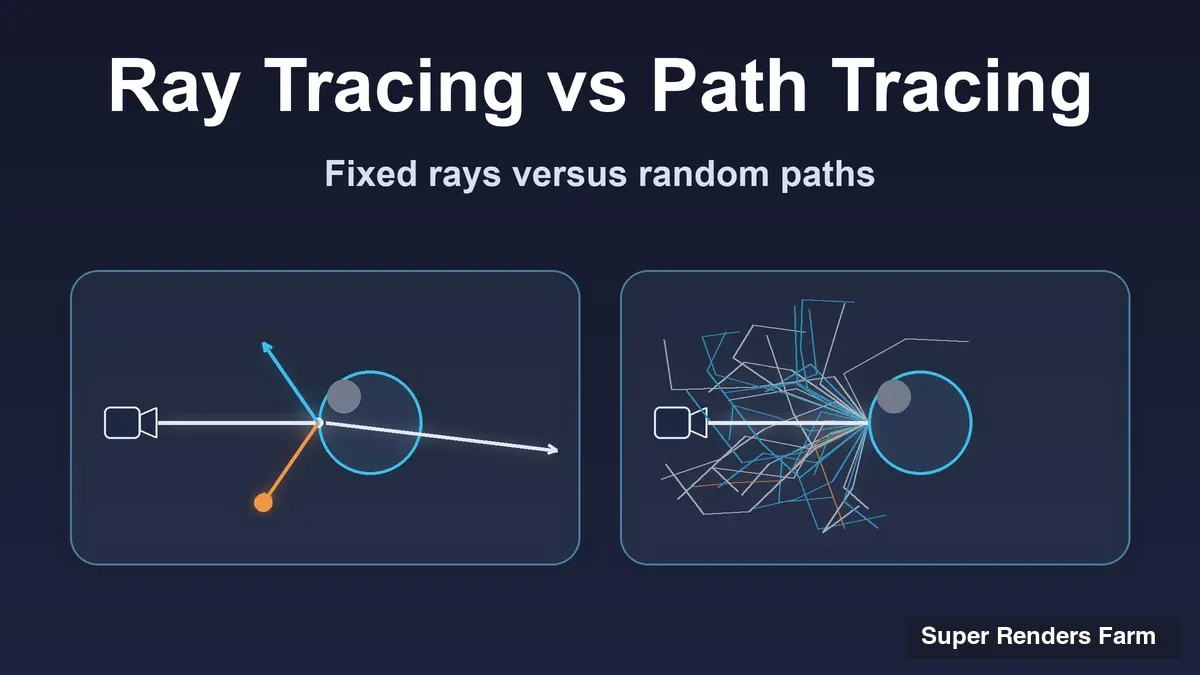
Cycles is a physically-based path tracer. It simulates light transport by tracing rays from the camera into the scene, bouncing off surfaces, and accumulating color information. This produces photorealistic results — accurate reflections, refractions, caustics, global illumination, and volumetrics. The trade-off is render time: Cycles can take minutes to hours per frame depending on scene complexity and sample count.
Eevee (or Eevee Next in Blender 4.x) is a real-time rasterization engine. It uses screen-space techniques, shadow maps, and probe-based lighting to approximate physically-based results at interactive frame rates. Eevee is well-suited for previews, stylized work, motion graphics, and situations where render time matters more than physical accuracy.
Workbench is a viewport display engine for modeling and layout review — not used for final renders, so we will not cover it here.
The choice between Cycles and Eevee depends on your project. Archviz, product rendering, and VFX compositing almost always demand Cycles. Motion graphics, previz, and stylized animation can often use Eevee. Some studios use Eevee for iterating on lighting, then switch to Cycles for finals.
If you are still deciding which engine to tune in the first place, our 2026 Blender engine comparison is the earlier decision.
Cycles Render Settings Deep Dive
Cycles settings live in the Render Properties panel (camera icon). Here is what each group controls and how to configure them.
Sampling
Samples determine how many light paths Cycles traces per pixel. More samples mean less noise but longer render times. Blender 4.x defaults to 128 samples for viewport and 4096 for final render, but these defaults are rarely optimal for every scene.
- Render Samples: For most production work, 256 to 1024 samples with denoising enabled produces clean results. Architectural interiors with complex caustics may need 2048 or more. Outdoor scenes with direct lighting can often get away with 128 to 256 plus denoising.
- Viewport Samples: Keep this low (32 to 64) for responsive feedback during scene setup.
- Noise Threshold: Blender's adaptive sampling stops tracing additional samples for pixels that have already converged below this threshold. A value of 0.01 is a good starting point. Lower values (0.001) increase quality but also render time. Setting this to 0 disables adaptive sampling entirely and uses the fixed sample count.
- Min Samples: The minimum number of samples before adaptive sampling can stop a pixel. Setting this too low (below 16) can cause visible artifacts in areas with subtle gradients.
Denoising
Modern denoising is arguably the single most impactful quality-per-time improvement in Cycles rendering. It allows you to render at lower sample counts and then clean up the remaining noise algorithmically.
- OpenImageDenoise (OIDN): Intel's AI-based denoiser, runs on CPU. Produces excellent results for most scenes. This is the default and recommended choice in Blender 4.x.
- OptiX Denoiser: NVIDIA's GPU-based denoiser. Faster than OIDN on NVIDIA hardware but can produce slightly different results. Requires an NVIDIA GPU with OptiX support.
- Denoising Data Passes: Enable "Denoising Data" under View Layer Properties if you plan to composite with more control. This outputs normal, albedo, and noisy passes separately so you can denoise in the compositor or an external tool.
A practical approach: set render samples to 256-512, enable adaptive sampling with a noise threshold of 0.01, and use OpenImageDenoise. This combination handles the vast majority of production scenes and keeps render times manageable.
Light Paths
Light path settings control how many times a ray can bounce before Cycles terminates it. Each bounce type (diffuse, glossy, transmission, volume) has its own limit.
- Max Bounces (Total): The overall cap. Default is 12, which is fine for most scenes. Reducing to 8 can save time in simple scenes without visible difference.
- Diffuse Bounces: Controls indirect illumination depth. The default of 4 works for most interiors. Increase to 6-8 for scenes with many white or bright surfaces where light needs to travel deeper (Cornell box scenarios, white-walled rooms).
- Glossy Bounces: Affects reflections of reflections. Default of 4 is usually sufficient. Increase for scenes with facing mirrors or highly reflective surfaces.
- Transmission Bounces: Critical for glass and refractive materials. If you see black areas inside glass objects, increase this from the default of 12. Stacked glass (like a car windshield with laminated layers) may need 16 or more.
- Volume Bounces: For volumetric scattering (fog, smoke, subsurface). Default of 0 means single scattering only. Increase to 1-2 for more realistic fog or dense smoke.
- Clamping (Direct/Indirect): Limits the maximum brightness of light samples to reduce fireflies (bright pixel artifacts). An indirect clamp of 10 removes most fireflies with minimal impact on the overall image. Set to 0 to disable (more physically accurate but may produce fireflies).
- Caustics: Reflective and refractive caustics are enabled by default. Disabling them can significantly speed up renders in scenes where caustic patterns are not important.
Color Management
- View Transform: Use "Filmic" or "AgX" (Blender 4.x) for photorealistic rendering. "Standard" clips highlights and produces less natural results. AgX improves highlight rolloff compared to Filmic.
- Look: Adjusts contrast. "None" is neutral. "High Contrast" can add punch but may blow out highlights.
- Exposure: Adjusts overall brightness in stops. Use this instead of cranking up light intensities.
Eevee Render Settings and When to Use Them
Eevee excels when you need fast feedback or are working on projects where physical accuracy is secondary to creative control and speed. Here is how to get the most out of it.
When Eevee Makes Sense
- Motion graphics and abstract animations where stylized shading is acceptable
- Previz and lookdev passes before switching to Cycles for finals
- Real-time playback for client review and projects with tight deadlines
- Scenes that rely heavily on procedural shading rather than accurate light transport
Key Eevee Quality Settings (Eevee Next in Blender 4.x)
Blender 4.0 introduced Eevee Next with ray-tracing capabilities that narrow the gap with Cycles.
- Sampling: Eevee uses TAA (Temporal Anti-Aliasing) samples. 64 render samples is typically sufficient for clean output.
- Ray Tracing (Eevee Next): Blender 4.x Eevee supports screen-space and hardware ray tracing for reflections and diffuse lighting. This produces significantly better reflections than the legacy probe-based approach, though it is slower than classic Eevee.
- Shadows: Configure shadow resolution (1024 to 4096 per light) and soft shadow samples. Cascaded shadow maps handle sun lights for large outdoor scenes.
- Volumetrics: Eevee supports volumetric lighting and fog, though volumetric scattering is an approximation and will not match Cycles volumetrics.
Eevee Limitations
Eevee does not provide true global illumination (though Eevee Next approximates it), screen-space effects break at screen edges, subsurface scattering is approximated, caustics are not supported, and transparency sorting can produce artifacts with overlapping objects. For projects that start in Eevee and will move to Cycles, design your lighting setup with Cycles compatibility in mind.
Render Resolution and Output Settings
Resolution and output format settings apply to all render engines and directly affect both quality and file size.
Resolution
- Resolution X/Y: Set your target output resolution. Common values: 1920x1080 (Full HD), 2560x1440 (QHD), 3840x2160 (4K). Match your delivery requirements — rendering at 4K when your client needs 1080p wastes time.
- Resolution Percentage: Scales the render resolution. Use 50% during test renders to iterate quickly, then switch to 100% for finals. This is the quickest way to halve render time during lookdev.
- Aspect Ratio: Usually 1:1 unless you are working with anamorphic footage or specialized output formats.
Frame Range and Output
- Frame Start/End/Step: For animations, set these to match your shot. Step of 2 renders every other frame (useful for quick animation previews).
- Output Format: For still images, use OpenEXR (32-bit float) for compositing workflows or PNG for final delivery. For animation frames being composited, OpenEXR preserves the most data. Avoid rendering directly to video formats (MP4, AVI) — always render to image sequences. If Blender crashes at frame 500 of a 1000-frame animation, you lose everything with a video file but can resume from frame 501 with image sequences.
- Color Depth: 8-bit for final delivery PNGs, 16-bit for high-quality stills, 32-bit float for EXR compositing passes.
Performance Impact of Resolution
Render time scales with total pixel count. Going from 1080p to 4K quadruples pixels and roughly triples to quadruples render time. Plan accordingly for animations.
How to Make Blender Renders Higher Quality
This is the question we hear most often, and the answer is rarely "just increase the sample count." Higher quality in Blender rendering comes from optimizing multiple settings together. Here is a systematic approach.
Step 1: Get Your Lighting Right
Lighting has more impact on perceived quality than any render setting. A scene with proper HDRI environment lighting, area lights at correct intensities, and good exposure settings will look photorealistic at 256 samples. A scene with poor lighting will look artificial at 10,000 samples.
- Use HDRI environment maps for outdoor and studio lighting. Poly Haven offers free, high-quality HDRIs.
- For interiors, combine an HDRI for window light with area lights for artificial sources. Set light intensities in physically accurate units (watts).
- Enable "Multiple Importance Sampling" on environment textures and large area lights. This helps Cycles find important light paths efficiently.
Step 2: Optimize Sampling and Denoising
Rather than pushing samples to 4096+, use the adaptive sampling and denoising approach described in the Cycles section above. The combination of 256-512 samples, adaptive sampling (noise threshold 0.01), and OpenImageDenoise produces results that are visually indistinguishable from brute-force 4096-sample renders at a fraction of the time.
Step 3: Configure Light Paths for Your Scene
Increase bounce limits only where needed. If glass looks dark, raise transmission bounces. If a room looks too dark, raise diffuse bounces. Increasing all bounces uniformly wastes render time on bounce types your scene does not need.
Step 4: Use Proper Color Management
Switch from "Standard" to "AgX" (Blender 4.x) or "Filmic" view transform. This single change noticeably improves highlight handling and makes renders look less like CG and more like photography. The difference is especially visible in scenes with bright light sources, fire, or specular highlights on metal.
Step 5: Material and Texture Quality
- Use 4K textures for hero objects and 2K for background elements. Going beyond 4K rarely adds visible quality but increases memory usage.
- Enable displacement (adaptive subdivision) for surfaces that need geometric detail — stone walls, fabric, terrain. Bump mapping alone cannot replicate the parallax and silhouette changes that true displacement provides.
- Use the Principled BSDF shader for PBR-accurate materials. It handles metals, dielectrics, glass, and subsurface scattering in a single unified shader.
Step 6: Post-Processing and Compositing
Render quality extends beyond the render engine. Use Blender's compositor for lens distortion, bloom, color grading, and depth of field. Adding DOF in post is often faster than rendering with DOF enabled in Cycles, especially for animations.
Performance Optimization: GPU vs CPU and Beyond
Render settings interact with your hardware configuration. Understanding this relationship helps you choose settings that maximize throughput.
GPU vs CPU Rendering in Cycles
Cycles supports multiple compute backends:
- OptiX (NVIDIA): Hardware-accelerated ray tracing on RTX GPUs. Use OptiX over CUDA when available (RTX 2000 series and newer).
- HIP (AMD): AMD GPU rendering. Performance varies by card — check the Blender requirements page.
- Metal (Apple Silicon): GPU rendering on M1 and newer Macs.
- CPU: Multi-threaded rendering using all available cores. Slower per-frame than GPU but handles scenes that exceed GPU VRAM.
When CPU Rendering Makes Sense
GPU rendering is typically faster per frame, but CPU rendering remains practical in several scenarios:
- Scenes that exceed your GPU's VRAM. A scene using 28 GB of memory will not fit on a 16 GB GPU but runs fine on a CPU with 64+ GB system RAM.
- Volumetric-heavy scenes where CPU performance is competitive with mid-range GPUs.
- Render farm workflows where CPU nodes are more cost-effective at scale. On our farm, about 70% of Blender Cycles jobs run on CPU nodes with 20,000+ cores available. The per-core-hour cost is lower, and memory is rarely a constraint with 96-256 GB per node.
Tile Size
In older Blender versions (pre-3.0), tile size significantly affected performance — large tiles for GPU, small tiles for CPU. Blender 3.0+ uses a new tiling system that automatically optimizes tile behavior. You generally do not need to adjust tile size manually in current Blender versions.
Memory Optimization
- Simplify: Limit subdivision levels, texture resolution, and particle count during test renders. Non-destructive and toggleable for finals.
- Persistent Data: Keep BVH and textures in memory between frames. This speeds up animation rendering since Cycles skips rebuilding scene data each frame.
- Efficient Data Types: Convert 32-bit float textures to 16-bit where full precision is not needed (most color textures). This halves texture memory usage.
When Local Rendering Is Not Enough
Single-workstation rendering has hard limits. A 1000-frame animation at 10 minutes per frame takes nearly 7 days on one machine.
When tuning settings stops being enough, a dedicated Blender render server is the next option to weigh.
Cloud render farms distribute frames across hundreds of machines simultaneously. What takes a week locally can finish in hours when parallelized across a farm. If you are new to the concept, our guide to what a render farm is and how it works covers the fundamentals.
For a broader look at how cloud rendering works — including the different service models and pricing structures — see our dedicated cloud rendering guide.
For a step-by-step walkthrough of moving your Blender projects to the cloud — including scene preparation, plugin workflow, and cost optimization — see our Blender cloud rendering guide.
On our infrastructure at Super Renders Farm, we run Blender with Cycles across both CPU and GPU nodes. Our CPU fleet provides 20,000+ cores with 96-256 GB RAM per node — enough headroom for scenes that would run out of memory on a typical workstation. Our GPU nodes run NVIDIA RTX 5090 cards with 32 GB VRAM, handling GPU-accelerated Cycles rendering for projects that benefit from OptiX.
The workflow is straightforward: upload your .blend file, select your frame range and render settings, and the farm distributes frames across available nodes. There is no software to install on the farm side — we handle the Blender environment, plugins, and dependencies. Pricing starts at $0.004/GHz-hr for CPU and $0.003/OB-hr for GPU, and the cost calculator on our site gives frame-level estimates before you commit.
For a broader look at render farm pricing structures, our render farm pricing guide breaks down the different models (per-frame, per-GHz-hour, subscription) across the industry. For a comparison of Blender-compatible render farms specifically, see our guide to render farms for Blender.
Blender Render Settings Quick Reference
| Setting | Recommended Starting Point | When to Adjust |
|---|---|---|
| Render Samples | 256-512 (with denoising) | Increase for complex caustics or very dark interiors |
| Noise Threshold | 0.01 | Lower to 0.005 for hero stills, raise to 0.02 for animation previews |
| Denoiser | OpenImageDenoise | Switch to OptiX if GPU-bound and using NVIDIA |
| Max Bounces | 8-12 | Increase individual bounce types as needed |
| Diffuse Bounces | 4 | 6-8 for white interiors, bright indirect lighting |
| Transmission Bounces | 12 | 16+ for stacked glass, complex refractive objects |
| Clamping (Indirect) | 10 | 0 for physically accurate, higher values reduce fireflies |
| View Transform | AgX or Filmic | Standard only for specific non-photorealistic needs |
| Resolution | Match delivery target | Use % scale for test renders |
| Output Format | EXR (compositing) / PNG (delivery) | Never render animation directly to video |
| Persistent Data | Enabled (animations) | Disable if RAM is limited |
| Compute Device | OptiX if NVIDIA, otherwise CPU | CPU for scenes exceeding GPU VRAM |
FAQ
Q: What are the most important Blender render settings to change from defaults? A: At Super Renders Farm, enable adaptive sampling with a noise threshold of 0.01, turn on OpenImageDenoise, switch the view transform to AgX or Filmic, and set your resolution to match your delivery target. These four changes alone significantly improve output quality while keeping render times reasonable.
Q: How do I make Blender render higher quality without increasing render time? A: Use denoising (OpenImageDenoise or OptiX) to clean up noise at lower sample counts. Switch to AgX or Filmic color management for better highlight handling. Improve your lighting setup with HDRI maps and properly placed area lights. These changes improve perceived quality without adding significant render time.
Q: What is the difference between Cycles and Eevee rendering engines in Blender? A: Cycles is a physically-based path tracer that produces photorealistic results through accurate light simulation, but requires more render time. Eevee is a real-time rasterization engine that approximates physical lighting using screen-space techniques, delivering results in seconds rather than minutes. Eevee Next in Blender 4.x adds ray-tracing support, narrowing the quality gap.
Q: What render resolution should I use in Blender? A: Match your delivery target. Use 1920x1080 for Full HD, 3840x2160 for 4K. During lookdev and test renders, set the resolution percentage to 50% to cut render time in half. Only render at higher resolutions than your delivery spec if you need room for cropping or reframing in post-production.
Q: Is GPU or CPU rendering faster in Blender Cycles? A: GPU rendering with OptiX (NVIDIA RTX cards) is generally faster per frame than CPU. However, CPU rendering handles larger scenes that exceed GPU VRAM and can be more cost-effective at scale on render farms. On our farm, roughly 70% of Blender jobs use CPU nodes because archviz and VFX scenes often exceed the VRAM limits of single GPUs.
Q: How many samples do I need for a clean Cycles render? A: With adaptive sampling and denoising enabled, 256-512 samples produce clean results for most scenes. Without denoising, you may need 2048-4096 samples to eliminate visible noise. The combination of moderate samples plus denoising is the current standard approach in production.
Q: Should I render animations as video files or image sequences in Blender? A: Always render to image sequences (PNG or EXR), never directly to video formats. If Blender crashes or your machine loses power during a 1000-frame render, a video file is lost entirely. With image sequences, you resume from the last completed frame. Encode to video (H.264, H.265) as a separate step after all frames are rendered.
Q: What Blender render settings matter most for architectural visualization? A: For archviz, prioritize diffuse bounces (6-8 for bright interiors), transmission bounces (16+ if the scene has glass), and use HDRI lighting with area lights for artificial sources. Enable OpenImageDenoise and render at your delivery resolution. Color management should be set to AgX or Filmic for natural highlight rolloff on windows and light fixtures. For heavy scenes, a cloud render farm can handle frame distribution while you continue working locally.
About Thierry Marc
3D Rendering Expert with over 10 years of experience in the industry. Specialized in Maya, Arnold, and high-end technical workflows for film and advertising.