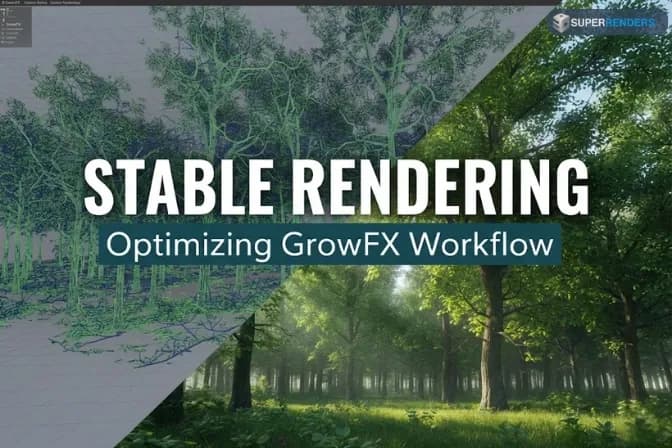
GrowFX Rendering Problems in V-Ray and Corona: Causes, Fixes, and Stable Production Workflows
Overview
GrowFX Rendering Problems with V-Ray and Corona: Complete Troubleshooting Guide
GrowFX vegetation, the procedural system by Exlevel, appears perfect in the viewport, yet fails during final render with V-Ray or Corona. Materials don't translate correctly. Displacement breaks. Memory explodes. Render engines handle procedural geometry differently, and vegetation—with its opacity maps, complex materials, and dense polygon counts—exposes these differences brutally.
This article addresses the specific rendering problems that occur when combining GrowFX with the industry's two most popular render engines: V-Ray and Corona Renderer. Understanding how each engine handles GrowFX geometry, materials, and acceleration structures is essential for production work.
Understanding How V-Ray and Corona Handle GrowFX Differently
V-Ray's Approach to Procedural Geometry
V-Ray prioritizes raw speed and distributed rendering. When it encounters GrowFX geometry:
- BVH Construction: V-Ray builds acceleration structures optimized for CPU ray tracing
- Material Evaluation: V-Ray threads materials through its compiled shader system
- Opacity Handling: Transparent surfaces (leaf opacity maps) are handled through ray tracing and material callbacks
V-Ray's primary advantage is distributed rendering performance. Its disadvantage is that opacity-mapped foliage forces the renderer to evaluate material callbacks for every ray intersection, which is expensive.
Corona Renderer's Approach to Procedural Geometry
Corona loads nearly all geometry directly into RAM and maintains a single unified acceleration structure. This approach:
- Memory Intensive: All GrowFX polygons are loaded into system RAM before rendering begins
- Fast Single-Machine Rendering: Unified memory layout provides excellent single-core performance
- Material Handling: Corona's internal material system is highly optimized for typical archviz materials
Corona's advantage is single-machine rendering speed and material consistency. Its disadvantage is memory consumption—a scene with millions of GrowFX polygons can easily consume 100+ GB of RAM on Corona, while V-Ray might render the same scene in 40 GB using proxy-based out-of-core geometry.
Common Rendering Problem 1: Material Mistranslation from Viewport to Render
What Happens During Material Conversion
GrowFX trees typically use Arch & Design materials (Autodesk Physical Materials) in the viewport. When rendering with V-Ray or Corona, these materials must be translated to render engine-specific formats:
- Viewport material → V-Ray Material
- Viewport material → Corona Physical Material
Problem: This translation is not always perfect. Opacity maps may render with different falloff. Bump maps may appear too strong or too weak. Specular highlights may be inverted. Subsurface scattering on leaves may disappear entirely.
Symptoms
- Foliage appears opaque in render but transparent in viewport
- Bark appears overly shiny or completely matte in render vs viewport
- Leaves show severe specular highlights when they should be diffuse
- Normal/bump mapping appears inverted or absent
Diagnosis
- Render a simple test frame with a single GrowFX tree, no lighting, flat white background
- Examine the alpha channel in the rendered image
- If opacity is rendered differently than viewport preview, materials are mistranslating
- Check which textures are applied to which geometry (bark vs leaves vs twigs)
Fix for V-Ray
-
Convert materials manually: Don't rely on automatic translation. Create explicit V-Ray Physical Materials for bark, leaves, and branches.
-
Use V-Ray Wrapper Texture for Opacity: Instead of standard opacity maps, use the V-Ray Falloff texture with opacity control:
- In V-Ray material, enable transparency
- For leaf opacity, use Falloff texture set to "Facing Ratio" mode
- Adjust the curve to match viewport appearance
-
Disable subsurface scattering approximation: If leaves appear to have light shining through them when they shouldn't:
- Disable SSS in the V-Ray material
- Or increase SSS density/absorption to make it invisible
-
Test with Proxy Conversion: Convert the GrowFX tree to a V-Ray proxy and reassign materials to the proxy. Proxies sometimes render materials more consistently than raw procedural geometry.
Fix for Corona
-
Use Corona Physical Material directly: Corona has superior material translation compared to V-Ray for archviz work. Create Corona Physical Materials for each GrowFX geometry type.
-
Opacity Maps in Corona Physical Material:
- In the Material Base Color, add your leaf texture
- In the Opacity slot (under Transparency), add the same leaf texture or a dedicated opacity map
- Corona will respect both color and opacity simultaneously
-
Bark Displacement: If bark appears flat:
- Add a Bump Map in the Bump Slot (not in Normal)
- Corona uses Bump Maps more effectively than normal maps for detail
- Set bump amount to 0.1-0.3 for realistic appearance
-
Subsurface Scattering for Leaves: If leaves appear dead without light penetration:
- In Corona Physical Material, enable "Subsurface Scattering"
- Set scattering color to light green
- Set scattering distance to 0.1-0.2 mm
- Test with a simple test frame
Common Rendering Problem 2: Memory Overflow and Out-of-Core Rendering
Why GrowFX Causes Memory Pressure
A single GrowFX tree can generate 10-50 million polygons after procedural evaluation and Meta Mesh expansion. A 20-tree forest scene can easily hit 200-500 million polygons. Both V-Ray and Corona must build acceleration structures on top of this geometry:
- V-Ray: BVH tree (~8 bytes per polygon)
- Corona: Unified acceleration structure (~12-16 bytes per polygon)
500 million polygons × 12 bytes = 6 GB just for acceleration structures, before materials, textures, and intermediate buffers are counted.
Corona Memory Management
Corona Renderer loads all geometry into RAM. If geometry exceeds available RAM, Corona terminates with an "out of memory" error. There is no out-of-core rendering option.
Solutions:
-
Reduce GrowFX polygon count:
- Lower segment counts on secondary branches
- Disable Meta Mesh on non-hero trees
- Use LOD (level of detail) systems for distant vegetation
- Enable camera culling to hide geometry outside view
-
Simplify textures:
- Use lower-resolution texture maps (2K instead of 4K)
- Combine multiple texture slots into atlas maps
- Reduce texture color depth if possible
-
Use Corona Proxies:
- Convert GrowFX to Corona proxy format
- Proxy files can be streamed more efficiently than raw geometry
- Proxy conversion also provides per-frame caching benefits
-
Increase available RAM:
- If your scene requires 100 GB and you have only 64 GB, either simplify or upgrade
- On render farms, request higher-memory nodes (256 GB)
V-Ray Memory Management
V-Ray supports out-of-core geometry through adaptive geometry loading. However, out-of-core rendering carries a performance penalty:
- In-core rendering: Single-pass through scene, optimal cache efficiency
- Out-of-core rendering: Geometry swapped in/out during render, significant slowdown (3-10x slower)
Solutions:
-
Use V-Ray Proxies: Convert GrowFX to V-Ray proxy format before rendering. Proxies are purpose-built for large-scale geometry and memory efficiency.
-
Proxy Streaming: Enable "Proxy Streaming" in V-Ray settings. This allows selective loading of proxy data during render, reducing upfront memory requirements.
-
Distributed Rendering: V-Ray's distributed rendering (bucket-based) distributes memory pressure across multiple machines. A single complex frame can be rendered across 10 nodes, each handling a subset of pixels and geometry.
-
Geometry Reduction: Same as Corona—lower segment counts, disable Meta Mesh on backgrounds, use LOD systems.
Common Rendering Problem 3: Displacement and Bump Mapping Artifacts
Displacement Offset Issue
GrowFX uses procedurally-generated geometry with complex normals. When displacement is applied (for bark detail, leaf veining), unexpected artifacts often occur:
- Surface normals point in conflicting directions at branch junctions
- Displacement clips through adjacent geometry
- Bark displacement appears inverted in some areas
Diagnosis
Render a single test frame with displacement enabled. If displacement creates visible seams or inverted appearance at branch junctions, the issue is normal direction inconsistency at procedural boundaries.
Fix for V-Ray
-
Check Normal Consistency:
- In the GrowFX object properties, verify that "Unified Normals" is enabled
- This forces GrowFX to generate consistent normal directions across procedural boundaries
-
Displacement Settings in V-Ray:
- Use "Displacement" slot, not "Bump"
- Set displacement amount conservatively (0.1-0.5 mm for bark)
- Enable "Use 2D Map" if you're using a 2D texture displacement
- Disable "Use Camera Space" for displacement
-
Reduce Displacement Complexity:
- Use displacement only on hero trees
- For background trees, use bump mapping instead of displacement
- Bump mapping is cheaper and doesn't have normal-direction issues
Fix for Corona
-
Use Bump Maps, Not Displacement:
- Corona's displacement system is less robust for complex procedural geometry
- Instead, use Bump Maps in the Corona Material
- Bump maps are cheaper and avoid normal-direction artifacts
-
Normal Map Strength:
- If using normal maps, set the strength to 0.5-1.0 instead of 2.0+
- Extreme normal strengths amplify artifacts at procedural boundaries
-
Per-Object Normal Mapping:
- Instead of single displacement across entire tree, apply bump/normal to specific geometry types
- Example: Bark material gets stronger bumps, leaf geometry gets weaker bumps
Common Rendering Problem 4: Frame-to-Frame Flickering in Animation
Why Flickering Occurs
In animated GrowFX scenes (growth animation or wind simulation), geometry changes frame-to-frame. If procedural state is not locked or cached, each frame can produce subtly different geometry:
- Branch positions shift slightly
- Leaf normals change
- Shadow boundaries move
- Specularity hotspots shift
The result: visible flickering or crawling artifacts in final animation.
Symptoms
- Test render of 2 consecutive frames shows visible geometry shimmer
- Foreground trees appear to vibrate or "breathe"
- Leaf opacity appears to flicker
- Shadow edges on vegetation appear to crawl frame-to-frame
Diagnosis
Export 2 consecutive frames from your animation and subtract one from the other in an image editor (difference blend mode). Visible bright areas indicate geometry differences frame-to-frame.
Fix
-
Cache Procedural State Per Frame:
- Enable GrowFX cache mode
- Set caching to "per-frame"
- This locks geometry for each frame before animation begins
- See our article on GrowFX production problems and fixes
-
Lock Random Seeds:
- Ensure all GrowFX random seed values are explicitly set (not "unlimited")
- Identical seed = identical geometry frame-to-frame
-
Bake Wind Animation:
- Don't use real-time wind simulation
- Bake wind parameters to keyframes
- This ensures every render node reads identical wind values per frame
-
Disable Temporal Anti-Aliasing:
- Some render engines apply temporal AA across frames
- For vegetation animation, disable temporal AA
- Use spatial super-sampling instead
Common Rendering Problem 5: Render Node Crashes on Farms with V-Ray or Corona
Farm-Specific Issues
Render farms apply different settings and constraints than local machines:
- Lower memory availability per node (64-96 GB vs your 256 GB workstation)
- Network storage I/O bottlenecks when 100+ nodes access geometry simultaneously
- Timeout restrictions on geometry evaluation phases
Common failure mode: Scene renders locally but crashes on farm with "out of memory" error.
Diagnosis from Farm Logs
- Request the render node's full error log
- Search for "memory" or "allocation failed" messages
- Check timestamp of crash: during initialization, geometry evaluation, or rendering?
- Crashes during geometry evaluation = memory overflow
- Crashes during rendering = material/shader issue or VRAM overflow
Fix for Farm Crashes
-
Pre-Render Validation:
- Render your GrowFX scene locally with memory monitoring enabled
- Check peak RAM usage during geometry evaluation
- If it exceeds your farm's available RAM, simplify geometry or request higher-memory nodes
-
Use Proxies for Farm Work:
- Convert all complex GrowFX to V-Ray or Corona proxies
- Proxy conversion trades conversion time for memory efficiency and reliability
- Proxies also substantially accelerate farm rendering by 3-10x
-
Cache Before Submission:
- Cache all GrowFX procedural state
- Cached geometry is locked; farm nodes don't re-evaluate procedural rules
- Reduces preparation time and memory pressure
-
Reduce VRAM Pressure:
- Compress textures to 2K resolution
- Use texture atlasing to reduce material instance count
- On GPU farms, ensure scene VRAM usage is well below device limits
Key Practices for V-Ray and Corona with GrowFX
- Test locally first: Never submit to farm without a local test render
- Monitor memory: Track peak memory usage during preparation and rendering
- Use proxies for scale: Proxy conversion is the gold standard for production GrowFX work
- Cache animations: Per-frame caching eliminates flickering and ensures consistency
- Simplify backgrounds: Hero trees can be detailed; background vegetation should be simplified aggressively
- Profile materials: Use simple test scenes to verify material translation before full production
- Validate on farm: Submit test frames before full job submission
Frequently Asked Questions
Q: Which render engine is faster for GrowFX—V-Ray or Corona? A: For single-machine rendering, Corona is typically 20-30% faster due to its unified acceleration structure. For distributed rendering, V-Ray's parallelization often wins. For your specific scene, test both locally before production.
Q: Should I always convert GrowFX to proxies? A: For scenes with more than 3-5 trees or Meta Mesh usage, yes. Proxy conversion costs 20-30 minutes but saves hours of render time and reduces memory pressure significantly.
Q: Why does my GrowFX material look different in V-Ray vs Corona? A: Each engine has different material systems, shading models, and opacity handling. Always re-test materials in your target renderer. Don't assume viewport = render.
Q: Can I disable opacity evaluation in V-Ray to speed up leaf rendering? A: Not safely. Disabling opacity evaluation eliminates transparency, making leaves opaque. Instead, optimize opacity handling by using proxy conversion or level-of-detail systems.
Q: How do I prevent displacement artifacts at branch junctions? A: Verify GrowFX "Unified Normals" is enabled, reduce displacement amount, or use bump mapping instead of displacement. Bump maps are more forgiving with procedural geometry.
Q: Why does my animation flicker on the farm when it's smooth locally? A: Random seeds are likely unlocked, or wind animation is real-time instead of baked. Lock all GrowFX random seeds and bake wind animation to keyframes.
Related Resources
- GrowFX Production Problems: Crashes and Fixes
- Complete Guide: Using GrowFX on Render Farms
- GrowFX Rendering Optimization: V-Ray & Corona
Last Updated: 2026-03-18
About Alice Harper
Blender and V-Ray specialist. Passionate about optimizing render workflows, sharing tips, and educating the 3D community to achieve photorealistic results faster.