What's New in Our Cost Calculator (May 2026 Update)
Overview
Introduction
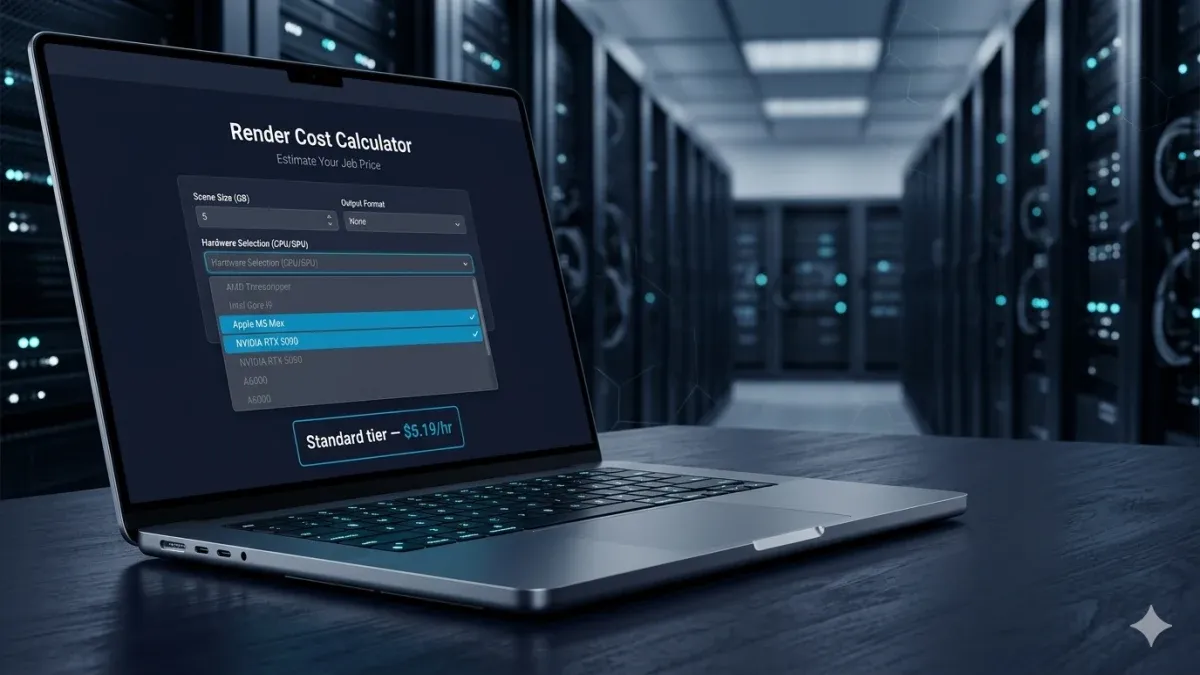
Our cost calculator at /cost-calculator is the first stop for most artists planning a job on Super Renders Farm. In late April we shipped a four-commit overhaul that touches almost every part of it: chip database, GPU support, benchmark labels, and how your inputs are remembered between visits. This post walks through what changed, why, and what each part means when you're estimating a real project — whether you're rendering a Maya scene with Arnold, a Cinema 4D project with Redshift, or a Blender frame on the new RTX 50 series.
Nothing in this update changes your existing saved quotes. Old quotes keep their original pricing snapshot. Only new estimates use the refreshed database and benchmark math.
Apple Silicon support (M1 → M5)
Apple chips are now first-class citizens in the CPU dropdown. The cascade — brand → family → chip — covers M1, M1 Pro, M1 Max, M1 Ultra, M2, M2 Pro, M2 Max, M2 Ultra, M3, M3 Pro, M3 Max, M4, M4 Pro, M4 Max, and the newly released M5 family. That's twenty-six Apple Silicon chips alongside the existing Intel and AMD lineups.
A practical note on Apple Silicon estimates: our calibration is based on native CPU rendering performance (Cinebench R23 multi-core scores). If your scene relies heavily on GPU-accelerated workflows on Apple chips — Redshift Metal, Octane X, or Blender Metal — actual render times can run two to four times faster than the CPU estimate suggests. We surface this inline whenever an Apple chip is selected so the number you're reading isn't misleading.
If you're new to Apple Silicon on a render farm, the fully managed cloud rendering guide covers how a managed workflow handles cross-architecture compatibility without you needing to think about it.
Current-gen Intel and AMD chips
The CPU database also picked up roughly seventy current-generation x86 chips that were missing or under-represented:
- AMD Zen 4 and Zen 5 — full Ryzen 7000 / 9000 desktop coverage, plus Threadripper 7000 and EPYC Genoa / Genoa-X / Bergamo for workstation and server CPUs.
- Intel Raptor Lake and Raptor Lake Refresh — the 13th and 14th generation Core lineup that's been the workhorse for many studios over the last two years.
- Intel Core Ultra (Meteor Lake / Arrow Lake) — the new naming scheme is now in the dropdown so you don't have to map it back manually.
- Intel Sapphire Rapids-WS and Emerald Rapids — Xeon W-3400 and W-2400 workstation parts that show up in colorist and VFX boxes.
We also backfilled around eight hundred Cinebench R23 cells for older chips that previously only had R20 scores. That matters because R23 is now our canonical CPU benchmark across the whole calculator (more on that below).
If your specific chip still isn't there, drop a note in chat — we add chips in batches when a few requests stack up.
Full GPU cascade dropdown
Until this update, the GPU side of the calculator was a free-text field that asked you to type in an OctaneBench score. That was fine for power users but a hard wall for everyone else. The new build replaces that field with the same vendor → series → model cascade you see on the CPU side, populated with a curated set of around thirty Tier 1 GPUs:
- NVIDIA — the full RTX 50 series (5090, 5080, 5070 Ti, 5070), the RTX 40 series, and the RTX 30 series down to the 3060.
- Apple Silicon GPUs — the integrated GPUs in M1 through M5 chips, scored against equivalent OctaneBench-class workloads where data exists.
- AMD Radeon — the RX 7900 / 7800 / 7700 series. AMD GPUs don't have native Octane support (Octane is CUDA-only), so we hide the OctaneBench input for AMD selections and route you to chat for a custom estimate against the Cycles HIP path.
Picking a GPU now also flows directly into the pricing tiers — pick your card, the calculator shows what one OctaneBench-hour costs at Standard, Premium, and Priority queue priorities.
OctaneBench 2025.2.1 and Cinebench R23 by default
Two small benchmark labels matter more than they look:
- OctaneBench 2025.2.1 is now the version we calibrate GPU estimates against. The label sits next to the GPU dropdown with an info icon that links straight to OTOY's official OctaneBench page so you can run the same benchmark on your own card and reconcile the number.
- Cinebench R23 is now the default CPU benchmark mode. The toggle used to read [R20 | R15], it now reads [R23 | R20], and R15 is gone — Maxon deprecated R15 in late 2023. R23 has been Maxon's canonical CPU benchmark since 2020, and it's the score most chip reviewers publish today.
If you previously typed in an R20 score for a custom chip, the calculator still accepts it: it auto-converts at the API boundary using the published Maxon ratios (R23 = R20 × 2.70). The dollar number you get back is mathematically identical regardless of which mode you used to enter the score. You can switch modes mid-quote without your inputs getting reset.
For Apple Silicon chips, R23 is the only mode that works (Apple chips don't run Cinebench R20 — the older binary doesn't ship for Apple Silicon). The toggle handles this gracefully: pick an Apple chip in R20 mode and the input shows a note explaining the limitation and offering a one-click switch to R23.
For a deeper read on how benchmarks map to actual render time on a farm, see our render farm pricing guide.
Your PC settings remembered between visits
The calculator now remembers your "Your PC" inputs between visits — the chip you picked, the GPU you picked, your manual benchmark scores if you typed them in, your preferred Cinebench mode, and which mode tab (CPU or GPU) you used last. Open the page next week and the cascade dropdowns will already be populated with your card and chip. Your project inputs (frame count, resolution, engine) deliberately do not persist — those reset per project, which is what you want.
A few specifics worth calling out:
- Browser-side only. Settings live in
localStorageunder a single key and never leave your browser. We don't store them on our servers, we don't tie them to an account, and they're invisible to us. Clearing browser data clears them. - Mode tab is sticky. If you used GPU mode last visit, GPU mode loads on your next visit. Saves a click for repeat users who only render with one engine class.
- Cross-tab sync. Open the calculator in two tabs, change your CPU in one, and the other tab updates automatically.
- Schema-versioned. When we add or remove chips, the saved state is validated on load. If your saved chip no longer resolves (rare — usually only happens if a chip is removed in an edit), the dropdown falls back to empty and you pick again rather than seeing a stale or wrong value.
FAQ
Q: How accurate is the GPU price estimate after this update? A: The published rate is $0.003 per OctaneBench-hour at the Standard tier. The calculator multiplies your card's OctaneBench 2025.2.1 score by your scene's projected GPU sample time, then by that rate. Earlier versions of the calculator returned a much lower number for high-end NVIDIA cards because the GPU branch reused CPU constants — that math is now corrected, so an RTX 5090 estimate today reflects the actual published rate. Quotes you saved before April 30 keep their original pricing snapshot.
Q: Do you store my calculator settings on your servers?
A: No. Your "Your PC" inputs live in your browser's localStorage under a key called srf_calc_pc_v2. Nothing is sent to our backend, nothing is tied to an account, and clearing your browser data clears the saved state. We use a Google Analytics event to count how often the prefill fires (purely a usage metric — no chip data leaves the browser).
Q: What if my chip or GPU isn't in the dropdown? A: Switch to manual entry mode and type your Cinebench R23 score (or OctaneBench score for GPUs). The calculator handles every value the same way as a dropdown selection — the dropdown is a convenience, not a constraint. If your chip is a current-generation part that should be there, message support and we'll add it in the next batch refresh.
Q: Why R23 instead of R20 for the default Cinebench mode? A: R23 has been Maxon's canonical CPU benchmark since 2020 and is the score every chip reviewer publishes today. R15 was deprecated by Maxon in late 2023 so we removed it entirely. R20 is still available as a fallback toggle for anyone with legacy benchmark scores — both modes produce mathematically identical pricing because the API converts at the boundary using published Maxon ratios.
Q: When will Apple Silicon GPU performance be reflected accurately? A: Right now Apple chip estimates are calibrated against native CPU rendering. If your workflow uses Redshift Metal, Octane X, or Blender Metal, real render time runs two to four times faster than the CPU estimate. We surface this inline when you pick an Apple chip. A dedicated Apple GPU calibration path is on the roadmap — it depends on cross-referencing Blender Open Data scores against OctaneBench-equivalent workloads, which we're building out gradually.
Q: Did pricing change with this update? A: Published per-unit rates haven't changed — Standard, Premium, and Priority tiers still bill at the same OctaneBench-hour and GHz-hour rates listed on the pricing page. What changed is that the GPU branch now applies those published rates correctly. Customers who quoted a GPU job before April 30 keep their original snapshot.
Q: I have an AMD GPU — can I still get an estimate? A: Pick AMD in the GPU vendor dropdown and the calculator hides the OctaneBench field (AMD GPUs don't run Octane — it's CUDA-only) and surfaces a chat link. Drop your card model in chat and we'll quote against the Cycles HIP path manually. If we see enough AMD requests in any given week, we'll prioritize an automated AMD path against Blender Open Data scores.
Q: Do my project inputs (frame count, resolution, engine) also persist? A: No — only the "Your PC" side persists. Project inputs reset every visit because each project has its own frame count, resolution, and engine. That's the more useful behavior in practice: you'd rather not have last week's archviz job pre-filled when you're estimating this week's animation.
Q: How do I clear my saved settings?
A: Either clear your browser's site data for superrendersfarm.com, or open your browser console on the calculator page and run localStorage.removeItem('srf_calc_pc_v2'). Reload and the calculator returns to defaults.
About Alice Harper
Blender and V-Ray specialist. Passionate about optimizing render workflows, sharing tips, and educating the 3D community to achieve photorealistic results faster.