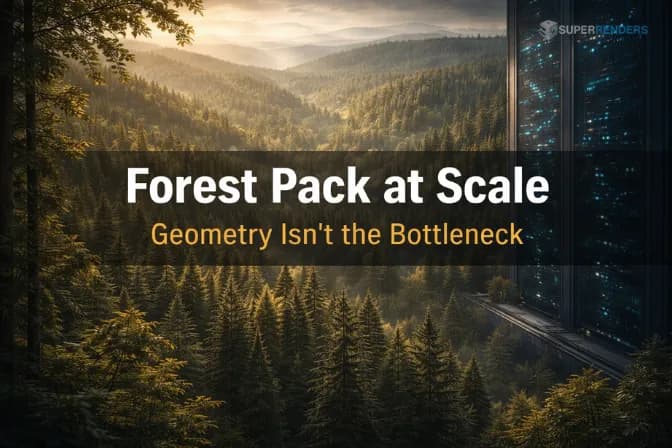
Forest Packの最適化:大規模レンダリングワークフローのために
概要
Forest Packをファームで最大限に活かす最適化
分散型のレンダーファームで数百万ものForest Packインスタンスをレンダリングするには、ビューポート上の静的なワークフローをはるかに超える最適化が必要です。当社のファームでは、Forest Packは3ds Maxのarchviz(建築ビジュアライゼーション)案件で最もよく目にするプラグインの1つであり、こうしたシーンを最適化できるかどうかが、2時間で終わるレンダリングと12時間かかるレンダリングの分かれ目になります。
課題は明確です。1つのForest Packオブジェクトが、5,000万、1億、場合によっては2億以上のインスタンスを生成することがあります。インスタンスが増えるたびにレンダリングエンジンの負荷は増え、メモリ使用量は膨らみ、フレームの計算は遅くなります。最適化を行わなければ、レンダリング時間は現実的でなくなり、メモリの上限も管理できなくなります。
幸いなことに、Forest Packには、見た目の品質を損なわずにジオメトリの複雑さを減らすための強力なツールがいくつも用意されています。このガイドでは、レンダーファームで安定して成果を出せる最適化手法を紹介します。
2026年のレンダーファーム全体でForest PackとRailCloneのワークロードが実際にどのように動いているのか、ハードウェア構成の目安や各ファームの対応状況の中立的な調査を含めた全体像については、2026年版 Forest Packクラウドレンダリングレポートをご覧ください。
LOD(Level of Detail)システムの設定
Forest PackのLODシステムは、インスタンス数が極端に多いシーン向けに設計されています。カメラからの距離やオブジェクトのサイズに応じて、スキャッターの密度を段階的に変えてレンダリングできます。
LODの設定手順は次のとおりです。
- Forest Packオブジェクトを選択します
- Distributionパネルを開き、LOD Settingsを探します
- 距離のしきい値を定義します。スキャッターを簡略化する距離を決めます
- 各LODレベルにReduction Percentageを設定します(例:50メートルで75%削減、100メートルで90%削減)
大切なのは、しきい値を現実的な位置に置くことです。カメラが20メートル先にある建築ビジュアライゼーションで、LODの削減を10メートルに設定すると、カメラの移動に合わせてポッピングや密度の変化が目に見えてしまいます。
おすすめの設定は次のとおりです。
- LODレベル1(0〜20メートル):削減なし、スキャッター密度はそのままです
- LODレベル2(20〜50メートル):50%削減です
- LODレベル3(50〜100メートル以上):80%削減です
この方法で全体のインスタンス数を30〜40%減らしながら、ヒーローショット(カメラ手前)では安定した結果を保てます。
LODの計算例:
ベースシーンのインスタンス数が1億の場合は次のようになります。
- LOD 1:1億インスタンス(削減なし)
- LOD 2:5,000万インスタンス(50%削減)
- LOD 3:2,000万インスタンス(80%削減)
ただし実際には、カメラがヒーローエリアから25メートルの位置にあると、複数のLODが混在します。前景ではLOD 1(1億)、中景ではLOD 2(5,000万)、背景ではLOD 3(2,000万)が使われます。合計では、メモリ上に同時に約1億7,000万インスタンスが存在することになります(1億ではありません)。
それでも、すべての場所に最適化なしで1億以上のインスタンスを置く場合に比べれば、はるかに有利です。ただし、LODの累積的な影響を理解しておくことは重要です。
インスタンスごとのジオメトリの複雑さ
スキャッターするジオメトリのポリゴン数は、見落とされがちです。多くのアーティストが、木や低木にヒーロー品質のモデル(5万ポリゴン以上)を使い、プラグインが問題なく処理してくれると考えています。適切なプロキシの作り方については、シーン準備ガイドをご覧ください。
Forest Packは処理してくれます。ただし、5万ポリゴンのモデルを2,000万インスタンス使うまでの話です。それはメモリ上の1兆ポリゴンにあたり、どのレンダリングエンジンでも効率よく処理することはできません。
プロキシジオメトリのガイドライン:
- 遠景の木(カメラ距離20m超):1,000〜2,000ポリゴン
- 中景の木(カメラ距離10〜20m):3,000〜5,000ポリゴン
- ヒーロークローズアップの木(カメラ距離10m未満):5,000〜15,000ポリゴン
- 低木や小さなスキャッター:500〜2,000ポリゴン
- 建築小物(ベンチ、プランターなど):200〜1,000ポリゴン
距離のカテゴリごとに別々のモデルを作成してください。Forest PackではLODレベルごとに異なるジオメトリを割り当てられるため、カメラ付近では詳細なモデルを、背景では簡略化したプロキシを使い分けられます。
ポイントクラウド表示とレンダリング用ジオメトリ
Forest Packのポイントクラウド表示モードは、ビューポートではほとんどRAMを使いませんが、レンダリング時にはフルジオメトリが生成されます。これは多くのアーティストが誤解している重要な違いです。
ビューポートではPoint Cloud Displayに切り替えることで、インスタンスをフルジオメトリではなく、高速に描画できるポイントとして表示できます。これはあくまでビューポートの最適化であり、レンダリング結果には一切影響しません。
一方、インスタンス数が1億を超えるような極端なシーンでは、詳細なジオメトリの代わりに、簡略化したプロキシジオメトリでレンダリングする方法を検討できます。ここで、ポイントクラウドの考え方が実際のレンダリングに当てはまります。
- スキャッターするジオメトリの低ポリゴン版プロキシを作成します(例:葉の茂った木の代わりに単純な円錐を使います)
- プロキシを別のLODレベルに割り当てるか、低ポリゴンメッシュを使った並行のForest Packオブジェクトを作成します
- 遠景のエリアではプロキシでレンダリングし、近景のエリアではフルジオメトリを使います
このハイブリッドな方法なら、最終的なコンポジットで目に見える品質低下を起こさずに、メモリとレンダリング時間を減らせます。
プロキシモードのレンダリング:
一部のファームでは「プロキシのみのレンダリング」に対応しています。この場合、Forest Packはフルジオメトリを完全にスキップし、簡略化したメッシュだけをレンダリングします。多くのarchviz案件では、最終解像度でフル品質のレンダリングと見分けがつかず、レンダリングは5〜10倍高速になります。
カメラベースのカリングとエリア制限
すべてのインスタンスがメモリ上に存在する必要はありません。Forest Packでは、スキャッターを特定のエリアに限定したり、カメラのフラスタムの外にあるインスタンスをカリングしたりできます。
エリア制限:
スプラインベースのエリアやペイントツールで、スキャッターの境界を定義します。定義したエリア内のインスタンスだけが生成されます。植栽が景観ゾーンに限られ、シーン全体を埋めない建築ビジュアライゼーションでは、特に効果的です。
Areasパネルでの設定は次のとおりです。
- Painted Areasを使って、分布を手作業で整えます
- 境界を精密に制御したい場合は、Spline-based Areasを定義します
- Exclude Zonesを有効にして、特定の領域(道路や建物の敷地など)からインスタンスを除外します
エリア制限の効果を数値で見る:
敷地が200エーカーでも、カメラに映るのが30エーカーだけなら、エリア制限でインスタンス数を85%削減できます。これは多くの場合、1つの施策としては最も効果の高い最適化です。
カメラカリング:
Camera Frustum Cullingを有効にすると、Forest Packがアクティブカメラの視野の外にあるインスタンスを生成しなくなります。視野角45°のカメラでは、どのみちレンダリングに映らないジオメトリの60〜80%をカリングで取り除けます。
固定カメラアングルでレンダリングするファームのシナリオでは、これだけでメモリ使用量を半分にできることがあります。
エリア制限とカメラカリングの併用:
両方を組み合わせて使います。
- Area Limiting:シーン全体のレイアウトで見える植栽ゾーンに、スキャッターを絞り込みます
- Camera Culling:カメラのフラスタムの外にあるジオメトリをさらに除外します
これにより、最適化していないシーンと比べて、最終的なインスタンス数を通常70〜80%減らせます。
テクスチャアトラスの最適化
密度の高いForest Packのスキャッターでは、複数のテクスチャが使われることがよくあります。レンダリングエンジンに各テクスチャを個別に読み込ませるのではなく、テクスチャをアトラスにまとめましょう。
テクスチャアトラスのメリット:
- テクスチャメモリのオーバーヘッドを削減(通常50〜70%削減)
- レンダリングエンジンのステート切り替えを最小化
- 数百万インスタンスのシェーダーコンパイルを高速化
- GPUレンダーファームでGPUキャッシュのヒット率を向上
幹、葉、枝それぞれに個別のテクスチャを持つ木のインスタンスを5,000万個レンダリングする場合、レンダリングエンジンは3つのテクスチャ×5,000万=1億5,000万回のテクスチャ参照を管理しなければなりません。アトラスを使えば、これを座標を調整したUV領域を持つ1枚のテクスチャに減らせます。
ほとんどのスキャッタープラグインはアトラス化に対応していますが、お使いのプラグインが対応していない場合は、次の方法を検討してください。
- Substance DesignerやMarmosetでアトラスを事前にレンダリングする
- 利用できる場合は、Forest PackでUVの再マッピングを使う
- スキャッターする前に、3Dペイントソフトでテクスチャをまとめる
アトラス作成の例:
次の領域を含む4K×4Kのアトラスを作成します。
- 左上の領域(0〜0.25u、0.75〜1v):幹のテクスチャ
- 右上の領域(0.75〜1u、0.75〜1v):葉のテクスチャ
- 左下の領域(0〜0.25u、0〜0.25v):枝のテクスチャ
- 右下の領域(0.75〜1u、0〜0.25v):細部のテクスチャ
各インスタンスのUV座標を、該当する領域を指すようにリマップします。自動化が必要で手間はかかりますが、レンダリング時間を大幅に節約できます。
Forest Pack向けのレンダリングエンジン設定
V-Rayの設定:
V-RayのInstancingモードは必須です。レンダー設定でGeometry > Use instancingが有効になっていることを確認してください。これにより、V-Rayはすべてのインスタンスを、固有のオブジェクトではなく、1つのベースジオメトリへの参照としてレンダリングします。
Ray Cutoffを0.01または0.001に設定すると、極めて小さな葉のジオメトリの中をレイが跳ね返り続けるのを防げます。スキャッターする要素には適切なSubdivisionsを設定してください。植生に高いテッセレーションが必要になることはほとんどありません。
Coronaの設定:
CoronaのLight Tracingモードは、密度の高いスキャッターで威力を発揮します。Rendering > CoreでLight Tracingを有効にし、数百万の小さなインスタンスから生じる分散を処理するためにAdaptive Samplingを設定します。
レイの過剰な生成を防ぐため、Ray Clippingのしきい値を下げてください。Coronaは、スキャッターされたジオメトリに合わせてレイのパスを自動的に最適化します。
どちらのエンジンでも、次の設定が有効です。
- 不要な場合はMotion Blurを無効にする(アニメーションのブラーは計算のオーバーヘッドを大きく増やします)
- Denoisingを積極的に使う(スキャッターのシーンはバリアンスが高く、デノイジングで品質を回復しながらレンダリング時間を短縮できます)
- 適切なMax Depthの上限を設定する(archvizでは通常25〜30で十分です)
- Irradiance MapまたはCaustics Compressionを有効にして、葉の中で負荷の高いバウンス間の計算を省く
数百万インスタンスのメモリ管理
レンダーファームでは、メモリがボトルネックになることがよくあります。インスタンス数が1億のシーンでは、最適化していないジオメトリが150〜200GBを消費することもあります。
メモリ削減の方法:
-
片面ジオメトリを使う:スキャッターするメッシュ(木、低木、小物)に見えない裏面がある場合は、削除してください。片面ジオメトリにすると、メモリ使用量を30〜40%削減できます。
-
頂点密度を下げる:プロキシメッシュを簡略化します。5万ポリゴンの木のモデル×5,000万インスタンスは不可能です。500〜2,000ポリゴンのプロキシを使ってください。
-
LODを積極的に適用する:前述のとおり、距離に応じたLODによる削減は、メモリ最適化の中で最も効果の高い施策です。
-
ジオメトリをオンデマンドでストリーミングする:一部のファームでは、レンダリングエンジンがジオメトリを一度にすべてではなく、少しずつ読み込むストリーミングに対応しています。ご利用のファームにご確認ください。
-
プロキシモードを全面的に使う:非常に大規模なスキャッターでは、元のジオメトリを完全に省いて、簡略化したプロキシだけをレンダリングすることを検討してください。多くのarchviz案件では、この方法でも見分けがつきません。
-
頂点属性を圧縮する:ジオメトリが法線、接線、従法線、UVを使っている場合は、それらが効率よく保存されていることを確認してください。3Dアプリによっては、冗長な頂点ごとのデータが追加されることがあります。
当社の256GB RAMのマシンでは、LOD、カリング、積極的なジオメトリの簡略化を組み合わせて、5,000万〜1億インスタンスのシーンを問題なくレンダリングできました。こうした最適化を行っていないシーンは、それよりはるかに多くのRAMを搭載したマシンでも失敗することがよくあります。
レンダリング前の検証とテスト
大規模なForest Packシーンをファームに送信する前に、次の手順を行います。
- Forest Packのポイントクラウド表示でビューポートのサムネイルをレンダリングし、分布が正しく見えることを確認します
- テストフレームを1枚、フル解像度でレンダリングし、メモリ使用量とレンダリング時間を確認します
- レンダーログを分析し、ジオメトリの展開時間、シェーダーのコンパイル時間、ピクセルごとの計算時間を確認します
- 複数のカメラアングルでLODの切り替わりを比較し、ポッピングが最小限に抑えられていることを確認します
- メモリプロファイラを実行します。テストレンダリング中にタスクマネージャーを監視し、メモリ使用量のピークを調べます
この検証フェーズには事前に30分ほどかかりますが、ファーム上で6時間かかるジョブの失敗を防げます。
ファーム全体での最適化の連携
最適化したForest Packシーンを送信するときは、次の点に注意してください。
- LODの設定とメモリの見積もりを、ジョブのメモに記載します
- 最適化後も128GB以上が必要な場合は、十分なRAMを持つレンダーノードを指定します
- テストフレームの出力を添付し、ファーム側が想定時間と実際の時間を比較できるようにします
- プロキシメッシュのファイルを、送信パッケージに含めます
- カスタムのカリングやエリア制限を使っている場合は、フレームごとの所要時間にばらつきが出る可能性をファームが把握できるよう、その旨を記載します
当社のファームでは、レンダリングが始まる前の検証で、テクスチャの欠落やプロキシのパスの問題を検出しており、時間と計算リソースの両方を節約できます。
最適化とは完璧を目指すことではなく、ファームのインフラという制約の中で品質を届けることです。ここで紹介した手法は、見た目の忠実度とファームレンダリングの現実的な運用とのバランスを取るものです。
制作チーム向けには、当社のForest Packクラウドレンダリングのインフラが、プラグインのインストールとライセンス管理という、スケールアップに伴う負担を取り除きます。
さらに踏み込んだ最適化の方法については、レンダーファームでのForest Packのボトルネックの特定とレンダーファーム向けのシーン準備のガイドをご覧ください。LODとインスタンシングの高度な機能については、iToo Softwareの公式ドキュメントもご確認ください。
これらのプラグインを分散型ファームでレンダリングするのが初めての方は、Super Renders FarmでのiToo SoftwareのForest PackとRailCloneのガイドで、プラグインの対応状況、アセットの収集、シーンの準備を最初から最後まで解説しています。
FAQ
Q: ポイントクラウドモードでレンダリング品質は下がりますか? A: ポイントクラウド表示はビューポート専用で、最終的なレンダリングには影響しません。レンダリング時にはフルジオメトリが生成されるため、見た目の品質は変わりません。ポイントクラウドは、ビューポートでの操作を軽くするためだけに存在します。
Q: Forest Pack LODによるメモリへの影響はどのくらいですか? A: LODは遠景のジオメトリを簡略化することで、メモリを大幅に削減します。3段階のLODシステムでは、通常、全体で30〜40%のメモリを節約できます。引き換えに、LODレベル間で目に見えるポッピングが起きないよう、しきい値を丁寧に調整する必要があります。
Q: Forest Packの最適化はCoronaでも使えますか? A: はい、完全に使えます。CoronaのLight Tracingモードは、最適化したForest Packのスキャッターとの相性が非常に良好です。LOD、カメラカリング、プロキシジオメトリは、V-Rayの場合と同じようにCoronaでも機能します。
Q: レンダーファームでForest Packはいくつのインスタンスを処理できますか? A: 256GBのマシンで適切に最適化した場合、5,000万〜1億インスタンスが一般的な目安です。高ポリゴンのモデルを数百万使った最適化なしのシーンは、2,000万〜3,000万インスタンスで失敗することがよくあります。重要なのは生のインスタンス数ではなく、最適化です。
Q: カメラクリッピングはアニメーションでも機能しますか? A: カメラのフラスタムカリングはアニメーションでも問題なく機能しますが、カメラのアニメーションが想定した範囲内に収まるようにしてください。カメラが急にパンして隠れていたエリアが映ると、カリングされたインスタンスは存在しません。送信前に、アニメーションの複数のフレームをテストしてください。
最終更新: 2026年3月18日
About Alice Harper
Blender and V-Ray specialist. Passionate about optimizing render workflows, sharing tips, and educating the 3D community to achieve photorealistic results faster.