GPU Rendering vs CPU Rendering: A Practical Guide for Cloud Render Farm Users
Introduction
The question of GPU rendering versus CPU rendering comes up in nearly every conversation we have with artists evaluating cloud render farms. It sounds like a simple either-or decision, but in practice, the answer depends on your render engine, scene complexity, memory requirements, and budget. Neither approach is universally superior — each has real trade-offs that matter when you're spending money on cloud rendering.
We run both CPU and GPU infrastructure on our farm — over 20,000 CPU cores alongside a dedicated GPU fleet equipped with NVIDIA RTX 5090 cards (32 GB VRAM each). That dual setup isn't accidental. About 70% of the jobs we process are CPU-based (V-Ray, Corona, Arnold CPU), while the remaining 30% run on GPU (Redshift, Octane, V-Ray GPU). This split reflects the reality of production rendering in 2026: CPU rendering remains the workhorse for architectural visualization and VFX compositing, while GPU rendering has carved out a strong position in motion design, lookdev, and real-time previsualization.
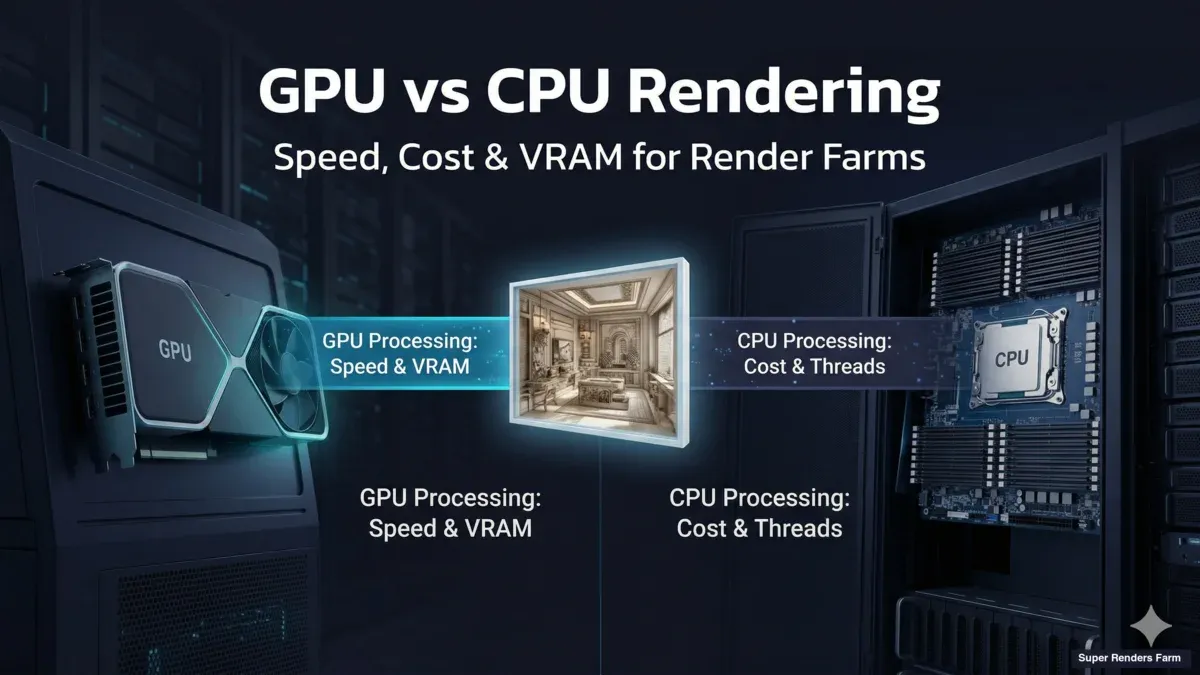
This guide breaks down the practical differences between GPU and CPU rendering from a cloud render farm perspective — covering render speed, cost per frame, memory constraints, engine compatibility, and the scenarios where each approach makes the most sense. If you're trying to decide between a CPU or GPU workflow for cloud rendering, this is the comparison we wish existed when we first started running distributed rendering infrastructure.
How CPU Rendering Works
CPU rendering uses your processor's cores to calculate every pixel in the final image. Engines like V-Ray (CPU mode), Corona Renderer, and Arnold (CPU mode) trace light paths sequentially across available cores. Modern server CPUs — like the Dual Intel Xeon E5-2699 V4 processors in our fleet — provide 44 cores per machine, and render farms scale by distributing frames across hundreds of these machines simultaneously.
The key advantage of CPU rendering is memory access. CPUs work with system RAM, which on render farm nodes typically ranges from 96 GB to 256 GB. This means CPU rendering can handle extremely complex scenes — massive archviz projects with millions of polygons, fully displaced landscapes, heavy particle simulations — without running into memory walls.
CPU rendering also benefits from decades of optimization. V-Ray's CPU path has been refined since the early 2000s, and the ecosystem of plugins built around CPU renderers (Forest Pack, RailClone, Tyflow, Phoenix FD) is mature and well-tested. When you submit a CPU render job to a cloud farm, you're working with a pipeline that has been battle-tested across hundreds of thousands of production frames.
Where CPU rendering excels:
- Scenes exceeding 16-32 GB of texture and geometry data
- Production workflows heavily dependent on CPU-only plugins
- Animation sequences where consistent, predictable per-frame cost matters
- Archviz and VFX compositing where color accuracy per pixel is critical
How GPU Rendering Works
GPU rendering harnesses the massively parallel architecture of graphics cards. Where a CPU might have 44 cores, a single NVIDIA RTX 5090 has thousands of CUDA cores. These aren't as individually powerful as CPU cores, but for the embarrassingly parallel task of ray tracing — calculating millions of independent light paths — the sheer core count translates directly into speed.
Modern GPU render engines like Redshift, Octane, and V-Ray GPU leverage this parallelism along with dedicated RT (ray tracing) cores and Tensor cores for AI-accelerated denoising. On our GPU fleet, we see frames that take 15-20 minutes on CPU complete in 2-4 minutes on a single RTX 5090 — a roughly 5-8x speedup depending on scene complexity.
However, GPU rendering has a hard constraint: VRAM. The RTX 5090 provides 32 GB of VRAM, and your entire scene — geometry, textures, displacement maps, light caches — must fit within that memory. When a scene exceeds available VRAM, you either hit an out-of-memory error or the engine falls back to system RAM (in engines that support it, like Redshift), which significantly reduces the speed advantage.
Where GPU rendering excels:
- Iterative lookdev and lighting workflows requiring fast feedback
- Motion design and short-form animation with moderate scene complexity
- Projects already built around GPU-native engines (Redshift, Octane)
- Scenes that fit within VRAM limits and benefit from AI denoising
Speed Comparison: CPU vs GPU Render Time
Raw speed is the most visible difference, but comparing apples-to-apples is harder than it looks. Render time depends on the engine, scene, sampling settings, and denoiser configuration. Here's what we've observed across thousands of production jobs on our farm:
| Metric | CPU Rendering | GPU Rendering |
|---|---|---|
| Typical frame time (archviz interior) | 8-25 minutes | 2-6 minutes |
| Typical frame time (product viz) | 5-15 minutes | 1-4 minutes |
| Typical frame time (VFX compositing) | 15-45 minutes | 5-15 minutes |
| Scaling model | More machines = more frames/hour | More GPUs per frame OR more machines |
| AI denoising | Available (V-Ray, Corona) | Native + faster (RT/Tensor cores) |
| Time to first pixel | Slower (scene parsing) | Faster (parallel initialization) |
These numbers come from real production jobs — not synthetic benchmarks. The actual ratio varies significantly. A simple product shot might see 10x speedup on GPU, while a dense archviz exterior with Forest Pack vegetation might only see 3x — or might not fit in VRAM at all.
The critical nuance: render farm speed isn't just about per-frame time. On a CPU farm, you can distribute 500 frames across 500 machines and render them all simultaneously. The wall-clock time to complete a 500-frame animation is roughly the time for one frame. GPU farms work the same way, but the per-machine cost is higher, so the economics play out differently.
Cost Comparison: GPU Rendering Cost vs CPU Rendering Cost
Cost is where the comparison gets practical. The hardware economics of GPU vs CPU rendering are fundamentally different, and these differences flow directly into cloud render farm pricing.
Hardware cost reality:
Based on our infrastructure costs, a single GPU render node (with an RTX 5090) costs roughly 8-10x more than a CPU render node in terms of hardware investment. This means GPU render time is priced at a premium per hour on virtually every cloud render farm.
Cost per frame — the metric that actually matters:
| Scenario | CPU Cost/Frame | GPU Cost/Frame | Winner |
|---|---|---|---|
| Simple product shot (light scene) | $0.15-0.40 | $0.08-0.20 | GPU |
| Archviz interior (moderate) | $0.30-0.80 | $0.15-0.45 | GPU |
| Dense archviz exterior (heavy vegetation) | $0.50-1.50 | May not fit in VRAM | CPU |
| VFX comp (heavy sim data) | $0.80-2.50 | $0.40-1.20 | GPU (if fits) |
| Animation (1000+ frames, moderate) | $150-500 total | $80-250 total | GPU |
These ranges are approximate and depend on render settings, resolution, and farm pricing. The pattern is clear though: when a scene fits comfortably in GPU memory, GPU rendering is usually cheaper per frame because the faster render time more than compensates for the higher hourly rate. But when scenes push VRAM limits, CPU becomes the only viable option — and attempting to force a GPU workflow on an oversized scene leads to failed renders and wasted budget.
On our farm, we see this play out daily. Motion design studios rendering Redshift animations consistently spend less per frame on GPU. Archviz studios working with complex urban scenes and heavy vegetation consistently need CPU — and the per-frame cost is higher, but the renders actually complete.
The VRAM Question: When Memory Decides for You
VRAM is the single biggest factor that pushes projects toward CPU rendering, and it's worth understanding in detail.
What consumes VRAM:
| Asset Type | Typical VRAM Usage |
|---|---|
| 4K texture (uncompressed) | 64 MB |
| 4K texture (GPU-compressed) | 16-32 MB |
| 1 million polygons | ~40-80 MB |
| Displacement map (dense) | 200-500 MB per object |
| Volumetric data (smoke/fire) | 500 MB - 4 GB |
| Forest Pack scatter (10M instances) | 2-8 GB |
A typical archviz interior with 50 high-res textures, detailed furniture, and cloth simulation might use 8-12 GB of VRAM. That fits comfortably on an RTX 5090 (32 GB). But add a exterior view with Forest Pack vegetation, a few million scattered plants, and a volumetric fog pass, and you're looking at 40-60 GB — well beyond any single GPU.
Engine-specific VRAM handling:
- Redshift: Supports out-of-core rendering (overflows to system RAM) but with significant speed penalty — a scene that renders in 3 minutes when it fits in VRAM might take 20 minutes when spilling to RAM
- Octane: Historically strict VRAM limits; newer versions support out-of-core but performance degrades
- V-Ray GPU: Hybrid CPU+GPU mode can supplement VRAM with system RAM, but pure GPU mode delivers the most speed
- Arnold GPU: Uses a unified memory model on supported platforms, allowing scenes to spill from VRAM to system RAM more gracefully than some competitors
If you're building scenes that regularly exceed 20 GB of asset data, you're likely better off designing your workflow around CPU rendering from the start. Retrofitting a GPU-optimized scene for CPU is straightforward; going the other direction often requires significant texture and geometry optimization.
Render Engine Compatibility
Your choice of render engine often determines whether you're on a GPU or CPU path — and switching engines mid-project is rarely practical.
| Render Engine | CPU Support | GPU Support | Primary Mode | Notes |
|---|---|---|---|---|
| V-Ray 7 | Full | Full | Both equally viable | Hybrid mode available; official Chaos partner |
| Corona Renderer | Full | No | CPU only | Chaos product; no GPU roadmap announced |
| Arnold | Full | Full | CPU traditional, GPU growing | Autodesk ecosystem |
| Redshift | No | Full | GPU only | Official Maxon partner; out-of-core for large scenes |
| Octane | No | Full | GPU only | OTOY; strong in motion design |
| Cycles (Blender) | Full | Full | GPU preferred in community | Open-source; CUDA + OptiX support |
The practical takeaway: if you're using Corona, you're on CPU — period. If you're using Redshift or Octane, you're on GPU. V-Ray, Arnold, and Cycles give you genuine flexibility to choose based on the project.
For studios using multiple engines across different projects, a render farm that supports both CPU and GPU is essential — whether you need a V-Ray cloud render farm for CPU jobs or a GPU cloud render farm for Redshift and Octane work. We maintain both fleets specifically because our users need that flexibility — an archviz team might submit V-Ray CPU jobs in the morning and Redshift GPU jobs in the afternoon.
When to Choose GPU Rendering
GPU rendering is the right choice when:
- Your render engine is GPU-native — Redshift and Octane users don't have a CPU option, and these engines are optimized specifically for GPU architecture
- Your scenes fit in VRAM — If your heaviest scene uses less than 24-28 GB (leaving headroom on a 32 GB card), GPU is almost always faster and cheaper
- You need fast iteration — GPU's speed advantage is most valuable during lookdev and lighting phases where you're rendering dozens of test frames
- You're doing motion design — Short-form animation with stylized or moderate-complexity scenes is GPU's sweet spot
- AI denoising is part of your pipeline — GPU engines leverage Tensor cores for faster, higher-quality denoising
When to Choose CPU Rendering
CPU rendering is the right choice when:
- Your scenes exceed GPU memory — Any scene pushing past 28-30 GB of data needs CPU (or accepts severe GPU performance degradation)
- Your plugins generate massive geometry — Forest Pack, RailClone, and Phoenix FD scenes with millions of scattered instances or heavy simulation data often exceed GPU VRAM, making CPU the practical choice
- You need predictable costs at scale — CPU rendering costs are more linear and predictable for large animation batches
- Color accuracy is non-negotiable — Some studios in VFX compositing and film prefer CPU paths for their deterministic sampling behavior
- Your engine is CPU-only — Corona Renderer users have no GPU alternative
- You're rendering massive archviz scenes — Urban-scale projects with heavy vegetation scatters are CPU territory
The Hybrid Approach: Using Both
In practice, many studios don't choose one or the other — they use both strategically. Here's how we see successful studios structure their workflows:
Lookdev phase (GPU): Use GPU rendering for rapid iteration on materials, lighting, and composition. Fast feedback loops save hours of creative time.
Test renders (GPU): Submit low-resolution or single-frame tests to a GPU farm to validate settings before committing to a full sequence.
Production renders (CPU or GPU depending on scene): Run the full animation on whichever compute type matches the scene's memory and engine requirements.
Heavy scenes (CPU): Route any frame that exceeds VRAM limits to CPU nodes. Most managed render farms, including ours, handle job routing based on scene requirements — so the CPU/GPU split happens at the infrastructure level rather than requiring manual intervention from the artist.
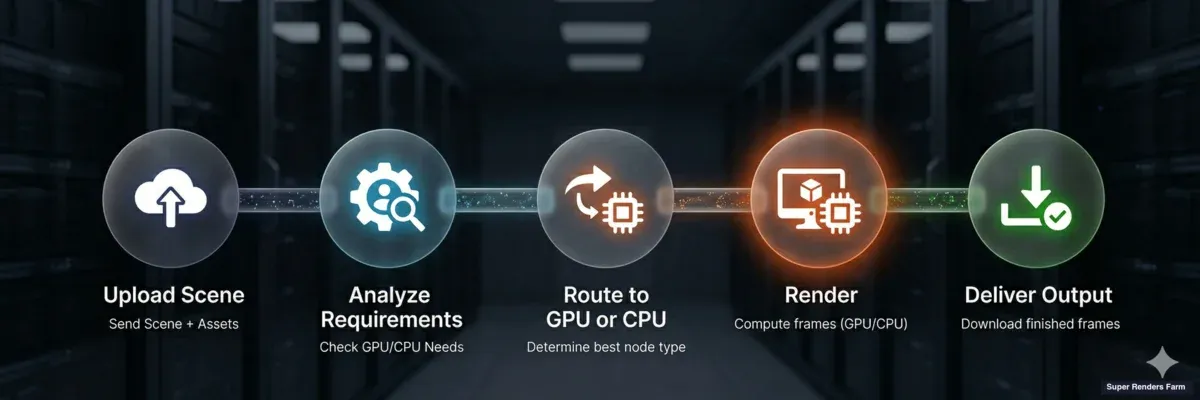
Hybrid GPU and CPU cloud rendering workflow — scene upload, analysis, routing to GPU or CPU nodes, render, delivery
This hybrid approach is increasingly common. V-Ray 7's hybrid rendering mode, which distributes work across both CPU and GPU simultaneously, is a technical implementation of this philosophy at the engine level. On a cloud render farm, the hybrid happens at the infrastructure level — different jobs route to different hardware based on their requirements.
Summary: GPU vs CPU Rendering at a Glance
| Factor | CPU Rendering | GPU Rendering |
|---|---|---|
| Speed | Moderate (scales with cores) | Fast (5-8x typical advantage) |
| Memory | 96-256 GB system RAM | 32 GB VRAM (RTX 5090) |
| Cost per hour | Lower | Higher (~3-5x) |
| Cost per frame | Higher (slower frames) | Lower (when scene fits in VRAM) |
| Plugin ecosystem | Mature, comprehensive | Growing, some gaps |
| Scene size limit | Virtually none | VRAM-constrained |
| Engines | V-Ray, Corona, Arnold, Cycles | Redshift, Octane, V-Ray GPU, Arnold GPU, Cycles |
| Ideal for | Archviz, heavy VFX, large scenes | Motion design, lookdev, moderate scenes |
| AI denoising | Available | Faster (dedicated hardware) |
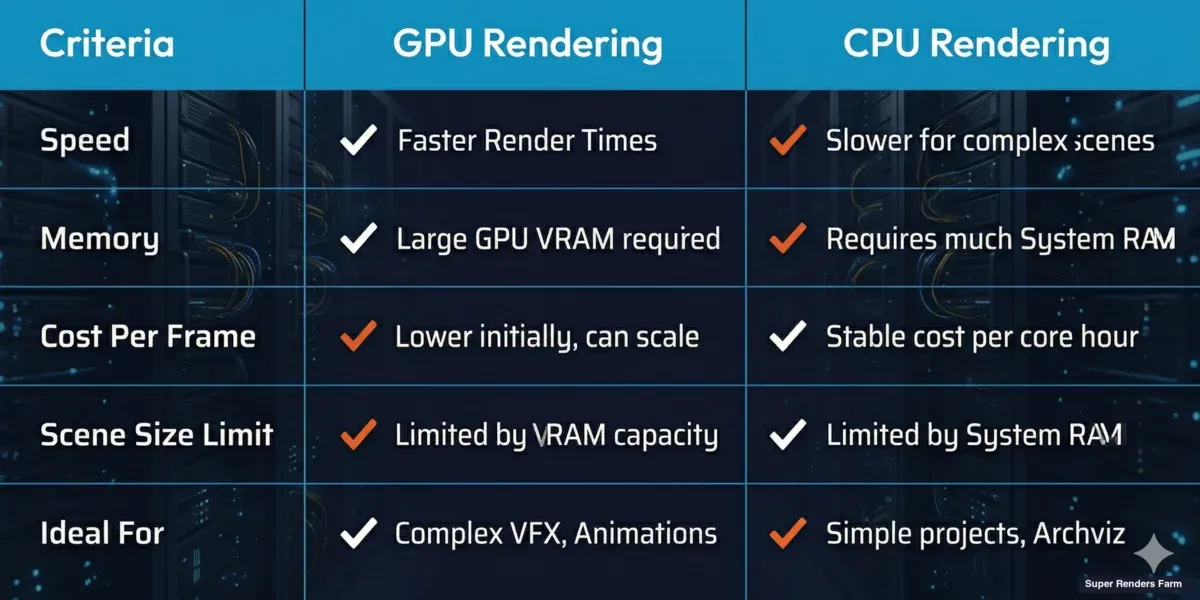
GPU rendering vs CPU rendering comparison — speed, memory, cost, and ideal use cases
Neither GPU nor CPU rendering is going away. The trend is toward more GPU adoption as VRAM increases and engines mature, but CPU rendering remains essential for the heaviest production workloads. The practical question isn't "which is superior?" — it's "which matches my specific scenes, engine, and budget?"
For a deeper look at how render farm pricing works for both GPU and CPU jobs, see our cost per frame breakdown. And if you're new to cloud rendering entirely, our cloud rendering explained guide covers the fundamentals of how distributed rendering works.
FAQ
Q: What is the main difference between GPU rendering and CPU rendering? A: GPU rendering uses the massively parallel architecture of graphics cards (thousands of CUDA cores) to calculate pixels simultaneously, while CPU rendering uses processor cores (typically 16-44 cores per machine) with access to much larger system memory. GPU is generally faster per frame but limited by VRAM; CPU handles larger scenes but takes longer per frame.
Q: Is GPU rendering always faster than CPU rendering? A: Not always. GPU rendering is typically 5-8x faster for scenes that fit within VRAM limits. However, when a scene exceeds available VRAM, GPU engines either fail or fall back to system RAM with severe performance penalties. In those cases, CPU rendering can actually complete faster because it doesn't hit memory bottlenecks.
Q: How much does GPU rendering cost compared to CPU on a render farm? A: GPU nodes cost roughly 3-5x more per hour than CPU nodes due to the higher hardware investment. However, because GPU renders frames faster, the cost per frame is often lower for scenes that fit in GPU memory. For a detailed pricing analysis, see our render farm cost per frame guide.
Q: What happens when my scene exceeds GPU VRAM? A: It depends on the engine. Redshift supports out-of-core rendering, spilling data to system RAM with a speed penalty. Octane and V-Ray GPU have similar fallback mechanisms. If the scene far exceeds VRAM (2x or more), CPU rendering is the practical solution. On our farm, scenes exceeding VRAM limits are automatically routed to CPU nodes when possible.
Q: Which render engines only support GPU rendering? A: Redshift and Octane are GPU-only render engines with no CPU rendering option. V-Ray, Arnold, and Blender's Cycles support both CPU and GPU modes. Corona Renderer is CPU-only with no GPU rendering support.
Q: Can I use both GPU and CPU rendering on a cloud render farm? A: Yes. Farms that maintain both CPU and GPU infrastructure let you route different jobs to the appropriate hardware. On our farm, you can submit V-Ray CPU jobs alongside Redshift GPU jobs without managing separate workflows. Some engines like V-Ray 7 also support hybrid rendering that uses CPU and GPU simultaneously on a single machine.
Q: Is GPU rendering good for architectural visualization? A: It depends on the scene scale. Moderate archviz interiors (under 24-28 GB of scene data) render efficiently on GPU. But large exterior scenes with heavy vegetation scatters, high-res textures, and displacement maps often exceed VRAM limits, making CPU the more reliable choice for complex archviz work.
Q: How does real-time ray tracing relate to GPU rendering for production? A: Real-time ray tracing (used in game engines like Unreal Engine 5) and production GPU rendering both leverage the same GPU hardware — RT cores and CUDA cores. However, production rendering prioritizes quality over speed, using far more samples per pixel. The hardware advances driven by real-time ray tracing (larger VRAM, faster RT cores) directly benefit production GPU renderers like Redshift and Octane.
About Alice Harper
Blender and V-Ray specialist. Passionate about optimizing render workflows, sharing tips, and educating the 3D community to achieve photorealistic results faster.