
Pricing and credits explained

Pricing on a cloud render farm can feel opaque the first time you look at it. There are units you've probably never used outside a billing context, options that trade speed for cost, and a credit system that doesn't behave the way subscription services do. This page walks through how Super Renders Farm charges for rendering, what render credits are, and how to estimate what a project will cost before you submit it.
We run a credit-based model with no plan tiers: every account uses the same published rate card, and the CPU priority you choose for a job (Standard, Fast or Fastest) sets the rate per GHz-Hr. There's no monthly subscription, no minimum spend, and no "use it or lose it" clock on your balance. The trade-off is that you need to understand the unit we charge in (GHz-Hr for CPU, OBh for GPU) and how render time translates to credits.
For the live per-unit rates, always reference /pricing: that page is the canonical source. The worked examples on this page use the current Standard-priority CPU rate and the published GPU rate so the formulas stay clear; check /pricing for the rate that matches the priority you choose before you estimate your own job.
How pricing works: the GHz-Hr unit
CPU rendering on our farm is billed in GHz-Hr (GHz-hours). One GHz-Hr is the compute consumed by a single CPU core running at 1 GHz for one hour. It sounds abstract, but the math collapses to something simple once you plug real numbers in.
The formula is:
GHz-Hr consumed = number of cores × core clock speed (GHz) × render time (hours)Multiply that by the per-unit rate and you have the cost of the job. A worked example at our current Standard-priority rate of $0.004/GHz-Hr:
A frame takes 15 minutes on a 64-core machine running at 3.5 GHz. GHz-Hr = 64 × 3.5 × (15/60) = 56 GHz-Hr Cost per frame = 56 × $0.004 = $0.224
The reason the industry settled on GHz-Hr, rather than node-hour or wallclock-hour, is that it normalizes across hardware. A 64-core node at 3.5 GHz consumes more GHz-Hr than a 32-core node at 2.8 GHz for the same render time, so you pay proportionally for the compute you actually used. Farms with mixed-spec fleets can bill every machine by the compute it delivers, so users who land on slower machines are not penalized.
GPU rendering uses a different unit. Our GPU fleet (RTX 5090 cards, 32 GB VRAM each) is priced in OBh (OctaneBench-hours) at $0.003 per OBh, which scales GPU throughput against the OctaneBench benchmark score. Our cost calculator counts one RTX 5090 as 1,731 OB (OctaneBench 2025.2.1), so one card-hour of render time comes to about $5.2 ($0.003 × 1,731 = $5.193), the per-card rate also shown on /pricing. GPU has a single rate with no priority tiers. We cover GPU cost math in more detail in /article/render-farm-cost-per-frame-breakdown-2026.
Render credits: how the wallet works
We bill against a prepaid balance called render credits. The model is simple:
- One render credit equals one US dollar. A balance of 100 credits = $100 USD of rendering capacity.
- You top up when you want, in any amount you want. No subscription tiers, no minimum top-up.
- Credits never expire. Buy 500 credits today, render against them next year — the balance is yours.
- Free-trial credits work the same way. New accounts receive $25 in free render credits on sign-up, and that allocation follows the same no-expiry rule under normal account use.
The credits are deducted in real time as jobs render. You can watch the balance tick down in the dashboard while a job is active, which is useful when you're calibrating cost on a new scene type.
There's no separate "premium" or "priority" credit: one credit is always worth one US dollar of rendering. Priority changes the rate per GHz-Hr, not the credit. CPU priority tiers are Standard (1×), Fast (2×) and Fastest (4×); see /pricing for the current rates.
Buying credits
The top-up flow lives in your account dashboard. The three-step path:
- Sign in to your account, click Buy render credits, enter the amount, and click Process payment.
- Fill in the billing details (name, address, optional VAT / project reference).
- Pick a payment method and confirm.
Accepted payment methods:
- Credit and debit cards — processed through Braintree (Visa, Mastercard, American Express, Discover).
- PayPal — supported on the same checkout flow.
- Bank transfer — supported for USA and Vietnam accounts; useful for studios that prefer invoice-and-wire workflows. Ask support before initiating so we can match the wire to your account.
We don't accept cryptocurrency, and we don't have region-specific payment rails outside the bank-transfer path for USA and Vietnam.
For studios needing custom invoice formatting (VAT number, project reference, purchase-order number), contact supportcenter@superrendersfarm.com before topping up so we can issue the invoice in the format your finance team needs. Invoices are auto-generated by default and emailed to the account address.
Estimating a project before you submit
The Cost Calculator on /cost-calculator is the most direct way to get a number. You pick the engine (V-Ray, Corona, Arnold, Redshift, Octane, Cycles), provide the frame time you measured locally, the resolution, and the number of frames; the calculator outputs an estimated credit cost based on the current published rates.
A common workflow we recommend for first-time projects:
- Render one or two frames locally at the final settings. Record the frame time.
- Open the Cost Calculator and plug the frame time in.
- Multiply through to the full frame range. Add a 15–20% buffer for variance — sample noise, GI cache rebuilds, and motion blur can stretch some frames longer than the local sample suggested.
- Top up the buffer estimate, then run a small test render on the farm (3–5 frames) at production settings.
- Compare farm frame time to local frame time. If they match within ~20%, scale up. If they're off, recheck packaging (missing maps will land on a low-priority node and skew the test).
The calculator is a planning tool, not a contract — it gives you a credible upper bound. The real cost is whatever the farm machines actually consume, which depends on scene specifics that no calculator can predict perfectly.
Frame-per-node: the speed-vs-cost dial
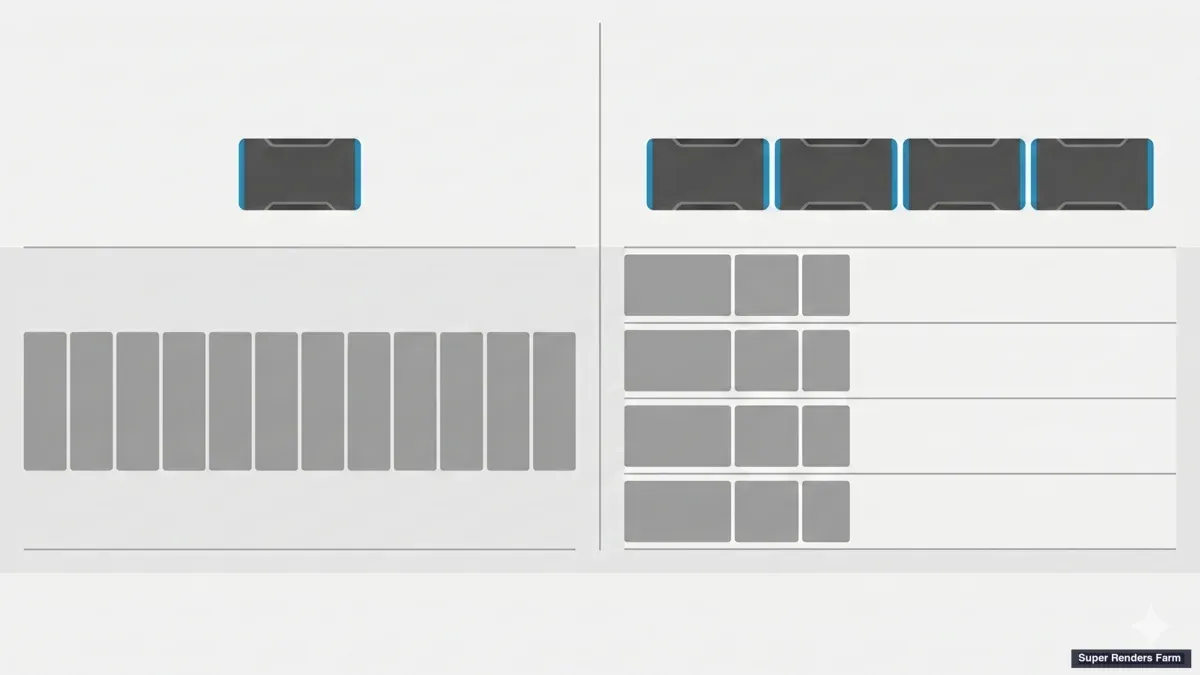
When you submit a job, you'll see a Frame per node setting. The default is 1 — one frame goes to one machine, render starts immediately on as many machines as the queue assigns to your job.
Raising this number changes the trade-off. If you set frames-per-node to 5, the farm assigns one machine to render five frames in a single session. The scene opens once instead of five times, which saves the loading overhead — for heavy scenes (large V-Ray proxy sets, dense Forest Pack distributions, complex Houdini caches) the loading time can be 30–90 seconds per frame. Multiplied across thousands of frames, that saves real credits.
The trade-off:
1frame per node — shortest wallclock (maximum parallelism), highest cost (every frame pays the loading overhead). Recommended for short jobs, archviz stills, and time-critical deadlines.3–5frames per node — moderate parallelism, lower per-frame cost. Good default for animation with heavy scenes.10+frames per node — slow wallclock (fewer machines working in parallel), lowest cost. Good for overnight or weekend bake jobs where you don't need the result fast.
There's no universal right answer — it depends on whether you're paying more for the wallclock or more for the rendering. Most studios doing regular animation work end up at 3 or 5 after a few jobs of calibration.
Invoices and accounting
Every top-up generates an invoice automatically. Default fields: date, amount, payment method, account email, transaction reference. If your finance team needs additional fields (company VAT number, project code, PO reference), email supportcenter@superrendersfarm.com before purchasing so we can prepare the invoice in your required format.
We bill in USD. If your card or bank is in another currency, the issuing institution handles the conversion at their prevailing rate — we don't add a conversion fee on our side, but your bank may.
For studios paying via bank transfer with a contractual agreement, invoices are issued per the contract terms (typically Net-30 or pre-paid against the wire). Contact support to set this up.
Paying and invoicing, in depth: accepted payment methods, the automatic volume discount (up to 30%), invoices and receipts, and tax are covered in the dedicated guide: Payment methods, invoices, and receipts.
What happens when your balance runs out
Render jobs pause when the account balance reaches zero credits. They are not cancelled — the partial output stays in your account, and the job resumes from the current frame once you top up.
The sequence:
- Balance hits zero while a job is rendering.
- The platform pauses all active jobs for the account.
- Our support team is notified and reaches out to the account email with a top-up reminder.
- Once you add credits, you can resume the paused jobs from the dashboard. Frames already rendered are kept; rendering picks up where it stopped.
We recommend topping up before a long job so you don't hit the pause boundary mid-render — paused jobs occupy queue slot but don't release the machine assignment, and we can't guarantee the same machine will be available when you resume hours later.
Output retention and what you're paying for
A frequently asked question: how long does rendered output stay on the farm? There is no fixed automatic deletion period; output stays available for download after job completion, and we delete it on request. For long-term storage, download the output to your local machine or your own cloud storage.
The Client App can be configured to auto-download finished output as it lands, which is the simplest way to never lose a frame. We cover Client App setup in /docs/upload-and-download.
Where to get help with pricing questions
If a job cost surprises you, or if you want to plan a large project before committing budget, support can pull the GHz-Hr breakdown per frame and walk you through it. Two paths:
- Chat: the live-chat icon on every page of
superrendersfarm.comreaches the same team that handles billing. - Email:
supportcenter@superrendersfarm.com— for invoice changes, refund questions, or contractual billing setups.
For deeper background on how cloud rendering costs work across the industry — including how to compare farm pricing apples-to-apples — see /article/render-farm-pricing-guide-2026 and the per-frame breakdown in /article/render-farm-cost-per-frame-breakdown-2026.
FAQ
Q: How is rendering priced on Super Renders Farm? A: CPU rendering is billed in GHz-Hr: number of cores × clock speed × render time. GPU rendering is priced in OBh (OctaneBench-hours), which works out to about $5.2 per RTX 5090 card-hour of render time. Current rates are listed on the /pricing page. We use a prepaid credit balance; one credit equals one US dollar. There are no plan tiers or subscriptions; the CPU priority you choose (Standard, Fast or Fastest) changes the rate per GHz-Hr, not the value of a credit.
Q: Do render credits expire? A: No. Render credits never expire. Buy 500 credits today and they remain available indefinitely, whether you render this week or next year. The $25 in free-trial credits granted at sign-up follow the same rule under normal account use.
Q: What is the minimum top-up amount? A: There is no fixed minimum. You can top up any amount that suits your project, from a small test allocation to a large studio-scale balance. Most first-time users top up enough to cover a single project plus a 15–20% buffer.
Q: Which payment methods do you accept? A: Credit and debit cards (Visa, Mastercard, American Express, Discover) via Braintree, PayPal, and bank transfer for USA and Vietnam accounts. We do not accept cryptocurrency.
Q: What happens if my balance runs out mid-render? A: Jobs pause when the balance reaches zero credits. They are not cancelled — frames already rendered are kept, and the job resumes from the current frame once you top up. Support is notified automatically and will reach out with a top-up reminder.
Q: Can I get a custom invoice with my company VAT number or project reference? A: Yes. Email supportcenter@superrendersfarm.com with your required invoice fields before topping up so we can prepare the invoice in the format your finance team needs. Auto-generated invoices issued without prior notice cannot be amended retroactively.
Q: How do I estimate the cost of a project before I render? A: Render one or two frames locally, record the frame time, then use the /cost-calculator page to multiply through to the full frame range. Add a 15–20% buffer for variance, then run a small test render on the farm (3–5 frames) to validate the estimate before scaling up.
Q: What does the "Frame per node" setting do? A: It controls how many frames one machine renders in a single session. Setting it to 1 (the default) gives maximum parallelism and the shortest wallclock but pays the scene-loading overhead on every frame. Higher values (3, 5, 10) reduce loading overhead and lower per-frame cost, but use fewer machines in parallel so the job takes longer. Most animation workflows end up at 3 or 5 after calibration.
Q: How long is rendered output kept on the farm? A: There is no fixed automatic deletion period; output stays available for download after job completion and is deleted on request. We recommend downloading promptly or configuring the Client App for auto-download.