
Welcome to Super Renders Farm
Get started with Super Renders Farm cloud rendering platform.

Welcome to the Super Renders Farm documentation. This is where we collect the practical information you need to render projects on our farm — from preparing your scene and submitting your first job, through troubleshooting render quality, understanding our pricing model, and managing the day-to-day mechanics of cloud rendering.
This welcome page is the short version: what we do, what cloud rendering means in our context, the hardware behind your renders, how the docs are organized, where to start based on what you need today, and how to reach us when the docs are not enough. If you only have five minutes before submitting your first render, read this page and then jump to the Quick start guide.
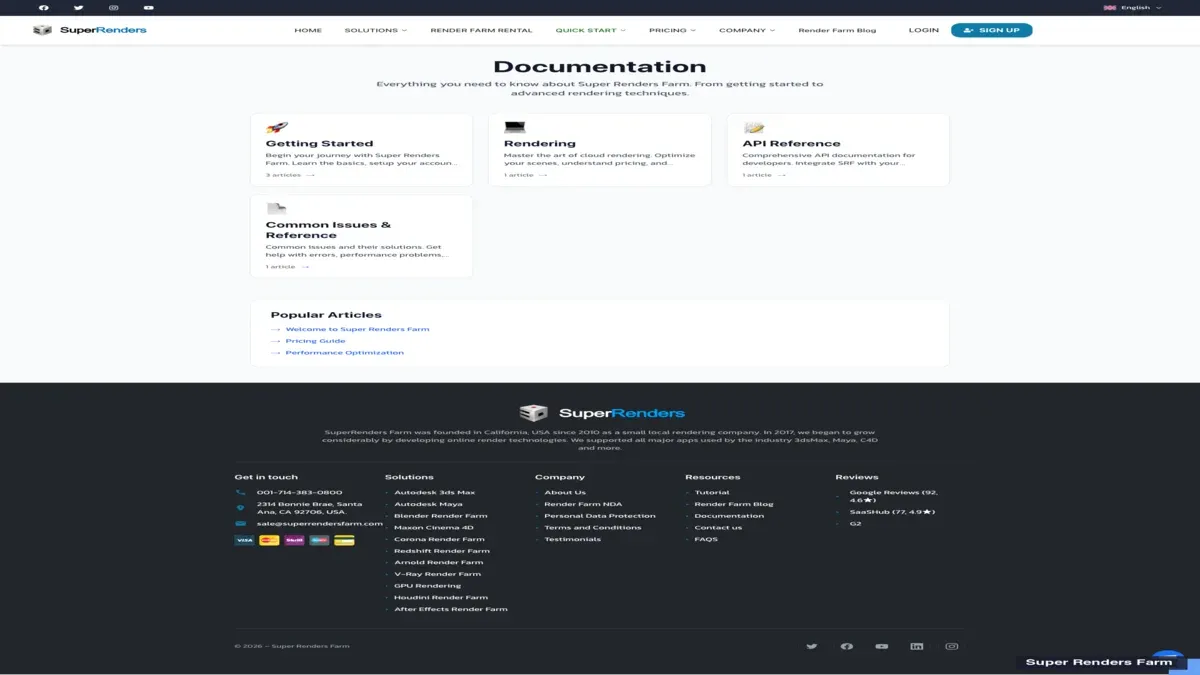
The /docs landing page — left-rail navigation groups every documentation page by category, the welcome page on the right is the entry point new customers read before submitting a first job.
What we do
Super Renders Farm is a fully managed cloud render farm. You upload your scene, we render it on our infrastructure, you download the result. We have been operating since 2010 (legal entity since 2017) and currently serve customers in over 50 countries — primarily archviz studios, VFX teams, animation houses, motion design freelancers, and product visualization studios.
"Fully managed" is the part that distinguishes us from infrastructure-as-a-service providers. On our farm:
- You do not remote-desktop into rendering machines.
- You do not install render engines or plugins yourself.
- You do not manage software licenses manually.
- You do not configure worker nodes, file shares, or queue priorities.
We handle the worker setup, license routing, asset path resolution, queue scheduling, and engine version pinning. Your interaction with the farm is upload → submit → download. If you want a deeper read on what fully-managed means in practice — and how that compares with renting raw machines on a public cloud — see What is a fully-managed render farm?.
We support the major DCCs used in 3D production: 3ds Max, Maya, Cinema 4D, Blender, Houdini, After Effects, and NukeX. We also support the render engines that run on top of them — V-Ray, Corona, Arnold, Redshift, Octane, and Cycles. Official partnerships with Maxon (Cinema 4D, Redshift, Red Giant, Universe), Chaos (V-Ray, Corona, Vantage, Phoenix FD), and AXYZ design (Anima crowd animation) provide verified licensing for those engines on our farm, so you do not have to bring or transfer your own seats for the supported titles.
For a single-line summary you can paste into a project brief: "Super Renders Farm runs your scene on managed CPU and GPU nodes, with the major DCCs and render engines licensed at the farm level — you upload, we render, you download."
What is cloud rendering
Cloud rendering moves the compute work of rendering 3D scenes off your local workstation onto remote machines that operate in parallel. Instead of one workstation chewing through 5,000 frames over a weekend, dozens of nodes split the queue and finish the same workload in hours.
Two main models you will see in this market:
- IaaS render farms — you rent the bare machine on hourly billing, install your DCC and render engine, configure asset paths and licenses, and orchestrate the queue yourself. This model gives you direct console access and the most control, in exchange for setup time and operational responsibility (you handle the failures, you pay for idle hours, you bring the licenses).
- Fully managed render farms — the operator handles the software stack, license routing, queue scheduling, and node-level troubleshooting. You submit jobs and download results. This model is faster to start and has fewer moving parts on your side, in exchange for less direct access to the render environment and a different cost shape (you pay for compute consumed, not machine-hours rented).
Super Renders Farm is the second category. The trade-offs are not abstract: if you have a tight deadline, a project that needs a render engine plus three plugins, and no full-time pipeline TD on staff, the managed model removes the setup variance that often eats the first 24 hours of a deadline week. If you already operate a pipeline team that owns DCC versioning, plugin install scripts, and license servers, an IaaS farm may give you more control than you would get on a managed farm.
For a longer treatment of how cloud rendering actually works, a framework for evaluating any cloud render farm, and a comparison of the major providers, the dedicated guide is here: What is a cloud render farm?.
Our hardware
The shape of our fleet matters because it changes which kinds of jobs we are a good fit for. We do not list machine counts (a "machine" is a poor unit — a single GPU node with eight RTX cards is not equivalent to a single CPU node). Instead, we describe the fleet in terms that map directly to what your job will use.
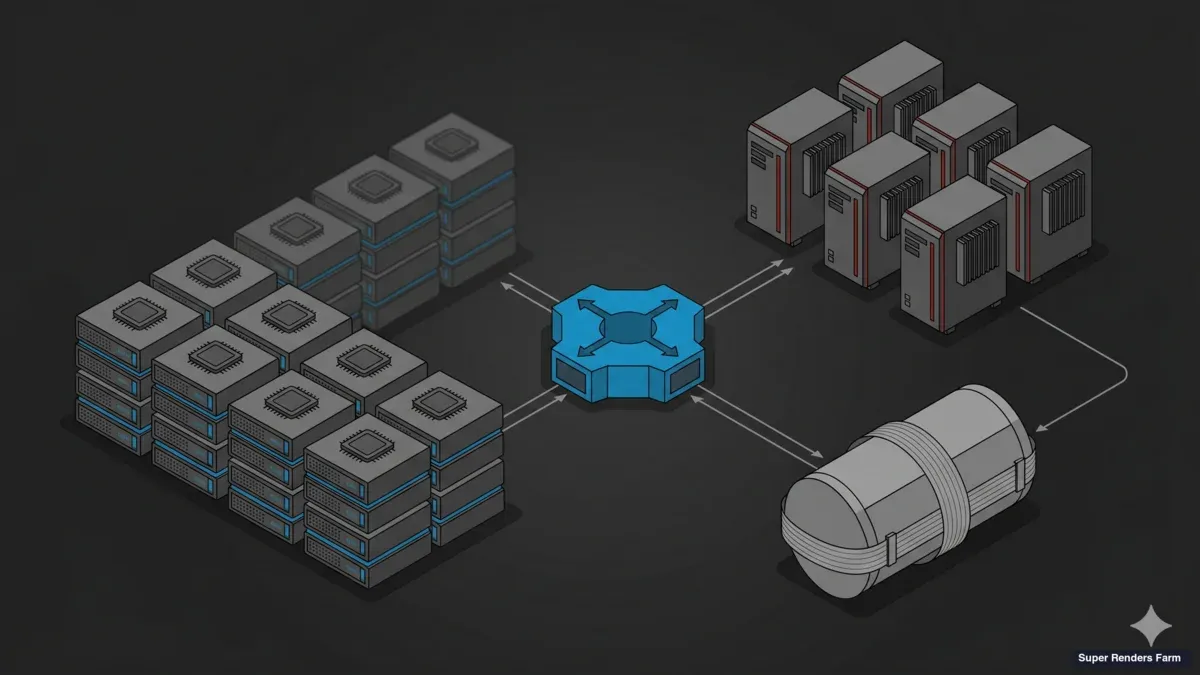
- CPU rendering capacity: 20,000+ CPU cores across our farm. Worker nodes run dual Intel Xeon E5-2699 V4 processors with 96–256 GB RAM per node. This is the bread-and-butter of what we run — V-Ray, Corona, and Arnold CPU jobs make up about 70% of our render volume. Archviz interiors, character animation passes, and long-form motion design projects typically land here.
- GPU rendering capacity: dedicated GPU machines running NVIDIA RTX 5090 with 32 GB VRAM each. We run Redshift, Octane, and V-Ray GPU jobs on this fleet. The 32 GB VRAM ceiling is high enough for most production scenes (including dense Forest Pack and complex displacement) but not unlimited — see the common errors doc for VRAM-overflow remediation if you push past it.
- Network and shared storage: all worker nodes share a high-throughput storage tier. Asset path resolution is handled at submission time, so projects with many linked references (Forest Pack, RailClone, XGen, IES files, OCIO configs, tx caches) work without UNC-path debugging on your side. The submission layer translates your local paths to farm-local paths automatically — this is one of the load-bearing pieces of "fully managed".
- Render engine licensing: V-Ray, Corona, Arnold, Redshift, Octane, and Cycles licenses are pooled at the farm level. Your job picks up an available license at submit time. You do not transfer your own seat, and you do not pay license fees in addition to your render credits (the per-GHz pricing covers compute and engine licensing together).
If you want a deeper read on how GPU and CPU pricing differs, and how to estimate a job before you submit, see the Pricing and credits doc and the cost articles linked from there.
How these docs are organized
We structured this documentation around four practical entry points, plus one standalone reference. The left navigation reflects the same grouping.
- Getting Started —
welcome(this page),quick-start-guide, andpricing-and-credits. Read these first if you are new to our farm. The quick-start covers the upload-submit-download flow end-to-end; the pricing doc explains how render credits, GHz-Hr, and the cost calculator work. - DCC Pipelines — one doc per DCC we support:
setting-up-3dsmax,setting-up-maya,setting-up-c4d,setting-up-blender,setting-up-houdini, andsetting-up-after-effects. Each covers the same six topics in the same order: plugin install, project packaging conventions, submission options (website, Client App, or DCC plugin), supported render engine versions, output format guidance, and known compatibility notes. If you work in one DCC most of the time, bookmark the matching page. - Common Issues & Reference —
common-errors,troubleshoot-render-quality,upload-and-download,vray-optimization-guide, andfaq. Use these when something did not render the way you expected, when an upload failed, or when you want to dig into a specific topic like V-Ray light cache and irradiance map reuse. - Tools —
tools-client-app,tools-plugin-installation, andtools-utilities. Reference for the SuperRenders Client App (including the Spaces migration path), DCC plugin installers, and helper utilities (test render presets and log readers).
Plus one standalone reference: legal-and-policies. This page is the canonical source for Terms of Service, Privacy Policy, refund policy, and the data-handling commitments that apply when you upload a project to our infrastructure.
We update these docs as our farm changes — when a new DCC version ships, when our hardware fleet changes, when a render engine we support gets a major release, when a Client App feature like Spaces becomes generally available. Each doc carries a "last updated" stamp at the top so you can tell what is current.
Where to start
If you are not sure which doc to open first, the two most common starting points cover almost everyone.
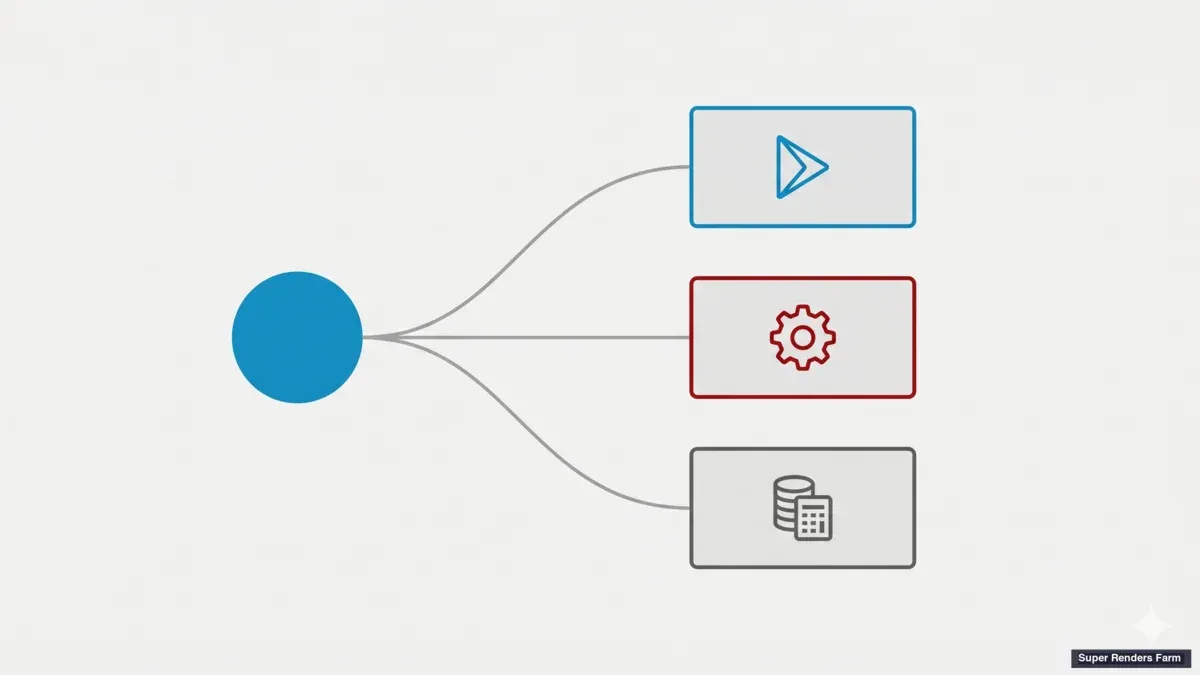
Start by task — you have a project to render right now.
- Read the Quick start guide. It walks through account setup, scene preparation, upload, submission, queue monitoring, and download in one continuous flow. The walkthrough is roughly 10 minutes of reading and 20–40 minutes of hands-on, depending on the size of your test render.
- Skim Pricing and credits before submitting a real job. The render credit system and the GHz-Hr unit are easy once you have seen them once; the cost calculator lets you estimate a job in 30 seconds. We recommend running a small test render first and using its measured cost to extrapolate to the full job.
- If a render fails or returns unexpected output, jump to Common errors. The top 10–15 issues are documented there with the exact remediation steps.
Start by DCC — you want to know how your specific software behaves on our farm.
- Open the relevant
setting-up-*doc for your DCC (3ds Max, Maya, Cinema 4D, Blender, Houdini, or After Effects). Eachsetting-up-*doc is self-contained — you should not need to chase a chain of cross-links to render your first job. - Each
setting-up-*doc covers: plugin install, project packaging conventions (what to include, what to leave out), submission options (website upload, Client App, or DCC plugin), and known compatibility notes for the render engines on that DCC. - Cross-link back to the Quick start guide for the universal upload-submit-download flow once your DCC is set up.
If your project is a hybrid (for example, a Houdini simulation cached out and rendered through Cinema 4D + Redshift), read the simulation DCC's page for caching guidance and the rendering DCC's page for submission.
What changes between a desktop render and a farm render
This is the section that catches first-time cloud rendering users by surprise more often than any other, so we have separated it out:
- Paths must resolve at the farm. Anything you reference by an absolute path (
C:\textures\...,/Users/you/...) will not be found at the farm. Use relative paths inside your packaged project, or rely on the DCC's "package project" function (3ds Max archive, MayaFile > Archive Scene, Blender pack external data, Cinema 4D save with assets). Eachsetting-up-*doc has the exact menu path. - Plugins must match the supported list. Plugins we support are pre-installed on every worker node. Plugins not on the list will fail at submit time with a clear error. The supported plugin list per DCC is on each
setting-up-*page and is updated when we add or remove support. - License servers are not yours. You do not configure license servers or floating license counts. The farm pools V-Ray, Corona, Arnold, Redshift, Octane, and Cycles licenses at its end. If you see a license error, the cause is almost always a plugin version mismatch (not a seat shortage) — the common errors doc has the exact triage.
- GPU memory is finite. A scene that renders on your 24 GB local card may fail on a 32 GB farm card if your local card was using fallback-to-system-memory. We document VRAM-overflow remediation in common errors and in the DCC-specific optimization pages.
- Queue order is FIFO within priority tier. Your job enters the queue at submit time. If you need a job to start sooner, the Client App has a priority option (covered in
tools-client-app); we do not offer manual queue jumping over chat.
When you need help
Three escalation paths, in order of preference.
- Check the docs first. Most common questions are covered in the FAQ, the relevant
setting-up-*page for your DCC, or the common errors reference. - Live chat at knowledge.superrendersfarm.com. For account, billing, in-flight render questions, or anything where a back-and-forth would be faster than email, chat is the right channel. Our team replies during business hours and within minutes during peak periods. The chat widget is available on every docs page (bottom-right).
- Email. For partnerships, custom pipelines, NDAs, refund or invoicing questions, or anything that needs a written record, write to
supportcenter@superrendersfarm.com. Use the subject-line tags "Privacy request", "Legal inquiry", "Refund", or "NDA" so the message routes to the right person. For NDA requests specifically, the NDA landing page explains what we can sign and how the process works.
A note on what we do not do over chat: render quality review on a per-frame basis, art direction feedback, or production pipeline consulting. We are operators of the rendering infrastructure, not the production team on your project. That said, if a render result looks wrong in a way that suggests a farm-side issue (driver-level artifact, wrong engine version, license server hiccup), bring it to chat with a frame and a job ID — that is exactly the case the chat queue is for.
What this documentation will not cover
To set expectations honestly: these docs cover how to use Super Renders Farm. They do not cover:
- How to model, light, animate, or composite a scene. We assume you already operate the DCC you are working in; we cover the parts that change when you move the render off your local workstation.
- Per-engine optimization theory beyond the practical fixes that show up on our farm. The
vray-optimization-guidecovers V-Ray-specific settings that materially change render time on our fleet; deeper rendering theory belongs to the engine vendor's documentation. - Pricing for custom engagements (large studio annual contracts, custom plugin install requests, on-prem mirror deployments). Those conversations happen over email — the pricing docs cover the standard self-serve pricing.
We update these docs as our farm changes — when a new DCC version ships, when our hardware fleet changes, when a render engine we support gets a major release. Each doc carries a "last updated" stamp at the top so you can tell what is current, and the changelog at the bottom of the docs home lists material edits within the last 90 days.
Welcome aboard. The most direct path from here is the Quick start guide.