Getting Started with a 3ds Max Render Farm: A Step-by-Step Beginner Guide
Overview
Introduction
You have spent hours building a scene in 3ds Max — the lighting is set, the materials look right, and you are ready to render. Then reality hits: a single frame takes 20 minutes, you have 300 frames in your animation, and your deadline is tomorrow. This is the exact moment most 3D artists start looking into render farms.
A render farm is a network of high-performance computers that renders your frames in parallel. Instead of processing frame 1, then frame 2, then frame 3 on your single workstation, a render farm processes dozens of frames at the same time across separate machines. What would take your desktop four days finishes in a few hours.
At Super Renders Farm, we have been helping 3ds Max artists ship projects on deadline since 2010. We are a fully managed service, which means you do not need to install any software on render machines, configure remote desktops, or troubleshoot licensing. You upload your scene file, we handle the rest. This guide walks you through every step — from preparing your scene to downloading your finished renders.
For a conceptual overview of what a render farm is and how cloud rendering differs from local rendering, our complete render farm guide covers the essentials.
If you want to understand how render farms work at a technical level, our complete guide to how render farms work covers the infrastructure side in depth.
What You Need Before Starting
Before uploading anything, take five minutes to check these items. Preparing your scene properly is the single biggest factor in whether your render succeeds on the first try. Most render failures we see are not hardware or software issues — they are missing files.
Scene file checklist:
| Item | Why it matters |
|---|---|
| 3ds Max scene file (.max) | Your project file — saved in a compatible 3ds Max version |
| All textures and maps | Missing textures render as black or magenta. Use File > Archive to collect them |
| External references (XRefs) | Any XRef scenes or objects must be included in your upload |
| Proxy files | If you use Forest Pack, RailClone, or VRayProxy objects, include the proxy geometry files |
| Render settings configured | Set your target resolution, frame range, and render engine before uploading |
| Plugin list | Note which plugins your scene uses — Super Renders Farm supports them, but knowing your dependencies helps troubleshooting |
A quick tip we share with every new user: run File > Archive in 3ds Max before uploading. This collects your scene file with all referenced textures and assets into a single ZIP. Extract that ZIP on your machine and upload the unpacked folder: the farm does not extract archives, so nothing inside a ZIP gets rendered.
Step 1: Create Your Super Renders Farm Account
Head to superrendersfarm.com and sign up. The process takes about two minutes — name, email, password. Once registered, you land on the dashboard where you manage all your render jobs.
New accounts come with free trial credits so you can test the service with a real scene before committing any budget. We recommend using your trial on a representative scene — something with the same render engine, plugins, and complexity as your actual production work. This way you know exactly what to expect when it counts.
For pricing details, check our pricing page — costs are calculated per GHz-hour for CPU rendering and per OBh for GPU rendering.
Step 2: Prepare Your 3ds Max Scene
Scene preparation is where you save yourself time and avoid failed renders. Here is what to do inside 3ds Max before uploading:
Check your file paths. Open the Asset Tracking dialog (Shift+T) and look for any paths marked as "Missing" or "Found (not in project folder)." Every asset needs to be locatable. If you see broken paths, re-link them now.
Collect your assets. Use File > Archive to collect your .max file with all dependent textures, IES lights, HDRI maps, and proxy files, then extract the resulting ZIP into a project folder. Upload that folder unpacked, since the farm does not extract archives.
Set your render output. Go to Render Setup > Common tab and confirm:
- Output size — set your final resolution (e.g., 1920x1080, 3840x2160)
- Frame range — single frame, active time segment, or custom range
- Render engine — make sure the correct engine is selected (V-Ray, Corona, Arnold, or ART)
- Output path — set a file name and format for rendered frames (EXR, PNG, or TIFF are common choices)
Save your scene file. Save as a standard .max file. If your 3ds Max version is very recent, consider saving in a backward-compatible format if prompted.
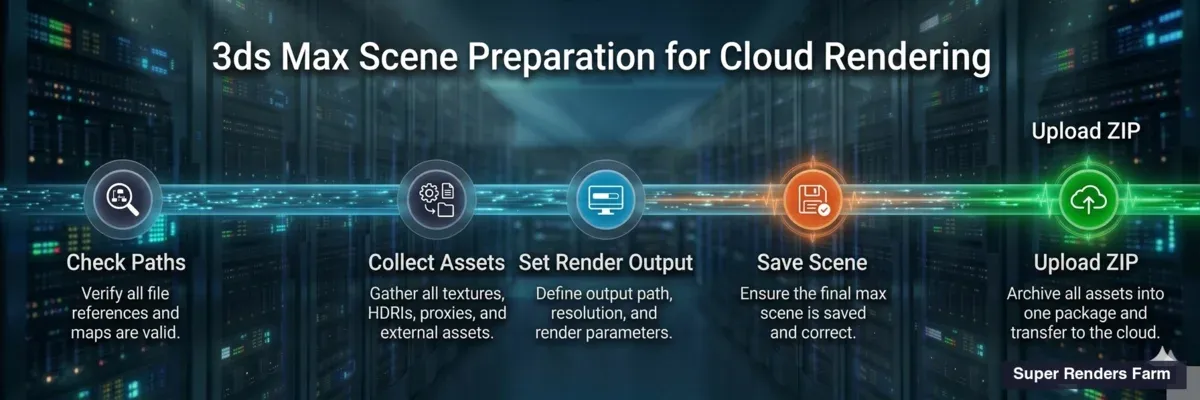 3ds Max scene preparation pipeline — five steps from asset tracking to upload
Step 3: Upload Your Scene
This is where Super Renders Farm differs from most services. You do not need to install a plugin inside 3ds Max. There is no remote desktop connection to manage. You can upload directly through the web dashboard, or use the SuperRenders Client App for large projects.
How it works:
- Log into your SuperRenders dashboard
- Click the upload button
- Drag and drop your unpacked project folder (or browse to select it)
- The upload begins — large files are handled with resumable uploads, so a brief internet interruption will not force you to start over
Our system automatically detects your 3ds Max version, identifies which render engine the scene uses, and installs any required plugins on the render nodes. Forest Pack, RailClone, Tyflow, Phoenix FD — these are all installed automatically on our end. You do not need to worry about plugin compatibility or version matching.
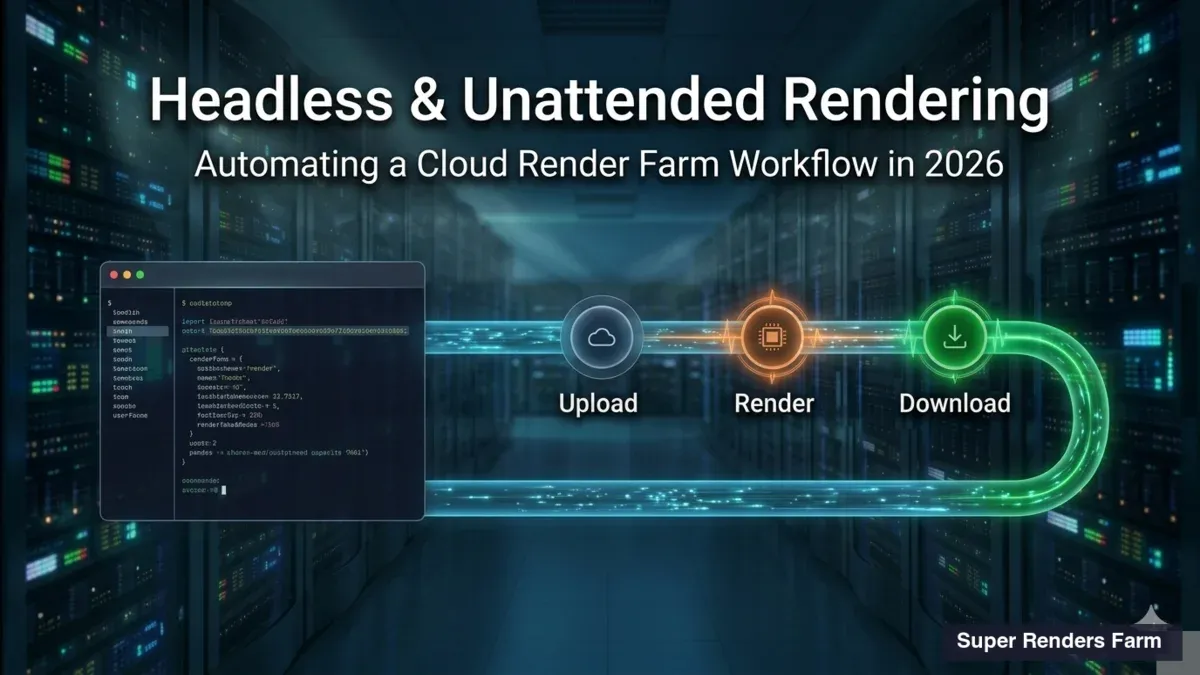
This fully managed approach means the entire workflow is: upload, render, download. No server configuration, no license management, no RDP sessions.
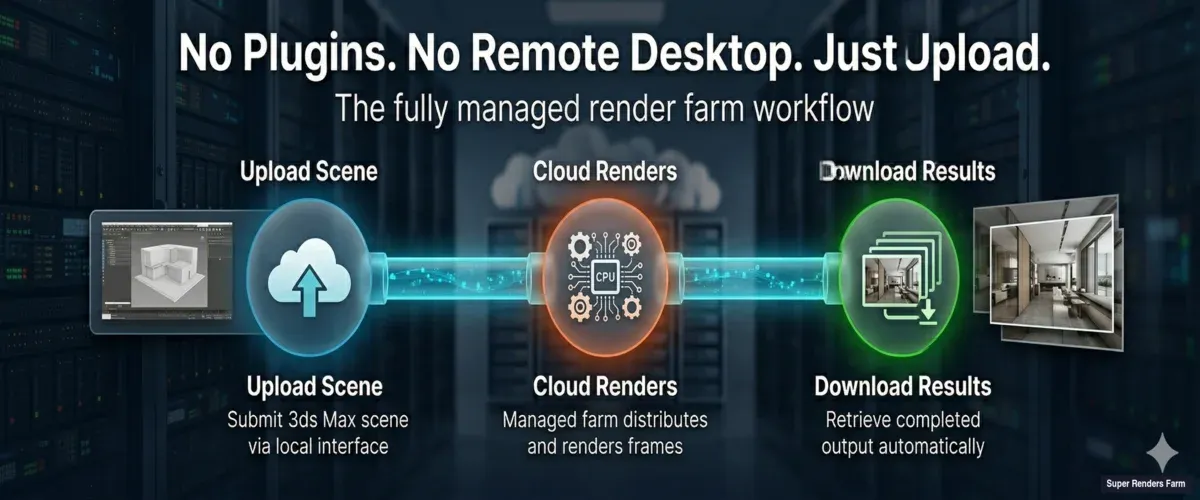 Fully managed render farm workflow — upload your scene, render on the cloud, download results
Step 4: Configure Your Render Settings
After your scene uploads, the dashboard presents your render configuration options. Most settings are auto-detected from your scene file, but you can adjust them here:
Render engine selection. SuperRenders confirms which engine your scene uses. For 3ds Max, we support:
- V-Ray — the most popular choice among our 3ds Max users, covering both CPU and GPU rendering. If you are using V-Ray 7, see our V-Ray 7 features guide for what is new
- Corona Renderer — widely used in architectural visualization for its ease of setup and realistic output
- Arnold (MAXtoA) — Autodesk's native renderer, included with 3ds Max subscriptions
- ART (Autodesk Ray Tracer) — a lightweight option built into 3ds Max
Interior designers working in 3ds Max have a few extra considerations, which our cloud rendering guide for interior designers walks through.
As an official Chaos partner, we include V-Ray and Corona licensing in the rendering cost — you do not pay extra for render engine licenses.
Frame range. Confirm which frames to render. For animations, set your start and end frames. For still images, a single frame is fine — but consider rendering at a higher resolution or with more passes for production quality.
Priority and machine allocation. Choose how many machines to allocate to your job. More machines means faster completion but proportionally higher cost. For a first test, start with a moderate allocation to see how your scene performs.
Step 5: Submit and Monitor Your Render
Once your settings are confirmed, hit submit. Your scene file is distributed across render nodes, plugins are installed, and frames begin processing.
Real-time monitoring. The dashboard shows live progress:
- Which frames are currently rendering
- Estimated time remaining per frame
- Any errors or warnings (such as a missing texture that was not caught in prep)
- Total elapsed time and running cost
Notifications. You receive email notifications when your job completes (or if it encounters an error that needs attention). You do not have to sit and watch the progress bar — start the render, close your laptop, and come back to finished frames.
If a frame fails, our system flags the specific error. Common causes include out-of-memory on complex scenes or a missing asset. The error log tells you exactly what happened so you can fix the scene and resubmit just the failed frames, not the entire job.
Step 6: Download Your Results
When rendering completes, your output frames are available for download directly from the dashboard. You can:
- Download all frames from the dashboard, or let the SuperRenders Client App download them automatically as they finish
- Download individual frames to spot-check quality before pulling the full set
- Preview thumbnails in the dashboard to visually verify output before downloading
Rendered files stay available for download with no fixed automatic deletion period, so you do not need to download everything immediately; you can ask us to delete a project at any time. But we recommend downloading promptly and keeping your own backups — completed render data is your deliverable.
Once you have your first render under your belt, the next question most 3ds Max users ask is how the renderer choice changes the farm-side workflow. Arnold ships as the default renderer with 3ds Max and is one of the most-used engines on our farm — for a deeper look at MAXtoA setup, AOV configuration, and the CPU-vs-GPU mode trade-off on cloud nodes, see our Arnold for 3ds Max render farm guide.
Supported Render Engines for 3ds Max
Here is a detailed look at what we support for 3ds Max. As a general note, CPU rendering accounts for the majority of the render jobs we process — if you are using V-Ray (CPU mode), Corona, or Arnold, you are working with our core infrastructure of 20,000+ CPU cores.
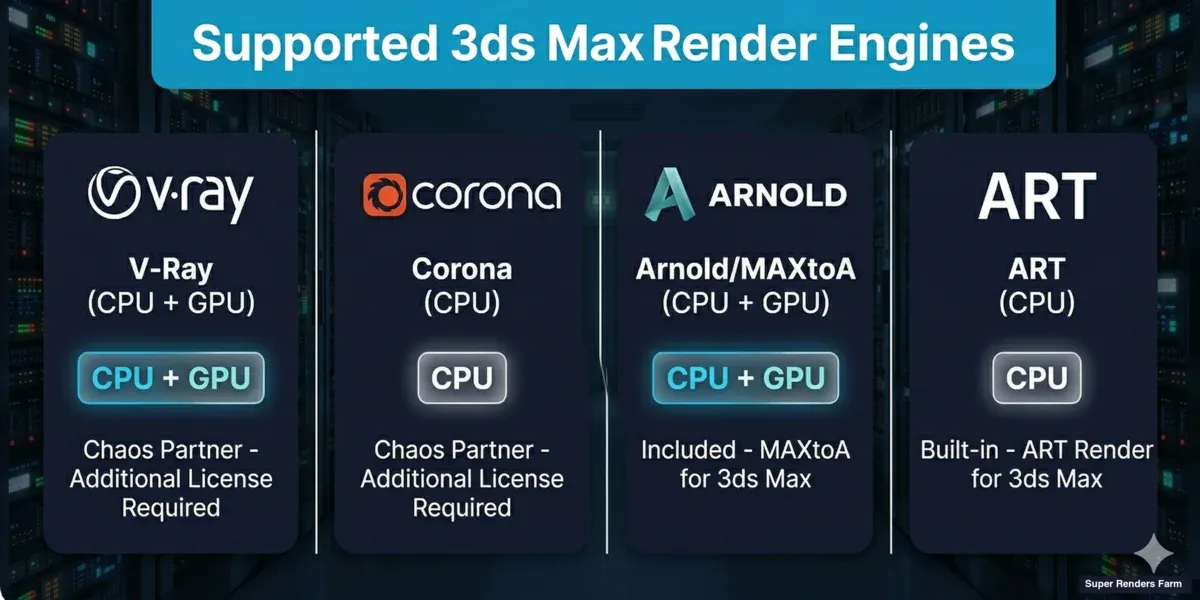 3ds Max supported render engines — V-Ray, Corona, Arnold, and ART with CPU and GPU rendering options
| Engine | Type | Licensing | Notes |
|---|---|---|---|
| V-Ray | CPU & GPU | Included (official Chaos partner) | Most popular among our 3ds Max users. Supports V-Ray 6 and 7 |
| Corona Renderer | CPU | Included (official Chaos partner) | Excellent for archviz. Corona 14 and 15 supported |
| Arnold (MAXtoA) | CPU & GPU | Included with 3ds Max subscription | Autodesk's renderer. Good for VFX and character work |
| ART | CPU | Built into 3ds Max | Lightweight, no additional licensing |
For GPU rendering, our fleet runs NVIDIA RTX 5090 GPUs with 32 GB VRAM each — enough headroom for complex scenes with heavy geometry and high-resolution textures.
Supported Plugins — Auto-Installed for You
One of the most common concerns we hear from new users: "Will my plugins work on your farm?" The answer is yes — and you do not need to do anything to make them work. We install and configure plugins on the render nodes automatically.
| Plugin | What it does | Notes |
|---|---|---|
| Forest Pack | Scattering vegetation, objects, and parametric arrays | Include proxy files in your upload. See our Forest Pack and RailClone guide |
| RailClone | Parametric modeling for architecture (fences, railings, walls) | Same as Forest Pack — include proxy geometry |
| Tyflow | Particle simulation and dynamics | Pre-cache your simulations before uploading |
| Phoenix FD | Fluid simulation (fire, smoke, water) | Cache files must be included in the upload package |
If your scene uses a plugin not listed here, reach out to our support team before uploading. We regularly add new plugins based on user demand.
For a deeper look at how Forest Pack and RailClone interact with render farm infrastructure, read our complete Forest Pack and RailClone render farm guide.
Common First-Time Issues and Quick Fixes
After years of onboarding 3ds Max artists, we have compiled the issues that come up most often on first renders. None of these are difficult to fix — they just require knowing what to check.
| Issue | Cause | Fix |
|---|---|---|
| Textures render as black or magenta | Missing texture files — paths point to your local drive | Use File > Archive to collect all assets, or re-link paths in Asset Tracking (Shift+T) |
| Render output is blank (all black) | Camera not set, or lights are missing/disabled | Verify your active camera and check that lights are not hidden or disabled |
| Frames fail with "out of memory" | Scene exceeds available RAM on render nodes | Reduce polygon count, optimize proxy settings, or lower texture resolution. Contact support for high-RAM node allocation |
| GI flickering in animation | Irradiance map computed per-frame instead of using animation preset | Switch to Brute Force GI, or use irradiance map in animation mode (save to file, then render from file) |
| Render looks different from local | Gamma/color management mismatch | Ensure your 3ds Max color management settings match what you use locally — check Rendering > Gamma/LUT Setup or Color Management in newer versions |
| Forest Pack objects missing | Proxy files not included in upload | Include all .vrmesh, .abc, or .rs proxy files referenced by Forest Pack libraries |
| Unexpected render engine used | Scene saved with different engine selected | Open Render Setup and confirm the correct engine is assigned before uploading |
Tips for Your First Render
Start small. Render a single frame or a short frame range first. This validates that your scene, textures, and plugins all work correctly on the farm before committing to a full animation render.
Use test resolution. For your first test, consider rendering at half resolution. This cuts render time (and cost) significantly while still letting you verify that everything looks correct.
Check your scene units. Mismatched units between your scene and referenced assets can cause geometry to appear at the wrong scale. Verify units under Customize > Units Setup.
Keep your local render settings. Before uploading, do a quick local render of one frame to establish a visual baseline. Compare the farm output to your local render — they should match. If they do not, the most common culprit is a gamma or color management difference.
For a broader comparison of render farm options for 3ds Max, including what to look for when evaluating services, see our best render farms for 3ds Max in 2026 guide.
FAQ
Q: Do I need to install any software or plugin to use Super Renders Farm with 3ds Max? A: No. Super Renders Farm is a fully managed service — you upload your scene through the web dashboard. We handle all software installation, plugin setup, and licensing on the render nodes automatically. A 3ds Max submission plugin is available if you prefer to submit from inside 3ds Max, but it is optional.
Q: Which 3ds Max versions are supported? A: Super Renders Farm supports 3ds Max 2013 through 2027. Versions 2024 and newer clear automatically; older versions run after a quick compatibility check with our support team.
Q: How much does it cost to render a 3ds Max scene on a render farm? A: Cost depends on scene complexity, render engine, resolution, and the number of frames. CPU rendering is charged per GHz-hour and GPU rendering per OBh. You can estimate costs using the calculator on our pricing page. New accounts include free trial credits to test with a real scene.
Q: What happens if a frame fails during rendering? A: Failed frames are flagged in the dashboard with a specific error message. You can fix the issue in your scene and resubmit only the failed frames — you do not need to re-render the entire job. Common causes are missing textures, out-of-memory errors, or unsupported plugin versions.
Q: Can I render both still images and animations? A: Yes. For still images, submit a single-frame job. For animations, set your frame range and the farm distributes frames across multiple machines in parallel. A 300-frame animation that takes days on a single workstation can finish in hours.
Q: Do I need to provide my own V-Ray or Corona license? A: No. As an official Chaos partner, Super Renders Farm includes V-Ray and Corona licensing in the rendering cost. Arnold licensing is included with your 3ds Max subscription and works on the farm as well. You do not pay extra for render engine licenses.
Q: How long are my rendered files stored after the job completes? A: Rendered output stays available for download after job completion, with no fixed automatic deletion period, and you can ask us to delete a project at any time. We still recommend downloading your results promptly and keeping local backups.
Q: Is my scene file and project data secure? A: Yes. Your files are transferred over encrypted connections and stored on secure infrastructure. We do not share, distribute, or access your scene content beyond what is needed to process your render job. For clients with strict confidentiality requirements, we offer NDA agreements — see our NDA page for details.
Q: What's the easiest render farm to use for 3ds Max? A: The least friction comes from fully managed render farms that accept native .max files directly — you upload the scene through a web portal or plugin, choose render settings, and the farm handles V-Ray, Corona, Arnold, or Scanline engine setup on its end. There is no remote desktop session to configure and no separate render-engine license to provision. For the broader category overview, see our primer on what a fully managed render farm actually handles; for a 3ds Max packaging walkthrough specifically, How to Package a 3ds Max File to Super Renders Farm covers XRefs, plugin assets, and IES file inclusion.
About Alice Harper
Blender and V-Ray specialist. Passionate about optimizing render workflows, sharing tips, and educating the 3D community to achieve photorealistic results faster.