Tam Yönetimli Render Farm Nedir?
Genel bakış
Giriş
Tam yönetimli render farm, sağlayıcının donanımı, yazılımı, lisanslamayı ve render sürecini uçtan uca yönettiği bir render farm hizmetidir -- yani sizin tek yapmanız gereken sahneyi yüklemek ve tamamlanan kareleri indirmektir. Bulut rendering konusuna daha önce baktıysanız, tüm render farm hizmetlerinin aynı şekilde çalışmadığını fark etmişsinizdir. Bazıları size bir remote desktop oturumu verir ve yazılımı kendiniz kurmanızı bekler. Bazıları size ham cloud instance'ları -- CPU veya GPU -- sunar; render engine kurulumundan lisanslamaya kadar her şeyi siz yapılandırırsınız. Bazıları ise tüm süreci yönetir -- sahnenizi yüklersiniz, render başlar ve tamamlandığında kareleri indirirsiniz.
Sektörün tam yönetimli render farm olarak adlandırdığı, bu rehberin odaklandığı render farm hizmeti modeli de son kategoridir.
Render farm'ların ne olduğuna ve teknolojinin tüm modellerde nasıl çalıştığına dair daha geniş bir bakış için 3D sanatçıları için render farm rehberimize göz atın. Super Renders Farm olarak 2010'dan beri işlettiğimiz bir modeldir bu; yüz binlerce render job'ı işledikten sonra nerede işe yaradığına, nerede yaramadığına ve mevcut seçenekler arasında karar verirken gerçekten nelerin önemli olduğuna dair net bir görüşümüz var.
Bu Super Renders Farm rehberi, üç ana bulut rendering modelini ele alır, bunları prodüksiyon işini etkileyen boyutlarda karşılaştırır ve hangi render farm hizmetinin stüdyonuza veya freelance iş akışınıza uyduğunu bulmanıza yardımcı olur. Bu konunun bir kısmını managed vs DIY cloud rendering karşılaştırmamızda ele almıştık -- bu makale "tam yönetimli"nin pratikte gerçekte ne anlama geldiğine ve her modelin ne zaman mantıklı olduğuna daha derinlemesine iniyor. Managed bir hizmet istediğinize zaten karar verdiyseniz ve bunu kendi altyapınızı kurmaya karşı doğrudan tartıyorsanız, fully managed vs. DIY render farm karşılaştırmamız bu spesifik tercihi ayrıntılarıyla ele alıyor.
Üç Bulut Rendering Modeli
2026'da bulut rendering pazarı üç geniş kategoriye ayrılıyor. Kim neyi yönetir konusunda farklılaşıyorlar -- ve bu ayrım, teslim süresinden lisanslama maliyetine, gününüzün ne kadarını yaratıcı iş yerine altyapıya harcadığınıza kadar her şeyi etkiliyor.
Tam Yönetimli Render Farm
Bu modelde render farm hizmet sağlayıcısı tüm donanıma sahiptir ve bakımını yapar, tüm render engine'leri kurar ve lisanslar, render pipeline'ını uçtan uca işletir. Bir masaüstü uygulaması veya web portalı üzerinden etkileşime girersiniz -- proje dosyanızı yükler, render ayarlarını belirtir ve sonuçları indirirsiniz. Remote desktop erişimi söz konusu değildir. Sizin tarafınızda yazılım kurulumu yoktur.
Örnekler: Super Renders Farm, RebusFarm, GarageFarm.
Bu üç farm aynı managed-service yapısını paylaşır, ancak farklı DCC yığınlarını kapsar ve farklı GPU fleet nesillerini kullanır. GarageFarm vs Super Renders Farm karşılaştırmamız fiyatlandırma, donanım ve kullanım senaryosu uyumu üzerinden baş başa karşılaştırmayı ele alıyor -- ikisi arasında Houdini ve After Effects desteğinin nerede farklılaştığı da dahil.
Sizin sorumluluğunuz: sahne dosyanızı hazırlamak, job'ı göndermek, çıktıyı incelemek.
Farm'ın sorumluluğu: donanım, ağ, depolama, işletim sistemi, render engine kurulumu, lisanslama, plugin yönetimi, job zamanlama, kare teslimi ve render hatalarının giderilmesi.
Self-Service Cloud Rental (IaaS)
Infrastructure-as-a-Service sağlayıcıları size -- genellikle RDP (Remote Desktop Protocol) veya SSH üzerinden erişilen -- ham CPU veya GPU donanımına sahip bir remote makine verir. Kendi 3D yazılımınızı kurar, kendi render engine'inizi yapılandırır, kendi lisanslarınızı yönetir ve render'ları manuel olarak veya kendi pipeline scriptleriniz üzerinden çalıştırırsınız.
Örnekler: iRender, Vast.ai, RunPod, Paperspace.
Sizin sorumluluğunuz: makine açıldıktan sonraki her şey. Yazılım kurulumu, lisanslama, sahne aktarımı, render yönetimi ve sonuçların indirilmesi.
Sağlayıcının sorumluluğu: donanım çalışma süresi ve ağ bağlantısı.
DIY Cloud (Kendi Altyapınızı Kurun)
Bazı stüdyolar, özel teknik personeliyle, public cloud platformları üzerinde kendi render altyapılarını kurar. Bu; CPU veya GPU instance'ları sağlamayı, render management yazılımı kurmayı (Thinkbox Deadline veya AWS Deadline Cloud gibi), ağ depolamasını yapılandırmayı ve tüm yığını yönetmeyi kapsar.
Örnekler: AWS EC2, Google Cloud, Azure üzerinde özel kurulumlar -- genellikle AWS Deadline Cloud veya self-hosted Deadline kullanılır.
Sizin sorumluluğunuz: instance sağlamadan render çıktısına kadar tüm teknoloji yığını.
Sağlayıcının sorumluluğu: fiziksel altyapı (sunucular, güç, soğutma, ağ).
Yan Yana Karşılaştırma
Üç modelin prodüksiyon işi için en önemli boyutlarda nasıl karşılaştığı aşağıdadır:
| Boyut | Tam Yönetimli | Self-Service Cloud (IaaS) | DIY Cloud |
|---|---|---|---|
| Yazılım kurulumu | Farm halleder | Siz kurarsınız | Siz kurarsınız |
| Render engine lisanslaması | Render maliyetine dahil | Ayrıca satın alırsınız (node başına yılda 500–1.500 $) | Ayrıca satın alırsınız |
| Remote desktop gerekli mi | Hayır | Evet (RDP/SSH) | Evet (SSH + web arayüzü) |
| Plugin yapılandırması | Farm sizin için yapılandırır | Siz yapılandırırsınız | Siz yapılandırırsınız |
| Kurulum süresi (ilk job) | Dakikalar | Saatler ile günler arası | Günler ile haftalar arası |
| Sürekli bakım | Yok | Orta (güncellemeler, sürücüler) | Yoğun (tüm yığın) |
| Ölçeklendirme | Otomatik | Manuel (VM açma/kapama) | Manuel (karmaşık) |
| Sahne gönderimi | Masaüstü uygulaması veya web yükleme | Manuel dosya aktarımı | Özel pipeline |
| Tipik fiyatlandırma modeli | GHz-saat veya OB-saat başına | Saat başına (makine süresi) | Saat başına (instance süresi) + depolama + egress |
| Gizli maliyetler | Yok | Lisanslama, depolama, boşta bekleme süresi | Lisanslama, depolama, egress, DevOps süresi |
| Gereken teknik beceri | Düşük (sanatçı dostu) | Orta (temel sistem yöneticiliği) | Yüksek (cloud mühendisliği) |
Bu tablonun kapsamadığı bir şey, stüdyolar için self-service'e geçişte genellikle en büyük sürpriz olan lisanslama maliyetidir. Tek bir V-Ray veya Corona lisansı, render node başına yılda 500–1.500 $ tutar. IaaS sağlayıcısında on node başlatırsanız, bu sadece render engine lisanslaması için yılda 5.000–15.000 $ demektir -- compute maliyetlerinin üzerine. Tam yönetimli bir farm'da bu lisanslar sağlayıcıya aittir ve job başına maliyetinize dahildir.
Remote Desktop Gerektirmeyen Render Farm: Nasıl Çalışır
Sizin için her şeyi yöneten bir render farm hizmeti, remote desktop adımını tamamen ortadan kaldırır -- IaaS tarzı GPU kiralamalarından veya remote-desktop render hizmetlerinden temel farkı budur. Bu tür hizmetlerde iş akışınız şöyledir: bir cloud makinesine RDP oturumu açarsınız, ihtiyacınız olanı kurar veya yapılandırırsınız, sahnenizi o remote desktop içinde açarsınız, render'ı başlatırsınız ve kareler bitene kadar oturumu açık tutarsınız. Bağlantı kesilirse veya remote host yeniden başlarsa, iş kaybedilebilir.
Burada bakılacak bir RDP penceresi, yazılım kurulacak bir remote node ve açık tutulacak bir cloud oturumu yoktur. Yerel 3ds Max, Cinema 4D, Maya, Blender veya Houdini uygulamanız, hafif bir gönderim plugin'i üzerinden farm'a bağlanır. İş akışı upload, render, download olmak üzere üç aşamaya iner:
- Upload (Yükleme) -- plugin sahnenizi, texture'larınızı, proxy'lerinizi ve önbelleğe alınmış verilerinizi paketler, ardından bunları farm'ın depolama kümesine aktarır.
- Render -- farm'ın zamanlayıcısı uygun node'ları atar (V-Ray, Corona ve Arnold CPU için CPU; Redshift, Octane ve V-Ray GPU için GPU), lisanslamayı yönetir ve başarısız kareleri otomatik olarak yeniden dener.
- Download (İndirme) -- tamamlanan kareler aynı plugin üzerinden yerel makinenizdeki bir klasöre geri akar.
Super Renders Farm 2010'dan beri bu şekilde çalışıyor. Bir render gece saat 02:00'de başarısız olursa, ekibimiz hatayı scheduler üzerinden görür -- teşhis için herhangi bir yere yeniden bağlanmanıza gerek yoktur. Her aşamanın pratikte nasıl göründüğüne dair adım adım bir anlatım için aşağıdaki Temel İş Akışı: Upload, Render, Download bölümüne bakın.
Lisanslama ortamı, engine'e göre önemli ölçüde değişir -- V-Ray, Redshift, Arnold, Corona ve Cycles'ın her birinin farklı node lisanslama modelleri ve maliyet yapıları vardır. Render farm yazılım lisanslama rehberimiz her engine'in lisanslamasının üç farm türünde nasıl işlediğini ele alıyor.
Bulut rendering'in tüm hizmet modellerinde nasıl çalıştığına -- fiyatlandırma yapıları, pratik bir karşılaştırma tablosu ve başlangıç rehberliği dahil -- daha geniş bir bakış için cloud rendering açıklama rehberimize bakın.
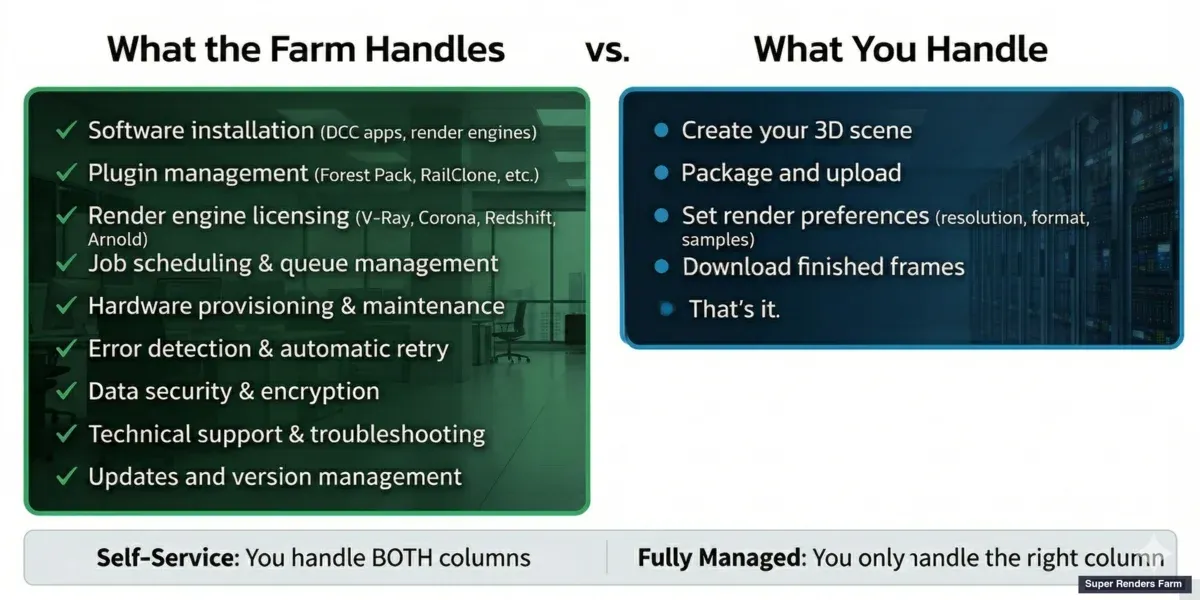 Tam yönetimli render farm ile self-service karşılaştırması — farm'ın hallettikleri ile sizin halletmeniz gerekenler
Temel İş Akışı: Upload, Render, Download
Render farm hizmetinin iş akışı üç kelimede özetlenir: upload, render, download. Tam yönetimli bir render farm, geri kalan her şeyi sizin adınıza yönetir -- yazılım kurulumu, lisanslama, sürücü yönetimi, job zamanlama, hata kurtarma -- bu yüzden farm ile yapmanız gereken tüm etkileşim bu üç eylemden ibarettir.
Upload. Projenizi 3ds Max, Cinema 4D, Maya, Blender veya Houdini'de açın ve farm'ın masaüstü uygulaması üzerinden gönderin. Uygulama, sahne dosyanızı tüm texture'lar, proxy'ler ve önbelleğe alınmış verilerle birlikte otomatik olarak paketler. Varlıkları manuel olarak toplamanıza, bir remote makine yapılandırmanıza veya bir remote desktop oturumu açmanıza gerek yoktur. Yükleme, texture'ların render node'larında doğru şekilde çözümlenmesi için path yeniden eşlemesini de halleder -- self-managed kurulumlarda başarısız render'ların en yaygın nedeni budur.
Render. Farm, karelerinizi düzinelerce veya yüzlerce makineye paralel olarak dağıtır. Yerel workstation'ınızda bir hafta sürecek 1.000 karelik bir animasyon, 50 node üzerinde birkaç saatte tamamlanabilir. İlerlemeyi bir web dashboard'u veya masaüstü uygulaması üzerinden izlersiniz, farm ise altta her şeyi halleder: render engine lisanslaması, plugin sürümleri, GPU sürücü uyumluluğu, bir node render sırasında hata verirse otomatik kare yeniden denemesi. Bunların hiçbirine dokunmazsınız.
Download. Tamamlanan kareler, bittikçe masaüstü uygulamasında belirir. Hataları erken yakalamak için render sırasında tek tek kareleri önizleyebilir, ardından job tamamlandığında tüm sekansı toplu olarak indirebilirsiniz. Binlerce yüksek çözünürlüklü EXR veya PNG kare üreten büyük job'lar için çoğu managed farm doğrudan cloud storage teslimi de sunar.
Tüm etkileşim bundan ibarettir. Remote desktop oturumu yok, yapılandırılacak lisans sunucusu yok, yönetilecek sürücü güncellemesi yok. Bunun self-service ve DIY yaklaşımlarıyla nasıl karşılaştırıldığına dair daha derin bir bakış için fully managed vs. DIY render farm karşılaştırmamız tercihleri ayrıntılarıyla ele alıyor.
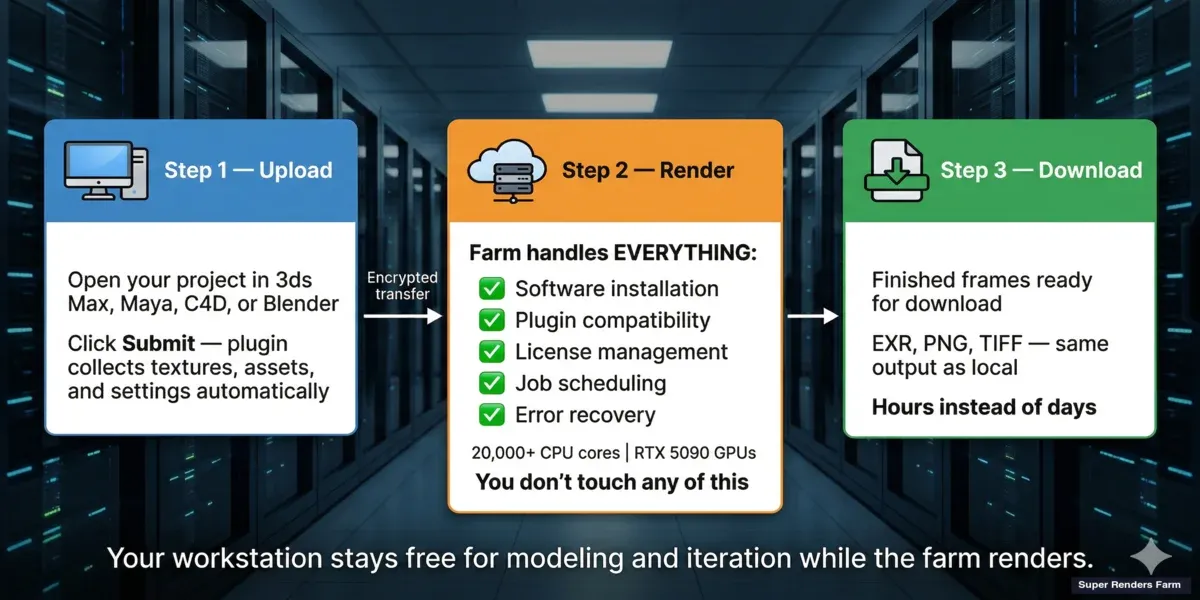 Tam yönetimli render farm iş akışı — sahne yükleme, 20.000+ CPU çekirdeğinde otomatik render alma, sonuçları indirme
Tam Yönetimli Bir Farm'a Job Gönderdiğinizde Neler Olur
En sık duyduğumuz sorulardan biri şu şekilde bir versiyondur: "Benim için her şeyi yöneten bir render farm istiyorum -- sadece yüklemek ve indirmek istiyorum. Submit'e tıkladığımda gerçekte ne oluyor?" İşte farm'ımızdaki adım adım iş akışı -- çoğu tam yönetimli render farm hizmetinin nasıl işlediğini temsil eder:
Adım 1: Masaüstü uygulamasını kurun. 3D yazılımınız için gönderim plugin'ini indirin. Farm'ımızda bu, 3ds Max, Cinema 4D, Maya, Blender ve Houdini ile doğrudan entegre olur. Plugin, render engine'inizi, sürümünüzü ve kurulu plugin'lerinizi otomatik olarak algılar.
Adım 2: Projenizi açın ve Submit Job'a tıklayın. Uygulama, sahne dosyanızı tüm texture'lar, proxy'ler ve önbelleğe alınmış verilerle birlikte paketler. Dosya yollarını doğrular, eksik varlıkları kontrol eder ve yükleme için her şeyi sıkıştırır. Texture'ları manuel olarak toplamanıza veya path'leri yeniden eşlemenize gerek yoktur -- plugin bunu halleder.
Adım 3: Yükleme ve render kuyruğu. Paketlenmiş projeniz farm'ın depolama kümesine yüklenir. Yükleme tamamlandıktan sonra job render kuyruğuna girer. Farm, yazılımınıza ve engine gereksinimlerinize uyan render node'larını atar -- V-Ray ve Corona gibi engine'ler için CPU node'ları, Redshift veya Octane için GPU node'ları -- doğru sürücüler, render engine sürümü ve plugin'ler dahil. Manuel yapılandırma söz konusu değildir.
Adım 4: Render. Kareler mevcut node'lara dağıtılır. Farm'ımızdaki job'ların büyük çoğunluğu CPU render'larıdır -- V-Ray, Corona ve Arnold CPU, 96–256 GB RAM'e sahip çift Intel Xeon E5-2699 V4 makinelerden oluşan filomuzda çalışır. GPU rendering için (Redshift, Octane, V-Ray GPU), job'lar her biri 32 GB VRAM'e sahip özel NVIDIA RTX 5090 node'larında çalışır. Farm, render türünden bağımsız olarak job zamanlamayı, hata durumunda kare yeniden denemesini ve yük dengelemeyi otomatik olarak yönetir.
Adım 5: İndirme. Kareler tamamlandıkça, aynı masaüstü uygulaması üzerinden indirmeye hazır hale gelir. Yerel bir klasöre otomatik indirme ayarlayabilirsiniz. Tüm job tamamlandığında bir bildirim alırsınız.
Kurulumdan ilk render edilen kareye kadar tüm süreç, yeni bir kullanıcı için genellikle 30 dakikanın altında sürer. Plugin'i zaten kurulu olan tekrar eden kullanıcılar için süreç şudur: upload, render, download. Remote desktop oturumu yok. Yazılım kurulumu yok. Lisans yönetimi yok.
Her Modelden En Çok Kim Fayda Görür
Her stüdyo aynı yaklaşıma ihtiyaç duymaz. İşte pratik bir döküm:
Tam Yönetimli: Freelancer'lar, Küçük Stüdyolar, Teslim Tarihi Odaklı Ekipler
Ekibiniz ağırlıklı olarak IT personeli değil, sanatçı ve tasarımcılardan oluşuyorsa, tam yönetimli bir render farm hizmeti prodüksiyonu yavaşlatan teknik yükü ortadan kaldırır. Bu, şu durumlarda doğru seçimdir:
- Özel bir sistem yöneticiniz veya render wrangler'ınız yok
- Altyapı planlaması yapmadan bir teslim tarihi için render'ı ölçeklendirmeniz gerekiyor
- Lisanslı engine'lerle (V-Ray, Corona, Redshift) çalışıyorsunuz ve node başına lisanslamayı yönetmek istemiyorsunuz
- Bir job gönderip sıradaki işe odaklanmak istiyorsunuz, bir remote makineyi izlemek değil
- Belirli bir yapılandırma gerektiren Forest Pack, RailClone, X-Particles veya TurbulenceFD gibi plugin'ler kullanıyorsunuz
Bu deseni tekrar tekrar gördük: V-Ray veya Corona (CPU rendering -- farm'ımızdaki job'ların yaklaşık yüzde 70'ini oluşturur) kullanan üç kişilik bir archviz stüdyosu, cuma teslim tarihiyle salı öğleden sonra 50 kare yükler ve çarşamba sabahına kadar her şey render edilip indirilmiş olur. RDP oturumu yok, lisans sunucusu baş ağrısı yok, yönetilecek altyapı yok.
Self-Service Cloud (IaaS): Tam Kontrol İsteyen Teknik Kullanıcılar
Self-service GPU kiralamaları, managed farm'ların desteklemediği özel yazılımlar çalıştırmanız gerektiğinde veya iteratif test için kalıcı bir makineye ihtiyaç duyduğunuzda mantıklıdır. Yaygın durumlar:
- Özel veya nadir render engine'ler
- Rendering'in yanında machine learning iş yükleri
- Kalıcı bir makine durumu gerektiren uzun süreli simülasyonlar (sıvı, kumaş, parçacık)
- Tam kontrolü tercih eden, mevcut DevOps kapasitesine sahip ekipler
Bu tercih gerçektir: esneklik kazanırsınız ama lisanslama maliyetini, bakım süresini ve sorun giderme sorumluluğunu üstlenirsiniz. Sanatçılarının sürücü güncellemeleri, lisans yapılandırması ve RDP sorun giderme için ayda 5–10 saat harcadığı -- bu sürenin yaratıcı işe gitmesi gerekirken -- özellikle bu nedenle IaaS'tan managed hizmetlere geçen stüdyolarla görüştük. Kendi ekibiniz için managed'i DIY'a karşı tartıyorsanız, fully managed vs. DIY render farm karşılaştırmamız ve managed vs. DIY cloud rendering karşılaştırmamız bu kararı bu rehberden daha derinlemesine ele alıyor.
DIY Cloud: Özel Pipeline Mühendisleri Olan Büyük VFX Stüdyoları
Kendi cloud render altyapınızı kurmak yalnızca ölçekte -- genellikle 50'den fazla eşzamanlı render node -- ve ancak kadronuzda pipeline mühendisleri varsa ekonomik olarak mantıklıdır. AWS Deadline Cloud, tamamen self-hosted Deadline'a kıyasla kurulum karmaşıklığını azalttı, ancak yine de instance sağlamayı, depolama mimarisini, ağı, lisanslamayı ve maliyet optimizasyonunu siz yönetirsiniz.
20 kişinin altındaki çoğu stüdyo için DIY cloud'un mühendislik yükü, managed bir render farm hizmetine kıyasla maliyet tasarrufunu aşar.
Self-Service ve DIY Yaklaşımlarında Yaygın Sorunlar
Daha önce self-service veya DIY kurulumlar kullanmış stüdyoları onboard ettikten sonraki yıllarda, tekrarlayan sorunları kataloğa aldık:
| Sorun | Neden | Etki |
|---|---|---|
| Render engine lisans hataları | Lisans sunucusu yanlış yapılandırılmış veya koltuk sayısı aşılmış | Render'lar sessizce başarısız olur veya siyah kareler üretir |
| Sürücü veya runtime uyumsuzluğu | Sürücü sürümü render engine ile uyumsuz (GPU) veya redistributable'lar eksik (CPU) | Çökmeler, CUDA hataları veya sessiz render hataları |
| Yüklemeden sonra eksik texture'lar | Dosya yolları remote makine için yeniden eşlenmemiş | Çıktıda beyaz veya pembe materyaller |
| Boşta makine ücretleri | Render sonrası instance'ı kapatmayı unutmak | Olay başına 50–200 $ beklenmedik ücret |
| Plugin sürüm çakışmaları | Remote'a kurulu plugin yerel ile eşleşmiyor | Simülasyon veya parçacık verisi yanlış render edilir |
| Ağ aktarım darboğazı | Sınırlı yükleme bant genişliğinde büyük sahneler (50+ GB) | Render başlamadan önce saatlerce aktarım süresi |
| Hata durumunda job yeniden denemesi yok | Tek bir kare çökmesi tüm job'ı öldürür | Zaman kaybı, başarısız kareleri manuel olarak belirleyip yeniden göndermek gerekir |
Tam yönetimli bir farm'da bu sorunlar sağlayıcı tarafından ele alınır. Lisans yönetimi, sürücü uyumluluğu, path yeniden eşlemesi, plugin sürümleme ve kare yeniden denemesi hizmetin bir parçasıdır. Bu bir pazarlama iddiası değildir -- "tam yönetimli"nin ne anlama geldiğinin operasyonel gerçeğidir.
Bir Render Farm Nasıl Değerlendirilir: Karar Kontrol Listesi
Render farm hizmeti seçeneklerini karşılaştırırken, gerçekten önemli olan sorular şunlardır:
Yazılım ve lisanslama:
- Farm, render engine'inizi ve sürümünüzü önceden kuruyor mu?
- Render engine lisansları dahil mi, yoksa kendi lisansınıza mı ihtiyacınız var?
- Plugin'lerinizi destekliyor mu (Forest Pack, X-Particles, TFD vb.)?
İş akışı:
- 3D uygulamanızdan doğrudan gönderim yapabiliyor musunuz?
- Sürecin herhangi bir bölümü için remote desktop gerekli mi?
- Farm, texture toplama ve path yeniden eşlemesini hallediyor mu?
- Bir render node hata verdiğinde kare yeniden denemesi otomatik mi?
Donanım:
- CPU rendering için hangi CPU spesifikasyonları var? (Çekirdek sayısı, saat hızı ve RAM, prodüksiyonda en yaygın render engine'ler olan V-Ray ve Corona performansını etkiler)
- Hangi GPU modeli ve VRAM mevcut? (Redshift ve Octane gibi GPU engine'leri için önemli -- ağır texture'lı sahneler 24+ GB VRAM gerektirir)
- Kaç render node mevcut ve animasyon job'ları için birden fazla node'a ölçeklendirebiliyor musunuz?
Maliyet şeffaflığı:
- Fiyatlandırma GHz-saat, OB-saat, kare başına mı, yoksa makine-saat başına mı?
- Depolama, veri aktarımı veya lisanslama için gizli maliyetler var mı?
- Taahhüt öncesi test etmek için ücretsiz deneme veya başlangıç kredisi var mı?
Destek:
- Çalışma saatlerinizde teknik destek mevcut mu?
- Farm'ın ekibi gerekirse özel plugin'leri yapılandırabilir mi?
- Bir render başarısız olursa ne olur -- bildirim alıyor musunuz ve otomatik yeniden deneme var mı?
Referans olarak: farm'ımız çift Intel Xeon E5-2699 V4 CPU node'ları (render job'larının çoğunu -- V-Ray, Corona, Arnold -- işler) ile Redshift ve Octane iş yükleri için 32 GB VRAM'e sahip özel NVIDIA RTX 5090 GPU node'larını birlikte çalıştırır. Tüm render engine lisansları dahildir. Plugin yapılandırması, ilk render'ınız başlamadan önce ekibimiz tarafından halledilir. Hiçbir aşamada remote desktop söz konusu değildir.
Tam Yönetimli, Sınırlı Anlamına Gelmez
Yaygın bir yanlış anlama, "tam yönetimli"nin render ayarlarınız üzerindeki kontrolden vazgeçmek anlamına geldiğidir. Bu doğru değildir. Managed bir farm'da yine de şunları kontrol edersiniz:
- Çözünürlük, kare aralığı ve çıktı formatı
- Render engine ayarları (sampling, GI, denoising)
- Kamera seçimi ve render layer yapılandırması
- Öncelik ve teslim tarihi tercihleri
- Makine türü (CPU veya GPU) ve node tahsisi
Vazgeçtiğiniz şey altyapı işidir: yazılım kurmak, lisansları yönetmek, sürücüleri yapılandırmak, donanım arızalarını gidermek ve makine çalışma süresini izlemek. Çoğu prodüksiyon ekibi için bu tercih basittir -- 3D sanatçılarını sunucu yönetmek için işe almadınız. Tam yönetimli bir render farm hizmetinin mi yoksa bir DIY cloud kurulumunun mu ekibinize daha uygun olduğuna hâlâ karar veriyorsanız, doğrudan tercih dökümü için fully managed vs. DIY render farm karşılaştırmamıza veya managed hizmetlerin daha geniş cloud rendering ortamına nasıl uyduğuna dair cloud render farm rehberimize bakın.
SSS
Q: Render farm üzerinde herhangi bir yazılımı kendim kurmam gerekir mi? A: Super Renders Farm'da hayır. Tam yönetimli bir render farm'da tüm 3D yazılımlar, render engine'ler ve plugin'ler farm'ın ekibi tarafından önceden kurulur ve bakımı yapılır. Yerel makinenize job gönderimi ve kare indirme için yalnızca hafif bir masaüstü uygulaması kurarsınız.
Q: Tam yönetimli bir render farm kullanmak için remote desktop erişimi gerekli mi? A: Hayır. Tam yönetimli farm'lar remote desktop (RDP) oturumu kullanmaz. Job'ları bir masaüstü uygulaması veya web portalı üzerinden gönderirsiniz ve kareler doğrudan yerel makinenize teslim edilir. Bir remote sunucuya bağlanmaya gerek yoktur.
Q: Farm için ayrı render engine lisansları satın almam gerekir mi? A: Hayır. Tam yönetimli farm'lar, render engine lisanslamasını render maliyetinize dahil eder. V-Ray, Corona, Redshift, Arnold veya Octane kullanın, lisanslar farm'a aittir ve farm tarafından yönetilir. Yerel lisanslarınız workstation'ınızda kalır.
Q: Sahnem Forest Pack veya X-Particles gibi plugin'ler kullanıyorsa ne olur? A: Managed farm'lar yaygın olarak kullanılan bir plugin kütüphanesi tutar. Projeniz henüz kurulu olmayan bir plugin gerektiriyorsa, farm'ın destek ekibi render'ınız başlamadan önce onu yapılandırır. Plugin kurulumunu kendiniz halletmenize gerek yoktur.
Q: Herhangi bir kurulum yapmadan sahne dosyamı yükleyip sonuçları indirebilir miyim? A: Esasen evet. Tek seferlik bir masaüstü uygulaması kurulumundan sonra (birkaç dakika sürer), iş akışı şudur: projenizi açın, Submit Job'a tıklayın ve kareler hazır olduğunda indirin. Uygulama texture toplamayı, path yeniden eşlemesini ve yüklemeyi otomatik olarak halleder.
Q: Tam yönetimli bir render farm, bir cloud sanal makine kiralamaktan nasıl farklıdır? A: Bir cloud VM kiralaması (IaaS) -- CPU veya GPU olsun -- size her şeyi kendinizin kurup yönettiği bir remote makine verir: yazılım, lisanslar, sürücüler ve render pipeline'ı. Tam yönetimli bir farm bunların hepsini sizin için halleder. Tercih şudur: IaaS özel kurulumlar için daha fazla esneklik sağlar, ama managed farm'lar altyapı yükünü ve lisanslama maliyetlerini ortadan kaldırır. V-Ray veya Corona gibi CPU render engine'leri kullanan çoğu stüdyo, managed yaklaşımın önemli ölçüde zaman kazandırdığını görür.
Q: Super Renders Farm hangi render engine'leri ve 3D yazılımlarını destekliyor? A: 3ds Max, Cinema 4D, Maya, Blender, Houdini, After Effects ve NukeX'i destekliyoruz. Render engine'ler arasında V-Ray, Corona, Arnold, Redshift, Octane ve Cycles yer alıyor. Tüm engine'ler güncel ve yakın zamanlı sürümleriyle önceden kurulu olarak mevcuttur.
Q: Benim için her şeyi yöneten bir render farm istiyorum -- sadece yüklemek ve indirmek istiyorum. Bu mümkün mü? A: Evet -- bu tam olarak tam yönetimli bir render farm hizmetini tanımlıyor. Sağlayıcı 3D yazılımınızı ve render engine'lerinizi önceden kurar, tüm lisanslamaya sahiptir ve yönetir, plugin'leri yapılandırır, job zamanlamayı ve hata durumunda kare yeniden denemesini halleder. İş akışınızdaki payınız üç eyleme indirgenir: sahnenizi yükleyin, render'ın tamamlanmasını bekleyin ve tamamlanan kareleri indirin. Remote desktop oturumu ve yapılandırılacak altyapı yoktur.
About Thierry Marc
3D Rendering Expert with over 10 years of experience in the industry. Specialized in Maya, Arnold, and high-end technical workflows for film and advertising.