![Super Renders Farm'a Başlangıç Rehberi [2026]](/_next/image?url=https%3A%2F%2Fres.cloudinary.com%2Fdl8ovyusd%2Fimage%2Fupload%2Fv1779104902%2Fstrapi-uploads%2Fcover_00bebe9fe6.webp&w=2880&q=75)
Super Renders Farm'a Başlangıç Rehberi [2026]
Genel bakış
İlk Cloud Render: Ne Beklemeli
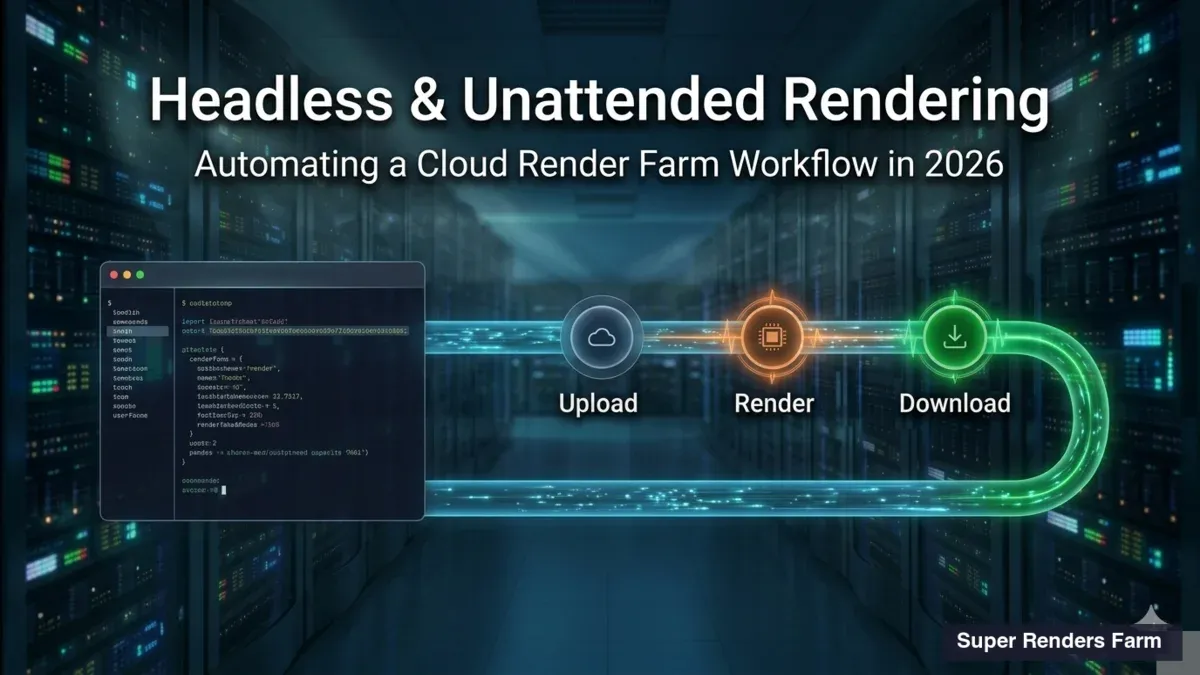
Cloud render farm'ı hiç kullanmadıysanız, işlem muhtemelen düşündüğünüzden daha basittir. Uzak masaüstü yok, uzak makinelere yazılım kurulumu yok, lisans yönetimi yok ve sunucu yapılandırması yok. Tam yönetimli render farm'ında iş akışı şu şekildedir: sahnenizi hazırlayın, farm'a gönderin ve bitmiş kareleri indirin.
Bu rehber, Super Renders Farm'da tüm işlemi adım adım anlatır. Render işleri göndermek için iki yol sunuyoruz — 3D yazılımınızın içinde doğrudan çalışan bir gönderme eklentisi (şu anda 3ds Max ve Maya için) ve herhangi bir desteklenen yazılımla çalışan web tabanlı iş akışı. Her iki yöntemi de kapsayacağız, ayrıca yazılıma özel ipuçları vereceğiz.
Cloud render farm'ının ne olduğundan veya projeniz için uygun olup olmadığından emin değilseniz, önce cloud render farm'ları hakkında açıklamayı okuyun.
Yapmanız Gerekmeyenler
Yapmanız gerekenler konusuna geçmeden önce, sizin için neler yönetildiğini açıkça belirtmek değerlidir. Tam yönetimli farm'da yapmanız gerekmez:
-
Farm'a 3D yazılım kurma — 3ds Max, Cinema 4D, Maya, Blender, Houdini, After Effects ve NukeX'in güncel sürümlerini tüm render node'larında tutarız. İş gönderdiğinizde, sistemimiz sahnenizi otomatik olarak doğru yazılım sürümüne eşler.
-
Render motorlarını kurma veya lisans yönetimi — V-Ray, Corona, Arnold, Redshift, Octane ve Cycles tümü makinelerimizde kurulu ve lisanslıdır. Farm'da render yaparken kendi lisans koltuklarınızı tüketmezsiniz.
-
Eklentileri yönetme — Forest Pack, RailClone, Phoenix FD, Tyflow, AXYZ Anima ve diğer yaygın eklentiler kurulmuştur. Sahneniz olmayan bir eklenti kullanıyorsa, destek ekibimiz genellikle aynı iş günü içinde kurabilir.
-
Herhangi bir şeye uzak masaüstü bağlantısı — hiçbir zaman uzak makineye bağlanmazsınız. Her şey masaüstü uygulamız, gönderme eklentisi ve web kontrol paneli aracılığıyla gerçekleşir.
-
Ağ, depolama veya iş planlama yapılandırması — farm'ın altyapısı bütün bunları yönetir. İş gönderirsiniz, biz makineler arasında dağıtmayı çözeriz.
Bu, tam yönetimli farm ile DIY/IaaS yaklaşımı arasındaki temel farktır. Uzak makineler üzerinde doğrudan kontrol istiyorsanız, IaaS hizmetleri mevcuttur. Yaratıcı çalışmaya odaklanmak ve farm'a altyapıyı yönetmesini bırakmak istiyorsanız, yönetilen model aradığınız şeydir.
Adım 1: Hesap Oluşturun ve İstemci Uygulamasını İndirin
Web sitemizde hesap oluşturun ve SuperRenders İstemci Uygulamasını almak için indirme sayfasına gidin. Dosyaları yüklemek, işleri göndermek ve sonuçları indirmek için merkezi hub görevi gören hafif bir Windows uygulamasıdır.
Kurulduktan sonra, hesap kimlik bilgilerinizle oturum açın. Her yeni hesap, gerçek bir projeyi test etmek için yeterli olan $25 ücretsiz deneme kredisi ile gelir.
Önemli: İstemci Uygulamasını kurduğunuzda, 3ds Max ve Maya için bir gönderme eklentisi otomatik olarak kurulur. Eklentinin görünmesi için 3D yazılımınızı yeniden başlatmanız gerekebilir. 3ds Max'te, menü çubuğunda "SuperRenders" menüsünü arayın — bu "Doğrula" (sahnenizi sorunlar açısından kontrol etmek için) ve "SuperRenders'a Gönder" (işinizi farm'a paketlemek ve göndermek için) içerir.
Adım 2: Sahnenizi Hazırlayın
Sahne hazırlığı, render işinizin ilk seferde başarılı olup olmayacağının en önemli faktörüdür. Çoğu render hatası donanım veya yazılım sorunları değil — eksik dosyalardır.
Genel kontrol listesi (tüm yazılımlar):
- Proje dosyanızı kaydedin. Açık görünse de, kaydedilmemiş değişiklikler yüklemeye dahil edilmeyecektir.
- Doku yollarını kontrol edin. Her doku, HDRI, IES dosyası ve referans görüntüsü erişilebilir olmalıdır. Yol var olmayan bir dosyaya işaret ederse (silinmiş, taşınmış veya yeniden adlandırılmış), bu doku render'da eksik olacaktır.
- "Varlıkları Topla" veya eşdeğeri kullanın. Çoğu 3D yazılımda tüm dış dosyaları bir klasöre toplamak için bir özellik vardır. 3ds Max'te "Arşiv" veya Varlık İzleme iletişim kutusudur. Cinema 4D'de "Projeyi Varlıklarla Kaydet" seçeneğidir. Maya'da, tüm referansları doğrulamak için Dosya Yolu Editörü kullanın. Blender'da "Dosya → Dış Veri → Kaynakları Paket Halinde" kullanın.
- Render ayarlarınızı kontrol edin. Çıkış çözünürlüğü, kare aralığı, dosya biçimi, render motor sürümü — bunları göndermeden önce ayarlayın.
- Yerel olarak test edin. Sahnenin beklenen çıktıyı ürettiğini doğrulamak için makinenizde bir kare render edin. Yerel olarak kırılırsa, farm'da da kırılır.
Her hafta gördüğümüz yaygın tuzaklar:
| Sorun | Ne Olur | Önlem |
|---|---|---|
| Eksik dokular | Render tamamlanır ama pembe/siyah lekeler olur | Gönderilmeden önce Varlık İzleme / Dosya Yolu Editörü çalıştırın |
| Yanlış kare aralığı | Farm 200-500 gereken 0-100 karelerini render eder | Render ayarlarında VE gönderme formunda iki kez kontrol edin |
| Eski eklenti sürümü | Sahne farm'da yüklenemez | Eklentileri yerel olarak güncelleyin veya destek ile iletişime geçin |
| GI cache'i kare başına ayarlanmamış | İlk birkaç kare diğerlerinden farklı görünür | Animasyonlar için GI'ı kare başına moda ayarlayın |
| Sahne yerel yollarla kaydedilmiş | Dokular makinenizde bulunur ama farm'da bulunmaz | Göreceli yollar kullanın veya "Varlıkları Topla" kullanın |
Adım 3: İşinizi Gönderin
İki gönderme yöntemi sunuyoruz. Yazılımınız ve tercihinize uygun olan seçin:
Yöntem A: Gönderme Eklentisi (3ds Max, Maya)
3ds Max veya Maya'da çalışıyorsanız, bu en basit yoldur.
- Sahnenizi 3ds Max veya Maya'da açın.
- SuperRenders menüsünden "Doğrula" tıklayın — bu, yüklemeyi tamamlamadan önce sahnenizi olası sorunlar açısından tarar (eksik dokular, desteklenmeyen eklentiler, render ayarı çatışmaları).
- Doğrulama sonuçlarını gözden geçirin — eklenti, farm'da sorun yaratabilecek her şeyi işaretler. Tanımladığı sorunları düzeltin.
- "SuperRenders'a Gönder" tıklayın — eklenti sahne dosyanızı paketler, tüm bağımlı varlıkları toplar (dokular, proxy'ler, cache'ler), dosya yollarını farm ortamı için yeniden eşler ve her şeyi yükler.
- Render çıktısı otomatik olarak indirilir — bitmiş kareler İstemci Uygulaması aracılığıyla bilgisayarınıza arka planda indirilir. Çalışmaya devam edebilirsiniz.
Eklenti, varlık toplamayı, yol yeniden eşlemesini ve yazılım sürümü algılamasını yönetir. Çoğu 3ds Max ve Maya projesi için bu, işinizi farm'a almanın en basit yoludur.
3ds Max projesi kullanarak her iki gönderme yöntemini gösteren bir video izlemesi:
Yöntem B: Web Yüklemesi (Tüm Yazılımlar)
Cinema 4D, Blender, Houdini, After Effects, NukeX için — veya yükleme üzerinde manuel kontrol tercih ediyorsanız — web tabanlı iş akışını kullanın. Bu yöntem desteklediğimiz herhangi bir yazılımla çalışır.
Projenizi yükleme:
Proje dosyalarınızı SRF Spaces — farm'daki kişisel bulut depolama alanınıza — almanız gerekir. Bunu yapmanın birkaç yolu var:
- İstemci Uygulaması aracılığıyla — uygulamayı açın, SRF Spaces sekmesine gidin, Yükle tıklayın ve proje dosyalarını veya klasörlerini seçin. Yerel dizin yapınızı farm'da korumak için "Yerel yolunu otomatik tut" onay kutusunu etkinleştirin — bu, mutlak dosya yolları kullanan sahneler için önemlidir.
- Web sitesi aracılığıyla — render kontrol paneline oturum açın, SRF Spaces'e gidin ve proje klasörünüzü sürükleyip bırakın. Sahneniz mutlak yollar kullanıyorsa (örn.
D:\projeler\binam\), önce SRF Spaces'te eşleşen klasör yapısını oluşturun, ardından dosyalarınızı içine yükleyin.
Analiz ve render:
- Sahnenizi analiz edin — SRF Spaces'te proje klasörünüze gidin ve "Evet! Analiz et" seçin. Analiz formunu yazılım ve render motor detaylarıyla doldurun, ardından Sahneyi Analiz Et tıklayın. Sistem sahnenizi sorunlar açısından kontrol eder — eksik varlıklar, eklenti uyumluluğu, render ayarları.
- Analizi gözden geçirin — İstemci Uygulamasında Sahne Analizi sekmesine (veya web kontrol panelinde Sahne Analizi sayfasına) gidin ve ilerlemeyi kontrol edin. Analiz hatalar işaretlerse (eksik dokular, yol sorunları), hata günlüğü tam olarak neyi düzeltmeniz gerektiğini söyler.
- Render işini başlatın — analiz tamamlandıktan sonra "Render İşini Başlat" tıklayın. Render parametrelerini ayarlayın (kare aralığı, çözünürlük, öncelik) ve render'e başlamayı onaylayın.
- Çıktıyı indirin — Render Kontrol Paneline gidin, render'in tamamlanmasını bekleyin ve "Render çıktısını indir" tıklayın. İş durumu ve geçmişini web kontrol panelindeki İş Geçmişi sayfasından da kontrol edebilirsiniz.
Hangi Yöntemi Kullanmalıyım?
| Gönderme Eklentisi (Yöntem A) | Web Yüklemesi (Yöntem B) | |
|---|---|---|
| Yazılım | 3ds Max, Maya | Tüm desteklenen yazılımlar |
| Kullanım kolaylığı | En basit — 3D yazılımınızın içinden gönderin | Dosyaları önce yüklemeyi, sonra analiz etmeyi gerektirir |
| Varlık yönetimi | Otomatik toplama ve yol yeniden eşlemesi | Manuel — "Varlıkları Topla" kullanın veya klasör yapısını eşleştirin |
| Yükleme seçenekleri | Eklenti aracılığıyla | İstemci Uygulaması, web sitesi |
| Kullanım zamanı | Standart 3ds Max / Maya projeleri | C4D, Blender, Houdini, AE, NukeX — veya manuel kontrol istediğiniz karmaşık projeler |
Adım 4: İlerlemeyi Takip Edin
İş render'e başladığında, ilerlemeyi şurada takip edebilirsiniz:
- İstemci Uygulaması — işin durumunu ve kare ilerleme durumunu görmek için Render İşleri sekmesine gidin.
- Web kontrol paneli — herhangi bir tarayıcıdan oturum açarak aynı bilgileri görebilirsiniz. Akıllı telefonunuzdan veya başka bir makineden ilerlemeyi kontrol etmek için kullanışlıdır.
Her kare durumunu gösterir: sırada, render ediliyor, tamamlandı veya başarısız. Bireysel kareler başarısız olursa, otomatik olarak yeniden denenir. Kare tekrar tekrar başarısız olursa, sistemimiz onu destek taraması için işaretler.
Gönderme eklentisi (Yöntem A) aracılığıyla gönderilen işler için, render çıktısı otomatik olarak İstemci Uygulaması aracılığıyla bilgisayarınıza indirilir — indirmeyi manuel olarak tetiklemenize gerek yoktur.
Yazılıma Özel İpuçları
3ds Max + V-Ray / Corona (Yöntem A Kullanın — Gönderme Eklentisi)
3ds Max, farm'daki en yaygın yazılımdır ve gönderme eklentisi bunu basit hale getirir:
- .max dosyanızı açın ve render ayarlarını doğrulayın (V-Ray veya Corona sürümü, çıkış çözünürlüğü, kare aralığı, GI ayarları).
- Dosya → Arşiv çalıştırın veya tüm dokularının bulunup bulunmadığını kontrol etmek için Varlık İzleme (Shift+T) kontrol edin.
- V-Ray için: Light Cache ve Irradiance Map'i animasyonlar için kare başına moda ayarlayın. Sabit görüntüler için, önceden hesaplanmış haritalar kullanabilirsiniz.
- Corona için: UHD Cache kullanıyorsanız, animasyonlar için kare başına ayarlayın.
- SuperRenders menüsünden Doğrula tıklayın, sorunları düzeltin, SuperRenders'a Gönder tıklayın.
3ds Max'e özel ipucu: Sahneniz Forest Pack veya RailClone kullanıyorsa, eklenti gönderme sırasında bu eklentilerin varlıklarını toplar. Ancak, varsayılan kurulumdan farklı olan özel kütüphane yolları kullanıyorsanız, destek ekibine bildirin, böylece farm node'larını kurulumunuzla eşleşecek şekilde yapılandırabiliriz.
Maya + Arnold / V-Ray (Yöntem A Kullanın — Gönderme Eklentisi)
- Maya'nın Dosya Yolu Editörünü (Pencere → Genel Editörler → Dosya Yolu Editörü) kullanarak tüm dış referansları denetleyin. Kırmızı girişler = eksik dosyalar.
- Render Ayarları penceresinde render motorunuzu (Arnold veya V-Ray) ve çıkış ayarlarını belirleyin.
- Arnold için: auto-dönüştürme kullanıyorsanız .tx dokuların oluşturulduğunu kontrol edin. Farm bunları oluşturabilir ama önceden oluşturmak render süresini kısaltır.
- SuperRenders menüsünden Doğrula tıklayın → sonuçları gözden geçirin → SuperRenders'a Gönder tıklayın.
Cinema 4D + Redshift (Yöntem B Kullanın — Web Yüklemesi)
- Cinema 4D'de, tüm dokuları ve referansları bir klasöre paketlemek için Dosya → Projeyi Varlıklarla Kaydet seçeneğine gidin. Bu önemlidir çünkü C4D projeleri genellikle sürücünüz arasında dağılmış dış dosyalara başvurur.
- Redshift kullanıyorsanız, GPU render ayarlarınızı doğrulayın — farm, 32 GB VRAM'li NVIDIA RTX 5090 GPU'ları çalıştırır, bu nedenle çoğu sahne VRAM sorunları olmadan render edilir.
- Proje klasörünü SRF Spaces'e İstemci Uygulaması (etkinleştirilmiş "Yerel yolunu otomatik tut" ile) veya web sitesi aracılığıyla yükleyin.
- Sahne Analizi çalıştırın → sonuçları gözden geçirin → Render İşini Başlat.
Resmi Maxon ortağı olarak, tam RTX 5090 (Blackwell) desteği ile Redshift 2025.5.0 dahil olmak üzere tüm node'larda güncel Cinema 4D ve Redshift derlemeleri tutarız. Redshift farm render'i hakkında ayrıntılı rehber için Redshift + Cinema 4D makalesine bakın.
Blender + Cycles (Yöntem B Kullanın — Web Yüklemesi)
- Blender'da, kırık referansları kontrol etmek için Dosya → Dış Veri → Eksik Dosyaları Bildir seçeneğine gidin.
- Dokuları .blend dosyasına gömmek için Dosya → Dış Veri → Kaynakları Paket Halinde kullanmayı düşünün. Bu, farm'da hiçbir şeyin eksik olmamasını sağlamanın en güvenilir yoludur.
- Render motorunuzu Cycles'e ayarlayın, çıkış ayarlarını yapılandırın (çözünürlük, kare aralığı, dosya biçimi).
- SRF Spaces'e yükleyin ve analiz → render → indirme iş akışını takip edin.
Blender sahneleri genellikle Blender'ın paketleme sistemi çoğu bağımlılık sorununu yönettiği için gönderilmesi en basit sahnelerdir.
Öncelik Seviyeleri ve Maliyeti Anlama
İş gönderdiğinizde, işinize kaç makinenin tahsis edileceğini belirleyen bir öncelik seviyesi seçersiniz:
- Düşük öncelik — daha az makine, birim başına daha ucuz, daha uzun toplam süre. Acele etmediğiniz gece veya hafta sonu işleri için iyidir.
- Orta öncelik — dengeli tahsis. Çoğu iş için varsayılan.
- Yüksek öncelik — maksimum makineler, en hızlı geri dönüş, birim başına daha yüksek maliyet. Son tarih kritiği işler için.
Toplam maliyet: kare başına render süresi × kare sayısı × öncelik seviyesi için birim fiyatı. Gönderme formu başlamadan önce bir tahmin gösterir ve maliyet izleyici render sırasında gerçek zamanda güncellenebilir.
CPU fiyatımız saat başına GHz başına $0,004 ve GPU saat başına $0,003 ile başlar. Krediler hiçbir zaman sona ermez ve abonelik veya sözleşme yoktur — sadece render ettikleriniz için ödeme yaparsınız. Hacim indirimleri ödeme sırasında otomatik olarak uygulanır: daha büyük kredi satın alımlarında %30'a kadar indirim, kod gerekmez.
Bir Şey Ters Giderse
Farm'daki render sorunları birkaç yaygın kategoriye ayrılır ve çoğu hızlı bir şekilde düzeltilebilir:
Eksik dokular veya varlıklar — en yaygın sorun. Gönderme eklentisi, 3ds Max ve Maya için çoğu eksik dosyayı yakalar. Web yüklemeleri için, Sahne Analizi adımı eksik varlıkları hata günlüğünde işaretler. Destek ekibimiz eksik olanı belirlemenize ve sizi yolunuza geri döndürmenize yardımcı olabilir.
Eklenti sürümü uyumsuzluğu — sahneniz Forest Pack 8.1.2 ile oluşturulmuş ama farm'da 8.1.1 var. Küçük sürüm farklılıkları bile sorun yaratabilir. Destek'e tam eklenti sürümlerinizi bildirin ve farm'ı uyumlu hale getirmeleri sağlayabiliriz.
Bellek hataları — sahne RAM (CPU) veya VRAM (GPU) kapasitesini aşar. CPU render'i için makinelerimizde 96–256 GB RAM vardır, bu sayı çoğu sahneyi yönetir. GPU için RTX 5090'ın 32 GB VRAM'i çoğu production iş yüküne karşı gelmektedir. Sahneniz gerçekten o ağırsa, destek bunu yüksek bellek makinelerine yönlendirebilir.
Beklenmeyen çıktı — render tamamlanır ama yerel çıktıdan farklı görünür. Yaygın nedenleri: farklı gamma ayarları, renk yönetimi farklılıkları veya GI cache tutarsızlıkları. Destek'e karşılaştırması için yerel referans kare gönderin.
Tüm durumlarda, uygulama içi sohbet veya destek biletleri aracılığıyla ulaşın. 2010'dan beri faaliyet gösteriyoruz ve yüz binlerce render işini işledik — çoğu sorun bizi daha önce gördü ve hızlı bir şekilde çözebiliriz.
FAQ
Do I need to install any software on the render farm?
Hayır. Super Renders Farm'da tüm 3D yazılımlar (3ds Max, Cinema 4D, Maya, Blender, Houdini), render motorları (V-Ray, Corona, Arnold, Redshift, Octane, Cycles) ve yaygın eklentiler önceden kurulmuş ve lisanslıdır. Sahnenizi gönderme eklentimiz veya web kontrol paneli aracılığıyla gönderirsiniz ve farm onu otomatik olarak doğru yazılım sürümüne eşler.
3ds Max için kullanılması en kolay render farm nedir?
Tam yönetimli, gönderme eklentili render farm, 3ds Max kullanıcıları için en basit seçenektir. Farm'ımızda, eklenti İstemci Uygulamasıyla otomatik kurulur — SuperRenders menüsünde "Doğrula" tıklayın sahnenizi kontrol etmek için, ardından "SuperRenders'a Gönder" tıklayın göndermek için. Eklenti V-Ray/Corona algılamasını, doku toplamayı ve varlık paketlemesini yönetir. Render çıktısı otomatik olarak makinenize geri indirilir.
Cloud render farm'ına sahneyi nasıl yüklerim?
Super Renders Farm'da iki yol vardır. 3ds Max ve Maya için, gönderme eklentisi sahnenizi 3D yazılımınızın içinden doğrudan paketler ve yükler. Diğer yazılımlar (Cinema 4D, Blender, Houdini, vb.) için, projenizi SRF Spaces'e İstemci Uygulaması veya web sitesi aracılığıyla yükleyin — ardından web kontrol panelini kullanarak analiz edin ve render edin.
Sahnem Forest Pack veya RailClone gibi eklentiler kullanıyorsa ne olur?
Tüm render node'larında Forest Pack, RailClone, Phoenix FD, Tyflow ve diğer yaygın 3ds Max eklentilerinin güncel sürümlerini tutarız. Gönderme eklentisi, gönderme sırasında eklenti bağımlı varlıkları toplar (proxy dosyaları, özel kütüphaneler). Henüz olmayan bir eklenti sürümü kullanıyorsanız, destek ekibimiz genellikle aynı iş günü içinde kurabilir.
İlk render işim ne kadar mal olur?
Her yeni hesap, gerçek production projeyi test etmek için yeterli olan $25 ücretsiz kredisi ile gelir. Tipik archviz sabit görüntü (3ds Max + V-Ray, 4K çözünürlük, 5 dakika render süresi) yaklaşık $0,10–$0,50 arasında tutar, önceliğe bağlı olarak. Aynı karmaşıklıkta 300 kareli animasyon $30–$150 arası çalışır. Gönderme formu başlamadan önce maliyet tahminini gösterir.
Farm render sırasında çalışmaya devam edebilir miyim?
Evet. İster eklenti yölleri kullanarak gönderin, isterse web yüklemesi yapın, render'i tamamen altyapımızda gerçekleşir. İş istasyonunuz 3D yazılımınızda çalışmaya, başka projeler açmaya veya hatta kapatmaya devam edebilir — işi herhangi bir tarayıcıdan web kontrol paneli aracılığıyla izleyebilirsiniz.
Render'im başarısız olursa ne olur?
Başarısız kareler otomatik olarak farklı makinelerde yeniden denenir. Kare tekrar tekrar başarısız olursa, sistemimiz onu işaretler ve destek ekibimiz araştırır. Yaygın nedenler (eksik dokular, eklenti uyumsuzlukları, bellek sınırları) genellikle dakikalar içinde çözülebilir. Web yüklemeleri için, Sahne Analizi adımı render başlamadan önce çoğu sorunu yakalar. Başarısız kareler için ücretlendirilmezsiniz.
Farm'da yeni eklenti kurulması ne kadar sürer?
Kararlı sürümü olan yaygın eklentiler için kurulum genellikle aynı iş günü içinde gerçekleşir. Niş veya beta eklentiler için, lisans gereksinimleri ve test'e bağlı olarak daha uzun sürebilir. Göndermeden önce eklenti kullanılabilirliğinden emin değilseniz destek ile iletişime geçin.
About Alice Harper
Blender and V-Ray specialist. Passionate about optimizing render workflows, sharing tips, and educating the 3D community to achieve photorealistic results faster.